Stacking the deck with the WPF StackPanel

Yesterday we dove into the grid, in all likelihood it will be the container you’ll use the most. There’s another container control however that’s very popular, the StackPanel. You will often see the StackPanel used in demos because of it’s simplicity. It’s also used frequently for nesting controls inside another control.

Many controls have a contents property. The contents properties typically can hold only one thing, however that one thing can be a StackPanel, which in turn can house multiple items.

In Visual Studio, either start a new Windows WPF Project, or simply add a new Window (make sure to pick “Add New Item”, then “Window (WPF)”, if you had picked “Add New Windows Form” you’d have gotten and old fashioned WinForm) to the current sample we were using yesterday. Also, to make this the startup form, open the App.xaml file and change the startupuri to the new form:

  <Application x:Class=WPFSample001.App

      xmlns=http://schemas.microsoft.com/winfx/2006/xaml/presentation

      xmlns:x=http://schemas.microsoft.com/winfx/2006/xaml

      StartupUri=Window2.xaml

    >

    <Application.Resources>

    </Application.Resources>

  </Application>

You can see I changed mine to Window2.xaml. OK, back to the Window2.xaml file.

In the XAML area remove the <Grid> tags and add the following code:

  <StackPanel>

    <Button>Here’s a Button</Button>

    <TextBlock HorizontalAlignment=Center Background=Red>Hello There</TextBlock>

    <TextBox>A Text Box</TextBox>

    <CheckBox>Check Me!</CheckBox>

    <Button>One More Button</Button>

  </StackPanel>

What you will see is the controls stacked in a vertical fashion:

 [Picture of StackPanel in Action]

The StackPanel only has one real property with fiddling with, that’s the Orientation. By default Orientation is Vertical, however you can set it to Horizontal thusly:

  <StackPanel Orientation=Horizontal>


When you do, you’ll see this (well, once you resize the window a tad to be able to see everything):

[Picture of StackPanel with Horizontal layout] 

This would be useful if you wanted to create a status bar, or row of action buttons in your app.

I said the Orientation property was the main one you’ll be adjusting, however there is one more you may need, although probably not often. That’s the margin property. In the example below I set the margin to 20 so you can easily see the effect.

  <StackPanel Margin=20 Orientation=Horizontal>

[Picture of StackPanel with Margin of 20] 

You may, however want things oriented a bit differently. The StackPanel lacks an easy way to do this, however we can achieve a rotated text effect using the RenderTransform method of the various controls. Take a look:

[Picture of StackPanel with Rotated Text] 

Here’s the source (with the Window tags omitted):

  <Window x:Class=WPFSample001.Window2

      xmlns=http://schemas.microsoft.com/winfx/2006/xaml/presentation

      xmlns:x=http://schemas.microsoft.com/winfx/2006/xaml

      Title=WPFSample001 Height=152 Width=400

    >

    <StackPanel Orientation=Horizontal>

      <Button RenderTransformOrigin=0.5,0.5>

        <Button.RenderTransform>

          <RotateTransform  Angle=270 />

        </Button.RenderTransform>

        Here’s a Button

      </Button>

      <TextBlock RenderTransformOrigin=0.5,0.5 VerticalAlignment=Center Background=Red>

        <TextBlock.RenderTransform>

          <RotateTransform Angle=90 />

        </TextBlock.RenderTransform>

        Hello There

      </TextBlock>

      <TextBox>A Text Box</TextBox>

      <CheckBox>Check Me!</CheckBox>

      <Button>

        <TextBlock RenderTransformOrigin=0.5,0.5 VerticalAlignment=Center HorizontalAlignment=Center>

          <TextBlock.RenderTransform>

            <RotateTransform Angle=270 />

          </TextBlock.RenderTransform>

          One More Button

        </TextBlock>

      </Button>

    </StackPanel>

  </Window>

What I especially want to point out are the two buttons. In the first button, “Here’s a Button”, I applied the RenderTransform to the entire button. When I did this, WPF flipped the button on it’s side, but did not resize it. Instead, it left it at the default size the StackPanel had come up with. Not pretty, certainly not desireable for your app.

The solution then, is to do what I did for button two, the “One More Button” button. I replaced the contents with a TextBlock. I then used the same RenderTransform technique I had done with the “Hello There” TextBlock to flip the text on it’s side. Now it looks like the buttons text is flipped sideways, but the button retains the correct sizing.

The StackPanel will be an often used tool in your arsenal. Indeed, from what I have seen it may be THE most used WPF control in your kit.

Grid yourself… it’s WPF

It’s time to begin building a WPF Window. First though, we need to know something about the controls. In most cases you don’t want to place your controls directly on the window. Instead you want to use a container control that will help you group controls and arrange their placement.

While there are several, the most common of the containers is the Grid. It’s so common, both Visual Studio and the Expressions tool use the Grid as the default. Remember the project from yesterday? Take a look at the Xaml window (note you can click on most of these images to get a larger view):

[Picture of WPF Base Code]

With the Grid, you can simply drop several controls, such as buttons into it, or code them:

[Picture of two buttons]

Above you can see I dropped two buttons. In order to manage the placement of the second button, a “Margin” property was added to specify where WPF should place the button. A better way, however, might be to divide the grid into rows and columns. Then in the button declaration you specify which row / column to place the button in.

[Picture of Grid laid out]

Here we define the number of rows in the <Grid.RowDefinitions> area. As you see there are three rows defined. The column definitions are defined likewise, using <Grid.ColumnDefinitions>. Note the dotted blue lines Visual Studio thoughtfully drew on our window, to indicate where our grid lies.

Inside the Button tag, you see I indicated the row / column to put the button by using Grid.Row and Grid.Column syntax. Note that the numbering is zero based.

There are some simple ways you can enhance the grid’s usability. For example, let’s say button1’s Width was 150, and not 75. The resulting window looks like this:

[Picture of... hey who stole my button!]

See how the button is cut off (look where the arrow is pointing). There’s an easy way to fix this however. To the button, add Grid.ColumnSpan=“2”. And thus the problem is fixed!

[Picture of... oh wait, I found the button, it was with that missing sock from the dryer.]

While there’s a lot more we can do with the grid, there’s one thing left for today to discuss. Sizing of the rows and columns.

The height / width is established in the Definitions area. There are three ways to define a height / width. The first is automatic, and you simply set Height=”Auto” (or width) and WPF will take care of sizing for you.

The second way is absolute. With absolute, you simply give a number which represents the number of pixels. Width=”100” sets it to 100 pixels.

The final method is proportional. Unlike ASP.Net, which used percentages, WPF uses an * (asterisk). When only one row (or column) is set to *, that row (or column) takes up all the remaining space. When multiple rows (or columns) have an *, the remaining space is divided evenly between those rows (or… yes, you guessed it, columns).

Finally, you can affix a multiplier to the * . If, for example, one column was 2*, and the other two columns were set to *, the first column would be twice as wide as the others. Let’s look at a quick example…

[Picture of proportional columns]

Look closely at the dotted lines of the grid. You can see the center is twice as wide as the left and right columns. Note the multiplier can be a decimal as well, I could have specified 2.5* if I’d wanted. And, even though I did this sample with Columns, the same rules apply in the RowDefinition area.

Personally, I really love this * syntax. No more do I have to fiddle with trying to add up percentages or divide them. I simply use easy numbers to indicate how wide I want a column (or row) in relation to the others.

As I mentioned, there’s much more that can be done with the grid, but this covers a few nice basics that should get us started.


Update (29 Aug 2007): After looking at the post today, I realized some of the images could be a bit small. So here is the final XAML code in text format, in case you are interested:

  <Window x:Class=WPFSample001.Window1

      xmlns=http://schemas.microsoft.com/winfx/2006/xaml/presentation

      xmlns:x=http://schemas.microsoft.com/winfx/2006/xaml

      Title=WPFSample001 Height=99 Width=300

    >

    <Grid>

      <Grid.RowDefinitions>

        <RowDefinition></RowDefinition>

        <RowDefinition></RowDefinition>

        <RowDefinition></RowDefinition>

      </Grid.RowDefinitions>

      <Grid.ColumnDefinitions>

        <ColumnDefinition Width=*></ColumnDefinition>

        <ColumnDefinition Width=2*></ColumnDefinition>

        <ColumnDefinition Width=*></ColumnDefinition>

      </Grid.ColumnDefinitions>

      <TextBlock Grid.Column=0 Grid.Row=0 HorizontalAlignment=Center>Hi There</TextBlock>

      <Button Grid.ColumnSpan=2 Grid.Column=0 Grid.Row=2 Height=23 Width=150 HorizontalAlignment=Left Name=button1 VerticalAlignment=Top >Button</Button>

      <Button  Grid.Column=2 Grid.Row=2 Height=23 Width=75 HorizontalAlignment=Left Name=button2 VerticalAlignment=Top>2</Button>

    </Grid>

  </Window>

Starting a WPF Project

Head colds are nasty things. Yeah, I know folks like Scott Hanselman and Jeff Atwood say we shouldn’t talk much about ourselves, but I offer this as explanation for dropping off the face of the earth last week. A nasty head cold, followed by busy work week and my houses air conditioning dying in the middle of an Alabama triple digit heat wave… well something had to give.

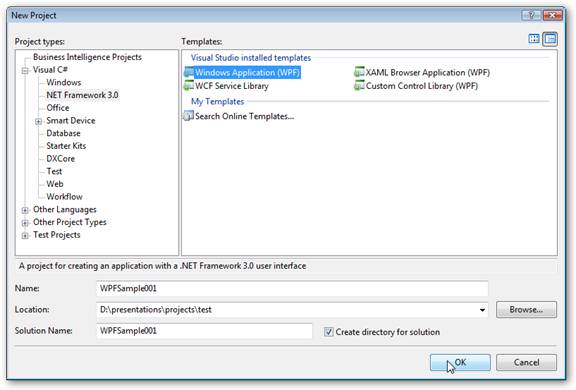
But hey, odds are you’re not hear to offer your chicken soup recipe, but find out about WPF. So let’s kick this week off by starting a WPF project. Assuming you followed my instructions in my last post ( https://arcanecode.wordpress.com/2007/08/20/installing-the-wpf-bits/ ), you now have all the bits installed. Open Visual Studio 2005, and create a new project.

In your “New Project” window, navigate down to the “NET Framework 3.0” branch. In the templates area you see some new ones. One, WCF Service Library, is for creating Windows Communication Services projects and is outside the scope of this discussion.

The other three are WPF oriented projects. Windows Application (WPF) is for creating general windows applications using WPF. This is what you’ll probably use the most, and what we’ll pick for today’s demo. I named mine WPFSample001, as you can see above.

Before you click OK, let me just mention the other two. Custom Control Library (WPF) is analogus to it’s “old fashioned” WinForms counterpart. It lets you create a custom control comprised of WPF pieces for use in WPF Windows projects.

XAML Browser Application (WPF) is used to create a WPF App that will run inside a browser. Note this isn’t Silverlight. This is more like a Click Once deployment that opens the app inside the browser. MSDN (Sep 2007) had a good example of one you can see for yourself at http://ttpdownload.bl.uk/browserapp.xbap .

OK, that covers the various WPF project types. For today, we’ve decided on a standard WPF Windows Application, so click OK as you see in the screen above.

Let’s take a quick tour of what you see. Over on the left is the Toolbox. Under Common Controls, we see some with names look familiar. Button, CheckBox, Lable, etc. These are the WPF versions of the old Windows Forms controls. There are some new controls too, such as the DockPanel, the StackPanel, and a Grid which is unlike any Grid you’ve used in the past. We’ll get into these as time goes by.

Over on the right, in the Solution Explorer you see the Files that make our WPF project. App.xaml (and it’s corresponding App.xaml.cs) is the starting point for our Windows WPF app. Here you can respond to events like application starting and stopping, or you can blissfully ignore it.

The Window1.xaml is your main focus now, since it’s where you can do all your work. If you look at the center pane, you’ll notice it’s a bit different from traditional Windows Forms or even ASP.Net designer, in that it gives you the nice split screen. Changes in one are reflected in the other.

If you don’t like the split, you can modify it by either moving the mouse in the middle area and adjusting where the spit occurs, or manipulate it using the controls on the right side of the tab area:

The left most button flips the split from the default horizontal to a vertical one, nice if you have a really wide screen monitor. The middle button returns the split to the default horizontal orientation. The right most button removes the split all together, putting two tabs at the bottom (one for designer, one for xaml), not unlike the experience you get today when designing ASP.Net html pages.

Before I close out today, I want to mention that the designer tool under 2005 is not fully baked. You will see a lot of “whoops” screens appear. In addition, control placement is more like the ASP.Net experience than WinForms. As such, most folks I’ve seen so far prefer to type the XAML code directly in.

To start with I’ll be doing just that, typing in the XAML which will help me learn the behind the scenes syntax. Later I’ll shift to using the Expression Blend tool as the main XAML designer.

This is a good start, tomorrow we’ll pick up with creating a simple XAML app.

Installing the WPF Bits

OK, looking back I’m thinking my instructions last week for getting to the WPF bits installed were a tad confusing, so I’m going to give it one more shot.

Step 1 – Install .Net 3.0.

If you’re already on Vista, skip this step. If you are on XP, you can download .Net 3.0 from: http://www.microsoft.com/downloads/details.aspx?FamilyId=10CC340B-F857-4A14-83F5-25634C3BF043&displaylang=en . Make sure your XP has been patched with Service Pack 2.

Step 2 – Have a copy of Visual Studio.

If you have Visual Studio already, skip this step. If not, you can grab an express edition version at http://msdn2.microsoft.com/en-us/express/default.aspx . You’ll want to select Windows Development, and pick either C# or VB.Net.

Step 3 – The Windows Software Development Kit

The Windows SDK has lots of cool tools, what you are interested in is one called XAMLPad. You can find the SDK at: http://www.microsoft.com/downloads/details.aspx?FamilyId=C2B1E300-F358-4523-B479-F53D234CDCCF&displaylang=en . Even though it says Vista, the SDK will also install on XP with SP2, or Windows Server 2003.

Step 4 – Visual Studio extensions for WCF & WPF

Finally, you’ll want to install the Visual Studio extensions, these will allow you to create new projects for both the WCF and WPF. There are two prerequisites to installing the extensions. First, make sure you have the SDK (from Step 3) installed first. There are some bits in there the extensions need.

Second, all of the help for the extensions is local, so make sure you go into Visual Studio and set the help to “Local, then On-line”, other wise the installer will complain. OK, with those to prerequesites handled you’re ready to proceed.

Below is the website to download the extensions. Even though the title reads CTP, these are the latest (and final) bits you’ll see for this, Microsoft is putting all it’s efforts into Visual Studio 2008. You can get the extensions at http://www.microsoft.com/downloads/details.aspx?familyid=f54f5537-cc86-4bf5-ae44-f5a1e805680d&displaylang=en

Step 5 – Reboot

I generally find it a good idea to do a reboot after installing new bits, especially ones from Microsoft. After the reboot it might also be a good idea to run a Windows Update, just in case there are any security bits that need installing / updating.

Bonus Step – If you have an MSDN subscription, you should also download and install the Expression Blend tool, it will make your job of generating XAML much easier.

New version of CodeRush/RefactorPro

Just thought I’d take a short break from WPF to make you aware there has been a new release to that wonderful Visual Studio add-in CodeRush. The product has now broken the 100 refactorings mark!

You can read the announcement from DevExpress at http://www.devexpress.com/Home/Announces/CodeRush25.xml

If you are not familiar with DevExpress’ CodeRush/RefactorPro tools, you can read my original post at https://arcanecode.wordpress.com/2007/01/09/visual-studio-add-ins-coderush/

The new version already works with Visual Studio 2008. Talk about being on the ball, VS2008 is still in Beta and they’ve already got refactorings out there just for it!

The Brains of WPF

In yesterday’s demo, I gave instructions to add references to WindowsBase, PresentationCore, and PresentationFoundation. Today I thought we’d take a few minutes to talk about what these are and what they do.

Together these three DLLs make up the heart of Windows Presentation Foundation. WindowsBase defines most of the base types needed by WPF, and should always be included. PresentationCore builds on WindowsBase by providing the base types for most of the GUI components you’ll use. PresentationFoundation is the big animal on the block, he holds all of the WPF controls.

Now that you know the DLLs, let’s talk briefly about the namespaces you’ll encounter. System.Windows contains two core types, Application and Window. These are the two you’ll use as a platform to build your user interfaces on, and you’ll see them often.

The other one you saw yesterday was System.Windows.Controls. In here are all of the standard controls you might expect: button, label, textbox, checkbox, etc. Yesterday when you saw the XAML <Label> block, WPF renders that from the System.Windows.Controls namespace. By the way, you need to note that XAML, like C#, is case sensitive. So <Label> will work, but <label> and <LABEL> will not.

Over time there are some other children of System.Windows we’ll be seeing, such as Shapes (which, as you might guess holds standard shapes like rectangles and circles), Media (used for 3D and more), Document (for creating XPS files), and Markup which can be used to parse XAML.

We’ll dive deeper into all of these as time goes by, but I wanted to give you a brief introduction so you’d understand what bits belonged where in the WPF world, and why you need to include those references and using/import statements in your code.

Arcane Searching

I think we’d all agree the internet is one of the greatest productivity tools around, allowing us to find vast stores of information. I’m sure you’ve also heard it’s the greatest time waster, with lots of distracting sites or useless pages that get in the way of the results we want.

I find it really valuable to have a good search tool, one that focuses on the content I need, and limits the scope of the search to relevant areas. Of course we’ve all heard of Google, the 500 pound gorilla of search engines. While the do a pretty decent job, when your search phrase returns half a million hits it can be difficult to narrow down.

Recently I’ve found the Microsoft engine, Windows Live ( http://www.live.com/ ), has gotten a lot better, especially when looking for .Net related developer content.

My favorite so far though, is Search.Net ( http://searchdotnet.com/ ), a site put together by coding legend Dan Appleman. Dan ( http://www.desaware.com/ ) created a Google powered site, but maintains the list of sites it searches so you know that you are only combing sites devoted to programming and not Happy Harry’s House of Wild Women.

Another site I just learned about this week is Koders ( http://www.koders.com/ ). It’s a site devoted to searching through source code. It also has some helps that will let you zoom in on what you want. You can pick the language, or specify your search word needs to be in the class name, method name, or interface name. This kind of search is valuable when you are looking for an example, or trying to avoid reinventing the wheel.

A similar site is Krugle ( http://www.krugle.com/ ). It has similar paradigm to Koders, allowing you to search through code.

The final code search tool I’ll mention is Google’s new Code Search engine ( http://www.google.com/codesearch?hl=en ). It allows you to search using regular expression syntax, which is a nice feature (I just wish regular expressions weren’t such a pain in the underwear to use).

I have to give a quick thanks, most of these I learned about through either my listening of Dot Net Rocks ( http://www.dotnetrocks.com/ ) and HanselMinutes ( http://www.hanselminutes.com/ ) or through Scott Hanselman’s new forum site, which I blogged about yesterday.

Those are the list of place I go when I need to find something, how about you?

Arcane Add-Ins: KNOCKS Solutions VS 2005 Add-In

It’s been a while since I talked about Visual Studio add-ins, so when I ran across KNOCKS Solutions “Knocks VS2005 Add-In”, I knew I’d found the perfect subject. Available at http://www.knocks-solutions.com/VS2005Addins.aspx?sm=idVS20052 , this rather full featured add-in offers many utilities.

First is a personal clipboard, that allows you to store and retrieve up to 9 different items. And they’re persistent, they will stay between VS sessions.

Next is a code snippets manager. This seems a bit redundant in light of VS 2005’s snippets, but I can see it being very useful during a presentation.

In addition to the code snippets is a Notes module. I’ve often wished for the ability to store quick notes to use in a presentation, so this is a handy module.

Up next is the one tool of theirs I have a beef with, the “Re-arrange code” tool. I like the idea of being able to re-arrange my code. Often I’m working on some public method, and realize I need a private helper method and, being in a hurry and lazy, will drop it right under the public method. Later I’ll move it around, which was why I was excited to see this tool.

Sadly, it has a really bad side affect, it strips out any regions you’ve put into your code, and it strips out any comments that might lie between methods (I often put a comment header right above my method, instead of in the method.) When Knocks rearranges your code all of that goes into the bit bucket, making the tool useless in all but (perhaps) the very earliest stages of coding. I would have thought it possible to add regions to the tool as well, and allow code rearranging within a region, between regions, or even to move regions around. Perhaps this will be addressed in the next version (he said, ever full of eternal hope).

There is a nifty zip tool that will zip your entire project, handy for quick backups. Also is a tool that embraces the concept of a favorites for projects. Another tool is one I wonder why no one did sooner, a keyword search on Google (or other configurable search engine, like MS Live). This is one I’ll be using often.

Also included is a simple “Data Object” generator. You bring it up and enter a few property names and types and Knocks will create the basic class for you. While I have seen more full featured code generators, I appreciate the basic simplicity of this one, not to mention the price (which I’ll get to shortly).

knocks01The final two tools I’ll mention are my favorites. First is a Design Explorer. This adds an explorer window (I put mine with the Solution Explorer area) to your display. In it are all the controls for your current form. Clicking on the control not only makes it the active control in the designer, but displays the properties in the lower half of the Design Explorer window.


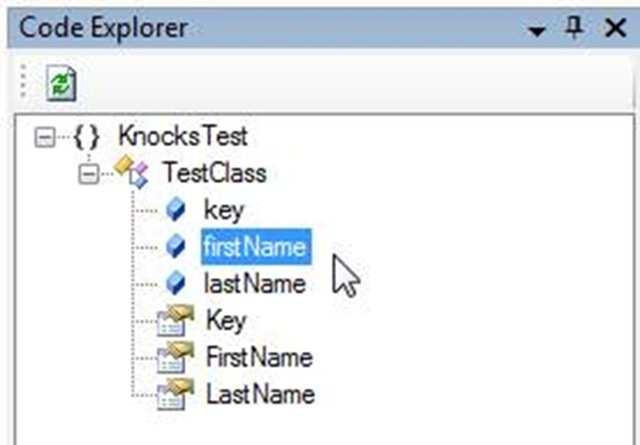
knocks02The other tool is the Code Explorer. It displays a tree of your current code module. Double clicking on the code element will take you to it in the code window.

I’ve seen other add-ins with code windows, this one seems equal in functionality with many others similarly priced.


Oh, did I forget to mention the price? It’s free. Yes, FREE. Knocks has packed a lot of functionality into this add-in, and the fact it’s free makes it well worth the time to download and learn.

Arcane Talks

On Thursday July 12th I’ll be speaking at the Birmingham Software Developers Association (BSDA). You can get directions from the club’s website, http://www.bsda.info/ .

I’ll be speaking on the subject of SQL Server Compact Edition. It’s been a while since I blogged about this, so I thought I’d provide a few links for quick reference.

As promised, here is a link to the Power Point presentation (in PDF format) I used during the presentation:

 SSCE presentation for BSDA user group

My very first post was back in January 2007:

http://shrinkster.com/nsk

My next series of posts began on April 10th, and described how to create databases using the various tools available to you.

http://shrinkster.com/qtl

The complete C# and VB.Net code samples were posted April 13th, 2007:

http://shrinkster.com/qtm

And finally, the series of posts I mentioned on system Views started with this post on April 16th, 2007:

http://shrinkster.com/qtn

If you want to see all of my SSCE posts, simply click the SQL Server Compact Edition tag over in the categories area, or use this link:

 https://arcanecode.wordpress.com/tag/sql-server-compact-edition/

Please note each of these links is a starting point, be sure to read the blog for the next few days after each link in order to get the full story.

And now a question, I’m working up material for a new presentation. Debating between SQL Server 2005 Full Text Searching and SQL Server Integration Services. Any opinions?

Eventually I’ll do both, but would like to do the first one based on feedback. Even if you can’t attend please post a comment and let me know where your interests lie.

Collections in C#: NameValueCollection

In doing some reading I ran across a handy collection called the NameValueCollection. This collection, which resides in the System.Collections.Specialized namespace, allows you to use either a string or an integer index for the key. Further, it allows you to store more than one string value in a key.

Let’s start the code example by creating a simple Console application. I added using references to System.Collections and System.Collections.Specialized namespaces at the top. As a final bit of housekeeping, make sure to add a Console.ReadLine() as the last line of our code, so the console will wait on us to hit the enter key after we read the results. (If you don’t, the program will run so fast you won’t be able to appreciate your fine work.)

Now I’m going to load some data into a new collection called myCollection. For the data, I’ll use a website owner and the website or sites they own.

      System.Collections.Specialized.NameValueCollection myCollection

        = new System.Collections.Specialized.NameValueCollection();


      myCollection.Add(“Arcane”, http://arcanecode.com&#8221;);

      myCollection.Add(“PWOP”, http://dotnetrocks.com&#8221;);

      myCollection.Add(“PWOP”, http://dnrtv.com&#8221;);

      myCollection.Add(“PWOP”, http://www.hanselminutes.com&#8221;);

      myCollection.Add(“TWIT”, http://www.twit.tv&#8221;);

      myCollection.Add(“TWIT”, http://www.twit.tv/SN&#8221;);

Next, I’d like to get some data back out. I mentioned you could cycle through the collection using an integer index, so let’s see how that’s done:

      Console.WriteLine(“Key / Value Pairs by Integer Index”);

      for (int i = 0; i < myCollection.Count; i++)

      {

        Console.WriteLine(i.ToString() + ” “

          + myCollection.GetKey(i) + “: “

          + myCollection.Get(i));

      }


[Picture of Key/Value pairs by Integer Index]


In the above output you can see how I use the GetKey and Get methods to retrieve the key name and value for that key using the loop’s index. Note that when multiple values are associated with a single key, they are returned as a list of comma separated values.

You can also use foreach logic to cycle through the collection. Here I am using the AllKeys property of our collection to get the list of keys. I can then print the key, and also use the key as the indexer into my collection as you can see below.

      Console.WriteLine();

      Console.WriteLine(“Keys / Value Pairs via AllKeys Collection”);

      foreach (string myKey in myCollection.AllKeys)

      {

        Console.WriteLine(myKey + “: “ + myCollection[myKey]);

      }


[Picture of Key/Value pairs via AllKeys Collection]


Now I, what? Yes, you in the back row, what was your question? Ah, you say lists of comma separated values are OK, but you want to be able to access individual values? Fortunately some nested looping and the GetValues method will satisfy you demanding types.


      Console.WriteLine();

      Console.WriteLine(“Keys / Individual Values”);

      foreach (string myKey in myCollection.AllKeys)

      {

        foreach (string myValue in myCollection.GetValues(myKey))

        {

          Console.WriteLine(myKey + “: “ + myValue);

        }

      }


[Picture of Keys/Individual Values]


This also works great if your data has commas within it. Let’s add two lines back at the top of the program to the collection.

      myCollection.Add(“CommaTest”, “Here is a , in a string”);

      myCollection.Add(“CommaTest”, “Here is another , in a string”);

 
Now run the application again, and lets look at the results.
 
[Picture of Comma Test]

As you can see in the last area “Keys / Individual Values” the GetValues method correctly determined that the commas I had embedded were part of the data and not a delimiter between values.

Whenever you need a good string collection that has the ability to tie multiple values to a single key, the NameValueCollection would be a good class to take a look at.


Thanks for coming!

I just wanted to thank everyone who took the effort to come to the presentation I did tonight on SQL Server Compact Edition at the Birmingham Dot Net Users Group ( http://www.bugdotnet.com ). It was a small crowd but very engaged, all in all a very enjoyable evening for everyone.

As promised, here is a link to the Power Point presentation (in PDF format) I used during the presentation:

SSCE presentation for BUG.Net group

The complete C# and VB.Net code samples were posted April 13th, 2007:

https://arcanecode.wordpress.com/2007/04/13/sql-server-compact-edition-with-c-and-vbnet/

And finally, the series of posts I mentioned on system Views started with this post on April 16th, 2007:

https://arcanecode.wordpress.com/2007/04/16/system-views-in-sql-server-compact-edition-tables/

If you want to see all of my SSCE posts, simply click the SQL Server Compact Edition tag over in the categories area, or use this link:

https://arcanecode.wordpress.com/tag/sql-server-compact-edition/
Thanks again to  everyone, I had a great time and hope came away with a better understanding of SQL Server Compact Edition.

Life with Vista

It’s been about two months since I converted my laptop to run Vista. ( See my April 5th post, https://arcanecode.wordpress.com/2007/04/05/ ). I thought I’d give you a quick update.

So far, I’ve been quite pleased. All of my hardware worked right off the bat, and has continued to work without issues. The only thing I’ve really altered is Aero Glass. I finally turned it off, as several pieces of software didn’t seem to want to work to their fullest with Aero turned on. To be honest, I’ve found it’s not a big loss.

My biggest adjustment has been learning to do things the “Vista” way. I’ve given up on fighting Microsoft, and am storing all of my documents, pictures, MP3s, podcasts, etc in the default Vista folders. I’ve also tried to use a lot of the provided tools, such as Media Player and the built in DVD burner. Some tools though I’m not giving up quite as easily, FireFox being the most notable example.

I’ve left UAC (User Access Control) turned on. So far I haven’t found it to be that big of a deal. About the only time it gets annoying is when I launch Visual Studio. Everything else it’s seemed to figure out and quit asking.

A trick I learned for my fellow laptop owners. Down in the status bar is the power icon. Hovering over it shows something called “Current power plan”. Well if you click on the icon, you are shown a menu.

Probably 90% of the time I’m plugged in, so I run on high performance. For those times though when I am on battery, I find it helpful to switch to Power Saver. Your milage may vary, but I’ve been able to squeeze out over twenty extra minutes of run time by making the switch.

Life with Vista. So far, it’s been a good life.

Arcane GUI’s: Enabled versus Visible Properties

I was having a discussion with a coworker today about the user interface for his application. There is an Admin menu that the site IT folks will need to setup the application for the first time on a computer.

He was mentioning he was going to make the Admin menu disabled for non IT folks, and instead I suggested he make it invisible. Why? He asked. Good question.

Human nature is the best answer. Your average user is going to be content with what they have, but there will always be those who want more. They are curious about what they are missing out on, or are not satisfied unless they think they are getting the “full” software, even if it’s functions they don’t need.

In large corporations, these folks tend to be, er well rather insistant, and if they have a supervisor who likes to take the easy way out, he may wind up telling IT to grant the user access he shouldn’t have.

Instead, I have a firm design principle: Ignorance is bliss. In this case, if the Admin menu were hidden, the problematic users would never know it even exists, and live in happy igornace, causing problems elsewhere.

So here’s the rule: If there is functionality a user will never have access to, such as an Admin menu, then it should be hidden via the Visible property.

On the other hand, if there is functionality that is enabled or disabled based on the state of the app, use the Enabled property. A good example might be the Copy function on the Edit menu. If no text is selected, then Copy should be disabled as there’s nothing to copy. It servers as a visual cue the user has the application in a state that the Copy function makes no sense. Once text is selected, Copy should be Enabled.

Another example might be a Save function, if the required fields are not completed, disable the Save as a cue to the user he still has work to do.

And there you go, Arcane’s GUI Rule for Enabled versus Visible Properties.

Windows Services in C#: Pulling in the Event Log for your Windows Service (part 8)

Technically this falls in line closer with the EventLog series I did in January. (For more info see my series on event logging, it started on January 16 of this year and ran to the 19th, http://shrinkster.com/p6d). However, in most cases the Event Log is tied in closely with Windows Services since it’s through the event log that services do most of their communication with the outside world. As such it can be important to read in your events back into your control app.

To read the log we’ll use two different methods, just to show multiple techniques. To start, let’s add a text box to the TLManager, under the buttons. I named mine txtEventLog. Next, in the component area of the toolbox find the EventLog component and drop it on the form. Like the timer, it goes in the tray area under the form. I named mine TimerEventLog.

In the properties for the TimeEventLog, there’s a few properties we must set. First, set the Log property to “ArcaneTimeLogger” and the Source to “ArcaneTimeLoggerService”, so it will know to read our log.

Next set EnableRaisingEvents to true. This will allow the EventLog component to raise an event whenever something gets written to our log. Since we set this to true, we must indicate what method is responsible for the event. Click on the Event button (the lightening bolt) in the properties window to switch to events view, then double click the EventWritten to generate a default named event. It will generate TimeEventLog_EntryWritten.

Now switch to code view, and add this code to the event:

    private void TimeEventLog_EntryWritten(object sender, System.Diagnostics.EntryWrittenEventArgs e)

    {

      txtEventLog.Text = e.Entry.Message

        + System.Environment.NewLine

        + txtEventLog.Text;

    }

This will take the latest event log entry, and add it to the text box. Note I put it first, then add back what was already in the text box. This way the most recent event will always be at the top.

That’s it for this part, now everytime something is written to the event log, the EventLog component will catch the event and let us know about it.

Nice, but sometimes you also want to know what’s already there in the log. Instead of using a component let’s see how to do this with code. First, add a “using System.Diagnostics” reference to the header of your class (form).

Now, I think it would look nice when the TLManager loads to already have the text box populated with the past events. The System.Diagnostics library contains an EventLog class we can use to create an object for our particular event log. Once that’s done, we can cycle through the Entries collection to read what’s there. Here’s some code I added to the TLManger_Load event to do just that.

      StringBuilder sb = new StringBuilder();

      EventLog atl = new EventLog(“ArcaneTimeLogger”);

      for (int i = atl.Entries.Count – 1; i > -1; i–)

      {

        sb.AppendLine(atl.Entries[i].Message);

      }

      txtEventLog.Text = sb.ToString();

I start by creating a string builder object to hold all of the events. Next, and the key is the EventLog atl… line. I pass in the name of our log so the atl object will know what log it belongs to.

Next you will see a for loop that cycles through the entries. Note I’m deliberately starting with the last entry, the most recent one, and counting down to the oldest one. This will ensure the most recent event appears first in the text box.

Finally, I copy the data we’ve built into the string builder into the text box. And that’s it, two ways to monitor event logs and pull their data into your application.

Windows Services in C#: Sending Commands to your Windows Service (part 7)

Yesterday we looked at starting and stopping your windows service from another application. It would also be helpful to be able to send other commands beyond the basic set of Start/Stop/Pause etc.

On the good side, there is an API through which it is possible to send a command to your windows service, fairly easily as a matter of fact. The down side is it’s a one way communication, through the built in mechanism it’s not possible to return any data. Even more limiting is the only data you are allowed to pass in is an integer, and it’s value must be between 128 and 255.

Even with those limitations, if all you need to do is execute a few simple commands the built in API can be more than enough to meet your needs.

To illustrate, we’ll expand the windows service we’ve been using as an example. We’ll add the ability to send a command that will force the event log to be updated immediately, rather than waiting on the timer to fire off its event.

First, we’ll add two items to the service. The first is a public enum. Strictly speaking we don’t have to use an enum, but it makes for more readability.

    // Must be int between 128 and 255

    public enum commands

    {

      LogIt = 255

    }

Next we’ll add a new method to the windows service called OnCustomCommand. This is an override to the base classes method. As you can see it first calls the base method, then checks the value of the integer that was passed in, in this case against our enum. If it finds a match, it calls the WriteToLog method immediately. (The WriteToLog was discussed yesterday, so I won’t reiterate here).

    protected override void OnCustomCommand(int command)

    {

      base.OnCustomCommand(command);

      if (command == (int)commands.LogIt)

      {

        WriteToLog(“Arcane LogIt:”);       

      }

    }

OK, that’s all that’s needed for the service. Let’s switch to our program, and add another button called LogIt.

[Pic of TLManager]

Now we’ll add a little code to the click event for the log it button.

    private void btnLogIt_Click(object sender, EventArgs e)

    {

      ServiceController sc = new ServiceController(“ArcaneTimeLogging”);

      sc.ExecuteCommand(255);

    }

Like in our other examples we create a reference to our service by creating a new ServiceController object and passing in the name of our service. Once we have an sc object we call the ExecuteCommand method. This allows us to send messages to a windows service.

Numbers 0-127 are reserved for windows, and are handled in the base class. 128 to 255 are there for your own use. In the example above I used 255 just to show that you could pass an integer value directly without using an enum.

One last small item, we don’t want the LogIt button to be enabled if our service isn’t running. We’ll add a little logic to the SetDisplay, Start and Stop methods to include setting the buttons enabled status properly. Here’s the updated routines.

    private void SetDisplay(ServiceController sc)

    {

      sc.Refresh();

      if (sc.Status == ServiceControllerStatus.Stopped)

      {

        btnStop.Enabled = false;

        btnStart.Enabled = true;

        btnLogIt.Enabled = false;

        lblStatus.Text = “Stopped”;

      }

      if (sc.Status == ServiceControllerStatus.Running)

      {

        btnStart.Enabled = false;

        btnStop.Enabled = true;

        btnLogIt.Enabled = true;

        lblStatus.Text = “Running”;

      }

    }


    private void btnStart_Click(object sender, EventArgs e)

    {

      ServiceController sc = new ServiceController(“ArcaneTimeLogging”);

      sc.Start();

      btnStart.Enabled = false;

      btnStop.Enabled = true;

      lblStatus.Text = “Running”;

      sc.Refresh();

    }


    private void btnStop_Click(object sender, EventArgs e)

    {

      ServiceController sc = new ServiceController(“ArcaneTimeLogging”);

      sc.Stop();

      btnStop.Enabled = false;

      btnStart.Enabled = true;

      lblStatus.Text = “Stopped”;

      sc.Refresh();

    }

And that’s all there is to it. Compile and reinstall your service, then launch your TLManager program. With the service started, click the LogIt button a few times then go into MMC and take a look at your event log. You should see a new message appear each time you click the LogIt button.