Does MacGyver Dream of Mark Miller?

For Christmas this year my family gave me a copy of MacGyver, Season 1 and 2 on DVD. My wife’s side of the family gave me a gift card which I used to get seasons 3 & 4. I’m a long time MacGyver fan, but my wife had only seen one or two episodes and my kids had never seen it at all, so we’ve been having a lot of fun watching. My favorite part of the series was the voice-overs, where you’d hear MacGyver’s voice as he explained what he was doing. It always started with some odd thought or story that led you through the thought process of how he came to the conclusion to build whatever wacky life saving device he was constructing.

I’ve come to realize in some ways these blog entries are sort of like the MacGyver voice-overs, my inner thoughts being created for you on the web. So I hope you’ll bear with me a few minutes while I relate a rather bizarre dream I had last night.

In my dream I’m standing on stage, in front of a fully loaded computer. It has all the bells and whistles, VS2008, SQL Server, and so on. On the other side of the stage, Mark Miller is there, in front of a similar computer. For those unfamiliar with Miller, he’s the genius behind CodeRush and RefactorPro, tools to help you write code faster. Some time back, when the product was first released Miller used to challenge the audience to beat him in a code writing contest. His machine had CodeRush, and he would use chopsticks to write code, his competitor could use their fingers but did not have CodeRush on their machine. Of course Mark always won.

So sure enough, in my dream there’s Miller, chopsticks in hand ready to go, and I’m the guy going up against him. Our task is to take data from table A1, create a mirror table and name it table A2, and then move all million rows from A1 into A2. As you might guess, in my dream, I win. How?

Well I didn’t write a program. Instead I first jumped into SQL Server Management Studio (SSMS) and used its script generating capability to produce a create table script. Make a quick search and replace and boom I’ve got table A2 created. I then jump over to the Business Intelligence Developer Studio (BIDS) to create a SQL Server Integration Services (SSIS) package to do the data move. (Yes, I probably could have used the script generation of SSMS again to generate an Insert script, but I was showing off.) In about three to four minutes I had accomplished the task and moved all the data while Miller was pecking away at computer with his chopsticks.

I didn’t win because I’m a hot shot coder who is smarter than my competitor. Miller is a (some say mad) genius who can run circles around me in the coding world. As I told the folks in my dream, and I’m telling you now sometimes the best solution to a programming challenge isn’t to program at all! If you read yesterday’s post, Straining at Gnats, you may recall I said “…take some time. Push back from your computer and think for a moment. Think what the true outcome of your application is supposed to be. Not “what will the program do” but “what will the program do for the user???” Think about how best to achieve the user’s goals.

When you are thinking about solutions, take a minute to look outside of your favorite programming language. Is it possible to achieve the goal without writing any code at all? What tool or tools do you have in your tool box that you can combine to get the job done? Here’s a great example that happened to me just before I took off on my holiday vacation.

As I’ve mentioned before at work we have a Business Intelligence (BI) app I work as the lead on, it imports data to a SQL Server 2005 warehouse via SSIS then uses SQL Server Reporting Services (SSRS) to generate reports. The data is imported from a work order management system we bought many years ago. We also have some engineers who have a tiny little Microsoft Access database. This database has a primary key column; we’ll call it a part number for purposes of this example. There are three more columns, some data they need to know for each part but are not found in our big system. They’d like to add this data to the reports our BI app generates. Two last pieces of information, they only update this data once per quarter. Maybe. The last few years they have only done 3 updates a year. Second, the big system I mentioned is due to be replaced sometime in the next two years with a new system that will have their three fields.

A lot of solutions presented themselves to me. Write an ASP.Net app, with a SQL Server back end then use SSIS to move the data. Elegant, but a lot of work, very time consuming for a developer, especially for something that can go away in the near future. Write an SSIS package to pull data from Access? Risky, since we had no control over the Access database. A user could rename columns or move the database all together, in either case trashing the SSIS. Several other automation solutions were considered and rejected, before the final solution presented itself: not to automate at all.

Once per quarter I’ll simply have the engineers send me their Access database. Microsoft Access has a nice upsizing wizard that will move the table to SQL Server, I’ll use that to push the data onto the SQL Server Express that runs on my workstation. I’ll then use the script generating capability of SSMS to make an Insert script for the data. Add a truncate statement to the top to remove the old data and send it to the DBA to run. When I ran through it the first time my total time invested was less than ten minutes. In a worst case scenario I spend 40 minutes a year updating the data so it’s available for reporting. That’s far, far less time that I would have spent on any other solution.

The next time you have a coding challenge, take a moment to “think like MacGyver”. Look at all the tools you have lying around your PC and see what sort of solutions you can come up with. Once you are willing to step outside the comfort zone of your favorite coding language, you may be able to come up with some creative, MacGyver like solutions to your user’s problems.


PS – If you missed the announcement while on vacation, DevExpress just released CodeRush / RefactorPro 3.0. More than 150 refactorings and lots of new CodeRush features! Update yours today.

SQL Server 2005 Learning Resources

I’ve been spending a lot of time lately in the SQL Server realm, learning all I can about it as both a database and business intelligence platform. Turns out to be a far more complex, and fascinating subject than I’d first imagined. I thought that you too might find some of the same resources I’ve been using useful. All of these are free, which is a great price.

Rather than putting them all here, I’ve updated my Arcane Links page (https://arcanecode.wordpress.com/arcane-links/ ) with a new section on SQL Server 2005 Resources. Over the holidays I plan to update the links page with fresher links, local user groups, etc. I’m also working on learning SQL Server 2008 as well, so look for those links upcoming shortly.

A timely mention, the RunAsRadio that was released this week (episode 36, see the RunAsRadio link in the links page) has an interview with Kimberly Tripp and Paul Randal. Not only was it a great interview, they let it slip they’re actually considering doing a show. If you’d like to see a SQL Server show, please leave a comment over on Carl Franklin’s blog (http://shrinkster.com/sv5 ) and let them know. Personally I’m thrilled, there’s a lot of good shows on Visual Studio but only one good one that I know of for SQL Server, SQL Server Down Under (again see my links page). If you know of other shows let me know by leaving a comment here. I figure there’s plenty of room for more and Kim and Paul would be a great duo.

Over time my posts will catch up with what I’m learning, and I’ll start getting more into SQL Server content as time goes by. Meanwhile check out the links and learn along with me.

SQL Server Staging Tables – Truncate versus Delete

I’ve been reading a lot of books on SSIS (SQL Server Integration Services) and BI (Business Intelligence) over the course of the year. I want to pass along a little tidbit I haven’t seen in any of them. I’ll preface this by stating our staging tables and data warehouse are all in SQL Server 2005.

Our process is probably similar to others, we pull the data in, and if the warehouse needs to be updated we place the data into a staging table. At the end of the process we do a mass update (via a SQL statement) from the staging table to the main data warehouse tables we use for reporting. Then we delete the records in the staging table. Which seemed like a reasonable thing to do, but wound up getting us in a lot of trouble. Over the course of the last few months our run times for the SSIS job have gotten slower and slower and sloooooooooooooower. Our job was taking as long as 50 minutes to complete sometimes. One of our developers noticed the database seemed to be taking up a lot of space. He found a simple select count(*) was taking eight minutes on what was supposed to be an empty staging table.

Some research on the web explained what we were doing wrong. In one of my favorite SQL Server blogs, I want some Moore, blogger Mladen Prajdic has a great article on the differences between delete and truncate.

http://weblogs.sqlteam.com/mladenp/archive/2007/10/03/SQL-Server-Why-is-TRUNCATE-TABLE-a-DDL-and-not.aspx

The solution then was to not perform a delete, but a truncate on our staging tables. We went ahead and manually issued a truncate on our staging tables, and saw an immediate beneift. Our average run time went from 50 minutes to 8 minutes!

I’m not sure why I haven’t seen this mentioned before, perhaps I just haven’t read the right blog or book yet. But I wanted to pass this along so you could be spared some of the headaches we went through. If your SSIS uses SQL Server 2005 tables, use a truncate and not a delete to avoid speed issues. Alternatively, at least make sure to run truncates on a regular basis to keep those staging areas cleaned out!

SQL Server 2005 Reporting Services ReportViewer Control and IE7

I’ve spent the last few days pulling my hair out over an issue with my reports rendering correctly inside and ASP.Net page and IE7. Like many companies we are preparing to roll out Internet Explorer 7 to all of the desktops. As part of that we’re doing regression testing on our applications, and in doing my tests uncovered an issue with IE7 and our BI (Business Intelligence) solution. It is an ASP.Net 2.0 page that uses the Report Viewer control to display SQL Server 2005 Reporting Services reports.

In IE6, everything has been running fine, reports rendering correctly and users happy. In testing for IE7, we found the reports only drew enough to fill up the available space inside the browser, and then stopped. No scroll bars, and if you resized the browser it did not paint the interior correctly.

The solution, as it turns out was pretty obscure. A co-worker found a thread at http://www.eggheadcafe.com/software/aspnet/27965101/re-problems-setting-webf.aspx that put me on the correct track. The solution needed three minor tweaks to our code.

First, you need to remove the DOCTYPE line from your aspx page. Yes, that’s correct, the line that is automatically inserted when you create a new page. It should look like:

<!DOCTYPE html PUBLIC “~//W3C//DTD XHTML 1.0 Transitional//EN” "http://www.w3.org/TR/xhtml1/DTD/xhtml1-transitional.dtd">

Find it and delete it.

Next, on the ReportViewer control, make sure the AsyncRendering property is set to False. When you set it to true (the default) the report did render correctly, but instead of using the entire webpage to scroll it put another scroll bar onto the report viewer itself, and you had to use it to move through your report. Our testing found having two scroll bars (one for the page and one for the report) to be a bit confusing to the users. Try it both ways though and see what works best for you, as your mileage may vary. For us, we went with False as the setting.

In examining the AsyncRendering property, I found this article on MSDN which further confirmed the need to remove the DocType: http://msdn2.microsoft.com/en-us/library/ms252090(VS.80).aspx

In the final tweak, I made sure to set the width of the ReportViewer control to 100% and removed any setting of height. This allowed the page to scale automatically to the size it needed to be.

Since this was not an intuitive fix, I’m hoping getting the word out will help others and save them the two weeks of frustration I went through.

An Early Christmas from Redmond

They’re here! Today Microsoft released Visual Studio 2008 RTM. If you have an MSDN subscription you can download today and start producing all those new .Net 3.5 applications.

Also released today via the connect.microsoft.com site is CTP 5 of SQL Server 2008. It’s my understanding in this CTP most of the features are working, except for clustering.

I can see I won’t be getting any sleep tonight.

A Developer’s Guide to Installing SQL Server 2005 – Part 2 – Installing SQL Server 2005 Express Edition with Advanced Services SP2

OK, so you read my instructions on my previous post, and downloaded the appropriate bits from http://msdn2.microsoft.com/en-us/express/bb410792.aspx If you are planning to, are have already installed the Developer Edition, you only need to download the “Microsoft SQL Server 2005 Express Edition with Advanced Services” link. If you are only planning on doing the Express Edition, you’ll also want to download the link under it, “Microsoft SQL Server 2005 Express Edition Toolkit”. My instructions below only cover the database, not the toolkit.

OK, you’ve just downloaded the bits and it’s already time for the first “gotcha”. Before installing, you’ll want to make sure you have the IIS components installed on your machine. Odds are if you are an ASP.NET developer you probably already have them, but if not it’s a good idea to check.

In Vista, go to Control Panel, pick Programs and Features, then “Turn Windows Features on or off”. In the dialog that appears, scroll to Internet Information Services and expand the tree. Make sure all the items under “Web Management Tools” are checked. Now go down to “World Wide Web Services”. Under “Application Development Features” make sure .Net Extensibility, ASP.Net, and the ISAPI items are on. In “Common Http Features” check on everything but redirection. Everything under Health and Diagnostics should be on so you can log errors. Finally, under Security all you need on is Request Filtering.

XP is a little simplier. Under the control panel, Go to Add or Remove Programs, Add or Remove Windows Components. In the dialog that pops up, scroll down to Internet Information Services and check it. Click on details, and add FrontPage 2000 Server Extensions to what’s already checked. Then click OK a few times to get the updates installed.

In either situation, you may need your Windows disk handy to install the additional components.

OK, now you’re finally ready to run the setup. Double click on your sqlexpr_adv.exe to see this screen. All you have to do is check on the “I accept..” to accept the license agreement, then click Next.

clip_image001

Now SQL Server will check to see if it has everything it needs. This is the screen where it would yell at you if you didn’t have IIS installed. Since you do, just click Next.

clip_image002

Now we get a nice welcome screen. I’m feeling all warm and fuzzy now! Click next to continue.

clip_image003

Here SQL Server is going to make sure you have everything you need installed. If there is anything missing you should fix it before you proceed. If you get all greens, you’re good to go.

clip_image004

OK, here we need to deviate from the standard “next next next” default model a lot of us are used to. Make absolutely sure you UNCHECK the box you see below, “Hide advanced configuration options” We definitely want to see those advanced options.

clip_image005

Do you have it unchecked yet? If you don’t, you won’t get Reporting Services or Full Text Searching or the other cool features installed. Go ahead and fill out your name and company. Oh, and did I mention the box should be unchecked? If it is, like the screen below, you can click next.

clip_image006

OK, here we are on that advanced options screen. As you can see, all the cool toys are set to not install. Well that’s no fun. Go through each one and set it to install.

clip_image007

You can see below I have all the items checked on. I want to mention one thing. On the box I’m installing this on, I’ve already got the developer edition installed. So I don’t really need the Client Components. I’ve checked them on so I can show you something later. For now, click Next.

clip_image008

OK, here is your chace to give your server a name. Since everyone in the world uses SQLExpress, you should definitely not use it. Pick a name that’s logical, perhaps your computer name_express or computer_sql. Whatever you pick, change it now click Next.

clip_image009

Remember a few screens back when I said I was installing SQL Express on a machine that already had the Developer version installed? This is where it lets me know. The nice thing is the installer is smart enough not to choke. It simply says “Hey, I’ve already got this piece installed so I’ll skip it.” This is handy so you don’t have to think too much about the pieces you’re installing, you can pick everything and if it’s already there the installer will let you know then go on it’s merry way. Speaking of which, it’s time to get on our merry way by clicking Next.

clip_image010

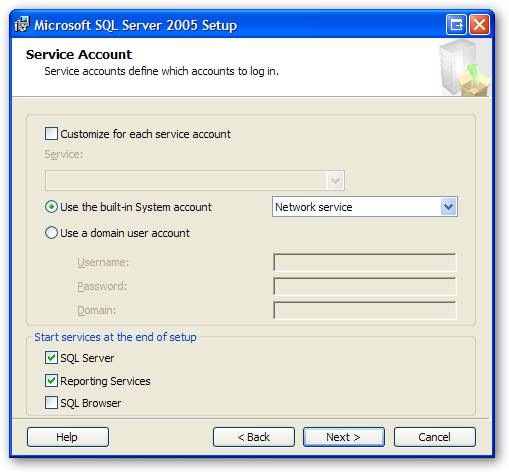
OK, now it wants to know a few things about how to run. First it wants to know what user id to run the service as. The default you see below will work just fine. Next it wants to what pieces it should run at startup. If you are going to be running this once in a blue moon, I would uncheck the SQL Server and Reporting Services options, then run them manually when you need them. On the other hand, if you are going to be in SQL Server nearly every day, like I am, it makes sense to leave these checked so they are started and ready for you. You’ll also want to leave these on if you are going to let other people connect to your box for testing reasons. Once you make your choices, pick Next.

clip_image011

OK, here SQL Server wants to know how you are logging into the server. DO NOT click next. Instead look at the next screen shot.

clip_image012

I don’t like using strictly windows authentication. Instead I much prefer using Mixed Mode. Pick it, then enter a password you can use for the sa account. I prefer this method as it gives me a little flexibility on how to use the database. Make sure you pick a password you’ll remember! Enter it and yes, you guessed it, click next.

clip_image013

Next it’s asking how you want SQL Server to sort text. I always take the default here, and click next. If you have special sorting needs you can change this, but odds are you can click next too.

clip_image014

This next screen is another one of those “Gotchas”.

clip_image015

This is really important to check on, so you can easily administer your own database. Check it on so it looks like the screen below, and hit next.

clip_image016

OK, time for another important question. You can install Reporting Services using the default config, or you can install but not configure now. The idea behind this was to allow you to install but not configure, then copy the configuration from another existing server. This is ideal for the enterprise where we are setting up one server after another and want them all to be identical. However, for our workstation we can simply install using the default configuration, and hit next.

clip_image017

Here Microsoft would like your help. Any data Microsoft can gather about SQL Server will help make it a better product. In some small way you’ll be contributing to the next version. However, I do recognize there are some people or shops that are wary of anonymous statistics gathering. I turned it on for my install, but if you have any doubts leave it off like I show below. Once your decision is made, click Next.

clip_image018

It’s finally time to begin the install. SQL Server shows you your choices one last time, and gives a big “are you sure”. You are, so just hit next.

clip_image019

OK, go get us a couple of cups of coffee, we’ll sit here and wait a bit. This screen will keep us updated on the install process.

clip_image020

As things are completed, they turn green, as you see here. When everything is installed, the Next button will become enabled. Click it to proceed.

clip_image021

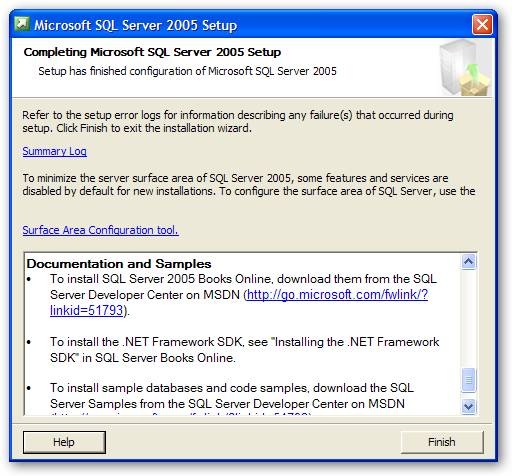
This is the last screen of the install, but don’t blow it off casually. It has some good info. Scroll the message window down to the bottom, as you see here, and you’ll find some good links. First, as you see on the screen, is a link to the Books on Line. You should download these and install them, they will become an often referenced companion and you learn SQL Server. Below that (just off the screen) are links to sample databases. If you are installing on a developer workstation and have the space, you should seriously consider installing these. Many, many authors (including myself, so you’ve been warned) will use these as material for their articles and samples. If nothing else it is very informative to see how Microsoft created a database.

clip_image022

That completes our installation of SQL Server Express with Advances Services. But the fun is just beginning…

A Developer’s Guide to Installing SQL Server 2005 – Part 1 – Selecting a version

As a developer of applications that use SQL Server in some way, it can be valuable to have a database local to your box. It can be used for development, testing, or debugging in an off line environment. While there are many versions of SQL Server 2005, there are only two versions that are really suitable for the developer’s computer: SQL Server Express With Advanced Options, and SQL Server Developers Edition.

The first, SQL Server 2005 Express, is free. There are actually two versions of Express, the standard and the one entitled SQL Server 2005 Express Edition with Advanced Services SP2. It can be a little hard to find, so here’s a handy link: http://msdn2.microsoft.com/en-us/express/bb410792.aspx The standard edition does not include Full Text Search, Reporting Services, or the SQL Server Management Studio Express. These are all features that you, as a developer will want.

The other version of SQL Server that’s geared toward developers is the SQL Server 2005 Developer Edition. This version has the same features as the Enterprise Edition, but it’s only licensed for a single developer to access. It also comes with the full blown BIDS (Business Intelligence Developer Studio) tools. It’s not free, however it’s not expensive either. At only 49.99 it’s priced so even a small one person development shop can easily afford it. This link has more info, including a link to purchase:

http://www.microsoft.com/products/info/product.aspx?view=22&pcid=f544888c-2638-48ed-9f0f-d814e8b93ca0&type=ovr

If you have an MSDN License, the SQL Server 2005 Developer Edition is included with it and can be downloaded via your subscription.

So as a developer, which version version should you install? That answer is easy. Both.

Yes, both. The Express edition will allow you to perform small scale testing, let multiple users bang away at your solution and let you perform some small measure of scalability testing. With it’s database size limited to 4 gig, it may nor may not be big enough to hold your entire database, but it’s certainly large enough for a good hunk of your data. The Developer Edition will give you all of the tools and let you emulate your Enterprise system, at least in terms of the database sizes and structures. However since it’s licensed only for the developer, you won’t be able to have multiple users access it.

So you’ve decided OK, you want to install. If you’re not a trained DBA there a few gotcha’s you should know about when installing SQL Server. By default, not all of the features are installed. In the next few posts, I’ll show step by step instructions on how to install SQL Server for your development workstation.

Little Bobby Tables

I love this cartoon from xkcd, it really emphasizes why you need to screen your data inputs to protect against SQL Injection Attacks.

http://www.xkcd.com/327/

By the way, there’s a WebLog Awards going on right now, if you also enjoy xkcd give them a vote. http://2007.weblogawards.org/polls/best-comic-strip-1.php Hurry though, voting ends November 8th.

SQL Server Multi-Statement Table-valued UDFs (User Defined Functions)

There’s a special variation of the Table-valued UDF called the multi-statement table-value. As with the regular Table-Value, it can only return a single table. However, you can create a table on the fly, populate it, then return the results. Lets take a look at an example, based on our sample from yesterday.

create function dbo.f_LotsOfPeople(@lastNameA as nvarchar(50), @lastNameB as nvarchar(50))

        returns @ManyPeople table

          (PersonID int, FullName nvarchar(101), PhoneNumber nvarchar(25))

as

begin


  insert @ManyPeople (PersonID, FullName, PhoneNumber)

    select ContactID

        , FirstName + ‘ ‘ + LastName

        , Phone

      from Person.Contact

    where LastName like (@lastNameA + ‘%’);


  insert @ManyPeople (PersonID, FullName, PhoneNumber)

    select ContactID

        , FirstName + ‘ ‘ + LastName

        , Phone

      from Person.Contact

    where LastName like (@lastNameB + ‘%’);


  return

end

The first line declares the function and passes in two parameters. The next line declares the return type will be a table, named @ManyPeople. We need to give our table a name, as we’ll be using it inside the function.

The third line defines the layout of our in memory table, @ManyPeople. I’ve declared three columns, and given their names and data type. Next comes the as, followed by a begin/end construct to house our code.

Inside the code I add data to the @ManyPeople table by using traditional Insert syntax. Please note this isn’t quite like a scalar function, I’m restricted to statements that insert or update records in the @ManyPeople table. Complex calculations, etc are restricted unless they take the form of inserting / updating into our table.

To end the function I have to have a Return statement that will end the function and return the @ManyPeople table to the calling routine. And how do we call it? Pretty simple, just like we did yesterday.

select * from dbo.f_LotsOfPeople(‘Abe’, ‘Zie’)

PersonID FullName PhoneNumber
———– —————- ————-
2 Catherine Abel 747-555-0171
3 Kim Abercrombie 334-555-0137
1212 Kim Abercrombie 208-555-0114
1370 Kim Abercrombie 919-555-0100
988 Arvid Ziegler 398-555-0100

(5 row(s) affected)

Multi-Statement Table-valued UDFs can be handy when you need to assemble data from multiple places and return a single table.

SQL Server Table-valued UDFs (User Defined Functions)

Yesterday we talked about one type of UDF, the scalar. There is also a great comment that emphasizes a point I made, namely you need to be careful to test your UDFs for performance (take time to read it, it’s worth your time). Often a UDF will give you can get a nice performance boost, but sometimes they can negatively affect your queries. TEST!

Today we’ll cover the Table value type of UDF. Unlike the scalar type, which returns only one value, the table type can return multiple rows. They are similar to views, only they perform slightly better. Let’s look at an example.

create function dbo.f_People(@lastName as nvarchar(50))

        returns table

as

return

(

  select ContactID

      , FirstName + ‘ ‘ + LastName as FullName

      , Phone

    from Person.Contact

  where LastName like (@lastName + ‘%’)

)

As you can see, you are only allowed one statement inside the function, and it must be a select statement. It can be a complex one, or a simple one as I’ve done above. The return type of the function is declared as table, which flags this as a table valued UDF.

To use it, treat the UDF as if it were a table and place it in the from clause. You’ll notice that unlike a table though, you can pass in a parameter. Here I pass in a varchar string, and use it as part of the where clause inside the UDF. Here’s an example of using our UDF as part of a SQL statement.

select * from dbo.f_People(‘Ab’)

ContactID FullName Phone
———– —————- ————-
2 Catherine Abel 747-555-0171
3 Kim Abercrombie 334-555-0137
1012 Syed Abbas 926-555-0182
1212 Kim Abercrombie 208-555-0114
1268 Hazem Abolrous 869-555-0125
1370 Kim Abercrombie 919-555-0100
1557 Sam Abolrous 567-555-0100


So why would you want to use this instead of a view? Well as you can see from my example, you have the ability to pass a parameter to the function. With a view, SQL Server precompiles the SQL, then you have to limit the results with a where clause. With the function, SQL also precompiles the statement but this time we can use a parameter, which is precompiled into the select statement, to limit the results. That means you’ll get slightly better performance out of the UDF versus the view.

SQL Server Scalar UDFs (User Defined Functions)

OK, I admit it sometimes I’m a little late to the party. Even though they’ve been around since SQL Server 2000, I haven’t had the pleasure of getting acquainted with User Defined Functions (UDFs) inside SQL Server. But now that I know about them, I can see how useful they can be. There are several kinds of UDFs, today let’s chat about the scalar types.

A scalar UDF returns one, and only one value from the function. You can pass in parameters, have it do everything from simple to complex calculations, then return a result. Let’s take a look at how one is coded, using the AdventureWorks database.

create function dbo.f_ContactFullName(@id as int)

        returns varchar(101)

as

begin

  declare @FullName varchar(101);


  select @FullName = FirstName + ‘ ‘ + LastName

    from Person.Contact

  where ContactID = @id;


  return @FullName;


end;

Running the above code will create your UDF. To confirm it worked, in SQL Server Management Studios Object Explorer open the tree under AdentureWorks. Go down to Progammability, Functions, Scalar-valued Functions and you should see the new function.

The purpose of this function is to take the contact ID (the Primary Key) and look up the name in the Person.Contact table. It then concatenates the first and last names for us and returns the full name.

We begin with a create function command, followed by the name of the function. I would suggest you adopt some naming scheme to identify your functions, to separate them from stored procedures or other built in functions. Some folks use ufn, some fn, I chose f_ for my prefix. At the end of the function is the parameter list, enclosed in parenthesis. If there had been more than one parameter, I would have used commas to separate them.

Next comes the return type, in this case I’m returning a varchar. Your function will then be enclosed in a begin…end construct. I’ve declared a variable to hold the return value (@FullName), and then run a simple select statement to get the name, concatenate it, and store it in our variable. Finally I use the return command to return the value back to the caller. And how do we call it?

Well, one simple way is to simply say “select functionname()” as in

select dbo.f_ContactFullName(1);

————————-
Gustavo Achong
(1 row(s) affected)

I passed in a contact id from the table (1) and it returned the full name of that person. What might be more useful though is to include the UDF as part of a select statement.

select Person.Contact.ContactID

    , dbo.f_ContactFullName(Person.Contact.ContactID)

    , EmailAddress

  from Person.Contact

order by Person.Contact.ContactID

ContactID EmailAddress
——— —————– ——————————-
1 Gustavo Achong gustavo0@adventure-works.com
2 Catherine Abel catherine0@adventure-works.com
3 Kim Abercrombie kim2@adventure-works.com
4 Humberto Acevedo humberto0@adventure-works.com
5 Pilar Ackerman pilar1@adventure-works.com
6 Frances Adams frances0@adventure-works.com
7 Margaret Smith margaret0@adventure-works.com
8 Carla Adams carla0@adventure-works.com
9 Jay Adams jay1@adventure-works.com

On the second line of the select statement I call my small function, to comprise the full name. And under it you can see the results.

I should mention there are a few tradeoffs to using user defined functions. First, they are not portable to other databases. That means if you ever moved your data to another database type they would not transfer, and would have to be written as something else. But I mean, really now. How many times have you ever moved your data to another database. It happens so seldom that I would not worry about it.

What you should be concerned over though is the performance trade offs. For example, looking at my example above each row winds up making two calls to the same table, one to fetch the record and a second to fetch it again inside the function to get the name. Not very efficient. On the other hand, if I was reading another table, this might be just as efficient as joining the tables, and easier to use.

select SalesOrderID

    , dbo.f_ContactFullName(ContactID) as OurCustomer

    , OrderDate

    , PurchaseOrderNumber

  from Sales.SalesOrderHeader

order by SalesOrderID

SalesOrderID OurCustomer OrderDate PurchaseOrderNumber
———— ——————– ———– ——————–
43659 James Hendergart 2001-07-01 PO522145787
43660 Takiko Collins 2001-07-01 PO18850127500
43661 Jauna Elson 2001-07-01 PO18473189620
43662 Robin McGuigan 2001-07-01 PO18444174044
43663 Jimmy Bischoff 2001-07-01 PO18009186470
43664 Sandeep Katyal 2001-07-01 PO16617121983
43665   Richard Bready 2001-07-01 PO16588191572
43666 Abraham Swearengin  2001-07-01 PO16008173883


In this example I’ve created a very simple User Defined Function. However, you can get as complex as you need and create long, intricate functions. Given the right circumstances UDFs can add a new dimension to your code reuse libraries.

Brilliant!

Lately I’ve been delving more and more in to the SQL Server world, as it pertains to Business Intelligence. Coincidentally, our DBA complains of not sleeping at night, and seems to have developed a nervous twitch. I keep telling him to lay off the caffeine, but oh well I digress.

One of the things that I’ve found irritating is the inability for long running T-SQL scripts to be able to keep the user (in other words, ME) updated as it progress through. Instead it seems to save up any print or select messages until the entire job is over then prints them out in a big explosion, not unlike an episode of Mythbusters.

Mladen Prajdic on his “I want some Moore” blog came up with a brilliant solution. Use RAISERROR, with the NOWAIT option and a low severity, to flush the message buffers immediately. To quote those two guys from the Guinness ads, Brilliant! But hey, I don’t want to steal Mladen’s thunder, go read it for yourself:

http://weblogs.sqlteam.com/mladenp/archive/2007/10/01/SQL-Server-Notify-client-of-progress-in-a-long-running.aspx

True, I doubt I’d suggest this for production code that would run unattended, but for those long scripts we all wind up writing to do some tests or fix some bad records well… you can bet this is a handy tip I’ll be using over and over.

Code Camp Samples

Tomorrow, Saturday October 6th I will be presenting “Getting Started with Full Text Searching”. Here are the materials I’ll be using during the demo.

First, here is a PDF of the PowerPoint slides:

Full Text Search Power Points

Next, most of the demos used SQL statements. This PDF file has all of the SQL plus some associated notes.

Full Text Search Demo Scripts

Finally, I did a WPF project that demonstrated how to call a full text search query from a WPF Windows application. Annoyingly enough WordPress (who hosts my blog) won’t let me upload ZIP files, so I renamed the extension to pdf. After you download the file to your drive, remove the .pdf and put the zip extension back on, then it should expand all the source for you correctly. (Yes, I know, I really need to get a host server for binaries, one of these days I’ll get around to it, but for tonight…)

Source for WPF Demo

SQL Server 2005 Full Text Searching – Getting your Bits

In reviewing my previously published notes on SQL Server Full Text Searching, I realized I omitted an important fact: which versions support it. If you wish to explore Full Text Searching under SQL Server 2005, you cannot use the standard SQL Server Express Edition.

The standard version of Express Edition lacks support for Full Text Searching, along with Reporting Services. Instead you will need to download and install the SQL Server 2005 Express Edition with Advances Services. This version includes everything you’ll need to experiment and implement Full Text Searching with SQL Server 2005.

You can download this version from Microsoft’s website:

http://msdn2.microsoft.com/en-us/express/bb410792.aspx

Just look for the area named SQL Server 2005 Express Edition with Advanced Services SP2.

You need to be aware that even with the Advanced Services SP2 version, Full Text Searching is not automatically installed. During the install uncheck the box that talks about hiding advanced configuration features. Then on the appropriate screen change the installer to add FTS to your installed components.

For my previous posts on Full Text Searching, please check out the Arcane Lessons link at the top of this page. Scroll down to the Full Text Search area for links to all FTS related posts.

Arcane Fun Fridays

WHEW! All of this WPF / XAML sure has been a lot of fun. But I think it’s time to come up for air and see what else is happing out there in Dot Net land.

Alabama Code Camp is coming up in just a little over a week, Saturday October 6th to be exact. Still plenty of time to register and even just a bit of time if you want to get in on the Silverlight programming contest. First prize for that is a Zune! http://www.alabamacodecamp.com/home.html

devLink, the large conference for a cheap price comes up right afterward in Nashville, Friday and Saturday October 12th and 13th. http://www.devlink.net/ . You can tell I’ll be there, my name’s on the front page as a winner of a Barnes and Nobel gift card (look for the dude from AL !)

(By the way, anyone know of a good dog repellent? My nephew is coming to house sit and is bringing Marshmallow and Buttercup, his twin Dobermans along because I have a big back yard they can play in. Last time though they ate the garden hose, chewed the handle off my shovel, and bit through one of my lawnmower tires.)

There’s a new add-on for SQL Server Management Studio I’m eager to try out. It’s still in Beta but looks promising. It was blogged about at http://weblogs.sqlteam.com/mladenp/archive/2007/09/20/SSMS-Tools-Pack—an-add-in-for-SQL-Management-Studio.aspx or you can download it directly at http://www.ssmstoolspack.com/ .

If you are a fan of NUnit, you’ll appreciate the new xUnit. Read James’ announcement at http://jamesnewkirk.typepad.com/posts/2007/09/announcing-xuni.html .

In a recent Dot Net Rocks episode, Carl Franklin announced they would be taking over Shrinkster.com. Shrinkster has been down due to spam abuse, as soon as Carl gets everything setup we’ll be able to go back to using short links again!

Speaking of Dot Net Rocks, I especially enjoyed show 274, where the new features of VB.Net and C# for the 2008 release were discussed. Entertaining and lots of good tidbits. I think my favorite feature so far has got to be C#’s extension methods. http://www.dotnetrocks.com/default.aspx?showNum=274

During my long drive to the Tallahassee Code Camp last week, I put together a podcast theme session, and copied a bunch of related podcasts onto my cheapo SanDisk mp3 player. This time I went with a “Millenator” theme and got all the episodes of Dot Net Rocks that Mark Miller appeared on. Good stuff, lots of thoughtful material combined with some humor. Next time you go on a trip, copy a bunch of past episodes of your favorite podcast that are in the same theme and make that long drive go much quicker.

There have been several updates to the world’s greatest Visual Studio Add-In, CodeRush, over the last few weeks ( http://www.devexpress.com/Home/Announces/CodeRush25.xml ). Apparently Mark Miller and the boys have been busy! If you’re not on 2.5.4 go update yours today.
Speaking of Mark Miller, I love his intro slide for his VSLive session coming up in LasVegas. Take a look, pure genius. http://www.doitwith.net/2007/09/11/MyLastVSLiveSessionEver.aspx

A final note, between getting ready for Alabama Code Camp and going to devLink my blogging may get spotty for the next few weeks, bear with me and I’ll have full reports from both code camps and lots of fun new stuff to share.