SQL Server Table-valued UDFs (User Defined Functions)

Yesterday we talked about one type of UDF, the scalar. There is also a great comment that emphasizes a point I made, namely you need to be careful to test your UDFs for performance (take time to read it, it’s worth your time). Often a UDF will give you can get a nice performance boost, but sometimes they can negatively affect your queries. TEST!

Today we’ll cover the Table value type of UDF. Unlike the scalar type, which returns only one value, the table type can return multiple rows. They are similar to views, only they perform slightly better. Let’s look at an example.

create function dbo.f_People(@lastName as nvarchar(50))

        returns table

as

return

(

  select ContactID

      , FirstName + ‘ ‘ + LastName as FullName

      , Phone

    from Person.Contact

  where LastName like (@lastName + ‘%’)

)

As you can see, you are only allowed one statement inside the function, and it must be a select statement. It can be a complex one, or a simple one as I’ve done above. The return type of the function is declared as table, which flags this as a table valued UDF.

To use it, treat the UDF as if it were a table and place it in the from clause. You’ll notice that unlike a table though, you can pass in a parameter. Here I pass in a varchar string, and use it as part of the where clause inside the UDF. Here’s an example of using our UDF as part of a SQL statement.

select * from dbo.f_People(‘Ab’)

ContactID FullName Phone
———– —————- ————-
2 Catherine Abel 747-555-0171
3 Kim Abercrombie 334-555-0137
1012 Syed Abbas 926-555-0182
1212 Kim Abercrombie 208-555-0114
1268 Hazem Abolrous 869-555-0125
1370 Kim Abercrombie 919-555-0100
1557 Sam Abolrous 567-555-0100


So why would you want to use this instead of a view? Well as you can see from my example, you have the ability to pass a parameter to the function. With a view, SQL Server precompiles the SQL, then you have to limit the results with a where clause. With the function, SQL also precompiles the statement but this time we can use a parameter, which is precompiled into the select statement, to limit the results. That means you’ll get slightly better performance out of the UDF versus the view.

SQL Server Scalar UDFs (User Defined Functions)

OK, I admit it sometimes I’m a little late to the party. Even though they’ve been around since SQL Server 2000, I haven’t had the pleasure of getting acquainted with User Defined Functions (UDFs) inside SQL Server. But now that I know about them, I can see how useful they can be. There are several kinds of UDFs, today let’s chat about the scalar types.

A scalar UDF returns one, and only one value from the function. You can pass in parameters, have it do everything from simple to complex calculations, then return a result. Let’s take a look at how one is coded, using the AdventureWorks database.

create function dbo.f_ContactFullName(@id as int)

        returns varchar(101)

as

begin

  declare @FullName varchar(101);


  select @FullName = FirstName + ‘ ‘ + LastName

    from Person.Contact

  where ContactID = @id;


  return @FullName;


end;

Running the above code will create your UDF. To confirm it worked, in SQL Server Management Studios Object Explorer open the tree under AdentureWorks. Go down to Progammability, Functions, Scalar-valued Functions and you should see the new function.

The purpose of this function is to take the contact ID (the Primary Key) and look up the name in the Person.Contact table. It then concatenates the first and last names for us and returns the full name.

We begin with a create function command, followed by the name of the function. I would suggest you adopt some naming scheme to identify your functions, to separate them from stored procedures or other built in functions. Some folks use ufn, some fn, I chose f_ for my prefix. At the end of the function is the parameter list, enclosed in parenthesis. If there had been more than one parameter, I would have used commas to separate them.

Next comes the return type, in this case I’m returning a varchar. Your function will then be enclosed in a begin…end construct. I’ve declared a variable to hold the return value (@FullName), and then run a simple select statement to get the name, concatenate it, and store it in our variable. Finally I use the return command to return the value back to the caller. And how do we call it?

Well, one simple way is to simply say “select functionname()” as in

select dbo.f_ContactFullName(1);

————————-
Gustavo Achong
(1 row(s) affected)

I passed in a contact id from the table (1) and it returned the full name of that person. What might be more useful though is to include the UDF as part of a select statement.

select Person.Contact.ContactID

    , dbo.f_ContactFullName(Person.Contact.ContactID)

    , EmailAddress

  from Person.Contact

order by Person.Contact.ContactID

ContactID EmailAddress
——— —————– ——————————-
1 Gustavo Achong gustavo0@adventure-works.com
2 Catherine Abel catherine0@adventure-works.com
3 Kim Abercrombie kim2@adventure-works.com
4 Humberto Acevedo humberto0@adventure-works.com
5 Pilar Ackerman pilar1@adventure-works.com
6 Frances Adams frances0@adventure-works.com
7 Margaret Smith margaret0@adventure-works.com
8 Carla Adams carla0@adventure-works.com
9 Jay Adams jay1@adventure-works.com

On the second line of the select statement I call my small function, to comprise the full name. And under it you can see the results.

I should mention there are a few tradeoffs to using user defined functions. First, they are not portable to other databases. That means if you ever moved your data to another database type they would not transfer, and would have to be written as something else. But I mean, really now. How many times have you ever moved your data to another database. It happens so seldom that I would not worry about it.

What you should be concerned over though is the performance trade offs. For example, looking at my example above each row winds up making two calls to the same table, one to fetch the record and a second to fetch it again inside the function to get the name. Not very efficient. On the other hand, if I was reading another table, this might be just as efficient as joining the tables, and easier to use.

select SalesOrderID

    , dbo.f_ContactFullName(ContactID) as OurCustomer

    , OrderDate

    , PurchaseOrderNumber

  from Sales.SalesOrderHeader

order by SalesOrderID

SalesOrderID OurCustomer OrderDate PurchaseOrderNumber
———— ——————– ———– ——————–
43659 James Hendergart 2001-07-01 PO522145787
43660 Takiko Collins 2001-07-01 PO18850127500
43661 Jauna Elson 2001-07-01 PO18473189620
43662 Robin McGuigan 2001-07-01 PO18444174044
43663 Jimmy Bischoff 2001-07-01 PO18009186470
43664 Sandeep Katyal 2001-07-01 PO16617121983
43665   Richard Bready 2001-07-01 PO16588191572
43666 Abraham Swearengin  2001-07-01 PO16008173883


In this example I’ve created a very simple User Defined Function. However, you can get as complex as you need and create long, intricate functions. Given the right circumstances UDFs can add a new dimension to your code reuse libraries.

Go Sara Go

I think I may have just discovered the most useful blog on the internet for Visual Studio developers. Sara Ford, who just took over as Program Manager for Code Plex (http://www.codeplex.com) posts a “Visual Studio Tip of the Day”. They are short but wow are they useful. I can’t believe I haven’t discovered this gem before today, but hey better late than never.

Go read her blog at http://blogs.msdn.com/saraford/default.aspx and tell her “Go Sara Go!”

The Silverlight Match the Dot Net Rocks Hosts Game – Part 3 – The Javascript

Today I’ve posted the Javascript for my DNR game (see posts from last two days). As you can see, it’s very straight forward and doesn’t require much explanation.

When the app loads, it calls a routine that uses a random number generator to randomly select a layout for the photos.

The other large routine handles mouse clicks. The really tricky part was determining which images were displayed and which were not. I finally resorted to using the Tag property of each Canvas control. In the Tag I put two numbers, each being a 0 or a 1. The first number represents a Boolean that flags whether the images is visible or not. The second position notes whether the image has already been matched. There are a number of SetCanvas… helper routines to make the setting of these flags a bit easier.

I make a lot of use of Math.Random to generate random numbers. I then use these to determine various messages that get displayed across the middle of the screen, tha way the user won’t get bored.

OK, enough talk, here’s the code. I’ve documented it pretty well, but if you have questions send me an e-mail or post a comment.


if (!window.DNRMatch)

  window.DNRMatch = {};


DNRMatch.Scene = function()

{

}


// ****************************************************************************

// * Author: Robert C. Cain, Arcane Code, http://arcanecode.com

// *

// * Notes

// *

// * The heart of the system relies on the tag property of the Canvas controls

// * used to display the pictures. It was the only mechanism I could find to

// * easily provide persistance between calls.

// *

// * The tag currently is a two character string. The first character is 0

// * or 1 and indicates if the ? is showing (a 0) or the Answer image is

// * being displayed (value is 1).

// *

// * The second position is also a 0 or 1, and indicates if the image has been

// * matched yet by the user or not. (0=no, 1=yes)

// *

// ****************************************************************************


// I store this here as it gets loaded and used in several places

var imgList = new Array(10);


DNRMatch.Scene.prototype =

{

  // Runs when app is first loaded

  handleLoad: function(plugIn, userContext, rootElement)

  {

    // Get the inital list of images into imgList array

    RandomizeImages();


    this.plugIn = plugIn;


    // Can’t use SetImages function since we don’t have a sender

    for(i=0; i<10; i++)

    {     

      plugIn.content.findName(“imgAnswer0” + i.toString()).Source=imgList[i];

    }

  }

}


//=============================================================================

// Main routine, activated when a user clicks on any image

//=============================================================================

function imgMouseLeftButtonDown(sender, mouseEventArgs)

{           

    var imgNumber = sender.Name.substr(3,2);

    var imgIndex = imgNumber.valueOf();

    var msg = sender.findName(“StatusArea”);

    var imgCurrentImage = sender.findName(“imgAnswer” + imgNumber);


    // Show the hidden image   

    if(CanvasVisible(sender, imgIndex)==“0”)

    {

      sender.findName(“img” + imgNumber + “RevealAnimation”).begin();

      sender.tag = “1” + sender.tag.substr(1,1);

    }


    var msgText=“”;

    var foundMatch=false;


    // Now check to see if another image is also visible.

    // If so, we’ll want to check for a match.     

    for(i=0; i<10; i++)

    {

      // If we’re not dealing with the same image

      if(i != imgIndex)

      {

        var imgLoopAnswer = sender.findName(“imgAnswer” + imgNumber);


        // If the image is visible

        if(CanvasVisible(sender, i.toString()) == “1”)

        {

          // See if it’s same image

          if( GetSource(sender, i)==GetSource(sender, imgIndex) )

          {

            // Congratulate user, then set the matched tags

            msg.text=GoodJobMessage(sender, i);

            SetCanvasMatchedTag(sender, i);

            SetCanvasMatchedTag(sender, imgIndex);

            foundMatch=true;

          }

        }

      }

    } 


    // See if we need to show a “no match” message

    if(foundMatch==false// If we didn’t find a match…

    {

      // If there are two items visible

      if (VisibleButUnmatchedCount(sender)==2)

      {

        // Show the bad job message

        msg.text=BadJobMessage();

      }

      else

      {

        // Only one image visible, set message to empty

        msg.text=“”;

      }

    }


    // Reset non-matches

    if (VisibleButUnmatchedCount(sender)==2)

    {

      for(i=0; i<10; i++)  // for each canvas

      {

        if(CanvasMatched(sender, i) == “0”) // if it hasn’t been matched

        {

          if(CanvasVisible(sender, i) == “1”// but it’s visible

          {

            sender.findName(“img0” + i.toString() + “HideAnimation”).begin(); // hide it

            SetCanvasInVisibleTag(sender, i);

            SetCanvasUnMatchedTag(sender, i);

          }

        }

      }     

    }


    // Check For Victory

    if(MatchCount(sender)==10)

    {

      msg.text=“You Won!!! Press Reset Game to play again.”;

    }


//    Just some debugging code, will leave it as it makes for good demo   

//    msg.text=ShowTags(sender);

//    msg.text=ShowSources(sender);

}


//=============================================================================

// Check the Tag property of the canvas to see if the image is visible

//=============================================================================

function CanvasVisible(sender, canvasNumber)

{

  var canvasNum = canvasNumber.toString();

  if(canvasNum.length > 1)

  {

    canvasNum = canvasNum.substr(canvasNum.length –  1, 1);

  }

  var currentCanvas = sender.findName(“img0” + canvasNum);

  var isCanvasVisible = currentCanvas.tag.substr(0,1);

  return isCanvasVisible;


}


//=============================================================================

// Check the Tag property of the canvas to see if the image has been matched

//=============================================================================

function CanvasMatched(sender, canvasNumber)

{

  var canvasNum = canvasNumber.toString();

  if(canvasNum.length > 1)

  {

    canvasNum = canvasNum.substr(canvasNum.length –  1, 1);

  }

  var currentCanvas = sender.findName(“img0” + canvasNum);

  var isCanvasMatched = currentCanvas.tag.substr(1,1);

  return isCanvasMatched;

}


//=============================================================================

// Set the Tag property of the canvas to indicate

// this canvas’s image is visible

//=============================================================================

function SetCanvasVisibleTag(sender, canvasNumber)

{

  var canvasNum = canvasNumber.toString();

  if(canvasNum.length > 1)

  {

    canvasNum = canvasNum.substr(canvasNum.length –  1, 1);

  }

  var currentCanvas = sender.findName(“img0” + canvasNum);

  currentCanvas.tag = “1” + currentCanvas.tag.substr(1,1);

}


//=============================================================================

// Set the Tag property of the canvas to indicate

// this canvas’s image is not visible

//=============================================================================

function SetCanvasInVisibleTag(sender, canvasNumber)

{

  var canvasNum = canvasNumber.toString();

  if(canvasNum.length > 1)

  {

    canvasNum = canvasNum.substr(canvasNum.length –  1, 1);

  }

  var currentCanvas = sender.findName(“img0” + canvasNum);

  currentCanvas.tag = “0” + currentCanvas.tag.substr(1,1);

}


//=============================================================================

// Set the Tag property of the canvas to indicate

// this canvas’s image has been matched

//=============================================================================

function SetCanvasMatchedTag(sender, canvasNumber)

{

  var canvasNum = canvasNumber.toString();

  if(canvasNum.length > 1)

  {

    canvasNum = canvasNum.substr(canvasNum.length –  1, 1);

  }

  var currentCanvas = sender.findName(“img0” + canvasNum);

  currentCanvas.tag = currentCanvas.tag.substr(0,1) + “1” ;

}


//=============================================================================

// Set the Tag property of the canvas to indicate

// this canvas’s image is not matched

//=============================================================================

function SetCanvasUnMatchedTag(sender, canvasNumber)

{

  var canvasNum = canvasNumber.toString();

  if(canvasNum.length > 1)

  {

    canvasNum = canvasNum.substr(canvasNum.length –  1, 1);

  }

  var currentCanvas = sender.findName(“img0” + canvasNum);

  currentCanvas.tag = currentCanvas.tag.substr(0,1) + “0” ;

}


//=============================================================================

// Count the number of items left that are visible, but not

// matched. In theory this should either be 0, 1 or 2.

//=============================================================================

function VisibleButUnmatchedCount(sender)

{

  var retVal=0;


  for(i=0; i<10; i++)

  {

    if(CanvasVisible(sender, i)==“1”)

    {

      if(CanvasMatched(sender, i)==“0”)

      {

        retVal++;

      }

    }

  }


  return retVal;

}


//=============================================================================

// Count the number of items that are matched.

// When it reached 10 we’ll know they won

//=============================================================================

function MatchCount(sender)

{

  var retVal=0;


  for(i=0; i<10; i++)

  {

    if(CanvasMatched(sender, i)==“1”)

    {

      retVal++;

    }

  }


  return retVal;

}


//=============================================================================

// Get the file name of the image used in the sender control

//=============================================================================

function GetSource(sender, imageNumber)

{

  var imgNum = imageNumber.toString();

  if(imgNum.length > 1)

  {

    imgNum = imgNum.substr(imgNum.length – 1, 1);

  }


  var img = sender.findName(“imgAnswer0” + imgNum );

  return img.Source; 

}


//=============================================================================

// Create a “Bad Guess” message

//=============================================================================

function BadJobMessage()

{

  // Randomly select from the list of “Try again” messages

  var possibleMsgs = new Array(5);

  possibleMsgs[0] = “Nope, try again.”;

  possibleMsgs[1] = “I don’t think so!”;

  possibleMsgs[2] = “Dude, not even close!”;

  possibleMsgs[3] = “Don’t give up yet, keep trying!”;

  possibleMsgs[4] = “Ha! Don’t make me laugh.”;

  possibleMsgs[5] = “I’ve heard of wild guesses, but gee whiz. Try again.”;


  var randomNum = Math.floor(Math.random()*6);


  return possibleMsgs[randomNum];


}


//=============================================================================

// Create a Good Job message based on the image the user

// just matched.

//=============================================================================

function GoodJobMessage(sender, imageNumber)

{

  var retMsg = “Good Job.”;

  var possibleMsgs = new Array(9);


  if(GetSource(sender, imageNumber)==“Carl02.png”)

  {

    possibleMsgs[0] = “Carl says you da man!”;

    possibleMsgs[1] = “You must be that squirt king of C#. We will make a T-shirt for you.”;

    possibleMsgs[2] = “A catheter and somebody to bring you a sandwich once in a while. That’s living man.”;

    possibleMsgs[3] = “While you shampoo your hair… Wait I guess that rules out C++ programmers.”;

    possibleMsgs[4] = “Some people go to sleep listening to DNR.”;

    possibleMsgs[5] = “”;

    possibleMsgs[6] = “”;

    possibleMsgs[7] = “”;

    possibleMsgs[8] = “”;

    retMsg = possibleMsgs[Math.floor(Math.random()*5)];

  }


  if(GetSource(sender, imageNumber)==“Richard01.png”)

  {

    possibleMsgs[0] = “It’s Richard, the Toy Boy!”;

    possibleMsgs[1] = “Now we got emotional baggage.”;

    possibleMsgs[2] = “Ballmer is always great. He seems a lot less angry these days, I think they switched him to decaf.”;

    possibleMsgs[3] = “Everytime you say Web 2.0, a startup dies.”;

    possibleMsgs[4] = “My favorite Martian is Mark Miller!”;

    possibleMsgs[5] = “Don’t play with it, just look at it!”;

    possibleMsgs[6] = “You [Mark Miller] are the Jim Carey of the podcasting world.”;

    possibleMsgs[7] = “Welcome to the dark side baby!”;

    possibleMsgs[8] = “”;

    retMsg = possibleMsgs[Math.floor(Math.random()*8)];

  }


  if(GetSource(sender, imageNumber)==“Rory.png”)

  {

    possibleMsgs[0] = “Rory rewards you by allowing you to gaze upon his magnificence.”;

    possibleMsgs[1] = “You are testing my patience Franklin!”;

    possibleMsgs[2] = “You’re like some kid from a third world country…”;

    possibleMsgs[3] = “It’s a place where you can talk about anal leakage.”;

    possibleMsgs[4] = “I was pretending to tweak Mark Dunn’s nipples like they were radio knobs.”;

    possibleMsgs[5] = “I was talking about how weird it was to see Mark Dunn in the flesh.”;

    possibleMsgs[6] = “”;

    possibleMsgs[7] = “”;

    possibleMsgs[8] = “”;

    retMsg = possibleMsgs[Math.floor(Math.random()*5)];

  }


  if(GetSource(sender, imageNumber)==“Mark.png”)

  {

    possibleMsgs[0] = “Mark Dunn says it’s always sunny in the south!”;

    possibleMsgs[1] = “I gotta clean my underwear now Carl.”;

    possibleMsgs[2] = “I am higher than a California Condor on Ecstasy, that’s how excited I am to be here.”;

    possibleMsgs[3] = “”;

    possibleMsgs[4] = “”;

    possibleMsgs[5] = “”;

    possibleMsgs[6] = “”;

    possibleMsgs[7] = “”;

    possibleMsgs[8] = “”;

    retMsg = possibleMsgs[Math.floor(Math.random()*3)];

  }


  if(GetSource(sender, imageNumber)==“Miller.png”)

  {

    possibleMsgs[0] = “I got nuthin’ man.”;

    possibleMsgs[1] = “You guys are messing with me again!”;

    possibleMsgs[2] = “My golden ticket on the candy bar said it was about a new co-host!”;

    possibleMsgs[3] = “I want one of these!”;

    possibleMsgs[4] = “What about me Carl?”;

    possibleMsgs[5] = “I’m good lookin too!”;

    possibleMsgs[6] = “”;

    possibleMsgs[7] = “”;

    possibleMsgs[8] = “”;

    retMsg = possibleMsgs[Math.floor(Math.random()*6)];

  }


  return retMsg;

}


//=============================================================================

// Reset the game for another play

//=============================================================================

function ResetGame(sender, mouseEventArgs)

{

    sender.findName(“mainHideAnimation”).begin(); // hide it


    for(i=0; i<10; i++)  // for each canvas

    {

      SetCanvasUnMatchedTag(sender, i);

      if(CanvasVisible(sender, i) == “1”// but it’s visible

      {

        sender.findName(“img0” + i.toString() + “HideAnimation”).begin(); // hide it

        SetCanvasInVisibleTag(sender, i);

      }

    }


    RandomizeImages();

    SetImages(sender);


    var msg = sender.findName(“StatusArea”);

    msg.text = “Play the game!”;


    sender.findName(“mainRevealAnimation”).begin(); // hide it


}


//=============================================================================

// Create a random number, then use it to pick and load the

// imgList array. Used to mix up the images.

//=============================================================================

function RandomizeImages()

{

    // Default set

    imgList[0] = “Carl02.png”;

    imgList[1] = “Richard01.png”;

    imgList[2] = “Rory.png”;

    imgList[3] = “Mark.png”;

    imgList[4] = “Miller.png”;

    imgList[5] = “Miller.png”;

    imgList[6] = “Mark.png”;

    imgList[7] = “Rory.png”;

    imgList[8] = “Richard01.png”;

    imgList[9] = “Carl02.png”;


    var randomNum = Math.floor(Math.random()*9);


    if(randomNum==0)

    {

      imgList[0] = “Carl02.png”;

      imgList[1] = “Richard01.png”;

      imgList[2] = “Rory.png”;

      imgList[3] = “Mark.png”;

      imgList[4] = “Miller.png”;

      imgList[5] = “Miller.png”;

      imgList[6] = “Mark.png”;

      imgList[7] = “Rory.png”;

      imgList[8] = “Richard01.png”;

      imgList[9] = “Carl02.png”;

    }


    if(randomNum==1)

    {

      imgList[0] = “Rory.png”;

      imgList[1] = “Mark.png”;

      imgList[2] = “Miller.png”;

      imgList[3] = “Richard01.png”;

      imgList[4] = “Carl02.png”;

      imgList[5] = “Rory.png”;

      imgList[6] = “Carl02.png”;

      imgList[7] = “Miller.png”;

      imgList[8] = “Richard01.png”;

      imgList[9] = “Mark.png”;

    }


    if(randomNum==2)

    {

      imgList[0] = “Rory.png”;

      imgList[1] = “Mark.png”;

      imgList[2] = “Miller.png”;

      imgList[3] = “Richard01.png”;

      imgList[4] = “Carl02.png”;

      imgList[5] = “Mark.png”;

      imgList[6] = “Rory.png”;

      imgList[7] = “Carl02.png”;

      imgList[8] = “Richard01.png”;

      imgList[9] = “Miller.png”;

    }


    if(randomNum==3)

    {

      imgList[0] = “Carl02.png”;

      imgList[1] = “Rory.png”;

      imgList[2] = “Richard01.png”;

      imgList[3] = “Carl02.png”;

      imgList[4] = “Miller.png”;

      imgList[5] = “Rory.png”;

      imgList[6] = “Miller.png”;

      imgList[7] = “Mark.png”;

      imgList[8] = “Richard01.png”;

      imgList[9] = “Mark.png”;

    }


    if(randomNum==4)

    {

      imgList[0] = “Mark.png”;

      imgList[1] = “Rory.png”;

      imgList[2] = “Rory.png”;

      imgList[3] = “Carl02.png”;

      imgList[4] = “Miller.png”;

      imgList[5] = “Carl02.png”;

      imgList[6] = “Richard01.png”;

      imgList[7] = “Mark.png”;

      imgList[8] = “Richard01.png”;

      imgList[9] = “Miller.png”;

    }


    if(randomNum==5)

    {

      imgList[0] = “Carl02.png”;

      imgList[1] = “Mark.png”;

      imgList[2] = “Richard01.png”;

      imgList[3] = “Richard01.png”;

      imgList[4] = “Rory.png”;

      imgList[5] = “Mark.png”;

      imgList[6] = “Rory.png”;

      imgList[7] = “Carl02.png”;

      imgList[8] = “Miller.png”;

      imgList[9] = “Miller.png”;

    }


    if(randomNum==6)

    {

      imgList[0] = “Mark.png”;

      imgList[1] = “Carl02.png”;

      imgList[2] = “Mark.png”;

      imgList[3] = “Richard01.png”;

      imgList[4] = “Rory.png”;

      imgList[5] = “Miller.png”;

      imgList[6] = “Rory.png”;

      imgList[7] = “Miller.png”;

      imgList[8] = “Richard01.png”;

      imgList[9] = “Carl02.png”;

    }


    if(randomNum==7)

    {

      imgList[0] = “Rory.png”;

      imgList[1] = “Carl02.png”;

      imgList[2] = “Mark.png”;

      imgList[3] = “Richard01.png”;

      imgList[4] = “Mark.png”;

      imgList[5] = “Miller.png”;

      imgList[6] = “Miller.png”;

      imgList[7] = “Richard01.png”;

      imgList[8] = “Carl02.png”;

      imgList[9] = “Rory.png”;

    }


    if(randomNum==8)

    {

      imgList[0] = “Richard01.png”;

      imgList[1] = “Rory.png”;

      imgList[2] = “Mark.png”;

      imgList[3] = “Carl02.png”;

      imgList[4] = “Miller.png”;

      imgList[5] = “Mark.png”;

      imgList[6] = “Carl02.png”;

      imgList[7] = “Richard01.png”;

      imgList[8] = “Rory.png”;

      imgList[9] = “Miller.png”;

    }

}


//=============================================================================

// Sets the image source property for all the images

// to the image name loaded in the imgList array

//=============================================================================

function SetImages(sender)

{

    for(i=0; i<10; i++)

    {     

      sender.findName(“imgAnswer0” + i.toString()).Source=imgList[i];

    }

}


//=============================================================================

// Causes the job to wait a certain number of milliseconds.

// Has a drawback in that it does not pause animations,

// so if you use it while an animation is happening you won’t

// see the animation effect but it will ‘jerk’ to the final result.

//=============================================================================

function wait(msecs)

{

  var start = new Date().getTime();

  var cur = start

  while(cur – start < msecs)

  {

    cur = new Date().getTime();

  }

}


//=============================================================================

// For debugging only – Shows all the images.

//=============================================================================

function ShowSources(sender)

{

  var retVal=“”;

  for(i=0; i<10; i++)

  {


    retVal += i.toString() + “: “ + GetSource(sender, i);

  }

  return retVal;

}


//=============================================================================

// For debugging only – Shows the tags

//=============================================================================

function ShowTags(sender)

{

  retVal = “”;

  for(i=0; i<10; i++)

  {

    var currentCanvas = sender.findName(“img0” + i.toString());

    retVal += currentCanvas.tag + ” “;

  }

  return retVal; 

}

The Silverlight Match the Dot Net Rocks Hosts Game – Part 2 – The XAML

Because it’s quite long I’ve posted the XAML at the foot of this post. It’s pretty straight forward though. In Silverlight 1.0 XAML, you’re restricted to using a Canvas for your containers.

In this case I use 10 child canvases, one for each of the photos. At the start of the XAML for each image canvas I have two Storyboards in the Canvas.Resources section. One storyboard fades the question mark out then the photo in. The other reverses it, fading out the photo and in the question mark.

Next I put a rectangle around the entire game, then display the title bar. After that I display the instructions at the bottom using colors similar to the title bar.

A series of 10 canvases come next, each one holds two image controls, one for the question mark and one for the picture of the host. When the app starts, the Javascript replaces the Source property for each of the Answer images with a photo of the host, but you’ll see that tomorrow.

The only other thing to note is how mouse clicks are captured. There is no Click even as you might be used to with WPF, instead you have to capture the MouseLeftButtonDown. I route all 10 images’ MouseLeftButtonDown events to the same Javascript method, and use the Sender parameter to differentiate which of the 10 Canvases were clicked.

The final thing to note is the Reset Game button, which really isn’t a button but a canvas, which holds a rectangle with some cool gradients and a text block. Just like with the images, the canvas’ MouseLeftButtonDown is captured and the corresponding Javascript routine is called.

OK, enough explanation for today, here’s the code:


<Canvas xmlns=http://schemas.microsoft.com/client/2007

        xmlns:x=http://schemas.microsoft.com/winfx/2006/xaml

        x:Name=mainCanvas

        Width=800 Height=500 Background=Black>


  <Canvas.Resources>

    <Storyboard x:Name=mainRevealAnimation >

      <DoubleAnimation Duration=00:00:01.5 From=0 To=1

                      Storyboard.TargetName=mainCanvas

                        Storyboard.TargetProperty=Opacity  />

    </Storyboard>

    <Storyboard x:Name=mainHideAnimation >

      <DoubleAnimation Duration=00:00:01.5 From=1 To=0

                      Storyboard.TargetName=mainCanvas

                        Storyboard.TargetProperty=Opacity  />

    </Storyboard>


    <Storyboard x:Name=img00RevealAnimation >

      <DoubleAnimation Duration=00:00:00.5 From=1 To=0

                      Storyboard.TargetName=imgQuestion00

                        Storyboard.TargetProperty=Opacity  />

      <DoubleAnimation Duration=00:00:00.5 From=0 To=1

                      Storyboard.TargetName=imgAnswer00

                        Storyboard.TargetProperty=Opacity  />

    </Storyboard>

    <Storyboard x:Name=img00HideAnimation >

      <DoubleAnimation Duration=00:00:00.5 From=1 To=0

                      Storyboard.TargetName=imgAnswer00

                        Storyboard.TargetProperty=Opacity  />

      <DoubleAnimation Duration=00:00:00.5 From=0 To=1

                      Storyboard.TargetName=imgQuestion00

                        Storyboard.TargetProperty=Opacity  />

    </Storyboard>

    <Storyboard x:Name=img01RevealAnimation >

      <DoubleAnimation Duration=00:00:00.5 From=1 To=0

                      Storyboard.TargetName=imgQuestion01

                        Storyboard.TargetProperty=Opacity  />

      <DoubleAnimation Duration=00:00:00.5 From=0 To=1

                      Storyboard.TargetName=imgAnswer01

                        Storyboard.TargetProperty=Opacity  />

    </Storyboard>

    <Storyboard x:Name=img01HideAnimation >

      <DoubleAnimation Duration=00:00:00.5 From=1 To=0

                      Storyboard.TargetName=imgAnswer01

                        Storyboard.TargetProperty=Opacity  />

      <DoubleAnimation Duration=00:00:00.5 From=0 To=1

                      Storyboard.TargetName=imgQuestion01

                        Storyboard.TargetProperty=Opacity  />

    </Storyboard>

    <Storyboard x:Name=img02RevealAnimation >

      <DoubleAnimation Duration=00:00:00.5 From=1 To=0

                      Storyboard.TargetName=imgQuestion02

                        Storyboard.TargetProperty=Opacity  />

      <DoubleAnimation Duration=00:00:00.5 From=0 To=1

                      Storyboard.TargetName=imgAnswer02

                        Storyboard.TargetProperty=Opacity  />

    </Storyboard>

    <Storyboard x:Name=img02HideAnimation >

      <DoubleAnimation Duration=00:00:00.5 From=1 To=0

                      Storyboard.TargetName=imgAnswer02

                        Storyboard.TargetProperty=Opacity  />

      <DoubleAnimation Duration=00:00:00.5 From=0 To=1

                      Storyboard.TargetName=imgQuestion02

                        Storyboard.TargetProperty=Opacity  />

    </Storyboard>

    <Storyboard x:Name=img03RevealAnimation >

      <DoubleAnimation Duration=00:00:00.5 From=1 To=0

                      Storyboard.TargetName=imgQuestion03

                        Storyboard.TargetProperty=Opacity  />

      <DoubleAnimation Duration=00:00:00.5 From=0 To=1

                      Storyboard.TargetName=imgAnswer03

                        Storyboard.TargetProperty=Opacity  />

    </Storyboard>

    <Storyboard x:Name=img03HideAnimation >

      <DoubleAnimation Duration=00:00:00.5 From=1 To=0

                      Storyboard.TargetName=imgAnswer03

                        Storyboard.TargetProperty=Opacity  />

      <DoubleAnimation Duration=00:00:00.5 From=0 To=1

                      Storyboard.TargetName=imgQuestion03

                        Storyboard.TargetProperty=Opacity  />

    </Storyboard>

    <Storyboard x:Name=img04RevealAnimation >

      <DoubleAnimation Duration=00:00:00.5 From=1 To=0

                      Storyboard.TargetName=imgQuestion04

                        Storyboard.TargetProperty=Opacity  />

      <DoubleAnimation Duration=00:00:00.5 From=0 To=1

                      Storyboard.TargetName=imgAnswer04

                        Storyboard.TargetProperty=Opacity  />

    </Storyboard>

    <Storyboard x:Name=img04HideAnimation >

      <DoubleAnimation Duration=00:00:00.5 From=1 To=0

                      Storyboard.TargetName=imgAnswer04

                        Storyboard.TargetProperty=Opacity  />

      <DoubleAnimation Duration=00:00:00.5 From=0 To=1

                      Storyboard.TargetName=imgQuestion04

                        Storyboard.TargetProperty=Opacity  />

    </Storyboard>

    <Storyboard x:Name=img05RevealAnimation >

      <DoubleAnimation Duration=00:00:00.5 From=1 To=0

                      Storyboard.TargetName=imgQuestion05

                        Storyboard.TargetProperty=Opacity  />

      <DoubleAnimation Duration=00:00:00.5 From=0 To=1

                      Storyboard.TargetName=imgAnswer05

                        Storyboard.TargetProperty=Opacity  />

    </Storyboard>

    <Storyboard x:Name=img05HideAnimation >

      <DoubleAnimation Duration=00:00:00.5 From=1 To=0

                      Storyboard.TargetName=imgAnswer05

                        Storyboard.TargetProperty=Opacity  />

      <DoubleAnimation Duration=00:00:00.5 From=0 To=1

                      Storyboard.TargetName=imgQuestion05

                        Storyboard.TargetProperty=Opacity  />

    </Storyboard>

    <Storyboard x:Name=img06RevealAnimation >

      <DoubleAnimation Duration=00:00:00.5 From=1 To=0

                      Storyboard.TargetName=imgQuestion06

                        Storyboard.TargetProperty=Opacity  />

      <DoubleAnimation Duration=00:00:00.5 From=0 To=1

                      Storyboard.TargetName=imgAnswer06

                        Storyboard.TargetProperty=Opacity  />

    </Storyboard>

    <Storyboard x:Name=img06HideAnimation >

      <DoubleAnimation Duration=00:00:00.5 From=1 To=0

                      Storyboard.TargetName=imgAnswer06

                        Storyboard.TargetProperty=Opacity  />

      <DoubleAnimation Duration=00:00:00.5 From=0 To=1

                      Storyboard.TargetName=imgQuestion06

                        Storyboard.TargetProperty=Opacity  />

    </Storyboard>

    <Storyboard x:Name=img07RevealAnimation >

      <DoubleAnimation Duration=00:00:00.5 From=1 To=0

                      Storyboard.TargetName=imgQuestion07

                        Storyboard.TargetProperty=Opacity  />

      <DoubleAnimation Duration=00:00:00.5 From=0 To=1

                      Storyboard.TargetName=imgAnswer07

                        Storyboard.TargetProperty=Opacity  />

    </Storyboard>

    <Storyboard x:Name=img07HideAnimation >

      <DoubleAnimation Duration=00:00:00.5 From=1 To=0

                      Storyboard.TargetName=imgAnswer07

                        Storyboard.TargetProperty=Opacity  />

      <DoubleAnimation Duration=00:00:00.5 From=0 To=1

                      Storyboard.TargetName=imgQuestion07

                        Storyboard.TargetProperty=Opacity  />

    </Storyboard>

    <Storyboard x:Name=img08RevealAnimation >

      <DoubleAnimation Duration=00:00:00.5 From=1 To=0

                      Storyboard.TargetName=imgQuestion08

                        Storyboard.TargetProperty=Opacity  />

      <DoubleAnimation Duration=00:00:00.5 From=0 To=1

                      Storyboard.TargetName=imgAnswer08

                        Storyboard.TargetProperty=Opacity  />

    </Storyboard>

    <Storyboard x:Name=img08HideAnimation >

      <DoubleAnimation Duration=00:00:00.5 From=1 To=0

                      Storyboard.TargetName=imgAnswer08

                        Storyboard.TargetProperty=Opacity  />

      <DoubleAnimation Duration=00:00:00.5 From=0 To=1

                      Storyboard.TargetName=imgQuestion08

                        Storyboard.TargetProperty=Opacity  />

    </Storyboard>

    <Storyboard x:Name=img09RevealAnimation >

      <DoubleAnimation Duration=00:00:00.5 From=1 To=0

                      Storyboard.TargetName=imgQuestion09

                        Storyboard.TargetProperty=Opacity  />

      <DoubleAnimation Duration=00:00:00.5 From=0 To=1

                      Storyboard.TargetName=imgAnswer09

                        Storyboard.TargetProperty=Opacity  />

    </Storyboard>

    <Storyboard x:Name=img09HideAnimation >

      <DoubleAnimation Duration=00:00:00.5 From=1 To=0

                      Storyboard.TargetName=imgAnswer09

                        Storyboard.TargetProperty=Opacity  />

      <DoubleAnimation Duration=00:00:00.5 From=0 To=1

                      Storyboard.TargetName=imgQuestion09

                        Storyboard.TargetProperty=Opacity  />

    </Storyboard>


  </Canvas.Resources>


  <Rectangle Width=800 Height=500 Canvas.Left=0 Canvas.Top=0>

    <Rectangle.Fill>

      <LinearGradientBrush>

        <GradientStop Color=#00000000 Offset=0.0 />

        <GradientStop Color=#55555555 Offset=0.25 />

        <GradientStop Color=#00000000 Offset=0.75 />

        <GradientStop Color=#88888888 Offset=1.0 />

      </LinearGradientBrush>

    </Rectangle.Fill>

  </Rectangle>


  <!– Title bar –>

  <Rectangle x:Name=TitleBar Canvas.Left=25 Canvas.Top=10

            Width=750 Height=75 RadiusX=16 RadiusY=16

            Stroke=#E0F0F0 StrokeThickness=8>

    <Rectangle.Fill>

      <LinearGradientBrush StartPoint=0.5,0 EndPoint=0.5,1 >

        <GradientStop Color=#FFC4E1F0 Offset=0/>

        <GradientStop Color=#FF64E1F0 Offset=1/>

      </LinearGradientBrush>

    </Rectangle.Fill>

  </Rectangle>


  <TextBlock Canvas.Left=50 Canvas.Top=33

            FontFamily=Arial FontSize=28 FontWeight=Bold>

    Arcane Code’s Match the Dot Net Rocks Hosts Game

  </TextBlock>


  <!– Instructions –>

  <Canvas Canvas.Left=50 Canvas.Top=390>

    <Rectangle x:Name=Instructions Canvas.Top=0 Canvas.Left=0

            Width=625 Height=105 RadiusX=16 RadiusY=16

            Stroke=#E0F0F0 StrokeThickness=4>

      <Rectangle.Fill>

        <LinearGradientBrush StartPoint=0.5,0 EndPoint=0.5,1 >

          <GradientStop Color=#FFC4E1F0 Offset=0/>

          <GradientStop Color=#FF64E1F0 Offset=1/>

        </LinearGradientBrush>

      </Rectangle.Fill>

    </Rectangle>


    <TextBlock Canvas.Left=10 Canvas.Top=15

              FontFamily=Arial FontSize=16 FontWeight=Bold>

      Instructions

    </TextBlock>


    <TextBlock Canvas.Left=15 Canvas.Top=38 Width=550

              FontFamily=Arial FontSize=12 TextWrapping=Wrap >

      Click on the question marks to reveal the hosts of Dot Net Rocks. Carl Franklin,

      Richard Campbell, Rory Blyth, Mark Dunn and Mark Miller challenge you to find them.

      Watch the message bar in the middle for quotes from the DNR hosts.

      (Yes, I know, technically Mark Miller isn’t a host, but every time he’s on he thinks he

      is, so I decided to let him live out his fantasies in this game.)

    </TextBlock>

  </Canvas>


  <!– The images –>

  <Canvas x:Name=img00 Canvas.Left=050 Canvas.Top=100 Height=100

      MouseLeftButtonDown=imgMouseLeftButtonDown Tag=00    >

    <Image x:Name=imgQuestion00 Height=100 Width=100 Source=Dunno.png />

    <Image x:Name=imgAnswer00 Height=100 Source=Carl01.png Opacity=0 />

  </Canvas>


  <Canvas x:Name=img01 Canvas.Left=200 Canvas.Top=100 Height=100

      MouseLeftButtonDown=imgMouseLeftButtonDown Tag=00    >

    <Image x:Name=imgQuestion01 Height=100 Width=100 Source=Dunno.png />

    <Image x:Name=imgAnswer01 Height=100 Source=Carl01.png Opacity=0 />

  </Canvas>


  <Canvas x:Name=img02 Canvas.Left=350 Canvas.Top=100 Height=100

      MouseLeftButtonDown=imgMouseLeftButtonDown Tag=00    >

    <Image x:Name=imgQuestion02 Height=100 Width=100 Source=Dunno.png />

    <Image x:Name=imgAnswer02 Height=100 Source=Carl01.png Opacity=0 />

  </Canvas>


  <Canvas x:Name=img03 Canvas.Left=500 Canvas.Top=100 Height=100

      MouseLeftButtonDown=imgMouseLeftButtonDown Tag=00    >

    <Image x:Name=imgQuestion03 Height=100 Width=100 Source=Dunno.png />

    <Image x:Name=imgAnswer03 Height=100 Source=Carl01.png Opacity=0 />

  </Canvas>


  <Canvas x:Name=img04 Canvas.Left=650 Canvas.Top=100 Height=100

      MouseLeftButtonDown=imgMouseLeftButtonDown Tag=00    >

    <Image x:Name=imgQuestion04 Height=100 Width=100 Source=Dunno.png />

    <Image x:Name=imgAnswer04 Height=100 Source=Carl01.png Opacity=0 />

  </Canvas>


  <Canvas x:Name=img05 Canvas.Left=050 Canvas.Top=250 Height=100

      MouseLeftButtonDown=imgMouseLeftButtonDown Tag=00    >

    <Image x:Name=imgQuestion05 Height=100 Width=100 Source=Dunno.png />

    <Image x:Name=imgAnswer05 Height=100 Source=Carl01.png Opacity=0 />

  </Canvas>


  <Canvas x:Name=img06 Canvas.Left=200 Canvas.Top=250 Height=100

      MouseLeftButtonDown=imgMouseLeftButtonDown Tag=00    >

    <Image x:Name=imgQuestion06 Height=100 Width=100 Source=Dunno.png />

    <Image x:Name=imgAnswer06 Height=100 Source=Carl01.png Opacity=0 />

  </Canvas>


  <Canvas x:Name=img07 Canvas.Left=350 Canvas.Top=250 Height=100

    MouseLeftButtonDown=imgMouseLeftButtonDown Tag=00    >

    <Image x:Name=imgQuestion07 Height=100 Width=100 Source=Dunno.png />

    <Image x:Name=imgAnswer07 Height=100 Source=Carl01.png Opacity=0 />

  </Canvas>


  <Canvas x:Name=img08 Canvas.Left=500 Canvas.Top=250 Height=100

      MouseLeftButtonDown=imgMouseLeftButtonDown Tag=00    >

    <Image x:Name=imgQuestion08 Height=100 Width=100 Source=Dunno.png />

    <Image x:Name=imgAnswer08 Height=100 Source=Carl01.png Opacity=0 />

  </Canvas>


  <Canvas x:Name=img09 Canvas.Left=650 Canvas.Top=250 Height=100

      MouseLeftButtonDown=imgMouseLeftButtonDown Tag=00    >

    <Image x:Name=imgQuestion09 Height=100 Width=100 Source=Dunno.png />

    <Image x:Name=imgAnswer09 Height=100 Source=Carl01.png Opacity=0 />

  </Canvas>


  <!– Message Bar across Middle of Screen –>

  <Rectangle Width=700 Height=26 Stroke=#FF000000 Canvas.Left=50 Canvas.Top=212>

    <Rectangle.Fill>

      <LinearGradientBrush EndPoint=1,0.5 StartPoint=0,0.5>

        <GradientStop Color=#FFDDDDDD Offset=1/>

        <GradientStop Color=#FF464646 Offset=0.393/>

        <GradientStop Color=#FE8B8B8B Offset=0.723/>

      </LinearGradientBrush>

    </Rectangle.Fill>

  </Rectangle>


  <TextBlock x:Name=StatusArea Canvas.Left=55 Canvas.Top=215

            FontSize=14 FontWeight=Medium Foreground=White >

    Match the Hosts!

  </TextBlock>


  <!– Reset Game Button–>

  <Canvas Canvas.Top=455 Canvas.Left=690 MouseLeftButtonDown=ResetGame>


    <Rectangle Stroke=Black StrokeThickness=2

        Width=100 Height=40

        RadiusX=10 RadiusY=10>

      <Rectangle.Fill>

        <LinearGradientBrush>

          <GradientStop Color=Gray Offset=0/>

          <GradientStop Color=Snow Offset=0.6/>

          <GradientStop Color=Gray Offset=1/>

        </LinearGradientBrush>

      </Rectangle.Fill>

    </Rectangle>


    <TextBlock Canvas.Top=10 Canvas.Left=10

              FontSize=14 FontWeight=Bold

              Text=Reset Game />


  </Canvas>


</Canvas>

The Silverlight Match the Dot Net Rocks Hosts Game – Part 1 – Intro

Alabama Code Camp 5 did something interesting, they sponsored a programming contest. The rules were pretty simple, you had to code a game using Silverlight 1.0. First prize would be awarded a Zune.

If I tell you I still want a Zune, you’ll be able to figure out how I did. Actually, I did come in second place, but that’s OK. I had a fun time coding the game, and it was neat to get in there roll up my sleeves and learn a new technology. Not to mention listening to all those old DNR episodes to get the quotes. (I still want a Zune though. 😉

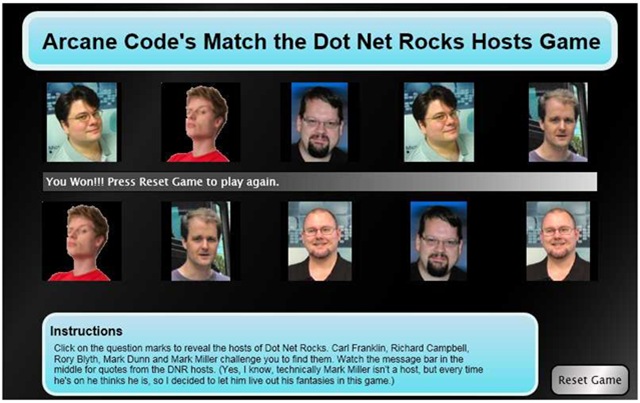
Here’s what I came up with, the Arcane Code Match the Dot Net Rocks Hosts Game. Play is quite simple, you click on the question marks. The first click reveals a DNR host, if you match with the second click the hosts photo stays up, and you are rewarded with a witty quote across the middle of the screen. If you fail to match, you are cruelly taunted then the pictures fade back to question marks. Match all the hosts to win. Below is an example before play begins. (Click for a bigger image).

Questions

And here is a game with all the hosts revealed. Carl Franklin, Mark Dunn, Rory Blyth, Richard Campbell and Mark Miller revealed in all their glory.

dnrmatch02

Now, before I get a zillion comments and e-mails, yes I am perfectly aware that Mark Miller is not a DNR Host. However, every time he gets on Mark Miller thinks he’s a host! And frankly, if it will help him to achieve his goal of 125 refactorings inside RefactorPro, then hey I’m certainly willing to help him live out his delusions inside the game.

Each time you play, by the way, the pictures get scrambled in a different order. In a few weeks I hope to figure out a place to host the game so you can actually play for yourself and not just have to look at static screen shots. Right now though I use WordPress for my blog and it (unfortunately) doesn’t do Silverlight.

Over the next two days I’ll show you the code behind, tomorrow I’ll post the XAML and Friday the Javascript. On both days I’ll talk a little bit about the code and what I did. If anyone would like a copy of the entire project, just shoot me an e-mail: arcanecode at gmail.com and I will send you a zip file with the whole project.

Code Camp Samples

Tomorrow, Saturday October 6th I will be presenting “Getting Started with Full Text Searching”. Here are the materials I’ll be using during the demo.

First, here is a PDF of the PowerPoint slides:

Full Text Search Power Points

Next, most of the demos used SQL statements. This PDF file has all of the SQL plus some associated notes.

Full Text Search Demo Scripts

Finally, I did a WPF project that demonstrated how to call a full text search query from a WPF Windows application. Annoyingly enough WordPress (who hosts my blog) won’t let me upload ZIP files, so I renamed the extension to pdf. After you download the file to your drive, remove the .pdf and put the zip extension back on, then it should expand all the source for you correctly. (Yes, I know, I really need to get a host server for binaries, one of these days I’ll get around to it, but for tonight…)

Source for WPF Demo

Microsoft to Release Source Code to .Net Framework Libraries

Holy Frameworks Batman! The news is spreading quick, Microsoft has announced that they will be releasing the source code, complete with comments and debugger support. Now you and I will be able to step into those framework classes in an effort to debug our apps and maybe even learn something. This will be part of the VS2008 Orcas release.

Check out the announcement on the ScottGu blog at

 http://weblogs.asp.net/scottgu/archive/2007/10/03/releasing-the-source-code-for-the-net-framework-libraries.aspx

Shawn Burke has details on his blog:

http://blogs.msdn.com/sburke/archive/2007/10/03/making-net-framework-source-available-to-developers.aspx

Channel 9 video at:

http://channel9.msdn.com/Showpost.aspx?postid=345805

Scott Hanselman also has the scoop on his podcast:

http://www.hanselman.com/blog/HanselminutesPodcast83MicrosoftToReleaseNETFrameworkLibrariesSource.aspx

This ranks in the uber-cool category.

SQL Server 2005 Full Text Searching – Getting your Bits

In reviewing my previously published notes on SQL Server Full Text Searching, I realized I omitted an important fact: which versions support it. If you wish to explore Full Text Searching under SQL Server 2005, you cannot use the standard SQL Server Express Edition.

The standard version of Express Edition lacks support for Full Text Searching, along with Reporting Services. Instead you will need to download and install the SQL Server 2005 Express Edition with Advances Services. This version includes everything you’ll need to experiment and implement Full Text Searching with SQL Server 2005.

You can download this version from Microsoft’s website:

http://msdn2.microsoft.com/en-us/express/bb410792.aspx

Just look for the area named SQL Server 2005 Express Edition with Advanced Services SP2.

You need to be aware that even with the Advanced Services SP2 version, Full Text Searching is not automatically installed. During the install uncheck the box that talks about hiding advanced configuration features. Then on the appropriate screen change the installer to add FTS to your installed components.

For my previous posts on Full Text Searching, please check out the Arcane Lessons link at the top of this page. Scroll down to the Full Text Search area for links to all FTS related posts.

Arcane Lessons Updated

I just got done updating the Arcane Lessons page. I added the last couple of weeks of WPF lessons to the WPF area, added one new item to the SQL Server Full Text Search area, and created a new category: Arcane’s Toolbox. This first list is all of the Visual Studio add-ins I’ve blogged about. Later I plan to add some of my favorite Windows add-ins, but if you don’t want to wait you can click on the Windows Add-ins tag to see the posts.

Fun with Silverlight

I spent my weekend learning Silverlight, writing a game in Silverlight 1.0. I did all of my project in Visual Studio 2005 and using Silverlight 1.0 runtime. It’s a pretty simple game, I’ll reveal more later in the week and eventually post all the code and blog about the development experience.

The biggest pain was not in the XAML, that was pretty straight forward, it was all the [explicative deleted] Javascript. It’s been a few years since I did any Javascript so I had a lot of relearning to do.

If you are want to look into Silverlight coding, I highly recommend you go to the Getting Started site on Silverlight’s website. http://silverlight.net/getstarted/Default.aspx

After you download all the bits, go to the very bottom of the page under “3. Learn from Samples and Documentation”. Go read all the QuickStarts!!! Very good code samples here to get you started.

After you go through the code samples, there are some really good focus videos at http://silverlight.net/Learn/learnvideos.aspx . These helped me over quite a few hurdles.

The documentation was also very helpful in looking up how some properties worked, going back and forth between Java and Xaml. http://msdn2.microsoft.com/en-us/library/bb188743.aspx

There will be more to come on this subject to be sure, but over the next few days I’ll be preparing my presentaion for Alabama Code Camp 5 on SQL Server 2005 Full Text Searching,

Arcane Fun Fridays

WHEW! All of this WPF / XAML sure has been a lot of fun. But I think it’s time to come up for air and see what else is happing out there in Dot Net land.

Alabama Code Camp is coming up in just a little over a week, Saturday October 6th to be exact. Still plenty of time to register and even just a bit of time if you want to get in on the Silverlight programming contest. First prize for that is a Zune! http://www.alabamacodecamp.com/home.html

devLink, the large conference for a cheap price comes up right afterward in Nashville, Friday and Saturday October 12th and 13th. http://www.devlink.net/ . You can tell I’ll be there, my name’s on the front page as a winner of a Barnes and Nobel gift card (look for the dude from AL !)

(By the way, anyone know of a good dog repellent? My nephew is coming to house sit and is bringing Marshmallow and Buttercup, his twin Dobermans along because I have a big back yard they can play in. Last time though they ate the garden hose, chewed the handle off my shovel, and bit through one of my lawnmower tires.)

There’s a new add-on for SQL Server Management Studio I’m eager to try out. It’s still in Beta but looks promising. It was blogged about at http://weblogs.sqlteam.com/mladenp/archive/2007/09/20/SSMS-Tools-Pack—an-add-in-for-SQL-Management-Studio.aspx or you can download it directly at http://www.ssmstoolspack.com/ .

If you are a fan of NUnit, you’ll appreciate the new xUnit. Read James’ announcement at http://jamesnewkirk.typepad.com/posts/2007/09/announcing-xuni.html .

In a recent Dot Net Rocks episode, Carl Franklin announced they would be taking over Shrinkster.com. Shrinkster has been down due to spam abuse, as soon as Carl gets everything setup we’ll be able to go back to using short links again!

Speaking of Dot Net Rocks, I especially enjoyed show 274, where the new features of VB.Net and C# for the 2008 release were discussed. Entertaining and lots of good tidbits. I think my favorite feature so far has got to be C#’s extension methods. http://www.dotnetrocks.com/default.aspx?showNum=274

During my long drive to the Tallahassee Code Camp last week, I put together a podcast theme session, and copied a bunch of related podcasts onto my cheapo SanDisk mp3 player. This time I went with a “Millenator” theme and got all the episodes of Dot Net Rocks that Mark Miller appeared on. Good stuff, lots of thoughtful material combined with some humor. Next time you go on a trip, copy a bunch of past episodes of your favorite podcast that are in the same theme and make that long drive go much quicker.

There have been several updates to the world’s greatest Visual Studio Add-In, CodeRush, over the last few weeks ( http://www.devexpress.com/Home/Announces/CodeRush25.xml ). Apparently Mark Miller and the boys have been busy! If you’re not on 2.5.4 go update yours today.

Speaking of Mark Miller, I love his intro slide for his VSLive session coming up in LasVegas. Take a look, pure genius. http://www.doitwith.net/2007/09/11/MyLastVSLiveSessionEver.aspx

A final note, between getting ready for Alabama Code Camp and going to devLink my blogging may get spotty for the next few weeks, bear with me and I’ll have full reports from both code camps and lots of fun new stuff to share.

WPF Menus

The next control in the basic toolkit is the menu. Menus are much like a series of nested buttons in the way you deal with them. Let’s create a simple menu. I’ve added a DockPanel, so we could nest our menu at the top, a very common scenario.

  <DockPanel>

    <Menu DockPanel.Dock=Top >

      <MenuItem Header=_File>

        <MenuItem Header=_Open />

        <MenuItem Header=_Save />

        <MenuItem Header=Save As… />

        <MenuItem Header=E_xit Click=mnuFileExit_Click />

      </MenuItem>

      <MenuItem Header=_Edit>

        <MenuItem Header=_Cut />

        <MenuItem Header=C_opy />

        <MenuItem Header=_Paste />

      </MenuItem>

      <MenuItem Header=_Help>

        <MenuItem Header=_About />

        <MenuItem Header=_Contents />

        <MenuItem Header=_Help />

      </MenuItem>

    </Menu>

  </DockPanel>

wpf054

The underscore acts as an indicator to underline in the menu, designating a “hot key”. When the user hits the ALT key, they are then able to combine with the hot key to activate the menu option. ALT+F opens the File menu, O will then trigger the open.

Responding to the users click is just like working with many other controls, simply add a Click=”” in the MenuItem. Above you will notice I did this for one item, the Exit menu choice under File. Here’s the code I created in C#:

    void mnuFileExit_Click(object sender, RoutedEventArgs e)

    {

      this.Close();

    }

Since all the other menus work the same way I won’t bother to wire them up, but you get the idea.

It’s also possible to insert a separator, a visual line the separates one menu option from the rest. In this example, I think Exit should be separated from the other options.

  <!– …snip… –>

  <MenuItem Header=_File>

    <MenuItem Header=_Open />

    <MenuItem Header=_Save />

    <MenuItem Header=Save As… />

    <Separator></Separator>

    <MenuItem Header=E_xit Click=mnuFileExit_Click />

  </MenuItem>

  <!– …snip… –>

And now we have a nice clean line across the menu:

wpf055

OK, I can hear you now, “Hey, this is WPF, what about all the pretty pictures?” No problem, the menus support the addition of icons to each item.

One thing I’ve found many developers don’t realize is that Visual Studio actually ships with a nice array of graphics for your use. If you are using Visual Studio 2005, navigate to the C:\Program Files\Microsoft Visual Studio 8\Common7\VS2005ImageLibrary folder. There you will find a zip file named VS2005ImageLibrary.zip.

I extracted the icons folders to my D drive, as you’ll notice in the next code snippet. Adjust the sample according to where you decide to put them. I did find that on Vista, I needed to move them out of my Program Files folder or they didn’t render correctly, a security permissions issue.

      <MenuItem Header=_File>

        <MenuItem Header=_Open >

          <MenuItem.Icon>

            <Image Height=16 Width=16

              Source=D:\Icons\WinXP\folderopen.ico />

          </MenuItem.Icon>

        </MenuItem>

        <MenuItem Header=_Save >

          <MenuItem.Icon>

            <Image Height=16 Width=16

              Source=D:\Icons\Win9x\DISK06.ico />

          </MenuItem.Icon>

        </MenuItem>

        <MenuItem Header=Save As… />

        <Separator></Separator>

        <MenuItem Header=E_xit Click=mnuFileExit_Click />

      </MenuItem>

For the MenuItems I wanted to add icons to, I need to define the MenuItem.Icon tag, then inside place an Image. The Source property I set to files I’d mentioned earlier. Note also I explicitly set the Height and Width to 16×16, in order to make them fit nicely into the menu. However, you are free to make them any size you wish, the menu item height will adjust automatically to compensate.

wpf056

Ah, a work of art even Leonardo da Vinci would be proud of. But our artistic menus are not limited to the the top of the Window. It’s also possible to attach a menu to nearly any control, in the form of a ContextMenu. ContextMenus appear when you Right Click with the mouse on the control.

  <DockPanel>

    <Menu>

    <!–Menu omittied for brevity, same as previous–>

    </Menu>

    <Grid>

      <Grid.RowDefinitions>

        <RowDefinition></RowDefinition>

        <RowDefinition></RowDefinition>

      </Grid.RowDefinitions>

      <Grid.ColumnDefinitions>

        <ColumnDefinition></ColumnDefinition>

        <ColumnDefinition></ColumnDefinition>

      </Grid.ColumnDefinitions>

      <TextBlock Grid.Row=0

                Grid.Column=0

                Grid.ColumnSpan=2>

        Enter some text, right click for menu options.

      </TextBlock>

      <TextBox Grid.Row=1 Grid.Column=0>

        <TextBox.ContextMenu>

          <ContextMenu>

            <MenuItem Header=_Cut />

            <MenuItem Header=C_opy />

            <MenuItem Header=_Paste />

            <Separator></Separator>

            <MenuItem Header=_Save >

              <MenuItem.Icon>

                <Image Height=16 Width=16

                  Source=D:\Icons\Win9x\DISK06.ico />

              </MenuItem.Icon>

            </MenuItem>

          </ContextMenu>

        </TextBox.ContextMenu>

      </TextBox>

    </Grid>

  </DockPanel>

I’m adding a Grid to the body of the DockPanel. In the Grid I’m putting a TextBlock with some instructions, then a TextBox. Try right clicking on the TextBox, and take a look at what you get:

wpf057

To get this to work, I first had to create a ContextMenu tag specific for the control, in this case TextBox.ContextMenu. Within that tag I was then able to place my ContextMenu. Inside it I treated it just like a normal Menu control, the code in there I simply copied from the other menus. I could even have the Click events route to the same code in the code behind module if I wished.

It’s worth pointing out that a menu may appear anywhere on the Window. Here I will create a menu to the right of the TextBox, in the next column of the Grid.

  <DockPanel>

    <Menu DockPanel.Dock=Top >

      <!–Omitted, see previous–>

    </Menu>

    <Grid>

      <!–Omitted, see previous–>

      <TextBox Grid.Row=1 Grid.Column=0>

        <!–Omitted, see previous–>

      </TextBox>

      <Menu Grid.Row=1 Grid.Column=1>

        <MenuItem Header=Load>

          <MenuItem Header=From File></MenuItem>

          <MenuItem Header=From Database></MenuItem>

        </MenuItem>

        <MenuItem Header=Reset>

          <MenuItem Header=This Item />

          <MenuItem Header=Entire Form />

        </MenuItem>

      </Menu>

    </Grid>

  </DockPanel>

wpf058

The menu code is the same as before, except I located in the Grid instead of at the top of the Window.

Virtually any application of decent size will need to employ a menu structure of some kind. Getting to know the basics of menu controls will get you ready for that first big WPF app.

WPF Tab Control

Continuing the series on visual grouping controls in WPF, the Tab control is a common UI element that has been around for some time. It makes a convenient way to organize your window when there is more than could realistically fit and still be comprehensible.

In WPF, Tabs are very easy to implement. Create a new WPF Window, remove the default Grid tags, and add the following XAML:  

  <TabControl>

    <TabItem Header=Tab 1>Here’s Tab 1</TabItem>

    <TabItem Header=2nd Tab>A second Tab</TabItem>

  </TabControl>

Run the app, and you’ll see the two tabs on a window:

wpf042

The TabItem, just like most controls, can hold a container control that can hold much more, thus making the tab really useful. In this example, let’s add a third tab item, with a grid. We’ll put in a few text boxes and a button.

  <TabControl Name=tabMyTabs >

    <TabItem Header=Tab 1>Here’s Tab 1</TabItem>

    <TabItem Header=2nd Tab>A second Tab</TabItem>

    <TabItem Header=Cool Tab>

      <Grid>

        <Grid.RowDefinitions>

          <RowDefinition></RowDefinition>

          <RowDefinition></RowDefinition>

          <RowDefinition></RowDefinition>

        </Grid.RowDefinitions>

        <Grid.ColumnDefinitions>

          <ColumnDefinition Width=*></ColumnDefinition>

          <ColumnDefinition Width=2*></ColumnDefinition>

        </Grid.ColumnDefinitions>

        <Label Grid.Column=0 Grid.Row=0

              HorizontalAlignment=Right>

          First Name:

        </Label>

        <Label Grid.Column=0 Grid.Row=1

              HorizontalAlignment=Right>

          Last Name:

        </Label>

        <TextBox Name=FirstName

                Grid.Column=1

                Grid.Row=0 />

        <TextBox Name=LastName

                Grid.Column=1

                Grid.Row=1 />

        <Button  Grid.Column=1

                Grid.Row=2

                Height=23 Width=75

                HorizontalAlignment=Left

                Name=CoolTabButton

                Click=CoolTabButton_Click

                VerticalAlignment=Top>

          OK

        </Button>

      </Grid>

    </TabItem>

  </TabControl>

Using techniques already described in my post on Grids (https://arcanecode.wordpress.com/2007/08/28/grid-yourself-its-wpf/ , in case you missed it) I was able to create a tab with some useful content. Running it, you can see the results for yourself:

wpf043

It’s also possible to determine the current tab via code. Let’s wire up a click event to that OK button you see. This requires we name the tab (I called it tabMyTabs), and the button, and add a Click=”CoolTabButton_Click” to the button declaration. Now all we have to do is add a little code:

    private void CoolTabButton_Click(object sender, RoutedEventArgs e)

    {

      TabItem ti = tabMyTabs.SelectedItem as TabItem;

      MessageBox.Show(“Tab Index=” + ti.Header);

    } 


Running and clicking on the OK button will result in a message box with the words “Tab Index=Cool Tab”

Granted my design won’t win any awards, but it gives you the general idea of how to use a tab control in WPF.

WPF Expander

Last Friday I discussed the GroupBox as a way to organize and sets of controls into distinct groups. There are several controls that will allow you to group controls, so today I’d like to highlight another named the Expander.

The expander is a nifty control that will allow you to show and hide the controls you place on it. Let’s start by putting an Expander control onto a Window. Inside we’ll add a StackPanel, and in it I’ll copy a couple of the RadioButtons from last week’s examples.

<Expander>

    <StackPanel>

      <RadioButton GroupName=One IsChecked=True>Option 1</RadioButton>

      <RadioButton GroupName=One IsChecked=False>Option 2</RadioButton>

    </StackPanel>

  </Expander>

wpf049

Sort of uninspiring, just that button sitting there. But click it and the magic happens.

wpf050

The arrow is nice, but it’d be nice to know what the expander is supposed to do. To that end the Header property is provided. Let’s expand our example with a second Expander control.

  <StackPanel>

    <Expander>

      <StackPanel>

        <RadioButton GroupName=One IsChecked=True>Option 1</RadioButton>

        <RadioButton GroupName=One IsChecked=False>Option 2</RadioButton>

      </StackPanel>

    </Expander>

    <Expander Header=Expander Header>

      <StackPanel>

        <TextBlock>Here is some instructional text for your viewing pleasure.</TextBlock>

        <CheckBox>Check me out!</CheckBox>

      </StackPanel>

    </Expander>

  </StackPanel>

wpf051

Here you can see the group header named “Expander Header”. You may notice, however, that the text scrolls off the side of the screen. That’s easy enough to fix though, all we have to do is add TextWrapping=Wrap” to the TextBlock, which you’ll see in the next sample.

Speaking of which, you may decide there are times when you want to have the Expander control already open when the dialog appears. The most common scenario would be with additional instructions for the user. Perhaps your program has modes for new users and experts. In “new user” mode, you want these to appear already expanded, but in “expert” mode they should not appear. Easy enough to achieve with the IsExpanded property.

  <StackPanel>

    <Expander>

      <StackPanel Margin=15,3,1,1>

        <RadioButton GroupName=One IsChecked=True>Option 1</RadioButton>

        <RadioButton GroupName=One IsChecked=False>Option 2</RadioButton>

      </StackPanel>

    </Expander>

    <Expander Header=Expander Header>

      <StackPanel>

        <TextBlock TextWrapping=Wrap>Here is some instructional text for your viewing pleasure.</TextBlock>

        <CheckBox>Check me out!</CheckBox>

      </StackPanel>

    </Expander>

    <Expander IsExpanded=True Header=Expanded to start with>

      <TextBlock TextWrapping=Wrap>Expanded using the IsExpanded property</TextBlock>

    </Expander>

  </StackPanel>

Here is the dialog, just as it appears to the user when it’s first run.

wpf052

Play around with the other two headers as well. You’ll notice I added a Margin tag to the first group, to bump the options over a bit and make them look a little nicer. I also added the TextWrapping tags to the various TextBlocks.

Finally, you may not always want the Expander to expand down. Fear not, it’s possible to have the expansion go to the right, left, or up via the ExpandDirection tag. Getting it to look right, however, is not a straight forward task. Let’s take a look at what I want to achieve.

wpf053

As you can see, I have a button, and to the right of the button is the expander control, with the ExpandDirection set to Right. You might think you could just drop them into a Horizontally aligned StackPanel, but it won’t work. The StackPanel just expands to take up the room it needs, even if that means going off the edge of the form. The TextWrapping property then of the TextBlock is useless, since it’s container, the StackPanel, seems to be wide enough. It’s not looking at the Window.

There are a couple of ways we could solve this, such as tieing the width of the StackPanel to the Window. But the most straightforward way is to not use the StackPanel at all, but instead to use a Grid.  

  <StackPanel>

    <!–First 3 Expanders omitted for brevity–>

    <Grid>

      <Grid.ColumnDefinitions>

        <ColumnDefinition Width=47></ColumnDefinition>

        <ColumnDefinition></ColumnDefinition>

      </Grid.ColumnDefinitions>

      <Grid.RowDefinitions>

        <RowDefinition></RowDefinition>

      </Grid.RowDefinitions>

      <Button Grid.Column=0 Height=25 VerticalAlignment=Top HorizontalAlignment=Left>Button</Button>

      <Expander Grid.Column=1 ExpandDirection=Right>

        <TextBlock TextWrapping=Wrap Margin=5,3,3,3>Expanded to the right using the ExpandDirection property gives interesting possibilities</TextBlock>

      </Expander>

    </Grid>

    <TextBlock>Some text just below the Right Expander</TextBlock>

  </StackPanel>

Here you can see a grid with one row and two columns. Note in the grid, I’ve fixed the width of the first column to be a good size for the button. If that’s not done, the Grid will keep changing size as the Window changes, and thus changing the button width which gets rather disconcerting to the user, who typically expects buttons to remain a constant size.

In addition, in the Button control I set a fixed height, again to avoid the resize issue. I’ve also set the alignment to the upper left, otherwise the button will move around as the Expander is opened and closed.

Now for the heart of all this, in the Expander control I set the ExpandDirection to Right, so it will go in the direction I want.

Within the TextBlock I added a slight margin to the TextBlock, to make it appear a little nicer. Finally I put another TextBlock under the Grid in the StackPanel, just so you could see it move up and down with the Expander.

Expander controls have a lot of possibilities with WPF. I’ve already mentioned the instructions scenario for new / expert users. They could also be used to hide seldom used options. Expression Blend uses these over in the properties window. If you come up with new design possibilities for this control, feel free to post a comment and let us know what you came up with.