Using SQL Server Reporting Services in Client Mode

Recently I did a presentation at the March BSDA meeting. I showed how to use SQL Server Reporting Services without a SQL Server, or more specifically a SQL Server running Reporting Services. It got an enthusiastic response so I thought I’d add to it here by adding some reminder documentation, as much for myself as for all of you wonderful readers.

Using Reporting Services in Client, or Local mode is a 4 step process. First, you will need an XSD schema file to create the report on. Once you have the XSD you will be able to move to the second step, creating the report. Third you will need to place a Report Viewer control on your windows form, WPF form, or ASP.NET page. Finally you will need to write some code that generates an ADO.NET dataset, loads the report in the report viewer control, then binds it all together. Lets look at this step by step.

Normally when you create a report you connect to a database, then base it off of some object like a query, view, or stored procedure. The report is then uploaded to a Reporting Services server, which takes care of hosting it, displaying it, and generating the data for it. With client mode you have no server available, so we have to instead create a surrogate. That’s where our XSD file comes in.

Right click in Solution Explorer and “Add a new item”, and from the list of goodies select “XML Schema”. Name it something appropriate, letting the default extension be XSD. For this example I will be getting customer order data, so I’ve given it the name CustomerOrders.xsd. Visual Studio will think about it then add it to the project, and even helpfully open it for you. I don’t know about you, but hand typing XML Schema’s isn’t my idea of fun, so you should glace at it, go “that’s nice” then close it.

Now right click on the XSD file in Solution Explorer, and pick “Open with….”. In the dialog that appears, select “Dataset Editor”. When you do, Visual Studio presents a big scary warning message letting you know that you could lose contents, and that this will forever be a dataset XSD file. We have nothing in the file, so we’re cool with this, just click OK.

You will now be presented with a big surface area. In the middle it tells you to drag items from the server explorer or right click. If you have a table, view, or stored procedure you are free to drag it in, but most of the time you’ll want to base this off of a SQL query. Right click on the surface, and select Add…., Table Adapter from the menu. The first screen asks you for the database connection. This is the only time you’ll actually need a connection, in this example I am using the good old Northwind database. I pointed at Northwind and clicked next.

image

Next we are asked how we are going to access the data. Since we have a SQL Statement just pick the default of “Use SQL statements” and click Next.
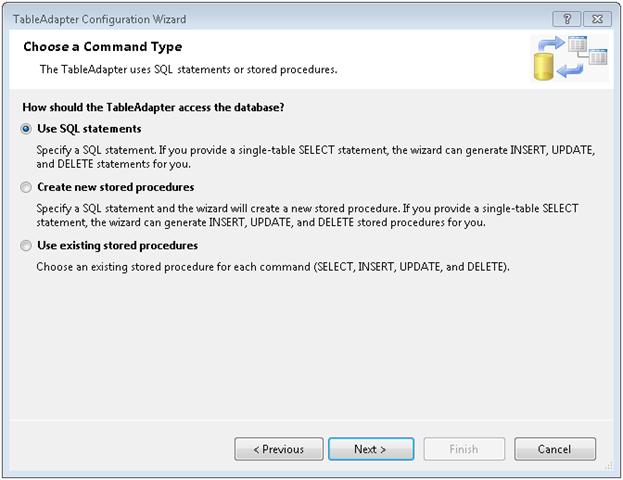
image

Now take your SQL Statement and paste it in, and click Next.

image

OK, click Finish to wrap up the addition of the XSD. By default the adapter has a generic name, we should give ours something more meaningful. Click in the top bar, then enter a new name. Since my example report is for customer order data, I’ll name it CustomerOrders. I then went to the bottom bar and renamed the TableAdapter1 to CustomerOrderTableAdapter. You should now see something like:

image

Note that this will become your Data Source for the report. The data source will have the name of the XSD followed by the name of the source, in this case it will read CustomerOrders_CutomerOrders. OK, now it’s time to create the report.

Go back to Solution Explorer, right click and pick Add New Item. Navigate to the Reporting area and pick Report Wizard. Note the file extension should end in RDLC. If you have used Reporting Services before, you will know that reports typically end in RDL. However, client mode reports have just a slightly different syntax to them, thus the RDLC extension to differentiate the two. While you can modify an RDL to become an RDLC and vice versa, you have to do so by hacking the XML behind the report.

Note you can also choose just Report, but then you’ll have to setup everything manually. For this simple example though, we’ll just use the Report Wizard.

image

Give your report a meaningful name and click Add. The report wizard then shows you a welcoming screen if you’ve never run it before, just click Next.

Now we need to pick the data source. In this example, you want the CustomerOrders branch, so select it and click Next.

image

The next screen asks if we want a Tabular or Matrix report. Select the one for you, in my example I picked Tabular and clicked Next. The next screen asks how we want to display the data. For my example, I opted to group by the customers company name and contact name, then the order data went into the details area. Fill out as appropriate for your report and click Next.

image

The next screen asks how we want things laid out. This affects the look and feel of the report. For my example I just took the default and clicked next, however you are free to play with this to experiment with the different looks and feels your reports might have.

Likewise the next screen is also a look and feel one, asking what colorings we want to apply. Pick one that makes you happy and click next. You can always change it later, many times I pick the Generic one (which adds no colors) then fix it up afterward.

The final screen is the wrap up. Give your report a meaningful name and click Finish.

image

OK, you have a report, now you need a container. Open up the user interface you want to place the report viewer control on. In my example I went with a very simple Windows Forms application.

In my toolbox, I navigated to the Reporting section, where I only found one control, the MicrosoftReportViewer control. (Note I am using Visual Studio 2008 SP1, if you are on an earlier version your names may differ slightly). Grab it and drop it onto your design surface. I also added a Button control to the form to kick off the report display process.

image

Now it’s time for the last step, adding some code. In this example I’ve used a Windows Form. Opening it, the first thing we find in the form load area is::

      this.reportViewer1.RefreshReport();

(Note I left my report viewer control named reportViewer1.) Delete it, we’ll have it refresh elsewhere.

Now we need to add some using statements to the top of our class.

//Add these to the standard list above

using System.Data.Sql;

using System.Data.SqlClient;

using Microsoft.Reporting.WinForms;

The first two will be used in accessing our Northwind database, you may need to use different libraries if you were going to another database. I’ve also included a referenced to the Reporting.WinForms library so we can manipulate the report programmatically.

Now let’s go to the code for the button click event. First, we need to reset the report viewer in case we’d been using it to host another report.

      // Reset in case report viewer was holding another reportViewer1

      reportViewer1.Reset();

Next We need to set the report viewer to local mode. This tells it we’ll be supplying the report name from a local file, and binding the report to a local ADO.NET datasource.

      // Set the processing mode for the ReportViewer to Local

      reportViewer1.ProcessingMode = ProcessingMode.Local;

Our third step is to create a local report variable, and set it’s reference to the report viewer’s local report. This will make it easier to work with. Then we’ll set the location of the report we want to use.

      LocalReport localReport = reportViewer1.LocalReport;

      localReport.ReportPath = @"D:\Presentations\SQL Server\SSRS RDLC\SSRS_RDLC\Report2.rdlc";

Now we need to create an ADO.Net dataset, and populate it. I implemented most of that functionality in a method called GetCustomerOrders, which I’ll append at the bottom of these instructions. It’s very straight forward code.

      DataSet dataset = new DataSet("Northwind");


      // Get the sales order data

      GetCustomerOrders(ref dataset);

At this stage we have told it where our report is, and have created the dataset. Now we need to create a datasource for the report itself. We’ll use the ReportDataSource object. For the name, we’ll use the same name as the XSD schema, CustomerOrders_CustomerOrders. Then for the value we will give it the table from the dataset we created in code. It’s possible for a report to have multiple datasets, in the report we’d give each one it’s own name (based on the XSD) then here we’d bind the dataset table to the name we’d used in the report. Once done we will then add the new ReportDataSource to the local reports DataSources collection. Finally, we’ll referesh the report viewer to make it generate the report.

      // Create a report data source for the sales order data

      ReportDataSource dsCustomers = new ReportDataSource();

      dsCustomers.Name = "Customers_Customers";

      dsCustomers.Value = dataset.Tables["Customers"];


      localReport.DataSources.Add(dsCustomers);


      // Refresh the report

      reportViewer1.RefreshReport();

You can download a copy of these instructions, along with the entire sample project including code and reports, at the Microsoft Code Gallery site http://code.msdn.microsoft.com/SqlServerRSClient . As promised, below is a copy of the GetCustomerOrders routine, for your reference.

    private void GetCustomerOrders(ref DataSet dsNorthwind)

    {

      string sqlCustomerOrders = "SELECT c.[CustomerID]"

        + " ,c.[CompanyName]"

        + " ,c.[ContactName]"

        + " ,c.[ContactTitle]"

        + " ,c.[Address]"

        + " ,c.[City]"

        + " ,c.[Region]"

        + " ,c.[PostalCode]"

        + " ,c.[Country]"

        + " ,c.[Phone]"

        + " ,c.[Fax]"

        + " ,o.[OrderID]"

        + " ,o.[CustomerID]"

        + " ,o.[EmployeeID]"

        + " ,o.[OrderDate]"

        + " ,o.[RequiredDate]"

        + " ,o.[ShippedDate]"

        + " ,o.[ShipVia]"

        + " ,o.[Freight]"

        + " ,o.[ShipName]"

        + " ,o.[ShipAddress]"

        + " ,o.[ShipCity]"

        + " ,o.[ShipRegion]"

        + " ,o.[ShipPostalCode]"

        + " ,o.[ShipCountry]"

        + "  FROM [Northwind].[dbo].[Customers] c"

        + "  join [Northwind].[dbo].[Orders] o on c.CustomerID = o.CustomerID";


      SqlConnection connection = new

        SqlConnection("Data Source=(local); " +

                      "Initial Catalog=Northwind; " +

                      "Integrated Security=SSPI");


      SqlCommand command =

          new SqlCommand(sqlCustomerOrders, connection);


      SqlDataAdapter customerOrdersAdapter = new

          SqlDataAdapter(command);


      customerOrdersAdapter.Fill(dsNorthwind, "CustomerOrders");


    }

Tracking down SQL Server Integration Services issues with Collation

At work I’ve been developing a big suite of packages to convert data from an Oracle system into our Data Warehouse. A lot of the supporting tables are almost a straight pull, except we are of course adding our own primary key, and then setting up a non clustered unique index on what had been the primary key in the old system.

A few tables have been driving us batty though, giving us “duplicate value” errors when trying to insert the rows from our SSIS package. The first thing I did to try and track down the problem was create an error table, and instead of having the package fail have it redirect error rows to my new error table. In case you are wondering, this is going to be a “one time shot” use for the packages, so we chose not to invest a lot of time and effort into error handling. We either want all the rows or none, and we’ll be running the packages manually so we’ll be there to know the results. But I digress.

When I went to look at the error table, it had all the rows from our source system in it. I scratched my head, thinking that can’t be right. A quick search found the answer in the Technet Forums. I needed to go into the OLE DB Destination and set the Max Commit count to 1. Of course you wouldn’t want to leave it like that for production, but for debugging it worked great. Once I did that, I was able to rerun the package and quickly identify my misbehaving row.

Next I looked at the value, and then looked for a similar value in my table. What I found was my source system had two rows, something like this example:

Arcane Code

Arcane code

Yes, the only difference was the second row had a lowercase letter at the beginning of the second word. Our Oracle instance had case sensitivity turned on. To it, these were two entirely different values. However, by default SQL Server is case insensitive; to it these two were the same. So my dilemma, how to fix this one column without having to alter my entire database?

It turns out there is an option in the Create Table syntax to set the collation. First, you should find out what your collation is currently set to. This is easy enough, just open SQL Server Management Studio, right click on the database and pick properties. Right there on the front page is the Collation.

image

Alternatively I could have run this SQL in SSMS (substitute your database name where I have AdventureWorks2008):

select databasepropertyex('AdventureWorks2008', 'collation')

Either way, in this example the default is SQL_Latin1_General_CP1_CI_AS. The important thing to note is the “_CI_”, which indicates case insensitivity. If we wanted to set the entire database, we would issue commands to change this to SQL_Latin1_General_CP1_CS_AS, which stands for case sensitivity. But as I said, in my case I don’t want to affect the entire database, so instead I will use this collation name in the create table syntax. Here is a simple example:

create table TestTable
(
  BogusPK bigint identity
  , FieldFromOracle varchar(200) collate SQL_Latin1_General_CP1_CS_AS not null
  , AnotherField varchar(200) null
)

All that I had to do was insert the collate clause between the data type and the not null clause. Note that this only affects the one column I had an issue with. FieldFromOracle is now a case sensitive column, I can add “Arcane Code” and “Arcane code” and still be able to add a unique index. The second column, here named “AnotherField” will remain case insensitive, the behavior you normally expect.

Before I wrap this up, I know someone will point out that allowing primary keys in your system that only differ in case is bad practice. For the record I totally agree, however this is a soon to be legacy system built by a vendor. Additionally, for various reasons I was not allowed to do any data cleansing to the source system. Just pull it like it is and put it in the warehouse. I imagine most of you are like me, that you don’t get to live in the ideal world, so hopefully knowing how to diagnose and deal with collation issues between databases will make your life a little easier.

Arcane Review: Expert SQL Server 2005 Integration Services

If you recall my “Good Reads” post from June 25th, you will remember I am a big believer in books as a learning medium. I like to employ a lot of different ways to learn: user groups, blogs, podcasts, videocasts, and magazines to name a few. But for really in depth coverage, it’s hard to beat a nice book in your hands. I got some good feedback from my mention last week of Andy Leonard’s new e-book on Data Dude, so I thought that I would continue by adding book reviews to the blog every so often.

Expert SQL Server 2005 Integration Services For this review I thought I’d cover a book that seems to constantly be on my desk lately: Expert SQL Server 2005 Integration Services, by Brian Knight and Eric Veerman. This book does a really good job and is specifically targeted toward the data warehousing professional. One entire chapter is devoted to ETL for dimension tables; another chapter focuses on the fact tables. It was great to have coverage so focused on these topics.

Another favorite part of the book is the two chapters on deploying and managing SSIS packages. So often these topics are glossed over, especially the managing piece. The book does a great job in covering all the tools and practices around this subject. I’ll mention one more chapter, one that focuses on package reliability. They cover logging, auditing, event handling, checkpoint files, and even suggestions on testing error handling logic.

There are many more chapters in the book, such as migration from DTS (SQL Server 2000) and Scalability, for you to discover. The other thing I love about this book is the brevity. The authors cover an amazing amount of information in just 382 pages. As a busy, busy person I very much appreciate the conciseness they achieved without sacrificing any clarity.

I’ve met both authors, and have heard them speak. They are both very nice, knowledgeable individuals, and I highly encourage you to attend one of their presentations if you get the chance, or if not at least buy their book from your favorite retailer; you will find it a great investment.

Presenting SQL Server 2005 2008 Full Text Searching at the TechEd 2008 InBetween conference

On June 7th, 2008 I am presenting “Getting Started with SQL Server 2005/2008” at the InBetween SQL Saturday conference that is taking place between the two weeks of Microsoft TechEd. This post will have all the links relevant to my talk.

Detailed descriptive material can be found on my blog, ArcaneCode.com, with links to specific posts below.

First off, the slides and sample code can be located at the Code Gallery site I setup specifically for Full Text Searching with SQL Server:

http://code.msdn.microsoft.com/SqlServerFTS

Look on the downloads page to see various projects around SQL Server Full Text Searching. I’ve created one “release” for each of the projects around FTS. Be sure to look on the right side at the various releases in order to see the various projects.

Next, you can get started with the basics by reading these entries on my blog:

Lesson 0 – Getting the Bits to do Full Text Searching in SQL Server 2005
Lesson 1 – The Catalog
Lesson 2 – The Indexes
Lesson 3 – Using SQL
Lesson 4 – Valid Data Types
Lesson 5 – Advanced Searching

After that you’ll be ready for some advanced topics.

Can you hear me now? Checking to see if FTS is installed.
Exploring SQL Servers FullTextCatalogProperty Function
Using the ObjectPropertyEx Function
Using FORMSOF in SQL Server Full Text Searching
Creating Custom Thesaurus Entries in SQL Server 2005 and 2008 Full Text Search
Creating and Customizing Noise Words in SQL Server 2005 Full Text Search
Creating and Customizing Noise Words / StopWords in SQL Server 2008 Full Text Search
Advanced Queries for Using SQL Server 2008 Full Text Search StopWords / StopLists

Atlanta Code Camp

I just wanted to let everyone know I will be speaking at the Atlanta Code Camp, on Saturday March 29th 2008. My subject will be Introduction to SQL Server 2005 Integration Services (SSIS). From the preliminary schedule I’ve seen, this looks like an awesome code camp, eight tracks this time! The SQL Server track concentrates a lot on BI (Business Intelligence). Three of the five sessions are on SSIS, so if you are looking to learn more about this subject this is the place to be!

The camp fills up quick, I’m surprised it hasn’t reached it’s limit yet. Just a little over a week away so head over to their site and register now!

SQL Server 2008 February CTP 6 Released

By now you’ve probably heard the news that the latest SQL Server 2008 CTP is out. This release has a lot of new BI functionality included, such as:

  • Full Text Search
  • Support for Word export in Reporting Services
  • Data Visualization Enhancements
  • Report Design Enhancements in BIDS

I intend to install the latest CTP in a virtual environment and start testing out some of the cool new functionality. If you want to follow along, head over to http://connect.microsoft.com and sign up to play with the SQL Server 2008 CTP! Now if you’ll excuse me I need to get started installing!

SQL Server 2005 Full Text Searching at the Huntsville Alabama Code Camp

My third and final presentation for the Alabama Code Camp 6 is “Introduction to SQL Server Full Text Searching”. Here are the materials I’ll be using during the demo.

First, here is a PDF of the PowerPoint slides:

Full Text Search Power Points

Next, most of the demos used SQL statements. This PDF file has all of the SQL plus some associated notes.

Full Text Search Demo Scripts

Finally, I did a WPF project that demonstrated how to call a full text search query from a WPF Windows application. Annoyingly enough WordPress (who hosts my blog) won’t let me upload ZIP files, so I renamed the extension to pdf. After you download the file to your drive, remove the .pdf and put the zip extension back on, then it should expand all the source for you correctly. (Yes, I know, I really need to get a host server for binaries, one of these days I’ll get around to it, but for today…)

Source for WPF Demo

Introduction to SQL Server Integration Services – Huntsville Alabama Code Camp

My second post of the day at Alabama Code Camp 6 in Huntsville is “Introduction to SQL Server Integration Services”.

The slide deck is here: Intro to SSIS Slide Deck

The “cheat sheet” or script I used to do the demo is here: Script for doing the SSIS Demo You can step through it to recreate all of the things I did in the demo today.

Finally here is the finished project. It’s actually zipped, but my current host doesn’t like zip extensions so when you download it change the extension from txt back to ZIP. Finished SSIS Project

Steel City SQL Server Users Group – SQL Server 2005 Full Text Searching

Tonight I’ll be presenting at the Steel City SQL Users Group “Introduction to SQL Server Full Text Searching”. Here are the materials I’ll be using during the demo.

First, here is a PDF of the PowerPoint slides:

Full Text Search Power Points

Next, most of the demos used SQL statements. This PDF file has all of the SQL plus some associated notes.

Full Text Search Demo Scripts

Finally, I did a WPF project that demonstrated how to call a full text search query from a WPF Windows application. Annoyingly enough WordPress (who hosts my blog) won’t let me upload ZIP files, so I renamed the extension to pdf. After you download the file to your drive, remove the .pdf and put the zip extension back on, then it should expand all the source for you correctly. (Yes, I know, I really need to get a host server for binaries, one of these days I’ll get around to it, but for today…)

Source for WPF Demo

Look forward to seeing you at the New Horizons Training center tonight, 6:00 PM!

Don’t Uninstall Visual Studio 2005 Yet!

One of the great benefits of Visual Studio 2008 is the ability for it to target multiple .Net Frameworks. This means, in theory you could go ahead and begin using Visual Studio 2008 even though you still need to write apps that are 2005 / .Net 2.0 compliant. You might be tempted to go ahead and uninstall 2005. And that would be fine if you are only doing .Net development. But wait…

If you are still doing SQL Server BIDS (Business Intelligence Developer Studio) then don’t uninstall Visual Studio 2005! Currently there’s no support in VS2008 for doing SQL Server 2005 BIDS Development. If you uninstall VS2005 you won’t be able to do any more BIDS work. Trust me, I found out the hard way.

After uninstalling VS2005, I went to do a BIDS project and that’s when I got hit with the nasty surprise. The uninstall had also removed the Dev Environment that was shared with BIDS. I tried to rerun the install of my SQL Server Developer Edition, but for some reason it thought I wanted to upgrade. It kept giving me the message “You cannot upgrade a version of SQL Server from the GUI, you must use the command line.”

I finally had to reinstall VS2005, along with all it’s service packs. After that I was able to work on my BIDS projects again. So take it from me, if you are still doing SQL Server 2005 Business Intelligence projects, Visual Studio 2005 still has some life in it yet.

Huntsville User Group – SQL Server 2005 Full Text Searching

Tonight I’ll be presenting at the Huntsville Users Group “Introduction to SQL Server Full Text Searching”. Here are the materials I’ll be using during the demo.

First, here is a PDF of the PowerPoint slides:

Full Text Search Power Points

Next, most of the demos used SQL statements. This PDF file has all of the SQL plus some associated notes.

Full Text Search Demo Scripts

Finally, I did a WPF project that demonstrated how to call a full text search query from a WPF Windows application. Annoyingly enough WordPress (who hosts my blog) won’t let me upload ZIP files, so I renamed the extension to pdf. After you download the file to your drive, remove the .pdf and put the zip extension back on, then it should expand all the source for you correctly. (Yes, I know, I really need to get a host server for binaries, one of these days I’ll get around to it, but for today…)

Source for WPF Demo

Look forward to seeing you in Huntsville tonight!

Alabama Code Camp

The sixth Alabama Code Camp is coming up February 23rd, 2008. Registration is now open, as is the call for speakers. Many, including myself have submitted, you can see them by going to the Alabama Code Camp site and clicking on the speakers link. The list of speakers is very impressive, no less than eight MVPs, and at least two authors. I’m humbled to be amongst such distinguished company!

Here’s the synopsis for my two sessions, in case you are curious:

Introduction to SQL Server Integration Services

Whether you are creating a full blown data warehouse, doing a data conversion from an old system to a new one, or integrating applications together SQL Server Integration Services can help. Get an overview of this powerful tool built into SQL Server.

The Developer Experience

Learn about tips and tricks to enhance your experience as a developer both in the physical world and the virtual world. See hardware that can make your life easier, software additions for Windows and Visual Studio, even how just a few tweaks in the Visual Studio options can make your experience as a developer more pleasant and productive.

This is shaping up to be an impressive code camp, so don’t hesitate and get registered today!

Does MacGyver Dream of Mark Miller?

For Christmas this year my family gave me a copy of MacGyver, Season 1 and 2 on DVD. My wife’s side of the family gave me a gift card which I used to get seasons 3 & 4. I’m a long time MacGyver fan, but my wife had only seen one or two episodes and my kids had never seen it at all, so we’ve been having a lot of fun watching. My favorite part of the series was the voice-overs, where you’d hear MacGyver’s voice as he explained what he was doing. It always started with some odd thought or story that led you through the thought process of how he came to the conclusion to build whatever wacky life saving device he was constructing.

I’ve come to realize in some ways these blog entries are sort of like the MacGyver voice-overs, my inner thoughts being created for you on the web. So I hope you’ll bear with me a few minutes while I relate a rather bizarre dream I had last night.

In my dream I’m standing on stage, in front of a fully loaded computer. It has all the bells and whistles, VS2008, SQL Server, and so on. On the other side of the stage, Mark Miller is there, in front of a similar computer. For those unfamiliar with Miller, he’s the genius behind CodeRush and RefactorPro, tools to help you write code faster. Some time back, when the product was first released Miller used to challenge the audience to beat him in a code writing contest. His machine had CodeRush, and he would use chopsticks to write code, his competitor could use their fingers but did not have CodeRush on their machine. Of course Mark always won.

So sure enough, in my dream there’s Miller, chopsticks in hand ready to go, and I’m the guy going up against him. Our task is to take data from table A1, create a mirror table and name it table A2, and then move all million rows from A1 into A2. As you might guess, in my dream, I win. How?

Well I didn’t write a program. Instead I first jumped into SQL Server Management Studio (SSMS) and used its script generating capability to produce a create table script. Make a quick search and replace and boom I’ve got table A2 created. I then jump over to the Business Intelligence Developer Studio (BIDS) to create a SQL Server Integration Services (SSIS) package to do the data move. (Yes, I probably could have used the script generation of SSMS again to generate an Insert script, but I was showing off.) In about three to four minutes I had accomplished the task and moved all the data while Miller was pecking away at computer with his chopsticks.

I didn’t win because I’m a hot shot coder who is smarter than my competitor. Miller is a (some say mad) genius who can run circles around me in the coding world. As I told the folks in my dream, and I’m telling you now sometimes the best solution to a programming challenge isn’t to program at all! If you read yesterday’s post, Straining at Gnats, you may recall I said “…take some time. Push back from your computer and think for a moment. Think what the true outcome of your application is supposed to be. Not “what will the program do” but “what will the program do for the user???” Think about how best to achieve the user’s goals.

When you are thinking about solutions, take a minute to look outside of your favorite programming language. Is it possible to achieve the goal without writing any code at all? What tool or tools do you have in your tool box that you can combine to get the job done? Here’s a great example that happened to me just before I took off on my holiday vacation.

As I’ve mentioned before at work we have a Business Intelligence (BI) app I work as the lead on, it imports data to a SQL Server 2005 warehouse via SSIS then uses SQL Server Reporting Services (SSRS) to generate reports. The data is imported from a work order management system we bought many years ago. We also have some engineers who have a tiny little Microsoft Access database. This database has a primary key column; we’ll call it a part number for purposes of this example. There are three more columns, some data they need to know for each part but are not found in our big system. They’d like to add this data to the reports our BI app generates. Two last pieces of information, they only update this data once per quarter. Maybe. The last few years they have only done 3 updates a year. Second, the big system I mentioned is due to be replaced sometime in the next two years with a new system that will have their three fields.

A lot of solutions presented themselves to me. Write an ASP.Net app, with a SQL Server back end then use SSIS to move the data. Elegant, but a lot of work, very time consuming for a developer, especially for something that can go away in the near future. Write an SSIS package to pull data from Access? Risky, since we had no control over the Access database. A user could rename columns or move the database all together, in either case trashing the SSIS. Several other automation solutions were considered and rejected, before the final solution presented itself: not to automate at all.

Once per quarter I’ll simply have the engineers send me their Access database. Microsoft Access has a nice upsizing wizard that will move the table to SQL Server, I’ll use that to push the data onto the SQL Server Express that runs on my workstation. I’ll then use the script generating capability of SSMS to make an Insert script for the data. Add a truncate statement to the top to remove the old data and send it to the DBA to run. When I ran through it the first time my total time invested was less than ten minutes. In a worst case scenario I spend 40 minutes a year updating the data so it’s available for reporting. That’s far, far less time that I would have spent on any other solution.

The next time you have a coding challenge, take a moment to “think like MacGyver”. Look at all the tools you have lying around your PC and see what sort of solutions you can come up with. Once you are willing to step outside the comfort zone of your favorite coding language, you may be able to come up with some creative, MacGyver like solutions to your user’s problems.


PS – If you missed the announcement while on vacation, DevExpress just released CodeRush / RefactorPro 3.0. More than 150 refactorings and lots of new CodeRush features! Update yours today.

SQL Server Staging Tables – Truncate versus Delete

I’ve been reading a lot of books on SSIS (SQL Server Integration Services) and BI (Business Intelligence) over the course of the year. I want to pass along a little tidbit I haven’t seen in any of them. I’ll preface this by stating our staging tables and data warehouse are all in SQL Server 2005.

Our process is probably similar to others, we pull the data in, and if the warehouse needs to be updated we place the data into a staging table. At the end of the process we do a mass update (via a SQL statement) from the staging table to the main data warehouse tables we use for reporting. Then we delete the records in the staging table. Which seemed like a reasonable thing to do, but wound up getting us in a lot of trouble. Over the course of the last few months our run times for the SSIS job have gotten slower and slower and sloooooooooooooower. Our job was taking as long as 50 minutes to complete sometimes. One of our developers noticed the database seemed to be taking up a lot of space. He found a simple select count(*) was taking eight minutes on what was supposed to be an empty staging table.

Some research on the web explained what we were doing wrong. In one of my favorite SQL Server blogs, I want some Moore, blogger Mladen Prajdic has a great article on the differences between delete and truncate.

http://weblogs.sqlteam.com/mladenp/archive/2007/10/03/SQL-Server-Why-is-TRUNCATE-TABLE-a-DDL-and-not.aspx

The solution then was to not perform a delete, but a truncate on our staging tables. We went ahead and manually issued a truncate on our staging tables, and saw an immediate beneift. Our average run time went from 50 minutes to 8 minutes!

I’m not sure why I haven’t seen this mentioned before, perhaps I just haven’t read the right blog or book yet. But I wanted to pass this along so you could be spared some of the headaches we went through. If your SSIS uses SQL Server 2005 tables, use a truncate and not a delete to avoid speed issues. Alternatively, at least make sure to run truncates on a regular basis to keep those staging areas cleaned out!

An Early Christmas from Redmond

They’re here! Today Microsoft released Visual Studio 2008 RTM. If you have an MSDN subscription you can download today and start producing all those new .Net 3.5 applications.

Also released today via the connect.microsoft.com site is CTP 5 of SQL Server 2008. It’s my understanding in this CTP most of the features are working, except for clustering.

I can see I won’t be getting any sleep tonight.