Fixed! PowerPoint 2016 Presenter View Not Showing

I purchased a new laptop earlier this year, a pretty sweet Lenovo ThinkPad. The only thing that annoyed me was PowerPoint 2016 wouldn’t show the presenter view. Well I finally got around to tracking down the issue. I found a post in an MSDN forum that was close, but not quite right in the instructions. In fairness the answer was several years old so the interface likely changed in that time.

The issue relates back to the NVIDIA driver. I did see some posts suggesting you uninstall the NVIDIA driver and roll back to an older version, but I didn’t find it necessary to do anything that drastic. Solving it was just a few simple steps.

image01First, if you have PowerPoint open, you should close it. Now, right click on your desktop, then select nView Desktop Manager. If you don’t see this option, then the this solution won’t solve your issue as you either don’t have an NVIDIA card, or don’t have the right NVIDIA software installed.

image02

Next, click on Applications, on the left in the tree view (1). Then, click the Enhancements button in the lower right (2).

image03

Finally, uncheck the box beside “Add PowerPoint slide show extensions”.

Click OK to close the Application Enhancements window, then OK again to close the nView Desktop Manager window.

And that should be it, open PowerPoint, start your slide show, and the presenter view should now appear for you (don’t forget to check Presenter View on in the Slide Show options tab before you start the show).

Note that I’ve only tried this with PowerPoint 2016, although I’m guessing it would likely work with older versions of PowerPoint as well (if it does, leave a comment letting everyone know what version of PowerPoint you were using).

Hopefully this solution will work for you too!

I’m Now a SimpleTalk Author!

RedGateSimpleTalkLogoVerticalAdding to my other activities, I’m now writing for SimpleTalk, RedGate’s community hub. My first article just went live.

PowerShell Functions for Reusability and Restartability in Azure is the title, in it I describe how to implement the concepts of reusability and restartability in PowerShell. The functions were written against the Azure platform, however the concepts are valid for any PowerShell implementation. You can read the full article at:

https://www.red-gate.com/simple-talk/sysadmin/powershell/powershell-functions-reusability-restartability-azure/

If you want to keep up with all my articles, I’ve setup a special URL which will jump you to my author page at SimpleTalk:

http://arcanecode.red

It’s small now, but expect it to grow quickly. Happy reading!

Making Videos for Fun and Profit

As I author this post, I’m at a Microsoft conference. Today’s focus is on the creation of video content to help promote your brand. As I have some experience with this from my Pluralsight videos, I had some suggestions as to technology.

The first tool I use is from TechSmith, it is Camtasia. It is designed to do screen recordings with narration. You can record your audio during your screen recording or add narration later, or a mix of both (should, for example, you mess up and need to fix an audio flub). It has “call outs”, i.e. ways to draw on the screen, transitions, text/titles, noise reduction, and more. It can also record from your webcam, but it’s more meant for putting your head in a small box in a corner of the screen.

I’ve used the free Audacity tool to do some audio touch ups on occasion.

I recently bought CyberLink’s PowerDirector, although to be honest I haven’t yet had time to work with it but look forward to doing so. I also recently found a free video editing suite called Davinci Resolve that looks very nice, but like PowerDirector I haven’t had time to look at it. But the price is right.

Of course if you want to go all out there’s Adobe Premier. It’s the video editor the pro’s use. I haven’t used it, but my daughter uses it to edit her YouTube videos (http://annakatmeow.com is where you can see examples of it in use, her Let’s Explore Nashville and DisneyLand/Vidcon blogs made good use of its benefits. ). FYI Adobe has a program for students where you can get the entire cloud suite, normally $49 a month for only $9 a month.

I also do some video work on my iOS devices. Mostly I record on my iPhone then transfer and edit video on my 12.9 inch iPad Pro.

For recording, I use FiLMiC Pro . It’s the most complete recorder I’ve found, with tons of options. It also has a remote app, so I can setup my phone on a tripod then use one of my iPads to see what the phone sees, start and stop the recordings, etc.

If you want a mid-ranged video recording option, try MoviePro . It has a lot more features than the built in Apple software, but isn’t quite as complex as FiLMiC Pro. It also has a remote app.

For editing, I use LumaFusion . A very full featured editor. Has titles, transitions, prebuilt lower thirds, audio editing, easy addition of sound tracks, and more. I’ve edited several videos with it, and like it a lot.

On the hardware side, I use a Rode Podcaster USB mic to do my video work. A bit pricy for the hobbyist, but since I do this for a living it was a good investment. I have it 7 years now and it still works great.

With my iOS devices I invested in the Rode smartLav+ . With it I can get some really good sound quality even in less than ideal conditions.

I also own a Nikon D7000 DSLR with Video capabilities, but as good as my iPhone 7 camera is now I don’t use it all that much except for when I want to take some really great photos too. I have a variety of lenses that will out perform the iPhone camera easily. It’s just big and bulky and I need a back pack to carry around all my accessories.

I have a small tripod for my phone, and a bigger one for holding my iPads. I also have a SanDisk USB key that can plug into both iOS devices as well as your computer’s standard USB port. Makes it very easy to transfer video files from one device to another.

The last thing I ordered was off Kickstarter, I saw the guy demonstrating it at VidCon and loved it. It’s a ten foot selfie stick. I know, you’re scratching your head and thinking I’ve gone nuts. Selfie stick? But the more I thought about it the more uses I kept coming up with for it.

This will be great for taking crowd shots at big events, such as Ignite and the PASS Summit. It comes with a tripod base, so you could use it to record a stand up hallway interview with someone, or put it on a table top. And that’s just for us geeks, I can also see it being useful for journalists, or real estate agents, letting them get unique shots.  Really fills a gap for when a drone would be useful but can’t be used due to being indoors or other regulations. It comes with both a phone mount as well as a GoPro mount, so I may wind up having to buy a GoPro.

Often video can be greatly enhanced through the use of soundtracks or special audio effects. A few sources I found for these include:

ZapSplat: Lots of sound effects and some music. https://www.zapsplat.com/

FreeSound: Mostly free, good but not easy to find things. https://freesound.org/

Epidemic Sound: Outstanding music, I mean really, really good. It does require a fee though, either 99 cents per minute if you only want one song, or $15 a month per youtube channel you want to use it in.  http://www.epidemicsound.com/

Finally, there is an excellent YouTube channel by Amy Schmittauer called Savvy Sexy Social. She provides excellent advice on vlogging, including content creation, technical aspects. and more. She’s also authored an outstanding book which I highly reccomend called Vlog Like a Boss: How to Kill It Online with Video Blogging.

Windows 10 Icons Not Showing, Preview Not Working

I had a weird issue with Windows 10 today. All of a sudden, my icons weren’t displaying correctly. When I had the Preview Pane on, nothing was displayed. Even more bizarre, The Layout area of the View pane in Windows Explorer, had all the icons disabled.

Turned out I had a corrupted icon cache. To fix this for yourself, first open up a copy of Windows Explorer (or My Computer or whatever you wish to call it).

Go to the View tab, and make sure the Hidden Items is checked on.

SNAGHTML17f6c4

Now navigate to C:\Users\(User Name)\AppData\Local, where of course (User Name) is replaced with your user name.

Find the file IconCache.db, right click and delete it. Yes, that’s right, delete it. It’s OK, it won’t hurt.

To be really thorough, you could now head to the Recycle Bin, and clean it out, or at least open the Recycle Bin and remove the IconCache.db file. However you could skip this step if your the nervous type.

OK, that done, restart your computer.

When you return to the folder, such as your Pictures folder, Windows will start rebuilding the icon cache automatically, and you should now see your icons working again, and the preview pane should also now be functional.

Standard disclaimer, no warranty or guarantees provided, this is what worked to me (and to be honest I’m making it a blog post to remind me should it happen again). This may or may not work for you, but as the icon cache will automatically build itself it’s pretty safe to try.  Good luck!

Eric Ligman’s FREE Microsoft eBook Giveaway–Revising the download script

Every year, Eric Ligman, director of Sales Excellence for Microsoft, creates a blogpost in which he gives away tons of FREE Microsoft eBooks. This year has 361 in the list.

You name it, it’s in the list. SQL Server, Azure, PowerShell, .NET, BizTalk, SharePoint, Windows Server, and more. You can find Eric’s post at:

https://blogs.msdn.microsoft.com/mssmallbiz/2017/07/11/largest-free-microsoft-ebook-giveaway-im-giving-away-millions-of-free-microsoft-ebooks-again-including-windows-10-office-365-office-2016-power-bi-azure-windows-8-1-office-2013-sharepo/#comments

While there are individual links to each file, what if you want every one of them? He explains on the post why he doesn’t provide a big zip file. He does, however, provide a PowerShell script (attributed to David Crosby) that will do the job.

However, I found some issues with the script. Not that it didn’t work, it did, but there were several things I felt could be done to improve it.

First, there was no progress message issued during the download. As a user, I had no idea which file I was on, so had no concept of how much longer it would take. Thus, I’ve added a little progress message.

I then thought “Hmm, what if my downloads were interrupted, I don’t want to have to start all over”. So, I added some code that sees if the file we’re downloading already exists. This way it won’t re-download a file it already has.

But then another problem arose. What if it had partially downloaded a file? Just checking the file names wouldn’t catch that. So I added further code to compare the file size at the source with the file size on disk. If different, then it will re-download.

So far so good, now it will skip the file only if the file name is already on the local disk, and the file sizes match.

I now encountered my next concern. Crappy internet. I live out in the country, and while I love my privacy and rural living, my internet sucks. It is prone to go down or drop packets. If it had issues during a  download I didn’t want it to crash, but instead go onto the next file.

Thus I added a try/catch error handler, which displays an error message and continues on.

At this point I thought I was done. Just I was about to call it finished though, a typical afternoon Alabama thunderstorm came up. Kaboom! House rattled and power blinked.

This presented my final concern, what if the power went out? I’d want to know where it got to with the downloads. So I added some further code such that when the downloading starts it creates a new log file and appends each message to it.

I realize some of you have superfast gigabit internet and will be able to download these almost instantly. (I hate you by the way. #jealous). Therefore I made logging optional, so it wouldn’t create an extra file if you didn’t want it. Just set the $log variable to $false, and it will skip logging.

So there you go, a revised download script that will handle stopping and restarting the script gracefully, will look for errors, and adds logging so you can track progress.

You’ll find the revised script on my GitHub site, in the PowerShell folder:

https://github.com/arcanecode/PowerShell

Just look for the file “Eric Ligmans Microsoft eBook Giveaway Revised Download Script.ps1

There’s also a readme style file by the same name, which echoes this blog post.

VidCon 2017 – Day 2

Below is my update from Day 2 of VidCon 2017. As you’ll see, while I have experience with recording screen presentations I’m still learning the ins and outs of recording myself as video, especially in the audio department.

Bear with me, I’ve already ordered some new equipment to help in the audio world; as I continue to learn things will only get better. While I definitely plan to make screen capture style recordings (such as my PowerShell and XML video) the bulk of my content, I will be doing live presentations, such as this vlog, from time to time.

In the recording I mention several products I saw, the links for which are at the bottom of this post. I want to be clear that these are not paid promotions, nor did I receive any type of compensation. I was just impressed with them and wanted to share.


To find out more about me: http://arcanecode.me

AdultsOnlyMinecraft: https://www.youtube.com/user/AdultsOnlyMinecraft
Social Blade: socialblade.com
Mighty Selfie Stick: bit.ly/10ftSelfie
Katie’s YouTube Channel: https://youtube.com/ktmh9600
LumaFusion: https://luma-touch.com

What’s Old Is New Again: Updating Arcanecode

I realized it has been far too long since I updated the look and feel of the blog. If you’re reading this, you can obviously now see the new look and feel.

Over to the right you can now see my Twitter feed. I post multiple stories daily of interest to the tech community.

I’ve also generated a new “About” page:

https://arcanecode.com/info

On it you’ll find my bio, plus links to all my social media accounts, including my github page where all my code samples now reside.

You’ll also find the link to the Facebook site for my company, Arcane Training and Consulting, where I post stories and discussions on a variety of technical subjects including SQL Server Business Intelligence, PowerShell, Azure, Security, and more.

In addition are links to all my Pluralsight courses, as well as the books I’ve co-authored.

Finally, I’m in the process of creating my own YouTube channels. While Pluralsight will host my long form training courses, ranging from one to six hours, YouTube will have very short videos focused on a specific topic. Ideally 15 minutes max so you can get answers quickly. Stay tuned for more as I get these published.

I did say channels, plural, as I’ve decided to make two YouTube channels. One will host only technical material for subjects such as PowerShell, Azure, SQL Server Business Intelligence, and the like.

The second will host videos for my hobbies, allowing me to post videos of a more personal interest such as Minecraft and Ham (Amateur) Radio. This will make it easier for people to digest the topics of interest to them.

I hope you enjoy the new format, and check back often.

Optimizing SQL Server Database Performance and Overcoming Unpredictable Challenges

This is a guest post from Tony Branson at ScaleArc.

With the explosion of digital data, achieving optimum database performance has become the primary concern of every database professional. For improving efficiency when managing a complex IT environment, DBAs must stay one step ahead consistently and learn about the best practices, proven strategies, and innovative approaches being applied to different DBA processes. Here are 5 key areas to consider for driving database efficiency even with an exponential increase in data:

1. Knowing What Needs Your Focus

It is important to have a good fundamental understanding of your IT infrastructure as a DBA. It’s critical to understand what’s working well and what’s not performing within the database infrastructure itself – e.g., if you’re having memory issues vs. I/O issues. It’s also critical that you understand how the database is reached – what network issues, application issues, VM issues could be impacting database availability or performance. Ensure your perspective is broad enough to understand the parts of the technology stack that need your attention.

2. Performing Periodic Health Checks

Database corruption hits without warning and has a devastating impact on your data if you are unprepared. Backups are essential but if you are backing up corrupt data, all your efforts are going down the drain. To prevent such a scenario it is important to perform health checks periodically using a standardized process. As a rule of thumb, DBAs should check and validate the consistency and integrity of a database frequently to make sure there is an accurate, valid backup always available in case the need arises.

3. Fine-tuning SQL Server Performance

The biggest challenge facing any DBA is how to improvise, optimize and maintain SQL Server database performance. When tuning a busy system, considering the full range of KPIs can get downright overwhelming. Use online guides to identify the metrics that actually matter and make improvements accordingly. For example, if you see a sudden fall in page life expectancy, it reflects an increase in your I/O requirements, which means you should be checking the processes running at that time.

4. Staying Compliant

Compliance can take a toll on compute resources, giving rise to on-going stress. While it may seem tempting to monitor every single transaction, it can kill your performance because it would need a large amount of storage space.

It is important to have an audit strategy in place with well-defined data and events before you can start. This approach will help you make any necessary adjustments over the time and track all the results for quarterly and annual audits.

5. Leveraging a Modern Database

The emergence of new generation applications that require both scale and speed to function at peak efficiency has exposed the flaws and gaps in existing database technologies. Scale up has reached full capacity, but scale out has historically been really tough. Modern databases support key features that can boost app performance and improve uptime, but taking advantage of these capabilities has required substantial application recoding.

Database load balancing software makes SQL Server management easy, avoiding the need for code changes to support features at the application tier. It enables geo-aware load balancing, supports app-transparent failover, transparently delivers read/write split, enables query routing, and performs multiplexing and connection pooling, enabling DBAs to tackle the challenges of an ever-growing pool of database servers. Deploying database load balancing lets you harness all the capabilities of SQL Server databases. By deploying database load balancing software, DBAs can efficiently address all the issues and problems that impact their ability to manage and optimize SQL Server databases effectively.

young man portrait, isolated on whiteAbout the author: A self-proclaimed tech geek, with a passion for ScaleArc’s disruptive technology innovation in database load balancing. Tony has a passion for dissecting tech topics such as transparent failover, centralized control, ACID compliance, database scalability and downtime effects. On his days off, he can be found watching sci-fi movies, rock climbing or volunteering.

Disclaimer: This post is not an advertisement. The owner of this blog has received no compensation for the placement of this guest post.

What happened to Save-AzureRmProfile?

I’ve been working a lot in the Azure PowerShell area of late. One thing I wanted to be able to do is have my scripts login automatically to Azure. In many examples the cmdlet Save-AzureRmProfile was used to save your Azure credentials, then later you could use Import-AzureRmProfile to import them.

But, when I attempted to run Save-AzureRmProfile I got the error ‘Save-AzureRmProfile is not recognized as the name of a cmdlet, function, script file, or operable program’.  Huh? I checked the docs, and it does include a listing for Save-AzureRmProfile.

https://docs.microsoft.com/en-us/powershell/module/azurerm.profile/save-azurermprofile?view=azurermps-3.8.0

This is a case of the PowerShell AzureRM module getting ahead of the docs. After beating my head against the wall, I found the cmdlets had been replaced with the new noun of AzureRmContext.

To use them, first login to Azure manually. Then, use the new Save-AzureRmContext to save your information to a file.


# Setup – First login manually per previous section
Add-AzureRmAccount

# Now save your context locally (Force will overwrite if there)
$path = "C:\Azure\PS\ProfileContext.ctx’
Save-AzureRmContext -Path $path -Force

Once that’s done, from then on you can use the Import-AzureRmContext to automate the login.


# Once the above two steps are done, you can simply import
$path = C:\Azure\PS\ProfileContext.ctx’
Import-AzureRmContext -Path $path

Be warned, this does present a security issue. If someone were to steal your context file, they could then login as you. You need to be sure your context file is stored in a safe location no one can get to.

Converting (Remapping) Caps Lock to CTRL

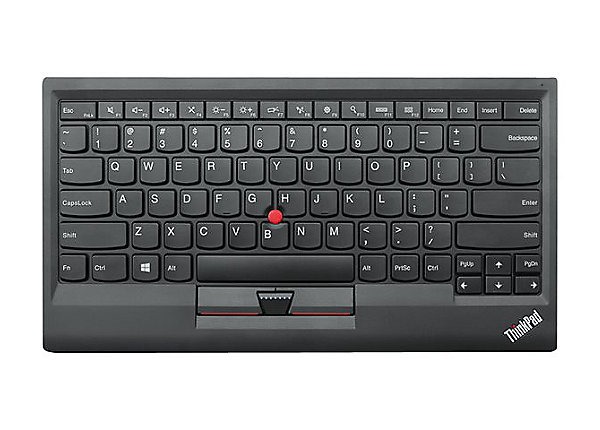
ThinkpadKeyboardI’ve always been a fan of the Lenovo Thinkpad keyboards. The have a good feel, and I especially love the Trackpoint. The Trackpoint is that little red nub between G and H, and acts as a mouse. With it I can do many mouse activities without removing my hands from the keyboard. With most it is a love / hate thing, either they love it or the are mentally deficient and hate it.

I actually have two, one is the USB version which I have plugged into my KVM (Keyboard Video Monitor) switch. The other is a Bluetooth model I use with my Surface Pro 3 when I’m away from home. They are quiet, easy to hold in your lap, and take up very little desk space.

The only complaint I have is with the CTRL key, something we all hit many times a day. Its position makes it difficult to reach with my huge hands. Fortunately there is an easy fix: remapping the seldom used Caps Lock key to turn it into another CTRL key.

While there are many ways and apps to do this, by far the one I trust the most comes from Microsoft in the form of its SysInternals utility Ctrl2Cap v2.0. It’s dirt simple, just follow the instructions and after the next reboot your Caps Lock will function as a CTRL key.

While my Thinkpad keyboards were the reason I needed to do this, Ctrl2Cap will work with any keyboard. If you could use an extra CTRL key, give the utility a try.

Note, it doesn’t swap CTRL and Caps Lock, it just converts Caps Lock to CTRL. All of your existing CTRL keys will continue to work normally. Thus, if you do this, you’ll lose the ability to do Caps Lock. (Don’t say I didn’t warn you.) Not a big deal for me, I rarely “unleash the fury” as they say, needing to type in all caps. It’s not permanent either, if you want to reverse it, Ctrl2Cap has an easy to use uninstall option.

Hope this tip helps, if nothing else this post will help me in the future when I need to setup a new PC.

IT ops and news talk–Episode 3 Secure that Jump Server

I owe everyone an apology, I missed blogging about this at the time it occurred. Last December I was a guest on Don Box’s podcast, “IT ops and news talk”. I appeared on Episode 3, Secure that Jump Server.

In the podcast we discuss the testing of PowerShell code with Pester. After that we got into an interesting discussion on the current state of DevOps. Give it a listen I think you’ll enjoy, it’s about half an hour in length. Don is a great interviewer it was a lot of fun.

As a follow on to the discussion, you might want to learn more about Pester. I have a complete course on the subject in my Pluralsight course Testing PowerShell with Pester. If you don’t know anything about PowerShell, but want to learn, then I’d suggest my Beginning PowerShell Scripting for Developers. Note that even though it says “…for Developers” we don’t mean programmers (although it could), instead it refers to people who wish to develop scripts in PowerShell.

What? What was that? You in the back row waving your hand? You say you don’t have a Pluralsight subscription? Hey, no problem. Just email me, free <at> arcanetc.com and I can send you a code good for 30 days of free access to Pluralsight, with which you can watch not just my courses, but any course from Pluralsight’s library of over 5,000 courses.