Tracking down SQL Server Integration Services issues with Collation

At work I’ve been developing a big suite of packages to convert data from an Oracle system into our Data Warehouse. A lot of the supporting tables are almost a straight pull, except we are of course adding our own primary key, and then setting up a non clustered unique index on what had been the primary key in the old system.

A few tables have been driving us batty though, giving us “duplicate value” errors when trying to insert the rows from our SSIS package. The first thing I did to try and track down the problem was create an error table, and instead of having the package fail have it redirect error rows to my new error table. In case you are wondering, this is going to be a “one time shot” use for the packages, so we chose not to invest a lot of time and effort into error handling. We either want all the rows or none, and we’ll be running the packages manually so we’ll be there to know the results. But I digress.

When I went to look at the error table, it had all the rows from our source system in it. I scratched my head, thinking that can’t be right. A quick search found the answer in the Technet Forums. I needed to go into the OLE DB Destination and set the Max Commit count to 1. Of course you wouldn’t want to leave it like that for production, but for debugging it worked great. Once I did that, I was able to rerun the package and quickly identify my misbehaving row.

Next I looked at the value, and then looked for a similar value in my table. What I found was my source system had two rows, something like this example:

Arcane Code

Arcane code

Yes, the only difference was the second row had a lowercase letter at the beginning of the second word. Our Oracle instance had case sensitivity turned on. To it, these were two entirely different values. However, by default SQL Server is case insensitive; to it these two were the same. So my dilemma, how to fix this one column without having to alter my entire database?

It turns out there is an option in the Create Table syntax to set the collation. First, you should find out what your collation is currently set to. This is easy enough, just open SQL Server Management Studio, right click on the database and pick properties. Right there on the front page is the Collation.

image

Alternatively I could have run this SQL in SSMS (substitute your database name where I have AdventureWorks2008):

select databasepropertyex('AdventureWorks2008', 'collation')

Either way, in this example the default is SQL_Latin1_General_CP1_CI_AS. The important thing to note is the “_CI_”, which indicates case insensitivity. If we wanted to set the entire database, we would issue commands to change this to SQL_Latin1_General_CP1_CS_AS, which stands for case sensitivity. But as I said, in my case I don’t want to affect the entire database, so instead I will use this collation name in the create table syntax. Here is a simple example:

create table TestTable
(
  BogusPK bigint identity
  , FieldFromOracle varchar(200) collate SQL_Latin1_General_CP1_CS_AS not null
  , AnotherField varchar(200) null
)

All that I had to do was insert the collate clause between the data type and the not null clause. Note that this only affects the one column I had an issue with. FieldFromOracle is now a case sensitive column, I can add “Arcane Code” and “Arcane code” and still be able to add a unique index. The second column, here named “AnotherField” will remain case insensitive, the behavior you normally expect.

Before I wrap this up, I know someone will point out that allowing primary keys in your system that only differ in case is bad practice. For the record I totally agree, however this is a soon to be legacy system built by a vendor. Additionally, for various reasons I was not allowed to do any data cleansing to the source system. Just pull it like it is and put it in the warehouse. I imagine most of you are like me, that you don’t get to live in the ideal world, so hopefully knowing how to diagnose and deal with collation issues between databases will make your life a little easier.

Using a Local Reporting Services 2008 Report with an ADO.NET Data Set

SQL Server Reporting Services is an incredibly full featured reporting tool. An often asked question though is “How can I use Reporting Services without setting up a full SQL Server just to run Reporting Services?”

Fortunately the folks at Microsoft thought of this, and created a version of Reporting Services that runs in Local, or what Microsoft calls Client mode. There are several ways to use client mode, you can bind the report right to the database if you wish, or to an object. However if you have an application that’s been around for a bit, or maybe you’ve been around for a bit, chances are you have a lot of ADO.NET DataSets you’d love to use for data in a report. Today we’ll look at how to bind those data sets to a SQL Server Reporting Services report.

Let’s say you have created an application to work with the AdventureWorks2008 database. You user has now asked you for one last feature. They wish to display a list of Vendors in a report. They want to preview the report, print it, and be able to export it to a PDF format.

Based on your experience you know that SQL Server Reporting Services would be a good choice. However your client does not have an instance of SQL Server Reporting Services running in their corporation. Thus the path is clear, use SQL Server Reporting Services in Client mode.

Preliminary Work

Prior to beginning our work, we’ll need to do two basic setup steps. First, if you don’t have it already, you will need to download the Adventure Works 2008 database from CodePlex. Install it following their instructions. Here is the current location for AdventureWorks2008:

http://www.codeplex.com/MSFTDBProdSamples/Release/ProjectReleases.aspx?ReleaseId=18407

Now open up Visual Studio 2008 and create a new C# WinForms application. Note that while the ReportViewer control we’ll be using works fine in WinForms, ASP.Net, or WPF, for simplicity we’ll use a WinForms application. Give your project a meaningful name (I used ReportingServicesLocal).

Create the DataSource

Normally Reporting Services knows what tables and columns are available because you have setup a connection to a database. In this scenario however, we are going to bind the report to an in memory ADO.NET DataTable.

At design time then Reporting Services does not know about the DataSet, and so we must create a surrogate for Reporting Services. Thus we’ll create a special type of XML schema definition to stand in for our not yet created DataSet.

To accomplish this, first we need to create the Data Source schema by following these steps:

1. Right click on the project in the Solution Explorer window.

2. Select Add, New Item.

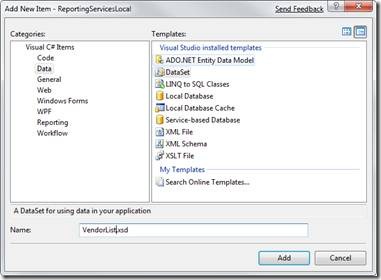
3. Click on the Data leaf of the Visual C# Items branch in the Add New Item window.

4. Pick the DataSet item. Give it a meaningful name, such as VendorList.xsd.
clip_image002

Now we need to add a table to the DataSet.

1. In your toolbox, under DataSet find the Data Table tool and drag it onto the design surface.

2. Click the DataTable1 and rename it to Vendors.

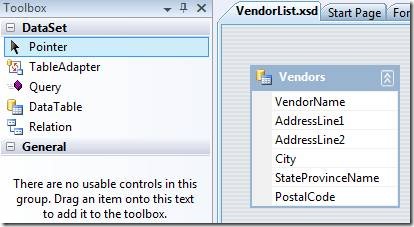
The last step in the process is to add our columns to the Vendors DataTable we just created.

1. Right click on the name of your DataTable and pick Add, Column from the pop up menu.

2. For the first column type in VendorName. Note that if we needed to, we could now go to the properties window and change the DataType to something other than the default of System.String. For this lab, everything we’ll use is a string so this won’t be needed.

3. Repeat step 2, adding these column names: AddressLine1, AddressLine2, City, StateProvinceName, PostalCode

When done it should look like:
clip_image004

Create the Report.

Now that we have a schema, we’re ready to create the report and add the components to it. To create the report, follow these basic steps.

1. Right click on the project and select Add, New Item.

2. In the pop up window, go to the Reporting leaf under the Visual C# branch.

3. Pick “Report”, and give the report a meaningful name such as VendorList.rdlc.
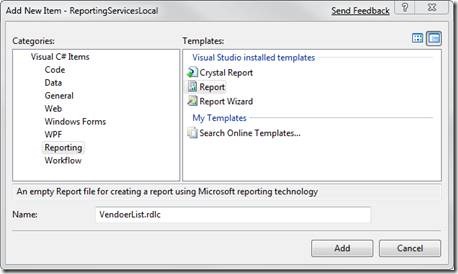
clip_image006

Now that the report is created, we need to add the components and data columns to it.

1. With the blank report, drag a Table control onto the report body.

2. Open the Data Sources window by selecting Data, Show Data Sources from the Visual Studio menu.

3. You should see the VendorList DataSet, under it the Vendors DataTable, and under it the columns.
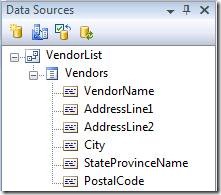
clip_image008

4. Drag the VendorName to the first column of the table. Next, drag the City to the second column, and the StateProvinceName to the third.

5. Right click on the column header for StateProvinceName and pick “Insert Column to the Right”.

6. Drag the PostalCode to this newly inserted column. Your report should now look something like:
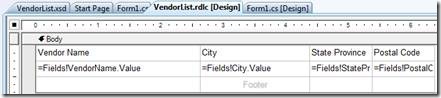
clip_image010

Adding the Report Viewer to the Windows Form

Now that the setup tasks are complete, it’s time to get to the user interface ready. First we’ll do some basic setup of the form.

1. When you created the basic project Visual Studio created a default Windows Form, Form1.cs. Start by changing the Text property to read “Report Viewer”.

2. While we’re at it, let’s change the (Name) property to frmReportViewer.

Now add the Report Viewer control to the form.

1. In the toolbox, navigate to the Reporting area, and drag a MicrosoftReportViewer control onto the form. Resize so it takes up the lower 90% or so of the form.

2. Change the name to rvwMain (or something meaningful).

Next add a button to the form. We’ll use it to trigger the report.

1. From the Common Controls area of the toolbox, drag a button control onto the form.

2. Change the (Name) property to btnDataSet.

3. Change the Text property to DataSet.

4. Double Click on the button to open up it’s code behind.

We’ll be supplying the data to the ADO.Net dataset using SQL Server, so we need to go to the top of the form and add a reference to the System.Data.SqlClient.

using System.Data.SqlClient;

Now let’s go into the btnDataSet_Click event, and add some code to fill our dataset. This code snippet will bind to our local SQL Server, create a command to do a simple select statement to a view, and fill the dataset.

  /* Fill the Dataset ------------------------------------*/
  string qry = "select v.Name as VendorName "
                  + ", v.AddressLine1 "
                  + ", v.AddressLine2 "
                  + ", v.City "
                  + ", v.StateProvinceName "
                  + ", v.PostalCode "
               + "from Purchasing.vVendorWithAddresses v "
              + "order by v.Name ";

  string connectionstring = @"Server=(local);"
    + "Database=AdventureWorks2008;Trusted_Connection=True;";

  SqlConnection connection = new SqlConnection(connectionstring);
  SqlCommand cmd = new SqlCommand(qry, connection);

  SqlDataAdapter daVendor = new SqlDataAdapter();
  daVendor.SelectCommand = cmd;
  DataSet dsVendors = new DataSet();
  daVendor.Fill(dsVendors);

Note that in the first line of our select statement, we had to use v.Name as VendorName. The column names we return from our dataset must match the column names we entered in the Data Source back in Exercise 2 Step 3. Fortunately SQL easy to use “AS” syntax makes this simple.

Also, even though in this example we use SQL Server, the connection could be to any Data Source such as MySQL or Oracle. The important thing is we wind up with a DataSet to bind to.

In the same btnDataSet_Click method we now need to tell the report viewer control which report to run, then where to get it’s data. To tell the ReportViewer control to use a local report (as opposed to a report residing on a Reporting Services Server) we need to set the ReportEmbeddedResource property.

  rvwMain.LocalReport.ReportEmbeddedResource = "ReportingServicesLocal.VendorList.rdlc";

Note the format of the string we pass in. It has the name of the project, then a dot, then the name of the report complete with it’s rdlc extension. You should also know this is case sensitive.

Now we need to tell the report where our data really is. To do this, we’ll tell it to bind the Vendor data table from the VendorList data source to the dataset we generated in the step above.

  rvwMain.LocalReport.DataSources.Add(
    new Microsoft.Reporting.WinForms.ReportDataSource(
    "VendorList_Vendors", dsVendors.Tables[0]));

We need to create a new ReportDataSource to pass into the Add method of the reports DataSources. In the constructor for the ReportDataSource we pass in two parameters. The first is the name of the DataTable we are binding to.

Note that it’s syntax is a bit odd, you have to address it with first the DataSet name, then use an underscore to append the name of the specific DataTable.

The second parameter is the specific table from the dataset to bind to. Since we only had 1 we can use the simple .Tables[0] syntax shown here. We could have also given it a specific name.

One final note, in this simple example we are only binding one data source. However it’s possible for reports to have multiple data tables contained in them. To bind each one, we would simply have created a data table for each in the XSD, then added the code to the step above to read each one in, then bound them in this step by repeating this line of code for each one.

Finally we’re ready to display the report. Simply add this line to trigger the generation of the report.:

      rvwMain.RefreshReport();

Test your application.

Everything is now setup, you should be ready to run.

1. Launch the app from Visual Studio.

2. Once open, click on the DataSet button.

3. Your screen should look something like:
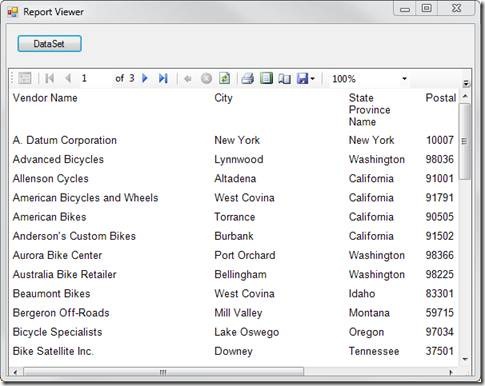
clip_image012


And there you go, you too can now easily create nice looking reports from your existing ADO.NET datasets.

Scott Hanselman Takes Over MSN

Yesterday I was browsing around on the web, including a visit to Scott Hanselmans site to read an article on his blog. A little later I rebooted my Windows 7 machine and went to bed. The next day I open up Internet Explorer to do something. In the Windows 7 beta the default homepage for IE is MSN. Imagine my surprise then when I see this:

MSNHanselman

Yes, you are seeing right. The MSN Logo was replaced by Scott Hanselman’s. From this I can only assume that Scott’s plans to become the benevolent overlord of Microsoft are proceeding well, and that he has successfully taken over the MSN division. I imagine it won’t be long then before Baby Smash becomes the primary IDE for developing C# applications.

Alabama Code Camp Pictures

I took some photos of last weekend’s code camp, here are the best of them… Click on them to see a bigger image.


DSC_0002

Bruce and Glen get ready to kick things off.


DSC_0003

The crowd gets ready…


DSC_0004

Anticipation fills the room as the eager crowd waits for it to start…


DSC_0011

Glen kicks things off with the keynote.


DSC_0019

From the database track, Keith R presenting.


DSC_0024

“The Elder” doing his magic.


DSC_0027

William gave an interesting session on database hiearchies.


DSC_0031

Lunch time!!!


DSC_0032

The crowds are hungry


DSC_0033

Our first contestant in speaker idol.


DSC_0037

Our judges, made up of MVPs and Glen the Microsoft DE.


DSC_0038

The crowds enjoy the speaker idol presentations


DSC_0043

Another speaker idol contestant


DSC_0049

Todd giving his after lunch presentation


DSC_0055

Glen gives his “What’s in SQL Server 2008” presentation.


DSC_0060

I love T-SQL!


DSC_0064

Ryan presents on SQL Server Reporting Services. He was also the winner of Speaker Idol!


DSC_0070

Everyone gathers for the prize give-a-ways.


DSC_0072

Here’s what I won! 😉

Jumpstart Today

Just wanted to mention my video, Altering SQL Server Full Text Catalogs is the video of the day on JumpStartTV. This is great timing after my weekend presentation of FulL Text Searching at the Alabama Code Camp. Thanks to everyone who attended my session, you were a lot of fun. Thanks also to the whole Code Camp team for putting on a great event. Also thanks to the contestants and the MVPs who allowed me to draft them into being judges for the Speaker Idol contest.

If you happen to pick this up after Ground Hog’s Day, you can jump right to it at http://jumpstarttv.com/altering-sql-server-full-text-catalogs-_547.aspx . You can see all of the videos I did at http://jumpstarttv.com/profiles/3177/Robert-Cain.aspx, along with the videos I’ve watched.

Presenting SQL Server 2005 2008 Full Text Searching at Alabama Code Camp

On January 31st, 2009 I am presenting “Getting Started with SQL Server 2005/2008” at the Alabama Code Camp that is taking placin Montgomery, Alabama. This post has all the links relevant to my talk.

First off, the slides and sample code can be located at the Code Gallery site I setup specifically for Full Text Searching with SQL Server:

http://code.msdn.microsoft.com/SqlServerFTS

Look on the downloads page to see various projects around SQL Server Full Text Searching. I’ve created one “release” for each of the projects around FTS. Be sure to look on the right side at the various releases in order to see the various projects.

Next, you can get started with the basics by reading these entries on my blog:

Lesson 0 – Getting the Bits to do Full Text Searching in SQL Server 2005
Lesson 1 – The Catalog
Lesson 2 – The Indexes
Lesson 3 – Using SQL
Lesson 4 – Valid Data Types
Lesson 5 – Advanced Searching

After that you’ll be ready for some advanced topics.

Can you hear me now? Checking to see if FTS is installed.
Exploring SQL Servers FullTextCatalogProperty Function
Using the ObjectPropertyEx Function
Using FORMSOF in SQL Server Full Text Searching
Creating Custom Thesaurus Entries in SQL Server 2005 and 2008 Full Text Search
Creating and Customizing Noise Words in SQL Server 2005 Full Text Search
Creating and Customizing Noise Words / StopWords in SQL Server 2008 Full Text Search
Advanced Queries for Using SQL Server 2008 Full Text Search StopWords / StopLists

Presenting SQL Server Full Text Searching at Alabama Code Camp

This Saturday, January 31st is the Alabama Code Camp in Montgomery AL. I’ll have the privilege of once again presenting one of my favorite subjects, SQL Server Full Text Searching. Don’t think this session is just for DBAs, I think developers will find it useful as well since I will include a demo code sample that calls a full text search query from a C# application. My session is currently scheduled last session of the day, and rumor has it attendees might have an extra chance at a give away at the end of my talk.

Speaking of give a ways, don’t forget the Speaker Idol contest. Still no entries, they are due to my in-box by noon this Friday the 30th! Five minute talk gets you a shot at a 1 year Premium MSDN Subscription.

See ya’ll there!

A Week of Windows 7

Since my last post the only thing I have installed is the Visual Studio 2008 and SQL Server 2008 Development tools. Since then I have worked with the various apps and can report these items so far.

First, no problems as of yet with the development tools, although so far I’ve only been using SQL Server Management Studio.

WinAmp works OK for playing music, but when I rip a CD the Media Library doesn’t always refresh correctly. I have to exit WinAmp and restart. Note this only happened about 50% of the time, the other half it flickered, but recognized that I’d inserted a new disk.

The NVidia graphics drivers seem to crash fairly often, about one to two times a day. They usually restart and everything is OK EXCEPT the Zune software. The UI on it goes blank. It still works, it happened today while I was playing some music and the music kept on playing, you just can’t interact with it. So far I’ve used task manager to shut down the Zune software and then I can restart it. It will work fine after that (at least until the next time the graphics drivers crash).

Every so often everything just freezes. Mouse doesn’t work, no keyboard input, no screen updates. I’m guessing it’s a graphics issue, but not really sure.

When launching a Virtual PC, they seem to take a long time to connect to the network. They will eventually connect (5 minutes is about average). Just be patient.

The installer for the SQL Server 2000 Northwind database sample crashed while I was trying to install. Fortunately i was able to install by extracting the SQL scripts from the zip file and using them to create the pubs and Northwind databases. (I need these for some code samples).

Everything else I’ve used seems to work OK. So at this point I seem to have all my software installed, so now I’m going to settle in and let my focus return to Data Warehousing and Analysis Services.

Don’t forget the Alabama Code Camp coming up at the end of January. So far we’ve had no entries for Speaker Idol, so as of now your chances of winning that 1 year MSDN Subscription seem quite good!

Wonderful Wednesdays With Windows 7

I attended a great user group meeting tonight, where fellow MVP Jeff Barnes presented on Windows Azure. I learned quite a bit. I didn’t have much time to work with my Windows 7 install, but do have some link love to pass along. First off though, the apps.

WinAmp – First off was my old standby for ripping CDs (yes, that I legally own) and playing music files is WinAmp. I installed version 5.54 tonight, they player seems to work fine. The only problem I had was getting it to install skins. First, there was no file association setup for them. Easy to fix, first I had to download the skins to another drive, then set the file association for the .wal file to winamp.exe. But even then it did not install. I figured out it’s a permissions issue, by default Windows 7 requires elevated rights in order to write to the program files folder. I figured this out when I was copying the files from my download drive to the WinAmp Skins folder. It prompted me for permission to continue.

After copying the files, I was able to find the skins in the WinAmp Menu. I’m guessing the only thing I would have to do is run WinAmp as admin when I want to install new skins, or fiddle with the folder permissions for winamp.exe. Frankly I’m glad Windows 7 is restricting rights to the program files folder, although apps that write files (like Winamp with it’s skins) to the same folder as the application may run into issues. For me though it’s not a big deal, I generally only use 1 skin (MMD3) so I’m set.

Pismo File Mount – The second tool I installed was a freeware ISO mounter named Pismo File Mounter. One of my Twitter friends (@cfrandall) kindly pointed it out to me. It’s pretty simple, just right click on an ISO and click Mount from the menu and there it is. Seems to work fine, I was able to browse files and what not. Tomorrow I will start installing some applications from ISO and let you know how well it works.

Now for a little link love.

Windows 7 Beta Home – The official Microsoft Windows 7 home page, has links to the beta program so you can get your own copy of Windows 7 and be one of the cool kids. Also has links to the Windows 7 blog, desktop themes, and more.

Tim Senath’s Musings – Tim is a client platform guy form Microsoft. His blog has a great bumper crop of Windows 7 secrets. I picked up several valuable tips that I’m already using. I love the one of double clicking on the upper or lower border of a window and it maximizes the window height wise, but leaves the width alone. Using WIN+SHIFT+LEFTARROW and WIN+SHIFT+RIGHTARROW to move a window back and forth between monitors is also becoming a favorite. Check out his blog post for a lot of other great tips and tricks, some of which even work under Vista.

Marlon Ribunal’s Blog – Marlon has a good post with links to Windows 7 Beta Reviews and other articles.

Windows SDK for Windows 7 and .Net Framework 3.5 SP1 Beta – If you are doing development specifically for the Windows 7 platform, you will likely want this SDK for Windows 7 and .Net 3.5 SP1. Like Windows 7, this SDK is also in Beta.

And finally, if you are tired of answering the “well what’s new in Windows 7?” question from all your friends, family, and co-workers, point them at Paul Thurrott’s SuperSite for Windows. He has a Windows 7 FAQ that answers all sorts of questions and has a nice list of all the new features.

Tuesdays are Terrific with Windows 7

It’s Tuesday, and the march to install software in my Windows 7 install goes on. Good news for today, everything was favorable although I did get slowed down downloading the latest VMWare. Speaking of which, we’ll let it start the list.

VMWare Workstation 6.5 – Installed with no problems, everything seems to be working fine. It recognized my USB devices, network, etc.

Camtasia Studio 5 – Installed and works no problems.

SnatIt SnagIt 9 – Had a hic-cup installing the first time, just seemed to install. In retrospect I may not have given it long enough. I rebooted, and to be safe started the install in Admin mode, it installed and works just fine.

Bayden SlickRun – works great, no problems.

TrueCrypt 6.1 – Works fine, mounted the drive OK.

Live Mesh – Works fine, I loaded it on my Windows 7 machine and was able to login to the website on another computer and remote control my Windows 7 box with no problems.

Corporate VPC – My companies VPC software installed and ran just fine with Windows 7. I can’t say much else about the software since it’s something proprietary but my co-workers will be pleased to know it works.

And that’s it for today. All in all I have been very pleased with my Windows 7 experience. I have been taking it slow, installing my software one at a time, testing, and verifying basic functionality. Tuesday night I have a Bug.Net meeting on my calendar, so it may be Thursday before I get a chance to do more software installs.

One follow up from yesterday, I was told Virtual Clone Drive will work under Windows 7, but causes the Windows 7 shutdown to hang. Haven’t tried it yet, if anyone knows a free ISO reader that works under Windows 7 please leave a comment.

A Weekend with Windows 7

In-between other household duties I spent most of this weekend with the new Windows 7 Beta 1. While I probably would have been more sensible to install it in a Virtual PC, I really wanted to experience it, and the best way to do that is by using it. Thus I installed it on my HP Pavilion DV-8000 laptop.

The first pass I did Friday night, when I installed Windows 7 as an upgrade to my installed Vista SP1. Now, let me say Microsoft has clearly stated you should only install the Beta as a clean install, not as an upgrade. However I figured since it was going to get wiped anyway, I might as well see what the experience was like. The upgrade took about 2 hours and afterward things were not overly stable. Some things worked fine, but other things did not. For example, Virtual PC’s built in network drivers quit working, although I could still use Shared NAT. My Zune software also started acting odd, it would no longer connect to my Zune. The PC knew the Zune was connected, the message just didn’t get to the Zune software.

Saturday morning I played with it a bit more, and being unable to resolve my Zune issue decided to take the plunge, reinserted my Windows 7 DVD, and reformatted my C drive so I could do a clean install. The install went very quickly, around half an hour not counting the formatting. Since then I have been slowly restoring my various applications, and wanted to share a run down on what I’ve done so far.

Before I go any further though, one very critical item. One of my Twitter friends @devhammer alerted us to a bug for Windows Media Player in Windows 7. It is Support Article 961367, and it fixes an issue with Media Player corrupting MP3 files. The first thing you should do install it!

Next, after the Windows 7 install I found my resolution stuck at 800×600. Yuck! So I ran Windows Update, and it found a driver for my NVidia chipset and installed. (Hooray for Windows Update!) After the reboot I was returned to 1400×900 on my laptop display and 1600×1200 on my external monitor. But not all was well with the world, there is one odd bug. By default the wallpaper is this bluish looking fish. Not being a fish person I switched to the Landscape theme. Windows 7 has this cool feature where you can pick multiple desktop wallpapers, and it will rotate through them at a frequency you can set,  the default being every 30 minutes. This though seemed to cause an issue with the Zune software, every time the wallpaper changed, my Zune software went completely blank and never came back. It was still working, my Zune player was showing data being synced, but the display went blank. I used task manager to shut it down then could simply launch the Zune software again with no problems.

The moral of the story, if you have NVidia graphics, set the rotating wallpaper on, and have display issues, simply pick ONE wallpaper and disable the rotation. Once I did all was well with the world. Now onto my software installs. 

Norton Anti-Virus, Corporate Edition – Seems to work OK, but I get an error message about the End Point process being shut down for compatibility issues. Since I hear Norton has discontinued this product, I will likely move to either Windows Defender or purchase the full blown Norton closer to the Windows 7 release date.

FireFox 3 – Works great, no issues.

UltraEdit 14 – Also works great, no issues.

TouchCursor 1.6 – After I installed I had to reboot to get it to take effect, but once I did it’s worked great. (If you don’t know what TouchCursor is, go to http://touchcursor.com, great utility!)

Zune – Software installed fine, but of course switching to what appeared to the Zune as a new PC caused me to need to reset my Zune so I didn’t wind up with a big blob of “unreachable” disk space. I had backed up all my Podcasts, and copied them back over and the Zune software recognized them all, but I still had to go to each one, right click, pick Subscribe. Fortunately I have a second PC in my office where I played some videos on http://www.jumpstarttv.com/ while clicked endlessly. (I subscribe to a LOT of podcasts.)

Office 2007 Enterprise – Installed just fine with no problems. Well no software issues, my backup of my main PST was corrupt so I lost most of what was in it (drat). Good lesson here kids, with something really important, make TWO copies on different drives during back up!

Microsoft Virtual PC 2007 SP1 – The only issue I had was with the built in firewall, I had to create a new rule for ANY to allow things other than UDP and TCP to work. Go to Start, Control Panel, System and Security, Windows Firewall, Advanced Settings (over on the left), Inbound Rules (in the new dialog that appears), then I copied one of the existing rules for Virtual PC 2007 SP 1 (there should be 2, one for UDP the other for TCP). In the copy, open it, go to the Protocols and Ports and pick Any. You’ll get an error that says “Edge traversal can’t be set to ‘Defer to User’”, so go to the Advanced tab and pick either “Allow” or “Block”. I picked Allow because I’m very cautious about where I go in my VPCs.

Live Writer – I went to the http://windows.live.com and downloaded the LiveWriter tool, which I’m composing this post in.

Notable mention: I had to copy a little over 3 gig of files, it was fast in Windows 7, took under 3 minutes.

A few things I’ve heard about, but haven’t yet experienced:

I’m told there’s a copy / paste issue between Word 2007 and Live Writer. Haven’t tried it.

I’m told Virtual Clone Drive, which I used in Vista to mount ISOs as virtual drives, won’t work in Windows 7. Instead I had PowerISO recommended to me.

That’s my progress for now, I will update you as time goes by. Remember if you decide to install and use Windows 7, it IS a beta, so your stability may be different depending on the state of your machine’s drivers. I also haven’t decided how long I will run Windows 7. If it’s stable, and some critical pieces of software work (like my VPN software for work) then I may keep it a long time. However if stabiltiy becomes an issue or key software doesn’t run I may have to return to Vista, I will just have to see how it all shakes out. I would like to keep it around for a bit though so I can give it a good shake and let our friends in Redmond know of any issues so they can fix now and perhaps save someone else headaches when it goes to production.

I have also been Twittering my progress using the #win7 tag, if you want to follow me there.

Alabama Code Camp with Speaker Idol

Update: Due to a scheduling conflict, the date of the Alabama Code Camp has been pushed back to January 31st. We apologize for the inconvenience but hope the extra time will make it easier for everyone to plan to attend.

The next Alabama Code Camp will be Saturday January 17th 31st, 2009 in Montgomery Alabama. Call for speakers is open, so check back to the site soon for registration, session schedule, and more.

Also at this event we’ll be having the Alabama Speaker Idol contest. The object of this contest is to encourage new speakers to step up to the Code Camp level. During lunch we’ll be giving new speakers each five minutes to do a presentation. The detailed rules are below, but the big news is the grand prize: a 1 year MSDN Premium Subscription!

Update: Registration for the event is now open, you can register at http://www.clicktoattend.com/?id=134437

Alabama Speaker Idol Rules

1. Presentations are targeted to be five minutes in length, presentations can vary from 4:50 to 5:10 without penalty. Presentations under 4:50 or over 5:10 will be penalized.

2. As the object of the contest is to encourage new speakers, professional speakers, MVPs, and speakers at previous code camps are not eligible. However, someone may participate and also be a speaker at the Jan. 17th 31st, 2009 code camp as long as this is their first time speaking at a code camp.

3. In addition to length, speakers will also be judged on clarity, technical accuracy and content.

4. In addition to the judges, code camp attendees and other members of the pubic may be in the audience during presentations.

5. Judges will be composed of attending MVPs and other notable attendees. As with most of these things, scoring is largely subjective. The result of the judges is final. No whining, crying, or complaining.

6. To participate in the contest you must e-mail your name, title of your presentation, and contact cell number (just in case) to arcanecode@gmail.com with Alabama Speaker Idol in the subject header. All submissions must be received by noon, central standard time, Friday January 16th 30th. (edit to reflect date change)

7. Due to time restrictions, the contest will be limited to 15 participants. In the event more than 15 submissions are received, 15 contestants will be randomly drawn from the pool of submissions. All others will be placed on the stand by list. In the event of a no show on the day of the contest, we will randomly draw a replacement speaker from the standby list.

8. The order of the speakers will be drawn at random just before the presentations begin. All presentations will take place during lunch at the code camp.

9. The winner will be announced at the end of the code camp day.

10. These rules may be amended as the Code Camp Committee deems fit in order to facilitate a more orderly, better code camp.

N4SGJ, SK

My n4sgjgrandmother, Pearl, better known to her HAM radio friends as N4SGJ passed away a few hours ago. In ham radio language, she became a Silent Key, or SK for short.

I was lucky enough to have known all of my grandparents, and have had great relationships with all of them. My mothers parents passed away in the late 90’s, however my grandfather John, KI4SH (Pearl’s husband) lived until last October of 2007. Earlier this year my grandmother had a bout with cancer, but had whipped it, although early it looks like she passed away from a case of heart failure.

Pearl was an avid sewer, she especially enjoyed quilting. My kids each have a quilt she made for them, and I still have the quilt she made for me as a teenager (camouflage with a blue back, very manly!). She always got a kick though out of the fact my kids “borrowed” it from me and use it as a snuggle blanket, refusing to give it back.

She was also quite active in the ham radio community, having served as club secretary and been involved with several hamfests. I think one of the things I’ll miss though is her caramel popcorn. Every year she would make a big batch of home made caramel popcorn and give it out as gifts to all the family. I feel a bit sad, knowing this batch I have now will be the last I’ll get to enjoy, but I also feel privileged to have had her in my life as long as I did.