Ubuntu 7.04 and Virtual PC 2007 – Mouse Issue Workaround (sort of)

Update: October 18, 2007 – Ubuntu 7.10 was released, the install for it is a bit more straight forward. If you haven’t installed 7.04 yet, I’d suggest giving 7.10 a try. Complete instructions here:
https://arcanecode.wordpress.com/2007/10/18/installing-ubuntu-710-under-virtual-pc-2007/


Update: A reader named John posted a link to a fix, see my post on May 17 (http://shrinkster.com/p2w) for full details. But keep reading this post, as you’ll need the info here to implement the fix. OK, thanks to a suggestion I saw on the Ubuntu forums, I found a workaround for the no mouse issue, of sorts. This won’t give you the mouse back, but it will let you use Ubuntu 7.04 using keyboard control.

First, let me take a second to explain what the issue is. There was a bug in the kernel code that affected many different distros of Linux. Apparently the kernel was not finding PS/2 style mice. Some work has been done and now most PS/2 style mice are now being found.

Except, sadly for the ones being emulated. Both VMWare and VirtualPC emulate a PS/2 style mouse, and are not getting found by the kernel. Remember, it doesn’t matter what type of mouse you have hooked up to the host box (I have two mice, a Logitech MediaPlay and Microsoft Travel mouse, both USB). It only matters what the virtual machine is telling the guest OS (Ubuntu), which is PS/2 style mouse.

OK, that explained let’s play with Ubuntu some. Fire up Virtual PC, then use the CD menu to either capture an ISO image or capture the CD Drive you have the Ubuntu Desktop disk in.

When the menu appears, select “Start Ubuntu in Safe Graphics Mode” by hitting the down arrow once and pressing Enter. If you fail to do this, you’ll get garbled graphics.

Once Ubuntu gets fully loaded, press the left ALT key plus F1 (Left ALT+F1, remember VPC takes over the right ALT). This should highlight the Applications menu. Press the right arrow twice to System, then down once to Preferences. Now press the right key once to get to Accessibility, then right again. Finally go down to Keyboard Accessibility and press ENTER.

[Picture of Ubuntu 7 menus]

When the Keyboard Accessibility Preferences window appears, you should already be on the “Enable keyboard accessibility features”. (You can tell you’re on it because of the little ‘dancing ants’ rectangle around it.) Just press the SPACE BAR to check this on, as you see below.

[Picture of Keyboard Accessibility window]

Now press the TAB key to get on the Basic tab. Press the RIGHT ARROW key twice to get the Mouse Keys highlighted.

[Picture of Keyboard Accessibility window]

Press TAB again to get to the “Enable Mouse Keys” and press the SPACE BAR to check it on. Now tab on down to the Close button and press ENTER.

What you just did was turn the numeric keypad into your mouse. When you press left (number 4 ), the mouse moves left, press the up arrow (number 8 ) mouse goes up, and so on. The angles work, pressing 7 (the home key on my keypad) moves up and to the left, for exampe. Finally, the number 5 key works as the mouse click.

One thing to be aware of, these only work with the numeric keys. It will not work with the standard arrow keys. Laptop owners with compact keyboards are in for a painful experience, you’ll have to hit NUMLOCK to activate the mouse, then turn Numlock off to be able to type letters again.

Well there you go, a way you can use Ubuntu 7.04 in Virtual PC 2007. Not the greatest solution, but might work for you until the kernel issue gets fixed.

I’d like to give credit where it’s due, in reading through the Ubuntu forums I saw someone suggest using keyboard accessibility to work around the no mouse issue. After playing with it some, I decided it was worth documenting and hence this post. I’d like to give credit but haven’t found the original post since then, so if someone happens to notice it in the forums please let me know so I can give credit for the idea to the original poster.

Ubuntu 7.04 and Virtual PC 2007 – No Mouse Issue

Update: October 18, 2007 – The new version of Ubuntu, 7.10 is now out. If you haven’t yet installed Ubuntu, I’d suggest using 7.10. I have step by step instructions at https://arcanecode.wordpress.com/2007/10/18/installing-ubuntu-710-under-virtual-pc-2007/


Last week the folks at Ubuntu released Fiesty Fawn, better known as version 7.04 of the Ubuntu OS. I had planned a new version of the “step by step” to detail how to install under VirtualPC 2007.

Sadly there seems to be a severe error that prevents 7.04 from running in Virtual PC. This error lies somewhere deep in the kernel, and affects the mouse. As you have discovered, Ubuntu won’t recognize the mouse when running inside VPC.

This was actually a much more serious error at first, Ubuntu and several other Linux distros had errors recognizing most PS/2 style mice, as you can see from this bug: https://bugzilla.redhat.com/bugzilla/show_bug.cgi?id=223606

They have opened a new bug specifically for Virtual PC, which you can monitor here: https://bugzilla.redhat.com/bugzilla/show_bug.cgi?id=234348. (Credit due alert: Thanks to Michael Wexler for first pointing out these links!).

I’ve spent quite a while trying various combinations, but thus far have found no easy solution or workaround to the problem. So for now, my advice is simple.

If you have an existing Ubuntu install under VPC, I recommend you NOT upgrade. You will lose your mouse for sure, and probably keyboard as well. If you want to experiment, start with a fresh virtual machine and go from there.

In the meantime, keep an eye on the second bug I listed. I’m hopeful there will be an update in the near future. At that point I’ll work up some step by step instructions, which should be pretty similar to the 6.06 instructions.

Update: (April 25th, 2007) – I found a work around (of sorts) that will let you use your numeric keypad as a mouse. Not the most pleasant experience, but it does work. See my post on the 25th ( http://shrinkster.com/ocx ) for full details.

Arcane Tricks: Cut / Copy / Paste To and From Virtual PC

As you might guess from my various posts, I like using Virtual PC. It has one annoyance, you can’t cut / copy / paste between the Virtual PC and another machine, like the host operating system.

This is actually a good thing, as it’s a security feature. It allows you to test suspicious software safely, without fear of it damaging your host. There are times though, when you know it is safe to allow the cut / copy / paste connection between your Virtual PC and your host. It would be nice to have a switch or option that turns this on and off. Sadly, it’s not there.

There is a work around though. Back in December, I talked about the combination of Virtual PC and Remote Desktop. (https://arcanecode.wordpress.com/2006/12/06/arcane-combinations-virtual-pc-and-remote-desktop/ or http://shrinkster.com/mvq) . While VPC lacks the ability to cut / copy / paste, Remote Desktop does not. Using Remote Desktop you can cut, copy, and paste data from your host (or any other remotely controlled PC) to the Virtual PC you are controlling via Remote Desktop.

All you have to do is follow the instructions in the post mentioned above, and “remote” into the virtual machine. Yes, you will be remoting to a machine running on the same box, but all the remote desktop software sees is an IP address. It can’t tell if that IP is on the same host computer or one across the planet.

This little trick has saved me several times, and was one of those “doh!” moments when it first occurred to me. Even if you have been following along and using Remote Desktop with VPC, it may not have occurred to you to use it on the same machine.

Resources

Installing Ubuntu 6.10 on Virtual PC 2007 Step by Step

Update April 24, 2008 – The newest version of Ubuntu, 8.04 is out. Look for complete install instructions here.

Update: October 18, 2007 – Ubuntu 7.10 is now out, for full instructions on installing it, see
https://arcanecode.wordpress.com/2007/10/18/installing-ubuntu-710-under-virtual-pc-2007/


Note: If you are looking for instructions for version 6.06, see my post at: https://arcanecode.wordpress.com/2006/12/19/installing-ubuntu-on-virtualpc-step-by-step/. There are still good reasons to install 6.06, mostly because it’s the version targeted as the LS, or Longterm Support version. Many companies will likely stick with 6.06 for some time. For the past few weeks I’ve been trying to install Ubuntu 6.10 under VPC 2007, using the standard install model. I’ve come to an important conclusion. It can’t be done. (If you’ve figured out how, leave a comment cluing the rest of us in on it!)

Now, before you become distraught and start with the wailing and gnashing of teeth, note I said “standard install model”. There is a way to get it working.

Before you get started, spend a few minutes getting familiar with VirtualPC if you have not already done so. You can find my step by step instructions for VirtualPC at https://arcanecode.wordpress.com/2006/09/20/virtual-pc-step-by-step/. Keep it handy, at various points I will be referring to it. OK, let’s get started.

First, you need the right installer. Go to the Ubuntu website (http://www.ubuntu.com). Under desktop, click the Download link. Scroll down to the Ubuntu 6.10 area. Click on the region you live in, and find a mirror close to your location. Now, here is the inside trick, instead of “CD Image for desktop and laptop PC’s”, you should instead select “Other installation options”.

When the next screen comes up, scroll down to the “Alternate install CD” area. Find the link that says “PC (Intel x86) alternate install CD” and download the ISO it’s associated with. It’s a big download, so be patient.

[Ubuntu 6.10 Step by Step]

UPDATE! UPDATE! Ubuntu has changed their site, and so far I haven’t been able to find the alternate cd via their site. For now you can go to http://mirrors.gigenet.com/ubuntu/6.10 and grab the file ubuntu-6.10-alternate-i386.iso. This is the same file I was describing. We now return you to your regularly scheduled blog post…

Note that selecting the right version is the first thing you have to know, but there’s a few other tweaks you’ll have to do during the install process, so keep reading.

Once you have it downloaded, burn it to a CD or use Virtual CDRom Control Panel (see my post https://arcanecode.wordpress.com/2006/09/13/virtualization/) to load it into a drive.


In Step 1 of my VirtualPC Step by Step you are instructed to create a new machine, please do so. I’ve named mine “Ubuntu 6.10”. In step 2, you are prompted for your OS. You will need to pick Other. In step 3, you are asked about Ram. Ubuntu will run OK under 256 megs, however if you have the available space I’d highly suggest upping it to 512, especially if you intend to get into doing some graphics or mono coding. I’ve selected 512 meg for this tutorial.In step 4 you will want to create a new hard disk, and in step 5 confirm what you’ve selected. OK, now you are up to step 6, installing the OS, which is where this tutorial picks up.Your first screen comes up, but before you start pressing buttons there’s one tweak you have to make. So you can see everything correctly during the install, press the F4 (VGA) button. Select a video mode that ends with 16, in my example you can see I changed to 800 x 600 x 16.
[Ubuntu 6.10 Step by Step]
Now you can proceed, press enter to start the “Install in text mode” option.


The first screen to come up asks about your language. I took the default of English, but if you are elsewhere please select your language, then press Enter to continue.
[Ubuntu 6.10 Step by Step]


Next you are asked for your location. Select your location, or the one closest to you, and press Enter.
[Ubuntu 6.10 Step by Step]


Next you are asked to let the installer determine your keyboard. Take the default, Yes, which will take you to the next screen.[Ubuntu 6.10 Step by Step]


You will then be asked to press a series of keys. Here’s the first screen in the series:
[Ubuntu 6.10 Step by Step]On some screens there may be keys you don’t have, if so just wait for the time out.


After going through each screen, you will see what keyboard pattern Ubuntu detected for you. If it’s correct just click Enter to continue, if not you can go back and reselect.
[Ubuntu 6.10 Step by Step]


Next Ubuntu will scan for your CD rom, then begin loading components. Just kick back and wait, it will go through all sorts of detection steps as it finds hardware, networking, and more.
[Ubuntu 6.10 Step by Step]


If all went well, you will now be asked for a host name. I took the default of Ubuntu, but you are free to change it. Enter your host name, or just hit Enter to continue.
[Ubuntu 6.10 Step by Step]


Next Ubuntu will begin detecting your disks and hardware. Be patient. You will then be asked about partitioning disks. This should be a new partition, so take the default by pressing Enter to continue.
[Ubuntu 6.10 Step by Step]


The next screen is the first place you don’t want to take the default. It’s asking you to confirm the partition format plan. Use your left arrow to move the red bar (shown below on No) over to the Yes side, then you can press enter.
[Ubuntu 6.10 Step by Step]
Wait while Ubuntu formats your drives.


Next you are asked for your time zone. Select it, then press Enter.
[Ubuntu 6.10 Step by Step]


Next you are asked if the system clock is set to UTC. I just took the default of Yes, this is easy enough to fix if it’s wrong.[Ubuntu 6.10 Step by Step]


Next you are asked for your name. Note this is not your login user name, but your real name. Ubuntu will use this in your documents and e-mails. I entered a name, and pressed enter to continue.
[Ubuntu 6.10 Step by Step]


On the next screen you are prompted for the user name you want. This is what you will enter when you login. Enter something that suits you, then press enter to continue.
[Ubuntu 6.10 Step by Step]


If you’ve done this sort of thing before, you’d probably guess Ubuntu wants your password next, and you’d be right. Enter a password and press enter to continue.
[Ubuntu 6.10 Step by Step]


Now you are asked to re-enter the password, to confirm. Do so and press enter to go on.
[Ubuntu 6.10 Step by Step]


Now sit back and wait. Ubuntu will start installing itself.
[Ubuntu 6.10 Step by Step]


After running for a while, you are next asked about video modes. Use the space bar to toggle the modes you want, and use the arrows to move up and down. When you’ve selected the modes you want, press enter to continue. Below you can see I’ve selected a few common modes for my system.[Ubuntu 6.10 Step by Step]


OK, sit back and wait some more, while Ubuntu installs various software packages. This step takes a loooooooooong time.[Ubuntu 6.10 Step by Step]


Ubuntu has completed it’s install. But don’t hit enter quite yet! First, on the Virtual PC menu pick CD, Release Physical Drive Z: (where z is the drive you are installing Ubuntu from). This will let Ubuntu to boot from your newly installed virtual hard drive instead of the CD. After you’ve released the drive, you can hit Enter to continue.
[Ubuntu 6.10 Step by Step]
When the system reboots, you will see your login screen, but it’s going to look very trashy. Don’t worry, we’ll fix in a moment.


Key in your user name, and press Enter. You probably won’t be able to read what you are typing so be careful.[Ubuntu 6.10 Step by Step]


If all went well, you’ll now see another garbled screen where you enter your password. Carefully, do so and press enter.[Ubuntu 6.10 Step by Step]


More garbled screens will appear. When it appears as if Ubuntu has loaded (see below, if you look close you can make out the menu across the top), press the CTRL+ALT+F1 key combo.
[Ubuntu 6.10 Step by Step]


This key combo exists the graphic interface and puts Ubuntu in text mode. Key in your user ID, then (when prompted) password to login.[Ubuntu 6.10 Step by Step]


You’ll now see a command line, below.
[Ubuntu 6.10 Step by Step]We need to modify your xorg.conf file to change the color depth. First, let’s back it up. Type in this command:sudo cp /etc/X11/xorg.conf /etc/X11/xorg.conf.backupNote to copy it exactly, Linux is case sensitive, so if you were to type in say x11 instead of X11 your command will fail. Also, because you are attempting to run the command as the root user (the sudo part of the command) you will be prompted for your password.


Now that we’ve backed it up, we need to edit it. Type in this command:sudo nano /etc/X11/xorg.confYour new screen should look like this:[Ubuntu 6.10 Step by Step]


Press CTRL+W (Where is) and when prompted key in DefaultDepth and press enter.You should now be landed on DefaultDepth. Cursor over to the 24…
[Ubuntu 6.10 Step by Step]


And hit delete twice, then type in 16.
[Ubuntu 6.10 Step by Step]Now hit CTRL+O (WriteOut) to save the file, and press enter to take the default xorg.conf file name. Then hit CTRL+X to exit.


You’re now back at the command prompt. Just type in this command:sudo reboot
and press enter.
[Ubuntu 6.10 Step by Step]


Give it several minutes to shut down and restart. If everything worked, you should now see a beautiful, non garbled Ubuntu screen.[Ubuntu 6.10 Step by Step]


Key in your user name and password and you will be logged in to your working copy of Ubuntu 6.10 on Virtual PC 2007![Ubuntu 6.10 Step by Step]

Virtual PC 2007 Released

Not sure when they slipped this in, but Microsoft has now release Virtual PC 2007. Like it’s predecessor, 2004, it’s still free.

Learn more at http://www.microsoft.com/windows/products/winfamily/virtualpc/default.mspx or http://shrinkster.com/me8

or go directly to the download at

http://www.microsoft.com/downloads/details.aspx?FamilyId=04D26402-3199-48A3-AFA2-2DC0B40A73B6&displaylang=en

or http://shrinkster.com/me7
I’ll keep you updated as to my experiences, please feel free to leave a comment with yours…

Installing openSUSE 10.2 on Virtual PC Step by Step

My “Installing Ubuntu on VirtualPC Step by Step” post (https://arcanecode.wordpress.com/2006/12/19/installing-ubuntu-on-virtualpc-step-by-step/) continues to be one of the top read posts on my blog each day. I thought it was about time to look at another Linux distribution, openSUSE.

In November 2006 Microsoft and Novell announced a new initiative, stating they were collaborating on Linux / Windows interoperability. Read the full press release at http://www.microsoft.com/presspass/press/2006/nov06/11-02MSNovellPR.mspx or http://shrinkster.com/lwl.

In the spirit of collaboration, many of you may wish to explore openSUSE but may not have a spare machine to use it on. VirtualPC is the answer to your problem.

Before we begin, you’ll need to download a few components. First, you need Microsoft VirtualPC itself. http://www.microsoft.com/windows/virtualpc/default.mspx or http://shrinkster.com/lwm. I’m using the 2007 Beta RC1, but this should work with 2004 as well. Previously I’ve installed openSUSE 10.1 on VirtualPC 2004 with no problems.

Next you will need the openSUSE.distribution, http://en.opensuse.org/Welcome_to_openSUSE.org or http://shrinkster.com/lwn is the place to grab it.

Be warned OpenSUSE ISO image is quite large, you’ll be a while downloading it. You will probably want to burn it to a DVD. If you don’t have a DVD burner handy, you can also use the Microsoft Virtual CD tool (which will work for DVDs too). I blogged about it at https://arcanecode.wordpress.com/2006/09/13/.

A quick note, there are, as of this writing some issues with openSUSE 10.2 not recognizing the sound drivers with Virtual PC 2007 RC1. If sound is important to you, consider staying with Virtual PC 2004, or use openSUSE 10.1. As sound wasn’t that big of a deal, I used 10.2 and VPC 2007, but I’ve also installed 10.1 under VPC 2004 and my experience was almost identical to what I write about here.

Finally before you get started, spend a few minutes getting familiar with VirtualPC if you have not already done so. You can find my step by step instructions for VirtualPC at https://arcanecode.wordpress.com/2006/09/20/virtual-pc-step-by-step/. Keep it handy, at various points I will be referring to it.

Like now. In Step 1 of my VirtualPC Step by Step you are instructed to create a new machine, please do so. I’ve named mine “openSUSE”. In step 2, you are prompted for your OS. You will need to pick Other. In step 3, you are asked about Ram. openSUSE will run OK under 256 megs, however if you have the available space I’d highly suggest upping it to 512, especially if you intend to get into doing some graphics or mono coding.

In step 4 you will want to create a new hard disk, and in step 5 confirm what you’ve selected. OK, now you are up to step 6, installing the OS, which is where this tutorial picks up.

The first thing you will see is the boot screen. Here it asks if you want to boot from the hard drive (you can’t as nothing’s installed yet on your virtual hard disk) or install in a variety of methods. Hit the down arrow so “Install” is highlighted and hit the Enter key.

[openSUSE 01]


The screen will turn blue, churn for a bit, then black with a little clock. Be patient, it’s working. Finally, you get to see a screen to begin your installation journey. On the first one, you get to select which language you want. Select your language of choice, and click next.

[openSUSE 02]


Next you are shown the license agreement. If you are hyped up on Jolt Cola and Double Espressos and need some sleep go ahead and read through it. Otherwise, click the “Yes I agree”, then click next.

[openSUSE 03]


Now you are asked what mode you are doing the install in. Since this is a fresh machine the only valid option is New Installation. If there had been an older version of openSUSE on the machine you would also have the upgrade option. For now, take the default of New Installation and click Next.

[openSUSE 04]


The openSUSE installer will now do some System Analysis. It will read over your system and produce you a list of what it’s going to install. It’ll take a minute or two, so be patient.

On the next screen you are asked about the Time Zone. Pick the time zone you live in and press next.

[openSUSE 05]


Now comes your first difficult decision. openSUSE wants you to pick a default desktop. Unlike Windows, Linux will let you pick from a variety of desktop shells. The desktop defines the look and feel of what you see as you interact with the computer.

If you are a Windows user, you might be more comfortable with the KDE desktop. It has a start bar and “K” menu across the bottom. On the other hand Gnome has something more akin to a look and feel from the Mac line. There are others out there, but these are the top two.

There’s one other item to take into consideration. If you intend to do any coding using Mono, you will need to use the Gnome desktop. The last time I checked, the majority of the Mono development tools were designed for the Gnome desktop. (I don’t claim to be a Mono expert, so if this is incorrect please feel free to leave an enlightening comment.) Mono, by the way, is the open source implementation of the Microsoft .Net Framework. Using Mono you can write C# code for a Linux environment.

Don’t stress over this too much. The nice thing about Linux is you can change your mind later, or you can try out a new desktop just to see what it’s like without making a permanent change to your default desktop.

Since one day I hope to dabble in Mono, I will pick the Gnome desktop and click Next.

[openSUSE 06]


OK, getting close. Now openSUSE will show you an installation summary, with everything it’s going to do and install. Give it a glance, and if you are happy with your options click Next.

[openSUSE 07]


This is where the folks at Novell like to play an April Fool joke, in that you only thought you were done with license agreements. In the 10.2 version I downloaded, I’m additionally asked to confirm the licenses for some Adobe product and the Flash player. I clicked OK on both.

[openSUSE 08]

[openSUSE 09]


OK, openSUSE asks you one last time if you are sure. We are (well at least I am) so click Install to begin the install.

[openSUSE 10]


Now sit back and wait. And wait. And wait some more. This thing takes a long time to install, for me the counter started at over 2 hours, although in the end it didn’t take that long.

First you’ll see some screens that talk about preparing your hard disk. Don’t worry, it’s the virtual disk it’s formatting, you’re safe. Finally you’ll see this screen as it begins the process.

[openSUSE 11]


Over to the right you’ll see the count down timer, and the center part will change during the install, giving you nice little tidbits and tricks. This would be a good time to refill your coffee, put some Jolt Cola on ice and order that pizza. You’ll be sitting here a while. (While you’re waiting might be a good time to explore some of my other posts, LOL.)

One real important thing: if your VirtualPC screen goes blank during the install, don’t freak out! Believe it or not, the screen saver is actually active during the install. All you have to do is click inside the VirtualPC window. The screen will then update to show you where it’s at in the install process.

After it’s finally done, it will tell you it’s going to reboot. Go ahead and let it, obviously. If you do nothing, the machine will reboot itself.

After the reboot you’ll see the same screen you saw when you first started, assuming you didn’t eject the openSUSE dvd. Pick the “Boot from Hard Disk” option, or if you do nothing it will take it as the default.

[openSUSE 12]


The next screen asks if you want the default of openSUSE 10.2, to boot off of Floppy, or the Failsafe mode for 10.2. Failsafe is kind of like Safe Mode under XP. Normally you’ll pick the openSUSE 10.2 option, which is what we will do now. (Doing nothing by the way will automatically select this.)

[openSUSE 13]


After the system finally gets done rebooting, there are some final installation steps that need to take place. First, you are taken to a screen and asked what you want the root user password to be. This is the master password for the system, you need this to install software or do any serious maintenance. Enter something secure, but easy to remember. Most of all don’t forget it, or your lovely Linux install will become severely handicapped. Enter your chosen password now, then click next.

[openSUSE 14]


Next you are prompted for a host name and domain name. Take the defaults and click Next.

[openSUSE 15]


In the next window you are asked about the network configuration. Be patient while openSUSE examines your virtual system. When done, just click Next to take the defaults it finds.

[openSUSE 16]


At the end of the network configuration, openSUSE wants to test your connection. Assuming you are connected to the web, leave Yes selected and click next to perform the test. Now, when I tried to do the test, it kept failing on me. I puzzled, fumed, changed things, but could find nothing wrong.

Finally, out of desperation, I clicked the Back button to return to the screen below, then told it to skip the test, and go on. By golly, it actually worked just fine! I guess the problem is on the Novell end, as openSUSE happily proceeded to download all sorts of online updates with no problems. Your experience may vary a little, but if you try the test and it fails, try using the Back button, tell it No, skip the test, and go on from there. I’m betting it’ll work OK for you too.

[openSUSE 17]


The online update is next, here openSUSE will try to download the latest patches and what-not for your system. You have the option to skip by picking No, but I would suggest you let it run so you can have all the latest security updates and bug fixes. (Note if you are not hooked to the internet, or were unable to get the networking to work, you will want to skip this step.)

As the first step in the updates, you are asked about additional installation sources. For now, take the defaults as shown and tell it Yes, to register the checked sources.

[openSUSE 18]


You will now see a series of update screens flash by as your system is updated from the internet. The screen will look something like this:

[openSUSE 19]

Just let it go, it will take a bit (especially if you have a slow connection). When it’s done openSUSE will automatically take you to the next area.


In this next area you are prompted for users. First, you are asked about the method for authenticating users. There are some nice options here, including the ability to check against a windows domain. For our purposes though, the default of Local (/etc/passwd) will do just fine, so click Next.

[openSUSE 20]


Next you are prompted for user info. Enter your name, what user name you’d like to have, and a password for that user. There’s also a checkbox for Automatic Login. If you will be the only one using this VirtualPC, you can leave this checked on.

On the other hand, if you will be sharing this VPC with friends, you may wish to uncheck this. When you do so openSUSE will request you to login each time. One last note, you will want to make your password different from the one you entered for the root user. It’s not a requirement, but it is a good idea. Once you have entered everything, click Next.

[openSUSE 21]


OK, now sit back and wait a few minutes, as openSUSE is going to finish setting up your user account, then is going to run some cleanup.

[openSUSE 22]


When the cleanup is done you are automatically shown the release notes. This describes changes and the like since the last version. Take a quick glance, and know that you can always pull these up later if you are in a hurry. Go ahead and click Next when you are done.

[openSUSE 23]


In this last step you are shown your hardware configuration and asked to confirm it’s what you want to use. While it’s examining your config your screen may switch back to a text display, then back to the graphical installer. This is normal behavior, just be aware of it.

When it’s done examining, you’ll be ready to click Next. Note one item, there have been some issues with openSUSE not detecting the sound card of Virtual PC 2007. If sound is extremely critical to you, consider sticking with either VPC 2004, or drop back to openSUSE 10.1.

I can wait for the sound issue to get fixed in a later patch, so I’ll be clicking Next at this point.

[openSUSE 24]


You’ve hit the finish line! You installation is complete, all you have to do now is click the Finish button.

[openSUSE 25]


When you do, openSUSE will complete a few tasks, then ‘reboot’ your virtual system. This will take a few minutes, and when done you are logged in and ready to use your openSUSE Virtual PC.

[openSUSE 26]


Click on the “Computer” icon in the lower left, to begin exploring your openSUSE installation.

[openSUSE 27]


To get up and running with openSUSE I’d recommend a good podcast to you called Linux Reality. Chess Griffin is the host, and did a great three part tutorial on openSUSE at these links:

Part 1: http://www.linuxreality.com/podcast/episode-16-suse-linux-101-part-1/

Or: http://shrinkster.com/lxh

Part2: http://www.linuxreality.com/podcast/episode-17-suse-linux-101-part-2/

Or: http://shrinkster.com/lxi

Part 3: http://www.linuxreality.com/podcast/episode-18-suse-linux-101-part-3/

Or: http://shrinkster.com/lxj

His original tutorial was for 10.1, so there may be a few minor differences but not enough to make a difference.

There’s also a support site for SUSE Linux you can find at http://wiki.suselinuxsupport.de/wikka.php?wakka=SuSELinuxSupport or http://shrinkster.com/lxk.

That’s about it, one final note. As I tell my kids, when you are done playing make sure to put away your toys. To shut down your Virtual PC openSUSE, just select Logout from the Computer menu, and it will give you a screen with the standard Logout, Shutdown, etc. menu options. Just pick Shutdown and you are free to go get that cup of coffee you’ve been waiting for.

Installing Ubuntu on VirtualPC Step by Step

Update: October 18, 2007 – Version 7.10 is now out. Complete step by step instructions on installing 7.10 can be found at:
https://arcanecode.wordpress.com/2007/10/18/installing-ubuntu-710-under-virtual-pc-2007/


Update: I’ve now determined how to get Ubuntu 6.10 working on VirtualPC 2007. If you are interested in the latest version, see my new post on February 26th, 2007 at https://arcanecode.wordpress.com/2007/02/26/installing-ubuntu-610-on-virtual-pc-2007-step-by-step/ or http://shrinkster.com/mff. Note there is still value in installing 6.06, as it’s the version of Ubuntu that will have long term support, and thus be the Linux of choice by many corporations. Also note that while the instructions below were written with 6.06 and VirtualPC 2004, the instructions are the same for 6.06 under Virtual PC 2007. So you’ve decided you’d like to try a Linux distribution, but don’t have a computer to dedicate to it. Further you’re understandably reluctant to mess around with your partitions and try and get dual booting to work. No problem, Virtual PC to the rescue.

First, you will need to obtain a copy of a Linux distribution. One of the most popular today is Ubuntu. Ubuntu uses the Gnome desktop for an “Apple like” feel. There’s a variant called Kbuntu which has a much more Windows like look and feel. If you are interested in Mono development (Mono is the open source implementation of the .Net Framework) be aware you will want to use a Gnone desktop, and thus Ubuntu, as my understanding is all of the Mono tools were designed for Gnome.

For this tutorial we’ll be using Ubuntu. To obtain your copy of Ubuntu, simply go to http://www.ubuntu.com , click on the downloads link, and select Ubuntu. I would recommend you use version 6.06, which is the long term supported version. I attempted to use the current version, 6.10, and had major issues with the graphics.

Key Point: Use Version 6.06, not 6.10.

Be aware the image is around 650 Meg in size, so have a good high speed connection. If you are on a dial up, check your newsstands for various Linux magazines. Each month ever one of the Linux magazines comes with a DVD loaded with a variety of distos (Linux speak for distribution).

Once you’ve downloaded the ISO image, you have two choices. First you can simply burn to a CD, using your favorite CD burning software. Make sure you tell it you want to burn from an image, if you just write the ISO file you’ll have a disk with an ISO image, but it will not boot.

Your second choice, the one I’d suggest is to use the Microsoft Virtual CD drive. I blogged about it back on September 13th (https://arcanecode.wordpress.com/2006/09/13/virtualization/ ). Read this post to see how to use it, then jump back here.

Back? Cool. Launch the Virtual CD app, with a drive letter assigned to your Ubuntu image. For this tutorial I’ve mapped my Ubuntu to drive Z.

Now that you have Ubuntu ready, you need to go read my VirtualPC Step by Step post (https://arcanecode.wordpress.com/2006/09/20/virtual-pc-step-by-step/ ). Keep it handy as I will be referring to it frequently for this tutorial.

In Step 1 you are instructed to create a new machine, do so. I’ve named mine “Ubuntu 6.06”. In step 2, you are prompted for your OS. You will need to pick Other. In step 3, you are asked about Ram. Ubuntu will run OK under 256 megs, however if you have the available space I’d suggest upping it to 512, especially if you intend to get into doing some graphics or mono coding.

In step 4 you will want to create a new hard disk, and in step 5 confirm what you’ve selected. OK, now you are up to step 6, installing the OS, which is where this tutorial picks up.

Launch your new Ubuntu 6.06 VPC. (Click on it in the VPC and click Start). When it starts, click on CD, Use physical drive Z: in the menu. In a moment you’ll see a menu that looks like this:

[Ubuntu VPC 1]

Select the “Start Ubuntu in safe graphics mode” option. It’s very important you pick this option, if you take the default “Start or install Ubuntu” you will get garbled graphics under VPC.

OK, now you have watched the Ubuntu screen flash as it loads, now you should see a screen like this:

[Ubuntu VPC 2]

While it looks like it, be aware you have not installed Ubuntu. Instead, you are running in what is known as “Live Mode”. This is a feature that is common to most CD distributions of Linux. In Live Mode you can boot your computer and use a Linux distribution without having to install.

Installing is just what we want to do, and Live Mode makes it easy. By now you’ve probably noticed the big icon that says “Install”. Let’s double click this.

[Ubuntu VPC 3a]

The first thing you are prompted for is the language you want to use. Select the language most comfortable to you, then click Forward.

[Ubuntu VPC 3]

Next you are asked for the city near where you live. You can select your city by either clicking on the map, or selecting from the list. After doing so you will want to set the time, just click on the Set Time… button to do so.

[Ubuntu VPC 5]

In step 3 we are prompted for the keyboard layout. Since my default is already selected, all I have to do is click Forward, otherwise you should pick your layout and click Forward.

[Ubuntu VPC 6]

Now Ubuntu needs to get some personal information. Just your name, what you want your login name to be, and the name for your computer. Enter your own information here, then write them down! OK, now you can click Forward.

[Ubuntu VPC 7]

Getting close, now in step 5 we’re asked about the disk space. Your two options are to install to the entire partition, or manually edit. Since this is a virtual machine, we’ll just take the default of “Erase entire disk:IDE1 master (hda) 17.2 GB Virtual HD” and click Forward.

[Ubuntu VPC 8]

OK, we’ve finally reached the final step of our install wizard. Just assure yourself that your selections are correct, then click the Install button.

[Ubuntu VPC 9]

As Ubuntu installs you’ll be able to monitor it via a progress bar:

[Ubuntu VPC 10]

When the install is done, you are asked if you want to restart, or continue using the Live CD. Let’s pick Restart Now.

[Ubuntu VPC 11]

Now during the reboot I got to the Ubuntu logo screen, then the VPC just sort of stopped. I wound up clicking the red Cancel x to close the window, and picked turn off. I then returned to my VPC console and clicked Start to restart my Ubuntu machine.

Once Ubuntu is running, you are first prompted for your Username. Enter the user name you provided during the install and press enter when done. Then do the same with your password, pressing enter when you’re done. Ubuntu will crank and grind, then come up to the desktop, and you’re ready to go!

I’m not going to go into details on how to use Ubuntu, but I will point out a few things. Let’s take a quick look at the desktop.

[Ubuntu VPC 12]

Starting in the upper left, you’ll see the menu:

[Ubuntu VPC 13]

The Applications menu is where your programs reside. Preinstalled is the Open Office suite, Gimp photo editor, and lots of neat games.

Places is sort of like My Computer, through it you can get to your personal folder, the network, CD / DVD drives, and more.

Through the System menu you can tweak your system settings, similar to Control Panel.

Next to the System menu is a little globe, this will launch the Firefox web browser. To it’s right is an open envelope, you’ve probably guessed this will launch an e-mail program.

By now, you’ve probably noticed this little announcement:

[Ubuntu VPC 14]

If it went away, just click on the orange icon you see on the screen. This is the notification icon, and will let you know of updates, system messages and more. Through the internet you can download the latest updates to Ubuntu. By the way, next to it you’ll see a little speaker icon, this is the Volume control.

Finally, you’re probably asking yourself how the heck you shutdown in Ubuntu. You can exit safely in one of two ways. First, on the upper right you probably noticed this red icon:

[Ubuntu VPC 15]

This is the shutdown icon. You can also select System, Quit from the System menu.

There you go, all the steps you need to get up and running with Ubuntu. Both it and Virtual PC are free, so you have no excuse to start experimenting with Ubuntu today.

Adding a Second Hard Drive to VirtualPC Step by Step

Microsoft Virtual PC defaults the hard disks for it’s virtual machines to 16 gig in size. For most instances that’s large enough, but you could have cases where you simply need more disk space. Or, perhaps you’d like to keep your demo or project code in a separate virtual hard disk than the main virtual disk your applications run on. Regardless of your reason, creating a second hard drive for your virtual machine is fairly easy.

A few up front points, in these instructions I’ll be doing what I believe to be the most common scenario for most folks and be using Windows XP for my guest system.

First, before you launch your Virtual PC click on it once and select the settings button. Now go to Hard Disk 2. Change the option button from “None” to “Virtual hard disk file”. Next, click on Virtual Disk Wizard.

The first screen is simply the welcome screen, just click next.

[Second VHD 1]

On the next screen it asks about disk options. Take the default of “Crate a new virtual disk” and click next.

[Second VHD 2]

You are now asked about what type of disk you’d like to create, a hard or floppy disk. Take the default of “A virtual hard disk” and click next.

[Second VHD 3]

Now you are prompted for the name and location. I stored this with my other VHD files, so enter the path and location you want and click next.

[Second VHD 4]

The next screen asks what type of drive you want to select. The default, “Dynamically expanding” is the default, and is what we’ll be using. This is a great option as it puts a small file on your drive and lets it slowly expand as you need it to grow.

“Fixed size” creates just what it sounds like, a fixed size hard disk. The one main use I could think of is to create a virtual disk the same size as a DVD. You can then store your files on it prior to burning to a DVD. Downside is that the drive always takes the same amount of disk space.

“Differencing” is a big topic, but in brief a differencing drive is based on another VHD file. Once you create a differencing drive, the original is locked and cannot be changed; all changes are written to the differencing disk. Why would you want to do this?

Well let’s say you were teaching a class and wanted to let the students work on labs. You’d create your base image with your software loaded, and then create a differencing disk. Your students would write their changes to the differencing disk. After that class was done all you have to do is create a new differencing disk instead of having to recreate your entire disk image.

Final is linked to a hard disk. It saves your info out to the real hard drive. This is considered an advanced option, and to be honest I haven’t experimented much with it so that’s all I’ll say for now.

As I said, we’ll go with the default for now, and pick “Dynamically expanding”. Click Next to continue.

[Second VHD 5]

Next we are prompted for the maximum size of the VHD. In this demo we’ll take the default of 16 gig and click next, however if you’d like to change it go ahead, enter the maximum number of megabytes you want, when you’re done click Next.

[Second VHD 6]

OK, you’re up to the final screen, this just asks you to confirm your choices. Click on Finish to complete the process.

[Second VHD 7]

You should see a small message saying you’ve created the disk. Just click Close to close this message.

[Second VHD 8]

Now that you’ve created your drive, you need to tell Virtual PC to use it. If you recall, in the settings window we’ve already selected the “Virtual hard disk file” option. Now click the Browse button and pick the vhd file we just created.

[Second VHD 9]

OK, now we’ve got Virtual PC all setup. Click on OK to close the settings, then click on Start to start the Virtual PC. Once you’ve logged in, open up a My Computer window. Here’s a snapshot of mine.

[Second VHD 10]

OK, I can hear you now. “Hey, I created another drive, where’d it go?” Well, it’s there, the problem is you haven’t formatted it yet so Windows XP doesn’t know what to do with it. Let’s fix that now.

Open up Control Panel, and go into Administrative Tools. Now double click on Computer Management. Now click on Disk Management under Storage in the tree. The minute you do, you’ll be presented with the “Initialize and Convert Disk Wizard”. After taking a look at the opening screen, click Next.

[Second VHD 11]

The next screen asks which disks you want to convert. Here, you see Disk 1 is selected, which is correct (your C drive is disk 0, then each additional drive is 1, 2, etc.) Click Next.

[Second VHD 12]

Now it asks about converting disks to Dynamic disks. Check this on, and pick next. (Note in the pic below I haven’t checked it on yet, you will need to.)

[Second VHD 13]

Finally, you are presented with the Finish window. Click Finish to complete.

[Second VHD 14]

Now the window shows Disk 1 as initialized, but it’s still not quite ready to use yet.

[Second VHD 15]

Hang on, we’re almost done. Right click in the Disk 1 area, and select New Volume. This launches the New Volume wizard. On the opening screen just click Next.

[Second VHD 16]

Now you are presented with the Select Volume Type. Simple is the only option enabled, so let’s just select Next.

[Second VHD 17]

The next screen is prompting you to see how much disk space you want to allocate to this new volume. In our case we’ll use all the space, so we’ll just click Next.

[Second VHD 18]

In the next dialog we’re asked what drive letter to assign to our new volume. You can pick any available letter, but I think I’ll just take the default of E and click Next.

[Second VHD 19]

Now the wizard will prompt about formatting. We need to format this drive, so we definitely want to do this. I did change the default volume label from “New Volume Label” to “VSDriveE” since I’m using this with a vhd I use for Visual Studio. However, you should name it something appropriate to your use. Other than that, I’m leaving the other options alone and clicking Next.

[Second VHD 20]

Finally we’re nearing the end. The next screen is the “Completing the New Volume” wizard. Here we are simply confirming our choices. Take a quick look, if all looks well, click Finish.

[Second VHD 21]

While it formats, it will show you the progress in the status window, as you see below.

[Second VHD 22]

OK, that’s it, you’re done. Close the Computer Management window, then the Administrative Tools window. When you return you new computer, you will see your new drive, ready to go!

[Second VHD 23]

Well there you go. Seems like a lot of steps, but it took a lot longer for you to read this than it will take you to actually do it. If you do create new drives, drop a comment and let us know what creative uses you use your second drive for.

Arcane Combinations: Multiple Monitors and VirtualPC

I really like Virtual PC, in that it lets me keep all of my development environments separated. I only have to load what I really need, and if my environment gets hosed it’s easy enough to rebuild or restore from a backup.

What I don’t like though, is that I lose my multiple monitor capability. I really like having the ability to drag my Visual Studio watches and other debugging windows into a second window. Fortunately, I’ve discovered an answer.

First, create a second virtual PC. This can be a bare bones system, I removed a lot of the extras like games and such prior to installing. I also run it using a minimal 256 meg of memory.

Now, go get yourself a copy of MaxiVista. I first blogged about this great product on August 30th of 2006: https://arcanecode.wordpress.com/2006/08/30/9/ . MaxiVista allows you to go over the network take over a second computer, and use it as a second monitor. Remember yesterday when I said to the network a Virtual PC looks just like a real one?

Install the MaxiVista server program in your main development Virtual PC. Now install the MaxiVista viewer program in the second virtual machine you just created.

Now there is a final, but very important step you need to take. Before you launch either Virtual PC, you need to go into the settings for each one. Go down to Mouse, then be sure to uncheck the box that says “Use Pointer Integration”. If you don’t do this for both virtual machines, none of this will work right.

Now you are ready to go, just launch both machines, and maximize each to full desktop and you’ll be using Virtual PC with multiple monitors!

A couple of things you should note. By turning off pointer integration you will not be able to simply drag your mouse outside the virtual pc to the host one. You will need to hit the right ALT key to release the mouse. Not a big deal, especially since the intention is to run in full screen mode, but something you should be aware of.

Also, this assumes you are running Windows and have a legal copy for each virtual machine you setup. If you have a limited number of copies of Windows, there is one other way to get it working.

I loaded Ubuntu Linux into a Virtual PC environment, then WINE, then the MaxiVista Viewer component. I actually got it to work as a secondary monitor, although MaxiVista’s remote control capabilities did not work. This isn’t something I use every day though, just tried as an experiment so your mileage may vary.

There you go, an arcane combination that will allow you to use multiple monitors with a Virtual PC!

Arcane Combinations: Virtual PC and Remote Desktop

Sometimes a useful tool becomes even more useful when combined with another. I call these “Arcane Combinations”. The first combo I’ll talk about is Virtual PC and Remote Desktop.

If you are not familiar with these, you should read my previous posts. Virtual PC can be found here https://arcanecode.wordpress.com/2006/09/20/virtual-computer-software/ and here: https://arcanecode.wordpress.com/2006/09/20/virtual-pc-step-by-step/. Remote Desktop can be found here: https://arcanecode.wordpress.com/2006/10/09/remote-desktop-connection/.

So how does this work? Well, to the network a virtual PC appears as a real computer. It has it’s own IP address, which is the key. Launch your virtual computer, and determine it’s IP address. This is pretty simple, but if you don’t know how just open a command window (Start, All Programs, Accessories, Command Prompt). Then type in IPCONFIG and press enter. You’ll see something like:

Ethernet adapter Wireless Network Connection:
Connection-specific DNS Suffix . :
IP Address. . . . . . . . . . . . : 192.168.1.100
Subnet Mask . . . . . . . . . . . : 255.255.255.0
Default Gateway . . . . . . . . . : 192.168.1.1

Note if you have multiple network cards installed you’ll see multiple IP addresses, pick the one for the adapter you want to use.

Now on a remote computer, launch Remote Desktop, and key in the IP address given by your virtual PC. And boom, you will be remote controlling the virtual computer.

Now that you know how, I’m guessing you want to know why? Why remote the virtual computer instead of the real one?

Performance to begin with. In my testing I’ve found slightly better performance by controlling the virtual machine as opposed to controlling the host machine then trying to use the virtual computer in it. This is especially true in times where I was stuck using a dial up connection to VPN to work, and needed to remote control my computer at the office. Performance was much better by remoting directly to the virtual computer.

Next, it would allow multiple users to share the same computer. Launch two different Virtual PC sessions and allow each user to remote to it. At my company we have a standard XP build with some company components preloaded on it. We had two vendors come in for a week to do a little work, and they brought their nonstandard laptops with them. We only had one spare development PC, so we set it up with two virtual sessions and let each vendor remote to the virtual computers from their laptops so they could do their testing in our customized environment.

Some last words of wisdom, you will want your host computer (the one running Virtual PC) to be a hefty box, and good band width is helpful, although I have gotten it to work over a dial up connection.

Give it a try, and leave a comment if you find other scenarios where this arcane combination would be useful.

Virtual PC and Laptops

It’s been a crazy week here in the land of Arcane Code. Lots of traveling during a business trip, then the mad rush to take care of all the issues that arose while I was gone. I wanted to share a quick tip with you, now that you’ve had a chance to install and use Virtual PC.

If you run VPC on a laptop, as I do, you may have noticed some weird quirks especially when your laptop goes into Hibernate mode. Mostly the VPC becomes unresponsive, or in my case the main screen quits updating. Oddly enough the tiny icon window inside the VPC Console updates fine, but the big window doesn’t. Go figure.

Microsoft released a HotFix for this, but it didn’t get a lot of publicity. I found it buried in Virtual PC Guy’s weblog (http://blogs.msdn.com/virtual_pc_guy/archive/2006/07/13/662538.aspx). Since it’s brief I’ll regurgitate it here, in case you are a cautious type about link clicking.

I think the reason the hot fix is hard to find is because you already have it. Go back to the directory where you exploded the Virtual PC 2004 file. In addition to the Setup.exe, the MSI and INFs you’ll also find a directory called “Laptop Hotfix”.

In this directory is a text file that looks mostly like a license. However, at the top of the file is a link to the knowledge base article (http://support.microsoft.com/?kbid=889677) that describes a few of the nasties that this patch repairs.

What’s really important though is the MSP file. Just double click on it to install, and it should patch your system. If you are running a laptop, or regularly use the Hibernate or Standby features of your computer then you need to apply this patch.

I haven’t seen mention of this if you are running Virtual Server 2005, so perhaps they already included the fix there. If someone knows otherwise feel free to leave a comment.

Using and Tweaking Virtual PC

Once your Virtual PC is up and running, you may want to tweak a few of it’s settings. Let’s go over the menu options available to you.

Action Menu

This menu is fairly straight forward, and lets you initiate certain actions.

Full Screen Mode: Just what it says, shifts your OS into full screen mode.

Ctrl+Alt+Del: Sends the Ctrl+Alt+Delete sequence to the virtual OS instead of the host OS.

Pause: This places your OS into a stasis mode. This can be useful if your host system gets overloaded and you need to free up some resources. Note that it doesn’t close the window, merely suspends it.

Reset: This is the equivalent of yanking the power plug, then plugging it back in. You should only use this in extreme cases where your virtual OS is locked up.

Close: This brings up a small dialog window that asks if you wish to Save State or Turn Off. Turn Off is similar to Reset, in that it just stops whatever was going on and dumps the VPC from memory. Like Reset, you should only use this in extreme cases. Save State is very similar to the Hibernate mode in Windows, it puts the virtual OS into a suspended state.

Install or Update Virtual Machine Additions: This will install some very useful tools into your Virtual OS. These additions will make it easier to use the mouse (no more having to hit Right Alt to get your mouse out of the window). It will also allow you to share your host computers hard disks with the virtual computer. To the virtual computer they will appear as a network drive. If you use windows as a virtual OS, you’ll definitely want these additions. Be aware though that virtual additions also exist for many Linux distros.

Properties: Displays a four tabbed dialog that will give you info about your running virtual computer.

Edit Menu

Most of the items on the edit menu are pretty obvious. Copy, Paste, and Select All do just what they say. The real gem is Settings, which lets you tweak your VPC settings. I will focus on it shortly.

CD Menu

Your CD menu will vary depending on how many CD/DVD drives you have in your machine. All will start with Use Physical Drive and let you access your computers CD/DVD drive to do common tasks like load software or listen to your favorite tunes.

Also on the menu will be a Release Physical Drive for each drive you are using. When you no longer need the drive, you can click Release to free it up. There’s also an Eject CD option to pop the CD out without releasing use of the drive.

Capture ISO Image will let you take an ISO file, and treat it as if it were a real CD or DVD. This is quite useful for all those ISO images you wind up downloading from your MSDN subscription. (For those unfamiliar, an ISO is a CD or DVD disk image. You can use software such as Nero, Sonic, etc. to take the ISO and turn it into a CD full of files. )

BUG ALERT!!!! VPC has an issue with this Capture ISO Image command. There is a size limit of approximately 2 gig. If the ISO is bigger than that, VPC will fail but give you some really odd errors.

To get around this, in the host OS you can first mount the ISO like I describe in my September 13th blog post (https://arcanecode.wordpress.com/2006/09/13/virtualization/) then, using the machine additions, share the drive.

Floppy Menu

The commands under Floppy are almost identical to those in CD. I can’t recall the last time I used a Floppy, heck my last two computers don’t even have floppies, so I suspect this isn’t a command you’ll use much. But just in case, it’s there.

Help Menu

The Help menu has three commands, Virtual PC Help brings up the help file. Virtual PC Online takes you to the Microsoft site for VPC. Finally, About Virtual PC brings up a dialog displaying the version number and other info about the virtual environment.

That wraps up the menus, now let’s talk about Settings.

Settings

Accessible from either Edit, Settings or the Settings button on the Virtual PC Console, this dialog is where the real power resides to tweak your VPC. Let’s take a look at some of the more useful options.

File Name: Lets you rename the virtual machine. Sort of useless since you can do it from the OS, but what the heck.

Memory: This can be useful, in various ways. First, you can test your application to see how it performs under various memory conditions. Second, you may discover you’ve set your VPC too low. Finally, you may shift your VPC from one host computer to another, and the new host may not have as much ram (or more!).

Hard Disk 1..3: These will let you assign a virtual hard drive to a virtual computer. When you copy an existing VPC to create a new one, you’ll want to open up the settings and point to the new VHD, otherwise you’ll wind up still accessing the old one, which more than likely isn’t what you want.

Undo Disks: When enabled, this will write all changes you make to a VPC to an undo disk. When the session is over (i.e. you turn it off or reboot) you are asked if you want to commit your changes or discard. If you commit, your changes are placed into the VHD as you normally would without undo disks.

However, if you elect to discard, then the changes are thrown away. Your VPC is reset to the same condition it was when you first started. This is quite useful if you want to test install programs, to make sure everything installed correctly but don’t care about it after that. It’s also useful for training environments.

Networking: Under networking you can select which network card in your real, host computer to give the virtual machine access to. For example, my laptop has both wireless and wired networking, and through this option I can select which one to use (or I can select both). This mode is known as Virtual Networking.

In addition to Virtual Networking VPC also supports three other modes. Not Connected is pretty obvious, you are not allowing any network access. Local Only is used when you want to communicate with other virtual machines on the same host machine. This can be useful when you need a virtual pc to act as a client talking to a virtual server.

Finally, VPC has a mode called Shared networking (NAT). This is useful when you are using a dial up connection. Each VPC gets it’s address from a temporary, internal DHCP server. It then communicates to the internet via the host computer, which handles the network address translation. This is very similar to the way your home router talks to all of the computers on your home network.

Mouse: Once you install the machine additions, by default the mouse has pointer integration turned on. This is pretty simple, when you drag the mouse into the area of the window occupied by the VPC the mouse automatically is captured and used in the VPC. When you drag it out, it releases it.

There are a few cases where you may want to turn it off, such as when you are using a software KVM such as MaxiVista with it.

Shared Folders: Through shared folders you can access physical drives on your host computers environment. While this may seem quite convenient, you need to be careful. Opening up your host system to the virtual environment can present a security risk. If your virtual environment should get infected, that infection can spread to your host OS via the shared folders.

If you do choose to share folders (and sometimes you do need to), it will appear to your virtual OS to be a network drive. Normally this is no biggie, but be aware it can cause some trust issues with Visual Studio when attempting to open projects. I’ll post a fix for this later…

Tweak away

Hopefully now you have a good understanding of not only how to setup a Virtual Computer, but how to tweak the settings in VPC to make it do what you need. Don’t be afraid to experiment, change some settings and see what effect it has! (Just be sure to back up first!)

Virtual PC Step by Step

Update: April 10, 2008 – While the instructions below are still valid, I’ve created a new version of this post for Virtual PC 2007. And it’s in Video! Take a look at my post for
April 10, 2008 – Virtual PC 2007 Step by Step – The Video!

Update: April 22, 2008 – There’s a second video now showing the advanced settings. Some good info that adds to the scope of what’s here. Check out my post for
April 21, 2008 – Virtual PC 2007 Step by Step – The Advanced Settings Video!

OK, you’ve downloaded Microsoft Virtual PC (here after referred to as VPC) and installed it. The first time you run it, you see the display below. Now what? Let’s walk through it step by step.

Step 1: Create a new virtual computer

Start by clicking on the New button, and you’ll see this dialog:

Creating a virtual machine seems like the way to go, but let me mention the other two options briefly. Use default settings to create a virtual machine isn’t that useful, it creates a VPC but with minimal memory. I wouldn’t ever use this if I were you. Add an existing virtual machine on the other hand can be quite useful.

Virtual PC stores it’s data in two files, a VMC file that saves the various settings for your virtual computer, and a VHD which is your virtual hard drive. Copying these two files to another computer, launch VPC and pick this Add option, and you will open the VMC file. Away you go, you’re working in your VPC.

But let’s get back to the task at hand and create a brand new machine. Click Next to see this dialog:

It’s asking you what you wish to name your computer. You should make sure to read this carefully, if you don’t give a path then by default the vmc file will be placed in your My Documents\My Virtual Machines directory. The problem is this is your C drive, and if you are following directions you really want to run your VPCs off a different drive other than C.

I created a VPC directory on my D drive, I’d suggest you do something similar. That way you can store your VMC and VHD files in the same location. For a new machine name then, type in D:\VPC\My New Machine and click next. (By the way, in time you’ll want to use a better name, such as MyXP or MyUbuntu, but for now this will do.)

Step 2: Select your Operating System

On this screen it will ask you what operating system you’d like to install. As you can see, there’s lots of built in support for past Microsoft OS’s (and oddly OS/2). If you are installing anything else, such as a Linux distro (short for distribution), select Other, otherwise select the OS you will be installing and click Next.

On the next display you will be asked about the amount of RAM to use.

Step 3: Adjust your RAM

By default, VPC selects Using the recommended RAM, which is a measly 128 meg. Unless you are running DOS or some older OS, I would suggest bumping this up to at least 256 meg. You may want more, depending on what you’ll be doing. For doing Visual Studio development, I’d go 512 to 1024.

Click the Adjusting the Ram option and the slider bar will appear. Use it to move the RAM up or simply type a new value in the text box and click Next.

Step 4: Select or create your hard disk

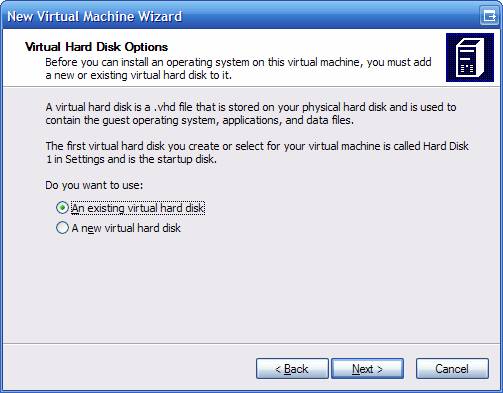
On the screen above you are asked about the Virtual Hard Disk, or your VHD file. This is another of the screens that baffles me. I wonder what bizarre logic was being used that assumed you usually had an existing VHD when you were creating a brand new virtual computer? Unless for some reason you have to rebuild the VMC file, select the A new virtual hard disk option and click next.

On this screen you are asked what you want to name the VHD file. Be default, it uses the name you gave the VMC file and adds “ Hard Disk” to it. I usually just take this default and click next.

Step 5: Confirm your choices

We’re finally at the last screen in the Wizard. Here all you have to do is confirm your choices, and click finish. So what happens next?

Well, nothing spectacular. Your Virtual PC Console will now look like this:

Now it’s time to install an operating system.

Step 6: Install an operating sytem

First, make sure your OS boot / install disk is in your CD/DVD drive. Now make sure your machine is highlighted and click Start.

A window pops up, and looks just like a computer booting up. All of a sudden you’ll see the words “Reboot and Select proper Boot device or Insert Boot Media in selected Boot device”. Now what?

Well, all it’s telling you is that it can’t find anything to boot from. By default, Virtual PC will protect you by not automatically giving access to any of the devices (hard disks or CD/DVDs) on your host system. To fix this, simply click on the CD menu, then pick Use Physical Drive E: (or what ever drive letter your CD is). Now click in the window and hit ENTER.

If all is well, your CD should start up and you will begin the process of installing whatever operating system you’ve placed in your drive. Walk through all of the steps like you normally would, formatting your hard disk, setting up partitions, etc. Don’t be worried, you won’t be hosing your real drive, but installing to your virtual drive (your VHD file).

Step 7: Configure and protect your VPC

OK, your new machine is up, now what? Well, if you are running a Windows OS I would highly suggest the very first thing you do is install AntiVirus software and a decent firewall. I know, you’re thinking “Why? My host system has these installed, won’t they protect it?” To which my answer is, NO.

You see, to the network the VPC is a real computer, with it’s own IP address and everything. It’s just as vulnerable to attacks as any other computer. If not, you couldn’t use it for a Honeypot (see my previous posting). So protect your VPC!

You’ll then want to install any system updates, to patch any security holes. It doesn’t matter if you run Linux or Windows, there’s bound to be some patches for your system out there.

Some tips for running a virtual PC

Now that you are safe and secure, you can use your OS as you would any other OS. A few tips:

  • If you want to move your mouse out of the VPC window, hit the Right ALT key. (Note the left one won’t work, has to be the right one). This will let your mouse exit the VPC window.
  • Use Right ALT + ENTER to toggle between window and full screen mode.
  • Use Right ALT + Delete in place of CTRL+ALT+DELETE for your VPC.

Finally, when you are done you have several options to exit your VPC. First, you can shut down normally from within the OS. This is the least troublesome method, but as you are doing a shut down (then later a start up) it’s more time consuming.

You can also click the Red X (cancel button) on the window, or select Action, Close on the menu. A dialog appears asking if you want to Turn Off or Save State. Save State is similar to putting your system in to hibernate mode. It writes the system state to a file with a VSV extension (and the same file name as your VMC file). Later when you restart it restores your PC just like it was.

Well, usually. I’ve found that sometimes the network doesn’t always reconnect correctly after going into Save State mode, and sometimes I’ve had issues with Linux recovering. You’ll just have to experiment to see how it works for you.

Turn off dumps the PC, sort of like yanking the plug out of the wall. For this reason I suggest you only use this when the virtual environment is totally locked up and you have no other choice.

Wrap up

Well there you go, you’ve now got a spiffy new Virtual PC you can use and abuse. In the next post we’ll talk about tweaking your Virtual PC, and the various menu options for VPC.

Virtual Computer Software

So my last post got your appetite going. You’re ready to go setup some virtual computers, now all you need is the software to do it. Say no more! There are a lot of different packages on the market, but I’ll contrast a few of the most popular here.

Microsoft Virtual PC 2004

VPC (Virtual PC) is Microsoft’s offering to the virtual computer arena. Using it you can run not only other Windows systems but other operating systems such as Linux. For maximum usability, you’ll want to install the virtual machine additions. These additions will add some usability features, such as the ability to access the host OS’s hard drives.

Pros: Easy to configure and use. Small download, light on system resources. And it’s free!

Cons: No support for USB devices, can be a little slow especially if you have a borderline system. Only runs on Windows, no support for Linux as a host (although many Linux distros will work inside it). No support for SCSI drives.

Note that while USB support is not built in, your USB mouse and keyboard will work just fine as VPC will translate into something the virtual OS (Operating System) will understand. Also, if you have an external USB drive, if you share it through the virtual machine additions it will look like a network drive and work OK.

In addition to the resources below, there’s also a technical whitepaper available at http://www.microsoft.com/windows/virtualpc/evaluation/techoverview.mspx

Main page: http://www.microsoft.com/windows/virtualpc/default.mspx

Download site: http://www.microsoft.com/downloads/details.aspx?FamilyId=6D58729D-DFA8-40BF-AFAF-20BCB7F01CD1&displaylang=en

VMware Workstation

The VMware product is the granddaddy of virtualization. It is robust, and easily runs anything you throw at it. Similar to VPC it will run many types of desktop systems.

Pros: USB Support, easy to use. Has versions that will run under both Windows and Linux hosts.

Cons: Expensive, $189 US for the download version (a trial version is available). Must choose which host version (Linux vs Windows) you want when you buy.

Main page: http://www.VMware.com/

Download site: http://www.VMware.com/products/ws/

VMware Player

The VMware player is just what it says. It will run a virtual computer, but it cannot create one. So how would this be useful? Well, you could be in an environment where you local administrator has a copy of the VMware Workstation product, and creates your VM’s (Virtual Machines) for you. Then each developer just needs the player in order to be able to use it.

On the web, people have created images called “appliances”. These appliances are ready to run images for the VMware Player. Note that because of licensing issues, these appliances will all be based on open source OS’s such as Linux.

Finally, VMware Player will run images created by the Microsoft Virtual PC product. Thus you could create your image with VPC and run with the VM Player. Note though I’ve had mixed results with this. The Windows based appliances have worked OK, but the Linux Ubuntu appliance I created with VPC didn’t work correctly under VM Player.

Pros: Free, easy to use, get the robustness of VMware without the cost. Both Windows and Linux versions available.

Cons: Cannot create appliances (a.k.a. virtual computers), only run them

Main page: http://www.VMware.com/

Download site: http://www.VMware.com/products/player/

Virtual Appliances available at: http://www.vmware.com/vmtn/appliances/

Microsoft Virtual Server

While it’s sister product, VPC is optimized for running desktop environments, Microsoft Virtual Server is a product that is designed for running servers. While it can be used as a development environment, it can also be used in a production environment.

Enterprises are using Virtual Server to consolidate several physical servers onto a single large box. They are also using it to setup test environments when those test environments will be used for a limited amount of time.

While both VPC and Virtual Server will allow networking between virtual computers (and real ones), Virtual Servers will let you create an entire virtual network.

For more information on the differences between VPC and VServer, see the white paper on the Microsoft site at http://www.microsoft.com/windowsserversystem/virtualserver/techinfo/vsvsvpc.mspx

Pros: Free! Will run under XP or any Windows Server product. (Note that running on XP is only suggested for development, not production.)

Cons: No USB, No sound card support, limited graphics support. Can only run Windows Server products and Windows XP as virtual OS’s. Cannot run on Linux, only Windows.

Main page: http://www.microsoft.com/windowsserversystem/virtualserver/default.mspx

Download site: http://www.microsoft.com/windowsserversystem/virtualserver/software/default.mspx

VMware Server

VMware Server will let you create and run a variety of OS’s in a server environment. Has full support for USB, SCSI, and more. A very robust solution for the enterprise or for development.

Pros: Free, easy to use, all the robustness of VMware Workstation without the cost. Great support for Linux, both as host and guest.

Cons: Only runs on Windows Server or Linux hosts. Will not run with Windows XP as the host (although XP can run inside VMware Server as a guest).

Update: I have since learned the server version will run just fine on XP. Additionally, it will support USB and Audio, although not by default. You will need to click on the Add Hardware Drivers to add them to the Virtual OS. I’ve had issues though with Vista RC2 and USB crashing when you try to exit Vista, so I don’t suggest using USB with Vista RC2 at this time.

Main page: http://www.VMware.com/

Download site: http://www.vmware.com/products/server/

Licensing Issues

You should note that for each Virtual Machine you create, you will need a license for the operating system you install. For Linux it’s easy, since most distros are free. For Microsoft Windows however, you will need to purchase a license in some fashion.

Many of us work in enterprises that provide us with MSDN licenses. If so, your MDSN will give you licenses to each of the OS’s Microsoft has created. If not, you may wish to look into a Microsoft Action Pack subscription. The action pack gives you 10 XP licenses, 1 copy of most of their servers, plus 10 copies of Office. Check out https://partner.microsoft.com/global/40009735 for more info.

Danger Will Robinson…

I should warn you that running virtual computers can be very hardware intensive. 2 gig of ram is recommended, 1.5 gig is passable, 1 gig is a bare minimum.

In addition, you’ll need a lot of disk space. Remember each time you create a virtual computer you are duplicating an entire OS. The ideal situation is to have two physical hard disks. Place your host OS and software on one drive, all your virtual computers on the other drive.

Choices Choices Choices!

So you’ve read all of this, and all you really want to know is, which product should you use? Well, after experimenting with the various products above, here’s my humble take.

If you have some available funds, and are looking for a good environment to develop in, then the VMware Workstation is a good choice. It handles a lot of things like USB that it’s main competitor does not.

If you are looking to develop on a budget, or this is your first time in the virtual world, then I suggest Virtual PC. VPC is very easy to install, setup and use. Since it’s free, you have nothing to lose.

For the upcoming blog posts, I’ll be using Microsoft Virtual PC for my examples. Since it’s free, it will be easy for the vast majority of folks to follow along. So what are you waiting for? Go download it and let’s get going…

Why Virtualize

Someone asked me the other day, why run virtual computers? Good question. First though, I ought to take a moment to explain what a virtual computer is.

A virtual computer is much like it sounds, it’s a fake computer. It runs inside a host, which resides on your real computer. For example, I could be running Windows XP on my real computer. Inside, I could run some software that would let me create a virtual computer running Windows 98.

The software that runs virtual computers works by abstracting the hardware then essentially lying to the virtual computer. The virtual operating system has no clue it’s virtual, it thinks and acts like it’s real. If it needs to make a hardware call, it does so and the software intercepts it and sends it to the real hardware on the host computer.

There are several options for running virtual computers, each with it’s own pros and cons. I’ll discuss the choices in my next post, for now let’s discuss some of the reasons for making use of virtual computers.

Emulating Operating Systems

When developing server components, it’s handy to have a spare server lying around. Unfortunately not all of us have the extra hardware handy to run a server. Using virtual computers, I can run Windows Server 2003 on my workstation, which is actually running Windows XP.

I’ve been interested in learning more about Linux, but don’t have a spare computer lying around, nor do I want to fool around trying to get dual booting to work. Using virtual computers lets me play with multiple versions of Linux without risk to my Windows system.

Multiple Configurations / Environments / Legacy apps

If you work in a large company, you often have to support multiple environments. For example, we are in the process of starting a new SQL Server 2005 project, but at the same time need to support our current SQL Server 2000 servers until they make the transition. Using multiple virtual computers lets me have one environment for 2000, another for 2005 without worry I’ll break one or the other.

Testing

“But it worked on the developers machine.” Ah how often have we heard that little gem! Virtual computers allow us to setup a base environment we can test our installs on, before we ever turn our apps loose on the users.

At work we have a base image all of our computers get when we first receive them. Using the base XP image I create virtual computers, and can ensure my new app runs OK.

You can extend this to not only your apps, but other apps. We’ve all seen some hot new app on the internet we wanted to try, but just weren’t sure about. By installing on a virtual computer we can test in our environment, see the reactions. If we don’t like it, just toss the virtual computer, no harm done.

Security

If you browse the web you are well aware of all the creepy critters waiting to assail you. Worms, viruses, Trojan horses, and that worst, most despicable of all creatures, the spammer wait for us around every corner.

Using a virtual computer protects you. Sort of like Las Vegas. Whatever happens there, stays there.

By their nature, a virtual computer is isolated. It has no idea it’s a virtual computer, no idea about it’s host (unless you specifically share a host’s drives, but that’s something you must do explicitly). Thus if you virtual computer comes down with a virus or other nasty, you can simply delete and rebuild and away you go.

Training

Using a virtual computer you can setup custom environments for each class or subject you need to teach. Users can use the OS to their hearts content, customizing it for their needs. At the end of each training session machines are easily reset by copying the base image to over the used one.

Honeypots

Here’s a sneaky trick some system admins do. (Thanks to Wallace Allison for telling me about this). They will first secure their real servers behind layers of security. They’ll then create a virtual server, or perhaps some virtual computers and deliberately expose them to the web. They become magnets to hackers who will attack the system.

Using diagnostic tools system admins can analyze the attack, and fortify their real servers against them. They can block the IP of the attacker, and maybe even help bring the offender to justice.

System Independence

Each night I make regular backups of my virtual computers onto my external USB hard disk. If my computer ever crashes, all I have to do is install my virtual computer software and I’m up and running with little downtime.

So that’s why!

There’s a few reasons why virtualization is a great thing. In my next post I’ll show you some places where you can get your own copies of virtualization software and begin setting up your own machines!