
Introduction
I use Discord as part of the weekly YouTube Minecraft stream I participate in, Adults Only Minecraft (which is actually family friendly), run by my friend Marc.
Of late though, Discord has been misbehaving. Even though I have it set not to auto load when Windows launches, it ignores the setting and still runs.
While I like Discord, I only use it once a week or so, and don’t want it running in the background all the time.
In this bonus post, let’s see how to fix this problem.
Check Your Discord Settings
First, let me state that not everyone is experiencing this issue, or needs the solution I’ll outline here. Let’s start with the simple solution first.
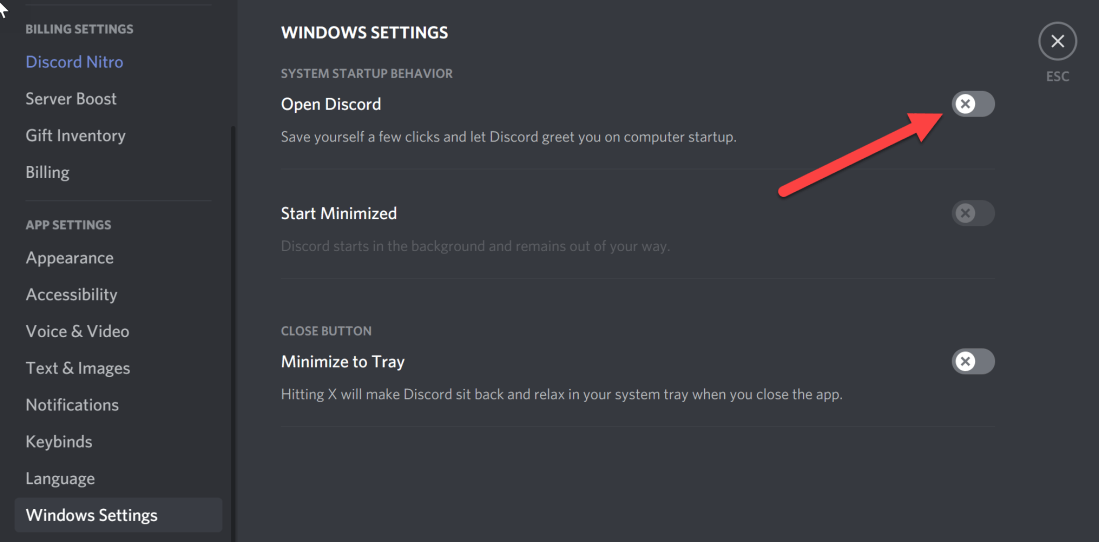
Open Discord, then your settings. Scroll down to Windows Settings, as you see below.

The toggle, pointed at by the arrow, indicates whether Discord should launch with Windows. If yours is on, and you don’t want it to auto launch, just click on it to turn it off as seen in this image.
Exit Discord, reboot, and if Discord does NOT launch, you’re done!
In my case however, that did not correct the issue. If that was the case for you too, proceed to the next section.
Disabling Discord Autorun in Windows
In the past, people have written instructions to go into Task Manager, expand into the detailed display, go to the Startup tab, and disable Discord.
Over time though, Discord changed things so their application no longer appears here. To fix, we’ll need to go download another tool called Autoruns.
Go to https://sysinternals.com, this will redirect you to a Microsoft web page (Microsoft bought SysInternals quite a few years back).
Once there, click the Downloads link on the left. SysInternals is a rich suite of tools, and you can certainly download all of them, but the only one you need for this task is Autoruns. Simply scroll down until you see it appear.

Click on the link to take you to the Autoruns info page, the download link is at the very top. Click on it to download the Autoruns.zip file to a folder on your hard drive.
Unzip the contents and it will expand several files. No installation is needed, these will simply run from wherever you put them. If you are on a 64 bit operating system, and pretty much anyone with a modern computer is, the file to double click on is Autoruns64.exe. If you are on an older 32 bit computer, you can run Autoruns.exe.
A little side note, after running the application the listing area uses an incredibly small 4 point font. Easy to fix, in the menu click Options, Font, and pick a bigger font size. For this image I went with a 12 point font.
At the top is a filter box, pointed at by the green arrow in the image below.

Enter the word Discord into it. Autoruns should then filter the list to just the entry for Discord.
Now simply uncheck the box, pointed at by the orange arrow in the image above.
That’s it!
OK, you are done. Close Autoruns, and reboot your computer. When you do, Discord should no longer start up automatically.
Discord Updates
Note, it is always possible after an update from Discord, they will reset this to turn it back on. If you suddenly find Discord starting up again when Windows boots, then just follow the instructions again to disable Discord in the Autoruns app.
It’s also possible at some point in the future Discord may correct this issue. Occasionally, perhaps once a month, check this back on then reboot to see if Discord still launches or not.
Conclusion
Don’t get me wrong, I like Discord a lot, and use it weekly. It’s a great tool for gaming. However, when I’m not playing Minecraft I don’t want it running in the background all the time, taking up resources.
If that’s the case for you then hopefully this post will aid you in correcting the issue.
![[Picture of Process Montiors main UI.]](https://arcanecode.com/wp-content/uploads/2006/11/WindowsLiveWriter/SysInternalsTheNewProcessMonitor_DB81/clip_image002.jpg)
![[Process Monitors Process Tree]](https://arcanecode.com/wp-content/uploads/2006/11/WindowsLiveWriter/SysInternalsTheNewProcessMonitor_DB81/clip_image004.jpg)
![[Handy tools in the ProcMon Toolbar.]](https://arcanecode.com/wp-content/uploads/2006/11/WindowsLiveWriter/SysInternalsTheNewProcessMonitor_DB81/clip_image006%5B1%5D.jpg)
![[Picture of ZoomIt Option Dialog]](https://arcanecode.com/wp-content/uploads/2006/11/WindowsLiveWriter/SysInternalsZoomIt_14ACA/clip_image002.jpg)
![[Demonstration of ZoomIt's Draw feature.]](https://arcanecode.com/wp-content/uploads/2006/11/WindowsLiveWriter/SysInternalsZoomIt_14ACA/clip_image004.jpg)
![[Picture of ProcMon basic view.]](https://arcanecode.com/wp-content/uploads/2006/11/WindowsLiveWriter/SysInternalsProcMon_5738/clip_image002.jpg)
![[Pic of ProcMon with it's lower panel showing some useful information.]](https://arcanecode.com/wp-content/uploads/2006/11/WindowsLiveWriter/SysInternalsProcMon_5738/clip_image004.jpg)
![[Pic of dialog showing more information about the application you clicked on.]](https://arcanecode.com/wp-content/uploads/2006/11/WindowsLiveWriter/SysInternalsProcMon_5738/clip_image006.jpg)
![[Picture: Try not to drool as you look at this useful graph.]](https://arcanecode.com/wp-content/uploads/2006/11/WindowsLiveWriter/SysInternalsProcMon_5738/clip_image008.jpg)
![[Picture: Your like a kid at Christmas as you look over all the stats you can dig out of your .Net app.]](https://arcanecode.com/wp-content/uploads/2006/11/WindowsLiveWriter/SysInternalsProcMon_5738/clip_image010.jpg)
![[Picture: Shows you just how much memory your app really needs.]](https://arcanecode.com/wp-content/uploads/2006/11/WindowsLiveWriter/SysInternalsProcMon_5738/clip_image012.jpg)
![[Picture of FileMon.]](https://arcanecode.com/wp-content/uploads/2006/11/WindowsLiveWriter/SysInternalsTwoMonitorPrograms_11823/clip_image002.jpg)
![[Picture of RegMon.]](https://arcanecode.com/wp-content/uploads/2006/11/WindowsLiveWriter/SysInternalsTwoMonitorPrograms_11823/clip_image004.jpg)
![[Picture of my desktop with BgInfo's information on it.]](https://arcanecode.com/wp-content/uploads/2006/11/WindowsLiveWriter/SysInternalsBgInfo_5ABE/clip_image002.jpg)
![[Picture of BgInfo's configuration screen.]](https://arcanecode.com/wp-content/uploads/2006/11/WindowsLiveWriter/SysInternalsBgInfo_5ABE/clip_image004.jpg)
![[Picture of PageDefrags user interface.]](https://arcanecode.com/wp-content/uploads/2006/11/WindowsLiveWriter/SysInternalsPageDefragmentor_657D/clip_image002.jpg)
![[Picture of AutoRuns user interface.]](https://arcanecode.com/wp-content/uploads/2006/11/WindowsLiveWriter/SysInternals_E89D/clip_image0024.jpg)
![[Picture of the information area of the window.]](https://arcanecode.com/wp-content/uploads/2006/11/WindowsLiveWriter/SysInternals_E89D/clip_image0044.jpg)
 Arcane Code