Accessing FILESTREAM Data From A Client .NET Application – Part 2 Downloading a File

In the previous entry we covered how to upload a file to SQL Server using the FILESTREAM, new to SQL Server 2008. In this post we will look at retrieving a file from SQL Server using FILESTREAM. If you missed yesterday’s installment, a simple front end was created, the full project can be found at the Code Gallery site http://code.msdn.microsoft.com/FileStreamFTS .

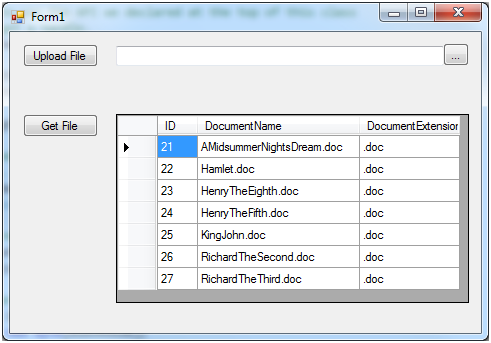
The interface is very simple:
image

The grid is a Data View Grid that shows the ID and Document information from the table we previously created. (If you want to see the code to populate the grid see the project.) The user picks a row, then clicks on the Get File button.

    private void btnGetFile_Click(object sender, EventArgs e)

    {

      // Reset in case it was used previously

      lblStatus.Text = "";


      if (dgvFiles.CurrentRow != null)

      {

        // Grab the ID (Primary Key) for the current row

        int ID = (int)dgvFiles.CurrentRow.Cells[0].Value;

        // Now Save the file to the folder passed in the second

        // paramter.

        FileTransfer.GetFile2(ID, @"D:\Docs\Output\");

        // And let user know it’s OK

        lblStatus.Text = "File Retrieved";

      }

    }

The code is very simple, the heart of it is the FileTransfer.GetFile static method. Two values are passed in, the integer ID, which is the primary key from the database, and the path to save the file to. Here I simply hard coded a path, in a real life application you will want to give the user the ability to enter a path. Let’s take a look at the GetFile routine.

    public static void GetFile(int ID, string outputPath)

    {

      // Setup database connection

      SqlConnection sqlConnection = new SqlConnection(

                "Integrated Security=true;server=(local)");


      SqlCommand sqlCommand = new SqlCommand();

      sqlCommand.Connection = sqlConnection;


      try

      {

        sqlConnection.Open();


        // Everything we do with FILESTREAM must always be in

        // the context of a transaction, so we’ll start with

        // creating one.

        SqlTransaction transaction

          = sqlConnection.BeginTransaction("mainTranaction");

        sqlCommand.Transaction = transaction;


        // The SQL gives us 3 values. First the PathName() method of

        // the Document field is called, we’ll need it to use the API

        // Second we call a special function that will tell us what

        // the context is for the current transaction, in this case

        // the "mainTransaction" we started above. Finally it gives

        // the name of the document, which the app will use when it

        // creates the document but is not strictly required as

        // part of the FILESTREAM.

        sqlCommand.CommandText

          = "SELECT Document.PathName()"

          + ", GET_FILESTREAM_TRANSACTION_CONTEXT() "

          + ", DocumentName "

          + "FROM FileStreamFTS.dbo.DocumentRepository "

          + "WHERE ID=@theID ";


        sqlCommand.Parameters.Add(

          "@theID", SqlDbType.Int).Value = ID;


        SqlDataReader reader = sqlCommand.ExecuteReader();

        if (reader.Read() == false)

        {

          throw new Exception("Unable to get BLOB data");

        }


        // OK we have some data, pull it out of the reader into locals

        string path = (string)reader[0];

        byte[] context = (byte[])reader[1];

        string outputFilename = (string)reader[2];

        int length = context.Length;

        reader.Close();


        // Now we need to use the API we declared at the top of this class

        // in order to get a handle.

        SafeFileHandle handle = OpenSqlFilestream(

          path

          , DESIRED_ACCESS_READ

          , SQL_FILESTREAM_OPEN_NO_FLAGS

          , context

          , (UInt32)length, 0);


        // Using the handle we just got, we can open up a stream from

        // the database.

        FileStream databaseStream = new FileStream(

          handle, FileAccess.Read);


        // This file stream will be used to copy the data to disk

        FileStream outputStream

          = File.Create(outputPath + outputFilename);


        // Setup a buffer to hold the streamed data

        int blockSize = 1024 * 512;

        byte[] buffer = new byte[blockSize];


        // There are two ways we could get the data. The simplest way

        // is to read the data, then immediately feed it to the output

        // stream using it’s Write feature (shown below, commented out.

        // The second way is to load the data into an array of bytes

        // (here implemented using the generic LIST). This would let

        // you manipulate the data in memory, then write it out (as

        // shown here), reupload it to another data stream, or do

        // something else entirely.

        // If you want to go the simple way, just remove all the

        // fileBytes lines and uncomment the outputStream line.

        List<byte> fileBytes = new List<byte>();

        int bytesRead = databaseStream.Read(buffer, 0, buffer.Length);

        while (bytesRead > 0)

        {

          bytesRead = databaseStream.Read(buffer, 0, buffer.Length);

          //outputStream.Write(buffer, 0, buffer.Length);

          foreach (byte b in buffer)

            fileBytes.Add(b);

        }


        // Write out what is in the LIST to disk

        foreach (byte b in fileBytes)

        {

          byte[] barr = new byte[1];

          barr[0] = b;

          outputStream.Write(barr, 0, 1);

        }


        // Close the stream from the databaseStream

        databaseStream.Close();


        // Write out the file

        outputStream.Close();


        // Finally we should commit the transaction.

        sqlCommand.Transaction.Commit();

      }

      catch (System.Exception ex)

      {

        MessageBox.Show(ex.ToString());

      }

      finally

      {

        sqlConnection.Close();

      }

      return;


    }

The routine kicks off by opening a connection, then establishing a transaction. Remember from the previous lesson that every time you work with a FILESTREAM it has to be in a transaction. Next we basically duplicate the SQL used in the previous lesson, returning the path name, transaction context, and document name. The only difference is we pass in the ID as a parameter. With that, just like with the previous example we call the OpenSqlFilestream API. Note a difference, in this example the second parameter is “DESIRED_ACCESS_READ” as opposed to the write access we indicated previosly.

Once we have the “handle” we can create a FileStream for reading from the database. In this example I loop through the file stream, loading the data into a LIST of bytes. Once in memory we are free to work with it as we need to. In this example I simply loop back through the generic List and write the data to the file stream we opened on the disk for writing. If all you are doing is writing, it would be somewhat more efficient to write the code like so:

        int bytesRead = databaseStream.Read(buffer, 0, buffer.Length);

        while (bytesRead > 0)

        {

          bytesRead = databaseStream.Read(buffer, 0, buffer.Length);

          outputStream.Write(buffer, 0, buffer.Length);

        }


        // Close the stream from the databaseStream

        databaseStream.Close();

I simply eliminate the local byte array and write the buffer directly to the disk. Either way, the remainder is simple, just closing all the streams, commiting the transaction and closing the database connection.

This concludes the series on how to use FILESTREAM, in future posts we look into how to do Full Text Search with FILESTREAM stored objects.

Accessing FILESTREAM Data From A Client .NET Application – Part 1 Uploading a File

The best way to work with documents in a database is via a .Net application. I created a simple Windows forms project to access the table I created in previous lessons. I named the application FileLoader, you can the entire project at the Code Gallery site http://code.msdn.microsoft.com/FileStreamFTS .

The interface is very simple:

image

As you can see there are two main functions, the upper half uploads a file to the SQL Server. The lower half displays the files already in the table, lets the user pick one and then click the GetFile button to save it locally. Today we’ll look at the Upload File functionality. Here is the code:

    private void btnUploadFile_Click(object sender, EventArgs e)

    {

      // Reset in case it was used previously

      lblStatus.Text = "";


      // Make sure user entered something

      if (txtFile.Text.Length == 0)

      {

        MessageBox.Show("Must supply a file name");

        lblStatus.Text = "Must supply file name";

        return;

      }


      // Make sure what user entered is valid

      FileInfo fi = new FileInfo(txtFile.Text);

      if (!fi.Exists)

      {

        MessageBox.Show("The file you entered does not exist.");

        lblStatus.Text = "The file you entered does not exist.";

        return;

      }


      // Upload the file to the database

      FileTransfer.UploadFile(txtFile.Text);


      // Refresh the datagrid to show the newly added file

      LoadDataGridView();


      // Let user know it was uploaded

      lblStatus.Text = fi.Name + " Uploaded";

    }

The real line of importance is the FileTransfer.UploadFile. This calls a static method in a class I named FileTransfer.cs. In order to use FILESTREAM there is an API call we have to make, so at the header area of the FileTransfer we have a lot of declarations. These are pretty much a straight copy from the MSDN help files.

    //These contants are passed to the OpenSqlFilestream()

    //API DesiredAccess parameter. They define the type

    //of BLOB access that is needed by the application.


    const UInt32 DESIRED_ACCESS_READ = 0x00000000;

    const UInt32 DESIRED_ACCESS_WRITE = 0x00000001;

    const UInt32 DESIRED_ACCESS_READWRITE = 0x00000002;


    //These contants are passed to the OpenSqlFilestream()

    //API OpenOptions parameter. They allow you to specify

    //how the application will access the FILESTREAM BLOB

    //data. If you do not want this ability, you can pass in

    //the value 0. In this code sample, the value 0 has

    //been defined as SQL_FILESTREAM_OPEN_NO_FLAGS.


    const UInt32 SQL_FILESTREAM_OPEN_NO_FLAGS = 0x00000000;

    const UInt32 SQL_FILESTREAM_OPEN_FLAG_ASYNC = 0x00000001;

    const UInt32 SQL_FILESTREAM_OPEN_FLAG_NO_BUFFERING = 0x00000002;

    const UInt32 SQL_FILESTREAM_OPEN_FLAG_NO_WRITE_THROUGH = 0x00000004;

    const UInt32 SQL_FILESTREAM_OPEN_FLAG_SEQUENTIAL_SCAN = 0x00000008;

    const UInt32 SQL_FILESTREAM_OPEN_FLAG_RANDOM_ACCESS = 0x00000010;


    //This structure defines the format of the final parameter to the

    //OpenSqlFilestream() API.


    //This statement imports the OpenSqlFilestream API so that it

    //can be called in the Main() method below.

    [DllImport("sqlncli10.dll", SetLastError = true, CharSet = CharSet.Unicode)]

    static extern SafeFileHandle OpenSqlFilestream(

                string Filestreamath,

                uint DesiredAccess,

                uint OpenOptions,

                byte[] FilestreamTransactionContext,

                uint FilestreamTransactionContextLength,

                Int64 AllocationSize);


    //This statement imports the Win32 API GetLastError().

    //This is necessary to check whether OpenSqlFilestream

    //succeeded in returning a valid / handle


    [DllImport("kernel32.dll", SetLastError = true)]

    static extern UInt32 GetLastError();

OK, with that out of the way, I’ve created a public, static method to upload the file. Here is the full routine:

    public static void UploadFile(string fileName)

    {

      // Establish db connection

      SqlConnection sqlConnection = new SqlConnection(

                "Integrated Security=true;server=(local)");

      SqlTransaction transaction = null;


      // Create a File Info object so you can easily get the

      // name and extenstion. As an alternative you could

      // choose to pass them in,  or use some other way

      // to extract the extension and name.

      FileInfo fi = new FileInfo(fileName);


      try

      {

        // Open the file as a stream

        FileStream sourceFile = new FileStream(fileName

          , FileMode.OpenOrCreate, FileAccess.Read);


        // Create the row in the database

        sqlConnection.Open();


        SqlCommand cmd = new SqlCommand();

        cmd.Connection = sqlConnection;

        cmd.CommandText = "INSERT INTO "

          + "FileStreamFTS.dbo.DocumentRepository"

          + "(DocumentExtension, DocumentName) VALUES (‘"

          + fi.Extension + "’, ‘"

          + fi.Name + "’)";

        cmd.ExecuteNonQuery();


        // Now upload the file. It must be done inside a transaction.

        transaction = sqlConnection.BeginTransaction("mainTranaction");

        cmd.Transaction = transaction;

        cmd.CommandText = "SELECT Document.PathName(), "

         + "GET_FILESTREAM_TRANSACTION_CONTEXT() "

         + "FROM FileStreamFTS.dbo.DocumentRepository "

         + "WHERE ID=(select max(id) from FileStreamFTS.dbo.DocumentRepository)";

        SqlDataReader rdr = cmd.ExecuteReader();

        if (rdr.Read() == false)

        {

          throw new Exception("Could not get file stream context");

        }


        // Get the path

        string path = (string)rdr[0];

        // Get a file stream context

        byte[] context = (byte[])rdr[1];

        int length = context.Length;

        rdr.Close();


        // Now use the API to get a reference (handle) to the filestream

        SafeFileHandle handle = OpenSqlFilestream(path

          , DESIRED_ACCESS_WRITE

          , SQL_FILESTREAM_OPEN_NO_FLAGS

          , context, (UInt32)length, 0);


        // Now create a true .Net filestream to the database

        // using the handle we got in the step above

        FileStream dbStream = new FileStream(handle, FileAccess.Write);


        // Setup a buffer to hold the data we read from disk

        int blocksize = 1024 * 512;

        byte[] buffer = new byte[blocksize];


        // Read from file and write to DB

        int bytesRead = sourceFile.Read(buffer, 0, buffer.Length);

        while (bytesRead > 0)

        {

          dbStream.Write(buffer, 0, buffer.Length);

          bytesRead = sourceFile.Read(buffer, 0, buffer.Length);

        }


        // Done reading, close all of our streams and commit the file

        dbStream.Close();

        sourceFile.Close();

        transaction.Commit();


      }

      catch (Exception e)

      {

        if (transaction != null)

        {

          transaction.Rollback();

        }

        throw e;

      }

      finally

      {

        sqlConnection.Close();

      }


    }

First we open a connection to the SQL Server, then create a FileInfo object to make it simple to extract the file name and extension. Next a record is inserted into the database that will act as a place holder. It has the name of the file and the extension, but no file yet. I did go ahead and open a FileStream to the source file, located on the disk. We’ll need this later to upload the file.

Next you will see that I begin a transaction. Every time you work with a FILESTREAM it must always be in the context of a transaction. After that a SQL Data Reader is created that has three pieces of information. First, it calls the PathName() function for the Document field in our table. The PathName() will be needed later when we call the API. The second field is returned from the GET_FILESTREAM_TRANSACTION_CONTEXT function, and returns the transaction context for the transaction. Note this is not the name (in this example “mainTransaction”), but the context which is a special value. These two values are then copied into local variables which will be used in calling the OpenSqlFilestream API. In this example I also retrieve the DocumentName field, this is used by the code when it writes the file to the database, but is not strictly needed for the FILESTREAM.

Next you will see the call to the OpenSqlFilestream API, which returns a “handle”. This handle is then used to create a FileStream object. Using this newly created FileStream (here named dbStream) we can then upload the file. Now the main work begins. After setting up a buffer, we then simply read from the source file stream into the buffer, then write the exact same buffer to the database FileStream. The loop continues until there are no more bytes in the source.

At this point we are essentially done. We close the streams, commit the transaction, and in the finally block close the SQL database connection. The file should now be in the database. I do want to point out one thing. In the SQL to get the information to the row just uploaded, I use a subquery to get the max(id), essentially returning the last row just inserted. This is fine for this simple example, when the database has just one user. In your production systems where you are likely to have many users, however, you should use an alternate method to return the row you need. Otherwise two users could insert rows at the same time, and thus a conflict could occur with both of them getting back the same max(id). It will not happen often, but at some point it could happen and be very hard to debug.

This handled the uploading of files to the SQL Server via FILESTREAM, in the next installment we’ll look at how to retrieve the file we just uploaded.

Creating Tables and Inserting Rows With FILESTREAM

In previous lessons, we setup the server to handle FILESTREAM, then we looked at how to create or alter a database to work with FILESTREAM. In this lesson we will create a table to store a FILESTREAM, then insert a few rows into it.

Before we create our table, be aware of some requirements necessary for FILESTREAM to work. First, you must have a special column that FILESTREAM uses to uniquely identify the stream. It must be a unique non null identifier of type ROWGUIDCOL. If we specify a default of NEWSEQUENTIALID the column becomes self maintaining. When we insert a new value into the row, SQL Server takes care of creating a GUID for us and we essentially can ignore the column. Here is an example:


USE FileStreamFTS
GO

CREATE TABLE DocumentRepository(
  ID INT IDENTITY(1,1) NOT NULL PRIMARY KEY
, FileStreamID UNIQUEIDENTIFIER ROWGUIDCOL NOT NULL UNIQUE DEFAULT NEWSEQUENTIALID()
, DocumentExtension VARCHAR(10)
, DocumentName VARCHAR(256)
, Document VARBINARY(MAX) FILESTREAM DEFAULT(0x)
);
GO

Here the column “FileStreamID” will become the required column for FILESTREAM. Note the column name is not important, I could have called it “FSID”, “FSIdentity”, or even “Spock”. You’ll also note I created an ID column for our use in normal day to day operations. This is not a requirement of FILESTREAM, just good practice. There is a second requirement however. For the column that will be storing the documents, it must be VARBINARY(MAX), and it must add the FILESTREAM clause.

You will also note the default of “0x” (hex 0). This will be important if you wish to insert a new row without supplying the document at the time the row is created. It will create a file to act as a placeholder until such time as the real document is supplied.

You can also alter an existing table to add FILESTREAM capabilities. Simply use the ALTER TABLE command, add the unique identifier column (in this example “FileStreamID”) and the VARBINARY(MAX) column to hold your data (“Document” in the above example).

It’s time to insert some data. Normally the best way to insert data is using a client application, such as something written in .Net. It is possible to add documents though via T-SQL. To supply data for these examples, I decided a little culture was in order. I went to http://shakespeare.mit.edu/ and copied some of the plays into Microsoft Word documents. Note I used the older “.doc” format from 2003, not the 2007 “.docx”. This is not particularly important as far as FILESTREAM is concerned, but will come into play in later lessons when we look at doing Full Text Searches on this data.


INSERT INTO DocumentRepository(DocumentExtension, DocumentName, Document)
SELECT
 'doc' AS DocumentExtension
 , 'Hamlet.doc' AS DocumentName
 , * FROM OPENROWSET(BULK 'D:\Docs\Hamlet.doc', SINGLE_BLOB) 
   AS Document;
GO

Here we’ve inserted a new row into the table, and have ignored the “ID” and “FileStreamID” letting SQL Server create the values. The “DocumentExtension” and “DocumentName” columns are straightforward. To supply the document however, we need to use an OPENROWSET. This will supply the data from a disk file as a single BLOB (Binary Large OBject).

Let’s verify what was just inserted with this query:


SELECT ID
     , FileStreamID
     , DocumentExtension AS Ext
     , DocumentName
     , CAST(Document AS VARCHAR) as DocumentData
FROM DocumentRepository;

Notice the CAST, its necessary in order to get a view into the stored document.

ID FileStreamID Ext DocumentName DocumentData
1 A54A8FFE-F742-DE11-AC61-002243CE0AAB doc Hamlet.doc ÐÏࡱá > þÿ


As mentioned previously, it is also possible to insert a new row, then add the document later. To insert a new row into our example table, we simply use:


INSERT INTO DocumentRepository(DocumentExtension, DocumentName)
VALUES ('doc', 'AMidsummerNightsDream.doc');
GO

Now that the row exists, we can update it.


UPDATE  DocumentRepository
SET     Document = ( SELECT *
                     FROM OPENROWSET(
                      BULK 'D:\Docs\AMidsummerNightsDream.doc',
                      SINGLE_BLOB) AS TheDocument
                   )
WHERE   ID = 2 ;
GO

While it is possible to add data in this format, it’s fairly rare. The majority of the time you will want to use a client side application, which is what we’ll look at in the next installment of this series.

Enabling FILESTREAM In The Database

Once you have your server configured for FILESTREAM, you will need to configure your database. The easiest way is to establish it when you first create the database.


CREATE DATABASE FileStreamFTS ON 
PRIMARY ( NAME = FileStreamFTS_Data,
    FILENAME = 'd:\data\FileStreamFTS_Data.mdf'),
FILEGROUP FileStreamFTS_FileGroup1 
  CONTAINS FILESTREAM( NAME = FileStreamFTS_FileGroup,
    FILENAME = 'd:\data\FileStreamFTS_FileGroup')
LOG ON  ( NAME = FileStreamFTS_Log,
    FILENAME = 'd:\data\FileStreamFTS_Log.ldf')
GO

In the above example, I created my database in a directory on my D drive named “D:\Data”. If you examine the folder you ’ll now see two files, the mdf and ldf files. There is also a folder “FileStreamFTS_FileGroup”. It is in this folder that your files will eventually be stored in.

You may be tempted to poking around in the folder, and perhaps even access the stored files directly. My advice to you: don’t. Microsoft has strongly advised against this practice. After all, you went to all the trouble of setting up FILESTREAM to let SQL Server handle this for you, so let it do the handling. If you are curious to dig deeper into how FILESTREAM works behind the scenes, I would recommend Paul Randal’s excellent white paper available at http://msdn.microsoft.com/en-us/library/cc949109.aspx.

The above example shows how to add FILESTREAM capability when you first create your database. That’s great, but what if you already have an existing database you want to add FILESTREAM to? I have just such an existing database, “ArcaneCode”. To add FILESTREAM I need to issue two ALTER DATABASE statements. First, we need to add a FILEGROUP and indicate that file group contains FILESTREAM objects.


ALTER DATABASE ArcaneCode
ADD FILEGROUP ArcaneFileStreamGroup1 
  CONTAINS FILESTREAM
GO

In the second we have to indicate to the FILEGROUP where the FILESTREAM should be stored. Pass in the directory name where you want your files saved as the FILENAME parameter. As with the create statement the directory can not exist, if it does you’ll get an error.


ALTER DATABASE ArcaneCode
ADD FILE  
  (NAME = 'ArcaneFS_Group'
   , FILENAME = 'D:\Data\ArcaneCodeFS'
   )
TO FILEGROUP ArcaneFileStreamGroup1 
GO

This completes the steps needed to create a database with FILESTREAM, or add it to an existing database. In the next lesson we will look at creating tables that use FILESTREAM.

Enabling FILESTREAM on SQL Server 2008

One of the newly touted features of SQL Server 2008 is file streaming. For some time now SQL Server has allowed users to store large binary objects in the database inside a varbinary(max) field. Performance began to suffer, however, when the binary object was over 1 megabyte or so in size.

SQL Server 2008 solves this through its new FILESTREAM feature. With FILESTREAM SQL Server lets the operating system, Windows Server, do what it does best: handle the storage of binary objects, better known as files. In the database, SQL Server simply stores a reference that will let it open and close the file from the disk. FILESTREAM gives us the best of all worlds. When the file group is backed up so are the files, they can also be made part of a transaction.

By default, FILESTREAM is not enabled when you install SQL Server 2008. Activating it is a simple, two step process. As always though make sure to do proper backups before making any changes to your SQL Server, and be sure to first implement on development, then test systems before making changes to any production server.

First, you will need to enable FILESTREAM for the Windows Server it is running on. Begin by opening the SQL Server Configuration Manager. Once inside click on “SQL Server Services” then highlight the server you want to activate. In this example we clicked on “SQL Server (MSSQLSERVER)”.

image

Now that it is highlighted, right click on it and pick properties from the menu. Click on the FILESTREAM tab in the dialog that appears.

image

If you have a default install, your dialog should appear with nothing enabled, as this one does. Check on the first line, “Enable FILESTREAM for Trancact-SQL access”. This turns on the FILESTREAM feature, but with a drawback. It only works from T-SQL, and then only on the server itself. To make it useful we need to go further.

Once the first line is checked on, the second line, “Enable FILESTREAM for file I/O streaming access” will become enabled. Check it on. At this point the server will allow FILESTREAM from a separate application, but only when run on the same Windows Server that SQL Server is running on.

Since most of your users will not be running on the SQL Server itself, you will want to check on the final option which is now available, “Allow remote clients to have streaming access to FILESTREAM data”. Once this is checked, you can click OK to save your changes.

Note there may be one exception to checking on the final option. If you are running SQL Server Express, it is quite possible your application and the database may all be running on the same computer, and that you do not want any other machine to get access to this database. While this would be an uncommon situation, please note that the capability does exist for you to set things up this way if needed.

Now that the Windows Server is ready to handle FILESTREAM we need to enable the SQL Server. Fortunately this winds up being a simple matter. Open up SQL Server Management Studio, and enter the following command:


  EXEC sp_configure filestream_access_level, 2
  RECONFIGURE

Note the number at the end of the first line. Valid values for this are “0”, “1”, and “2”. “0” will disable FILESTREAM completely. “1” will enable it, but only for T-SQL code. “2” will fully enable it and allow access via .NET or other code. Note that these are slightly different from the way the Windows Server rights are set. Here, in order to run anything other than T-SQL you must use a “2”, regardless of where the code is executed (local or remote).

It is also possible to change this setting in the GUI. Right click on the server in SQL Server Management Studio, in this case it is “(local)”, and pick “Properties” from the menu. Go to the “Advanced” page and the FILESTREAM is the top most item, you can see it here with all of its options.

image 

Now your server has been properly configured to handle file streaming, you’ll want to create a database in a way to handle file streaming. We’ll do that in the next installment in this series.

Atlanta SQL Saturday – Full Text Searching

Let me start with a big thank you to everyone involved in the Atlanta SQL Saturday. It was a great event, well run and well organized. Also a big thanks to all those who attended my sessions, and put up with my cold.

Here is the information for the Full Text Searching presentation. Still working on the getting started with SSIS details, if you want to see the 2005 version it’s at http://code.msdn.microsoft.com/SSIS . I’ll add the 2008 base in the next day or two.

First off, the slides and sample code can be located at the Code Gallery site I setup specifically for Full Text Searching with SQL Server:

http://code.msdn.microsoft.com/SqlServerFTS

Look on the downloads page to see various projects around SQL Server Full Text Searching. I’ve created one “release” for each of the projects around FTS. Be sure to look on the right side at the various releases in order to see the various projects.

Next, you can get started with the basics by reading these entries on my blog:

Lesson 0 – Getting the Bits to do Full Text Searching in SQL Server 2005
Lesson 1 – The Catalog
Lesson 2 – The Indexes
Lesson 3 – Using SQL
Lesson 4 – Valid Data Types
Lesson 5 – Advanced Searching

After that you’ll be ready for some advanced topics.

Can you hear me now? Checking to see if FTS is installed.
Exploring SQL Servers FullTextCatalogProperty Function
Using the ObjectPropertyEx Function
Using FORMSOF in SQL Server Full Text Searching
Creating Custom Thesaurus Entries in SQL Server 2005 and 2008 Full Text Search
Creating and Customizing Noise Words in SQL Server 2005 Full Text Search
Creating and Customizing Noise Words / StopWords in SQL Server 2008 Full Text Search
Advanced Queries for Using SQL Server 2008 Full Text Search StopWords / StopLists

Finally, you can find some videos I did for JumpstartTV at:

http://www.jumpstarttv.com/profiles/3177/Robert-Cain.aspx

Introduction To Data Warehousing and Business Intelligence

At the Atlanta SQL Saturday 2009 one of the presentations I am doing is “Introduction to Data Warehousing and Business Intelligence”.

You can download the slide deck for this presentation in PDF format.

Any sample code came from either my Intro to SSIS presentation or the book Programming SQL Server 2008.

SQL Server Sample Data – The SQL Name Game

Like most folks, I seem to have a perpetual need for realistic test data. While there are many databases available, sometimes the need is quite simple. All I need is some names, perhaps dates and phone numbers that can be used for testing my applications, SSIS or SQL Server Reports. I decided to take care of this need once and for all, and set out with a simple goal. At the conclusion of my work I wanted to wind up with a realistic looking, but totally fake set of data. I wanted to do it in the simplest means possible, using whatever tools I had available. Finally, I wanted to do it as quickly as possible.

Along the way I documented my efforts, as well as created a sample table with 100,000 rows. When I started I thought to publish everything in a blog post, but it turned out to be far too much for a single blog post. Thus I decided to document everything in a white paper, and upload all the code to a MSDN Code Gallery site. Note that while I used the 2008 versions of SQL Server and Visual Studio, the SQL Scripts should run just fine with SQL Server 2005.

You can find everything at http://code.msdn.microsoft.com/SqlServerSampleData . Look in the downloads section for the complete PDF with all the details, as well as all of the sample data. Using the techniques outlined in the white paper you too could easily be generating your own test data for a wide variety of projects.

SQL Saturday 7 is Coming!

I’m getting excited, Birmingham’s SQL Saturday is rapidly approaching. I’m lucky enough to be on the planning committee and we’re really getting jazzed up. It’s still early and we’ve already filled over 25% of the available seats.

It’s not too late though, we still have opportunities! First of all, we still have some slots left for speakers. We’ve received quite a few submissions so far, but there is still a few slots left. Get your submissions in quick if you want to be a part of this event.

Sponsors are also vital to the success of the event, we have some but still need more. We want to create a win-win environment to hook up local DBAs and SQL Developers with your company or school. This is a great chance to meet the folks in the community.

Most of all though, we need YOU! Yes, you the local DBA or SQL Developer. This is a great chance to not only get a free day of education, but hook up with your peers in the community. And if that’s not enough, we have some great swag lined up.

Don’t wait though, the Atlanta code camp filled up quick, and it looks like Birmingham is on the same track. Head over to the SQL Saturday site and register for SQL Saturday 7 now!

If you’d like more info, or are interested in sponsorship, speaking, or volunteering, please don’t hesitate to e-mail us at sqlsaturday7@sqlsaturday.com.

Generating a PDF file from a Reporting Services Report Viewer Control

In yesterday’s post, I demonstrated how to generate a SQL Server Reporting Services report without having to have SQL Server Reporting Services. The sample application used the Microsoft Report Viewer control to display the report. A common need in business is to generate documents, such as PDFs, that will later be archived. It turns out if you are using a report viewer control, this is easy to do programmatically.

First, you need to add one using statement to the top of your class, in addition to the others that were added yesterday.

using System.IO;

Next, we only need a few lines of code to generate the PDF.

      Warning[] warnings;

      string[] streamids;

      string mimeType;

      string encoding;

      string extension;


      byte[] bytes = reportViewer1.LocalReport.Render(

        "PDF", null, out mimeType, out encoding, out extension,

        out streamids, out warnings);


      FileStream fs = new FileStream(@"D:\ReportOutput.pdf", FileMode.Create);

      fs.Write(bytes, 0, bytes.Length);

      fs.Close();

This code snippet came right from the MSDN Books on Line, and is pretty simple. I could have selected another format by changing the first value passed into the Render method, for example “EXCEL” would have rendered it as a Microsoft Excel document.

In the code samples I placed the above sample in it’s own button, but I could just have easily placed it under one of the other demo buttons.

This ability brings up some interesting possibilities. For example, the report viewer control does not have to be visible to the user in order for this to work. Thus you could create an application that every night generated a series of reports and saved them as PDFs to some central location, such as a web server or document control server. All the user (assuming one was around) would have to see is a progress bar, the reports themselves never get displayed.

Using SQL Server Reporting Services in Client Mode

Recently I did a presentation at the March BSDA meeting. I showed how to use SQL Server Reporting Services without a SQL Server, or more specifically a SQL Server running Reporting Services. It got an enthusiastic response so I thought I’d add to it here by adding some reminder documentation, as much for myself as for all of you wonderful readers.

Using Reporting Services in Client, or Local mode is a 4 step process. First, you will need an XSD schema file to create the report on. Once you have the XSD you will be able to move to the second step, creating the report. Third you will need to place a Report Viewer control on your windows form, WPF form, or ASP.NET page. Finally you will need to write some code that generates an ADO.NET dataset, loads the report in the report viewer control, then binds it all together. Lets look at this step by step.

Normally when you create a report you connect to a database, then base it off of some object like a query, view, or stored procedure. The report is then uploaded to a Reporting Services server, which takes care of hosting it, displaying it, and generating the data for it. With client mode you have no server available, so we have to instead create a surrogate. That’s where our XSD file comes in.

Right click in Solution Explorer and “Add a new item”, and from the list of goodies select “XML Schema”. Name it something appropriate, letting the default extension be XSD. For this example I will be getting customer order data, so I’ve given it the name CustomerOrders.xsd. Visual Studio will think about it then add it to the project, and even helpfully open it for you. I don’t know about you, but hand typing XML Schema’s isn’t my idea of fun, so you should glace at it, go “that’s nice” then close it.

Now right click on the XSD file in Solution Explorer, and pick “Open with….”. In the dialog that appears, select “Dataset Editor”. When you do, Visual Studio presents a big scary warning message letting you know that you could lose contents, and that this will forever be a dataset XSD file. We have nothing in the file, so we’re cool with this, just click OK.

You will now be presented with a big surface area. In the middle it tells you to drag items from the server explorer or right click. If you have a table, view, or stored procedure you are free to drag it in, but most of the time you’ll want to base this off of a SQL query. Right click on the surface, and select Add…., Table Adapter from the menu. The first screen asks you for the database connection. This is the only time you’ll actually need a connection, in this example I am using the good old Northwind database. I pointed at Northwind and clicked next.

image

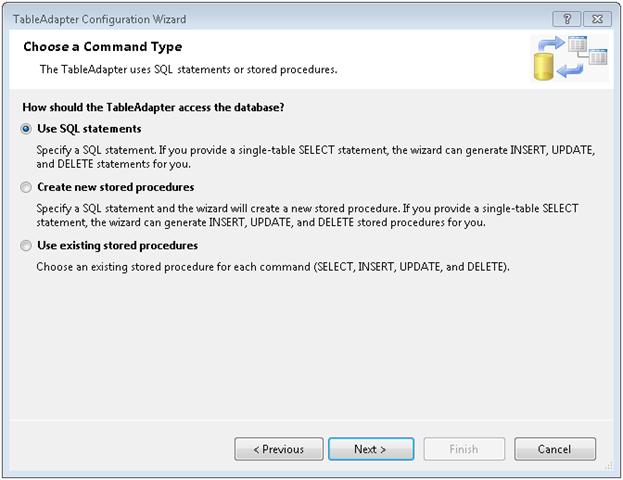
Next we are asked how we are going to access the data. Since we have a SQL Statement just pick the default of “Use SQL statements” and click Next.

image

Now take your SQL Statement and paste it in, and click Next.

image

OK, click Finish to wrap up the addition of the XSD. By default the adapter has a generic name, we should give ours something more meaningful. Click in the top bar, then enter a new name. Since my example report is for customer order data, I’ll name it CustomerOrders. I then went to the bottom bar and renamed the TableAdapter1 to CustomerOrderTableAdapter. You should now see something like:

image

Note that this will become your Data Source for the report. The data source will have the name of the XSD followed by the name of the source, in this case it will read CustomerOrders_CutomerOrders. OK, now it’s time to create the report.

Go back to Solution Explorer, right click and pick Add New Item. Navigate to the Reporting area and pick Report Wizard. Note the file extension should end in RDLC. If you have used Reporting Services before, you will know that reports typically end in RDL. However, client mode reports have just a slightly different syntax to them, thus the RDLC extension to differentiate the two. While you can modify an RDL to become an RDLC and vice versa, you have to do so by hacking the XML behind the report.

Note you can also choose just Report, but then you’ll have to setup everything manually. For this simple example though, we’ll just use the Report Wizard.

image

Give your report a meaningful name and click Add. The report wizard then shows you a welcoming screen if you’ve never run it before, just click Next.

Now we need to pick the data source. In this example, you want the CustomerOrders branch, so select it and click Next.

image

The next screen asks if we want a Tabular or Matrix report. Select the one for you, in my example I picked Tabular and clicked Next. The next screen asks how we want to display the data. For my example, I opted to group by the customers company name and contact name, then the order data went into the details area. Fill out as appropriate for your report and click Next.

image

The next screen asks how we want things laid out. This affects the look and feel of the report. For my example I just took the default and clicked next, however you are free to play with this to experiment with the different looks and feels your reports might have.

Likewise the next screen is also a look and feel one, asking what colorings we want to apply. Pick one that makes you happy and click next. You can always change it later, many times I pick the Generic one (which adds no colors) then fix it up afterward.

The final screen is the wrap up. Give your report a meaningful name and click Finish.

image

OK, you have a report, now you need a container. Open up the user interface you want to place the report viewer control on. In my example I went with a very simple Windows Forms application.

In my toolbox, I navigated to the Reporting section, where I only found one control, the MicrosoftReportViewer control. (Note I am using Visual Studio 2008 SP1, if you are on an earlier version your names may differ slightly). Grab it and drop it onto your design surface. I also added a Button control to the form to kick off the report display process.

image

Now it’s time for the last step, adding some code. In this example I’ve used a Windows Form. Opening it, the first thing we find in the form load area is::

      this.reportViewer1.RefreshReport();

(Note I left my report viewer control named reportViewer1.) Delete it, we’ll have it refresh elsewhere.

Now we need to add some using statements to the top of our class.

//Add these to the standard list above

using System.Data.Sql;

using System.Data.SqlClient;

using Microsoft.Reporting.WinForms;

The first two will be used in accessing our Northwind database, you may need to use different libraries if you were going to another database. I’ve also included a referenced to the Reporting.WinForms library so we can manipulate the report programmatically.

Now let’s go to the code for the button click event. First, we need to reset the report viewer in case we’d been using it to host another report.

      // Reset in case report viewer was holding another reportViewer1

      reportViewer1.Reset();

Next We need to set the report viewer to local mode. This tells it we’ll be supplying the report name from a local file, and binding the report to a local ADO.NET datasource.

      // Set the processing mode for the ReportViewer to Local

      reportViewer1.ProcessingMode = ProcessingMode.Local;

Our third step is to create a local report variable, and set it’s reference to the report viewer’s local report. This will make it easier to work with. Then we’ll set the location of the report we want to use.

      LocalReport localReport = reportViewer1.LocalReport;

      localReport.ReportPath = @"D:\Presentations\SQL Server\SSRS RDLC\SSRS_RDLC\Report2.rdlc";

Now we need to create an ADO.Net dataset, and populate it. I implemented most of that functionality in a method called GetCustomerOrders, which I’ll append at the bottom of these instructions. It’s very straight forward code.

      DataSet dataset = new DataSet("Northwind");


      // Get the sales order data

      GetCustomerOrders(ref dataset);

At this stage we have told it where our report is, and have created the dataset. Now we need to create a datasource for the report itself. We’ll use the ReportDataSource object. For the name, we’ll use the same name as the XSD schema, CustomerOrders_CustomerOrders. Then for the value we will give it the table from the dataset we created in code. It’s possible for a report to have multiple datasets, in the report we’d give each one it’s own name (based on the XSD) then here we’d bind the dataset table to the name we’d used in the report. Once done we will then add the new ReportDataSource to the local reports DataSources collection. Finally, we’ll referesh the report viewer to make it generate the report.

      // Create a report data source for the sales order data

      ReportDataSource dsCustomers = new ReportDataSource();

      dsCustomers.Name = "Customers_Customers";

      dsCustomers.Value = dataset.Tables["Customers"];


      localReport.DataSources.Add(dsCustomers);


      // Refresh the report

      reportViewer1.RefreshReport();

You can download a copy of these instructions, along with the entire sample project including code and reports, at the Microsoft Code Gallery site http://code.msdn.microsoft.com/SqlServerRSClient . As promised, below is a copy of the GetCustomerOrders routine, for your reference.

    private void GetCustomerOrders(ref DataSet dsNorthwind)

    {

      string sqlCustomerOrders = "SELECT c.[CustomerID]"

        + " ,c.[CompanyName]"

        + " ,c.[ContactName]"

        + " ,c.[ContactTitle]"

        + " ,c.[Address]"

        + " ,c.[City]"

        + " ,c.[Region]"

        + " ,c.[PostalCode]"

        + " ,c.[Country]"

        + " ,c.[Phone]"

        + " ,c.[Fax]"

        + " ,o.[OrderID]"

        + " ,o.[CustomerID]"

        + " ,o.[EmployeeID]"

        + " ,o.[OrderDate]"

        + " ,o.[RequiredDate]"

        + " ,o.[ShippedDate]"

        + " ,o.[ShipVia]"

        + " ,o.[Freight]"

        + " ,o.[ShipName]"

        + " ,o.[ShipAddress]"

        + " ,o.[ShipCity]"

        + " ,o.[ShipRegion]"

        + " ,o.[ShipPostalCode]"

        + " ,o.[ShipCountry]"

        + "  FROM [Northwind].[dbo].[Customers] c"

        + "  join [Northwind].[dbo].[Orders] o on c.CustomerID = o.CustomerID";


      SqlConnection connection = new

        SqlConnection("Data Source=(local); " +

                      "Initial Catalog=Northwind; " +

                      "Integrated Security=SSPI");


      SqlCommand command =

          new SqlCommand(sqlCustomerOrders, connection);


      SqlDataAdapter customerOrdersAdapter = new

          SqlDataAdapter(command);


      customerOrdersAdapter.Fill(dsNorthwind, "CustomerOrders");


    }

SQL Server Full Text Searching at the Atlanta Code Camp

On March 14th, 2009 I presented “Getting Started with SQL Server Full Text Search 2005/2008” at the Atlanta Code Camp. This post has all the links relevant to my talk.

First off, the slides and sample code can be located at the Code Gallery site I setup specifically for Full Text Searching with SQL Server:

http://code.msdn.microsoft.com/SqlServerFTS

Look on the downloads page to see various projects around SQL Server Full Text Searching. I’ve created one “release” for each of the projects around FTS. Be sure to look on the right side at the various releases in order to see the various projects.

Next, you can get started with the basics by reading these entries on my blog:

Lesson 0 – Getting the Bits to do Full Text Searching in SQL Server 2005
Lesson 1 – The Catalog
Lesson 2 – The Indexes
Lesson 3 – Using SQL
Lesson 4 – Valid Data Types
Lesson 5 – Advanced Searching

After that you’ll be ready for some advanced topics.

Can you hear me now? Checking to see if FTS is installed.
Exploring SQL Servers FullTextCatalogProperty Function
Using the ObjectPropertyEx Function
Using FORMSOF in SQL Server Full Text Searching
Creating Custom Thesaurus Entries in SQL Server 2005 and 2008 Full Text Search
Creating and Customizing Noise Words in SQL Server 2005 Full Text Search
Creating and Customizing Noise Words / StopWords in SQL Server 2008 Full Text Search
Advanced Queries for Using SQL Server 2008 Full Text Search StopWords / StopLists

Finally, you can find some videos I did for JumpstartTV at:

http://www.jumpstarttv.com/profiles/3177/Robert-Cain.aspx

Windows 7 and the Asus Eee PC 1000HE

I’ve had my eye on a netbook for some time, while I like my 17 inch laptop for all day developing, it’s a bit large for lugging to code camps. In addition the battery life has slowly been dwindling over the years, so I wanted something with long battery life.

image After some consideration, I picked the Asus PC 1000HE. It has a 10 inch display, it’s keyboard is 92% size and surprisingly comfortable even for my huge hands. The battery life so far has been phenomenal. Running on the mid level power setting with the back light at almost full bright and all the wireless turned on I still get over six hours. I imagine if I ran it in power saving mode, and doing the tweaks I could easily achieve the 9.5 hours of advertised battery life.

I did opt for the extra chip to expand to 2 gig, replacing the 1 gig chip with the 2 took me all of 10 minutes.

The unit came with XP Home, but I’ve been using Windows 7 since the public beta and couldn’t face going back to XP. Thus the first thing I did was install Windows 7 on the Asus.

So far, the only thing I have found that Windows 7 did not recognize was the hard wired Ethernet jack. This was easily remedied. I went to the downloads section of the Asus website and picked out my machine, with the XP Home system. I quickly found the LAN driver and downloaded it.

Since it was a Zip all I had to do was expand it, then I went into Windows 7 device manager and found the "unrecognized" Ethernet jack. I told Windows 7 to look for a new driver, pointed it to the folder where I had unzipped it to and boom it worked.

I have not had the opportunity to test the built in camera or microphones, but Windows device manager shows them as being present and fully functional.

So far I’ve installed what I call the Office "basics", Word, PowerPoint, Excel, and Visio Viewer and all of them work. I installed Virtual PC 2007, and while it ran my virtual machines it was just a tad on the slow side. Not to be unusable, but a slow experience.

In addition I didn’t want to always have to lug around an external drive with my VPCs on it, so I went ahead and installed Visual Studio 2008 (with SP1) and SQL Server 2008 Developer (with the GDR extensions). So far both seem to run fine, although I haven’t put them to anything extensive as of yet.

In the short time I’ve had the machine, there are a few tips I’ve picked up that I would like to pass along.

F11
Get used to the F11 (the typical shortcut), or "Full Screen" mode for your web browser. It makes browsing a very nice experience. Without it the tabs, url bar and window title bar, plus any of the extra tool bars that get installed will easily suck up 1/3 to 1/2 of the 600 vertical pixels. Full Screen mode makes this pretty much irrelevant. I can easily see everything I need to on a website in full 1024×600 mode.

Hide the Ribbon
In Office, you can hide the ribbon toolbar by simply double clicking on one of the ribbon tabs. When you hover over the tab the ribbon will appear. This saves a lot of real estate, but makes it quite easy to still use the ribbon. In addition you can easily toggle the hidden mode by double clicking a tab again to unhide the ribbon. 

Hide the Taskbar
Right click on Windows 7’s taskbar, select properties, then check the "Auto-hide the Taskbar". While the Taskbar doesn’t seem to take up much room, you’d be surprised how nice having that little bit of extra real estate can be.

TouchCursor
The one thing I don’t like about the design of the 1000HE’s keyboard is that the Home, End, Page Up, and Page Down keys are not their own keys. Instead you have to press the blue Fn key, then the left, right, up or down arrows to access these often used keys.

Instead I use a little app called TouchCursor. With it I can setup alternate key combos for these and other keys so that I never have to move my hands off the "home" keys on the letters. By default the spacebar is the toggle key, so SpaceBar + I moves the cursor up one row, SpaceBar + K moves it back down.

(Note, if you are a fan of CodeRush, you’ll know it too wants to use the space bar. Fortunately TouchCursor is configurable, so I changed the toggle from the SpaceBar to the letter A. Now on my system A+I is up, A+K is down, etc. )

That’s all I have on the Asus for now, but I’ll soon be putting it through it’s paces. Thursday night I will be speaking at the BSDA, then Saturday I will be at the Atlanta Code Camp giving a 9 am presentation on SQL Server Full Text Searching. After that I’ll be sure to blog and let you know how having the small form factor laptop worked for doing presentations.

If you have any handy tips for using the small netbooks, please leave a comment with your tip or suggestion. I’d love to hear about them!