SQL Saturday 25 Gainesville GA – October 10 2009

SQL Saturday 25 Logo

SQL Saturday 25 occurred in the lovely town of Gainesville GA on October 10th. At the event I did two presentations.

My first presentation of the day was Introduction to SQL Server Integration Services. The sample project, slide deck, and step by step instructions can be found at http://code.msdn.microsoft.com/introssis . In addition I also showed how to call SSIS from a .Net application. You can find that sample at http://code.msdn.microsoft.com/ssisfromnet

The second presentation is SQL Server Full Text Searching. You can find the slide deck in PDF format as well as sample code at http://code.msdn.microsoft.com/SqlServerFTS.

Thanks to Stu and the crew for a great event!

SQL Saturday Redmond – October 3 2009

I am fortunate enough to be able to give three presentations at Redmond WA’s SQL Saturday event. The first session is “Introduciton to Data Warehousing / Business Intelligence”. Here is the PDF slide deck for that presentation. (Right click and save as if you want to save a copy for later reference).

The second presentation is SQL Server Full Text Searching. You can find the slide deck in PDF format as well as sample code at http://code.msdn.microsoft.com/SqlServerFTS.

The final presentation of the day was Introduction to SQL Server Integration Services. The sample project, slide deck, and step by step instructions can be found at http://code.msdn.microsoft.com/introssis . In addition I also showed how to call SSIS from a .Net application. You can find that sample at http://code.msdn.microsoft.com/ssisfromnet .

SQL Server MVPs Help War Child International

SQL Server MVP Deep Divers CoverI’m proud to announce the new book SQL Server MVP Deep Dives has been released. You can find out more, as well as place your pre-order for the book at http://www.sqlservermvpdeepdives.com

I am proud for several reasons. First, I am a contributing author. If you look at Chapter 13, Full Text Searching, you’ll find my name, Robert C. Cain. This is my first work in print, and it was a great experience. I got a lot of great advice from the editors, fellow MVPs. It was also good as I got to do some editing myself. (To keep down costs we edited each others chapters.) In addition I got to work with the great folks at Manning and working through their publication process.

But I’m even more proud because all proceeds from the book go to War Child International. War Child International is a federation of charities devoted to helping children in war torn countries. They not only meet the basic needs of the kids, but work to give a message of peace, so when they grow up the cycle of violence will be broken.

The official book launch will take place at the PASS Summit, Nov. 2 to 5 in Seattle Washington. Manning promises to have plenty of the books in the Summit bookstore. Many of the MVPs, including myself, will be there and be glad to sign books for those interested.

To make the most of your donation though, placing your order at http://www.sqlservermvpdeepdives.com will get the most money to War Child. If you order now, you can access the early online version, and a printed copy will be mailed to you. This is a great chance to gain a tremendous amount of knowledge and help a worthy cause at the same time. Plus there is an added bonus for those attending the PASS Summit, if you buy now you can read chapters on line, and be prepared to ask questions of the authors at the summit!


wc_wallpaper23_800x600


How can you help?  Obviously, start by buying a copy of the book. Then let your fellow SQL Server and Developer geeks know about this effort. Urge them to buy a copy, get your company to buy several for the company library. Or do like I will, and buy several copies to give to friends. Finally, you can take the direct approach. Go directly to the War Child site and make a donation today.

Calling SSIS from .Net

In a recent DotNetRocks show, episode 483, Kent Tegels was discussing SQL Server Integration Services and how it can be useful to both the BI Developer as well as the traditional application developer. While today I am a SQL Server BI guy, I come from a long developer background and could not agree more. SSIS is a very powerful tool that could benefit many developers even those not on Business Intelligence projects. It was a great episode, and I high encourage everyone to listen.

There is one point though that was not made very clear, but I think is tremendously important. It is indeed possible to invoke an SSIS package from a .Net application if that SSIS package has been deployed to the SQL Server itself. This article will give an overview of how to do just that. All of the sample code here will also be made available in download form from the companion Code Gallery site, http://code.msdn.microsoft.com/ssisfromnet .

In this article, I do assume a few prerequisites. First, you have a SQL Server with SSIS installed, even if it’s just your local development box with SQL Server Developer Edition installed. Second, I don’t get into much detail on how SSIS works, the package is very easy to understand. However you may wish to have a reference handy. You may also need the assistance of your friendly neighborhood DBA in setting up the SQL job used in the process.

Summary

While the technique is straightforward, there are a fair number of detailed steps involved. For those of you just wanting the overview, we need to start with some tables (or other data) we want to work with. After that we’ll write the SSIS package to manipulate that data.

Once the package is created it must be deployed to the SQL Server so it will know about it. This deploy can be to the file system or to SQL Server.

Once deployed, a SQL Server Job must be created that executes the deployed SSIS package.

Finally, you can execute the job from your .Net application via ADO.NET and a call to the sp_start_job stored procedure built into the msdb system database.

OK, let’s get to coding!

Setup the Tables

First we need some data to work with. What better than a listing of previous Dot Net Rocks episodes? I simply went to the Previous Shows page, highlighted the three columns of show number, show name, and date, and saved them to a text file. (Available on the Code Gallery site.)

Next we need a place to hold data so SSIS can work with it. I created a database and named it ArcaneCode, however any database should work. Next we’ll create a table to hold “staging” DNR Show data.

CREATE TABLE [dbo].[staging_DNRShows](
  [ShowData] [varchar](250) NOT NULL
) ON [PRIMARY]

This table will hold the raw data from the text file, each line in the text file becoming one row here. Next we want a table to hold the final results.

CREATE TABLE [dbo].[DNRShows](
  [ShowNumber] [int] NOT NULL,
  [ShowName] [varchar](250) NULL,
  [ShowDate] [datetime] NULL,
  CONSTRAINT [PK_DNRShows] PRIMARY KEY CLUSTERED
  (
  [ShowNumber] ASC
  )WITH (PAD_INDEX = OFF, STATISTICS_NORECOMPUTE = OFF, IGNORE_DUP_KEY = OFF, ALLOW_ROW_LOCKS = ON, ALLOW_PAGE_LOCKS = ON) ON [PRIMARY]
  ) ON [PRIMARY]

The job of the SSIS package will be to read each row in the staging table and split it into 3 columns, the show’s number, name, and date, then place those three columns into the DNRShows table above.

The SSIS Package

The next step is to create the SSIS package itself. Opening up Visual Studio / BIDS, create a new Business Intelligence SQL Server Integration Services project. First let’s setup a shared Data Source to the local server, using the ArcaneCode database as our source.

The default package name of “Package.dtsx” isn’t very informative, so let’s rename it ”LoadDNRShows.dtsx”. Start by adding a reference to the shared data source in the Connection Managers area, taking the default. Then in the Control Flow surface add 3 tasks, as seen here:
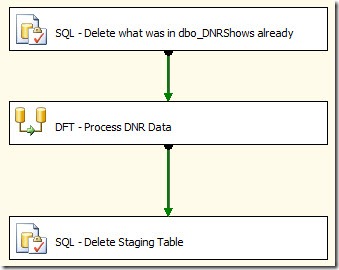
clip_image001

The first task is an Execute SQL Task that simply runs a “DELETE FROM dbo.DNRShows” command to wipe out what was already there. Of course in a true application we’d be checking for existing records in the data flow and doing updates or inserts, but for simplicity in this example we’ll just wipe and reload each time.

The final task is also an Execute SQL Task, after we have processed the data we no longer need it in the staging table, so we’ll issue a “DELETE FROM dbo.staging_DNRShows” to remove it.

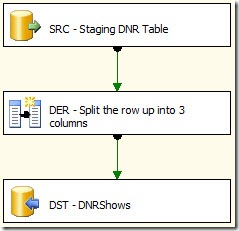
The middle item is our Data Flow Task. This is what does the heavy lifting of moving the staging data to the main table. Here is a snapshot of what it looks like:
clip_image002

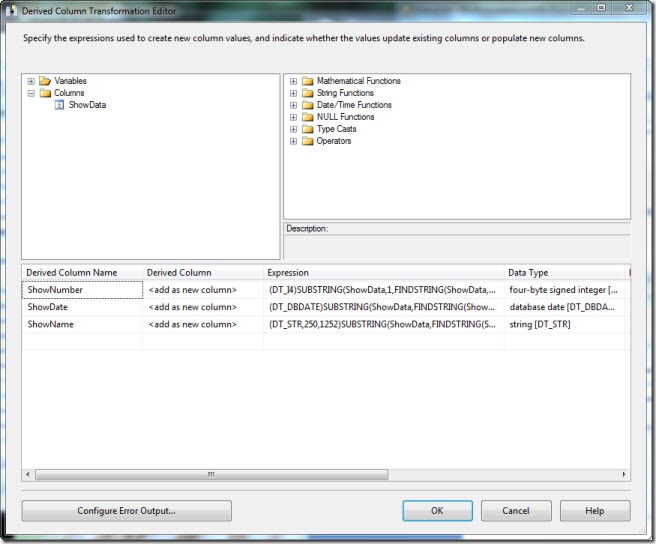
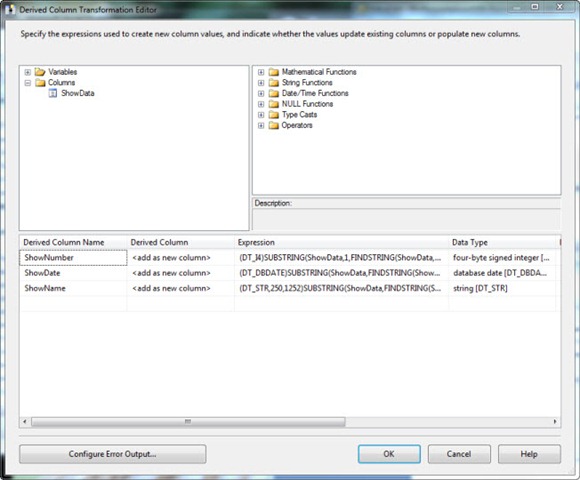
The first task is our OLEDB Source, it references the staging_DNRShows table. Next is what’s called a Derived Column Transformation. This will allow you to add new calculated columns to the flow, or add columns from variables. In this case we want to add three new columns, based on the single column coming from the staging table.
clip_image003

As you can see in under Columns in the upper left, we have one column in our source, ShowData. In the lower half we need to add three new columns, ShowNumber, ShowDate, and ShowName. Here are the expressions for each:

ShowNumber
    (DT_I4)SUBSTRING(ShowData,1,FINDSTRING(ShowData,"\t",1))

ShowDate
    (DT_DBDATE)SUBSTRING(ShowData,FINDSTRING(ShowData,"\t",2) + 1,LEN(ShowData) – FINDSTRING(ShowData,"\t",2))

ShowName
    (DT_STR,250,1252)SUBSTRING(ShowData,FINDSTRING(ShowData,"\t",1) + 1,FINDSTRING(ShowData,"\t",2) – FINDSTRING(ShowData,"\t",1) – 1)

The syntax is an odd blend of VB and C#. Each one starts with a “(DT_”, these are type casts, converting the result of the rest of the expression to what we need. For example, (DT_I4) converts to a four byte integer, which we need because in our database the ShowNumber column was defined as an integer. You will see SUBSTRING and LEN which work like their VB counterparts. FINDSTRING works like the old POS statement, it finds the location of the text and returns that number. The “\t” represents the tab character, here the C# fans win out as the Expression editor uses C# like escapes for special characters. \t for tab, \b for backspace, etc.

Finally we need to write out the data. For this simply add an OLEDB Destination and set it to the target table of dbo.DNRShows. On the mappings tab make sure our three new columns map correctly to the columns in our target table.

Deploy the Package

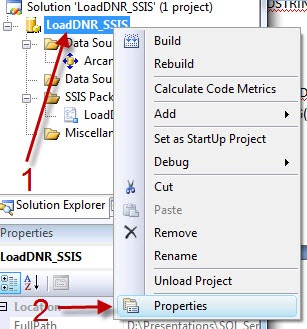
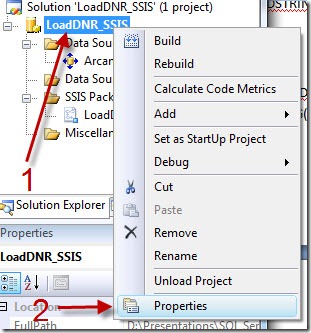
This completes the coding for the package, but there is one final step we need to do. First, in the solution explorer right click on the project (not the solution, the project as highlighted below) and pick properties.
clip_image004

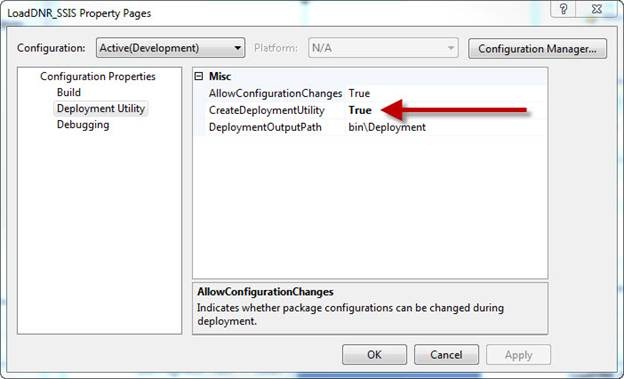
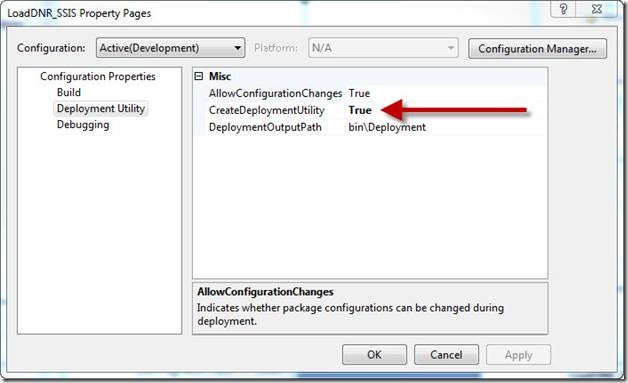
In the properties dialog, change the “CreateDeploymentUtility” option from false (the default) to True.
clip_image006

Now click the Build, Build Solution menu item. If all went well you should see the build was successful. It’s now time to deploy the package to the server. Navigate to the folder where your project is stored, under it you will find a bin folder, and in it a Deployment folder. In there you should find a file with a “.SSISDeploymentManifest” extension. Double click on this file to launch the Package Installation Wizard.

When the wizard appears there are two choices, File system deployment and SQL Server deployment. For our purposes we can use either one, there are pros and cons to each and many companies generally pick one or the other. In this example we’ll pick SQL Server deployment, but again know that I’ve tested this both ways and either method will work.

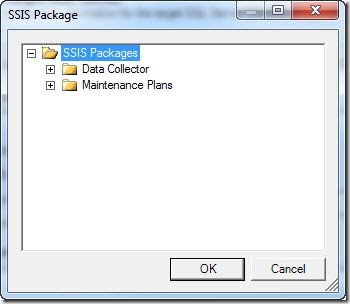
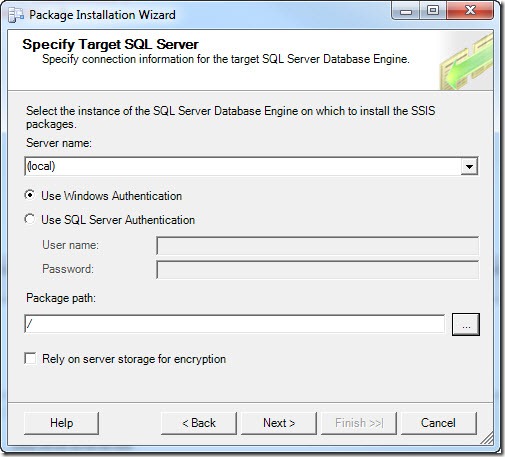
Once you pick SQL Server deployment, just click Next. Now it asks you for the server name, I’ve left it at (local) since I’m working with this on a development box; likewise I’ve left “Use Windows Authentication”. Finally I need the package path, I can select this by clicking the ellipse (the …) to the right of the text box. This brings up a dialog where I can select where to install.
clip_image007

In a real world production scenario we’d likely have branches created for each of our projects, but for this simple demo we’ll just leave it in the root and click OK.

Once your form is filled out as below, click Next.
clip_image008

We are next queried to what our installation folder should be. This is where SSIS will cache package dependencies. Your DBA may have a special spot setup for these, if not just click next to continue.

Finally we are asked to confirm we know what we are doing. Just click Next. If all went well, the install wizard shows us it’s happy with a report, and we can click Finish to exit.

Setup the SQL Server Job

We’ve come a long way and we’re almost to the finish line, just one last major step. We will need to setup a SQL Server Job which will launch the SSIS package for us. In SQL Server Management Studio, navigate to the “SQL Server Agent” in your Object Explorer. If it’s not running, right click and pick “Start”. Once it’s started, navigate to the Jobs branch. Right click and pick “New Job”.

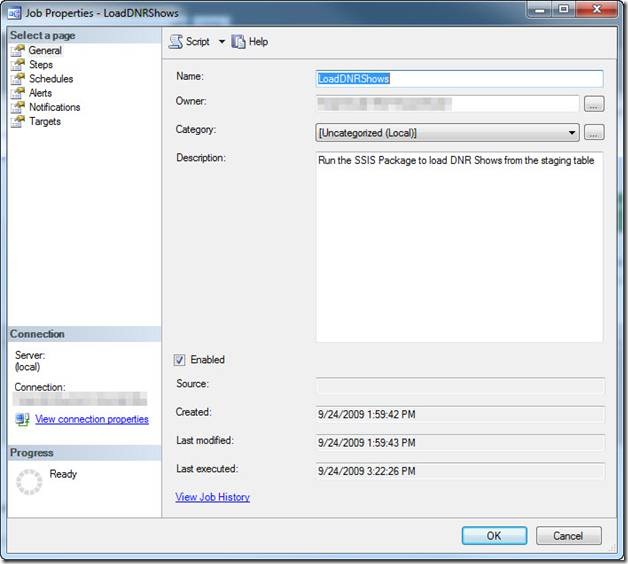
When the dialog opens, start by giving your job a name. As you can see below I used LoadDNRShows. I also entered a description.
clip_image010

Now click on the Jobs page over on the left “Select a page” menu. At the bottom click “New” to add a new job step.

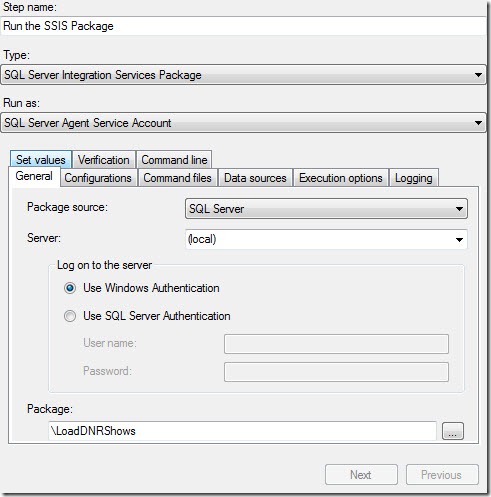
In the job step properties dialog, let’s begin by naming the step “Run the SSIS package”. Change the Type to “SQL Server Integration Services Package”. When you do, the dialog will update to give options for SSIS. Note the Run As drop down, this specifies the account to run under. For this demo we’ll leave it as the SQL Server Agent Service Account, check with your DBA as he or she may have other instructions.

In the tabbed area the General tab first allows us to pick the package source. Since we deployed to SQL Server we’ll leave it at the default, however if you had deployed to the file system this is where you’d need to change it to pick your package.

At the bottom we can use the ellipse to pick our package from a list. That done your screen should look something like:
clip_image011

For this demo that’s all we need to set, I do want to take a second to encourage you to browse through the other tabs. Through these tabs you can set many options related to the package. For example you could alter the data sources, allowing you to use one package with multiple databases.

Click OK to close the job step, then OK again to close the Job Properties window. Your job is now setup!

Calling from .Net

The finish line is in sight! Our last step is to call the job from .Net. To make it a useful example, I also wanted the .Net application to upload the data the SSIS package will manipulate. For simplicity I created a WinForms app, but this could easily be done in any environment. I also went with C#, again the VB.Net code is almost identical.

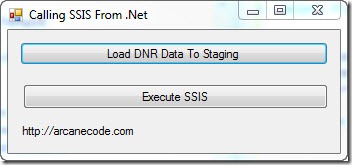
I started by creating a simple WinForm with two buttons and one label. (Again the full project will be on the Code Gallery site).
clip_image012

In the code, first be sure to add two using statements to the standard list:

using System.Data.SqlClient;

using System.IO;

Behind the top button we’ll put the code to copy the data from the text file we created from the DNR website to the staging table.

    private void btnLoadToStaging_Click(object sender, EventArgs e)

    {

      /* This method takes the data in the DNRShows.txt file and uploads them to a staging table */

      /* The routine is nothing magical, standard stuff to read as Text file and upload it to a  */

      /* table via ADO.NET                                                                      */


      // Note, be sure to change to your correct path

      string filename = @"D:\Presentations\SQL Server\Calling SSIS From Stored Proc\DNRShows.txt";

      string line;


      // If you used a different db than ArcaneCode be sure to set it here

      string connect = "server=localhost;Initial Catalog=ArcaneCode;Integrated Security=SSPI;";

      SqlConnection connection = new SqlConnection(connect);

      connection.Open();


      SqlCommand cmd = connection.CreateCommand();


      // Wipe out previous data in case of a crash

      string sql = "DELETE FROM dbo.staging_DNRShows";

      cmd.CommandText = sql;

      cmd.ExecuteNonQuery();


      // Now setup for new inserts

      sql = "INSERT INTO dbo.staging_DNRShows (ShowData) VALUES (@myShowData)";


      cmd.CommandText = sql;

      cmd.Parameters.Add("@myShowData", SqlDbType.VarChar, 255);


      StreamReader sr = null;


      // Loop thru text file, insert each line to staging table

      try

      {

        sr = new StreamReader(filename);

        line = sr.ReadLine();

        while (line != null)

        {

          cmd.Parameters["@myShowData"].Value = line;

          cmd.ExecuteNonQuery();

          lblProgress.Text = line;

          line = sr.ReadLine();

        }

      }

      finally

      {

        if (sr != null)

          sr.Close();

        connection.Close();

        lblProgress.Text = "Data has been loaded";

      }


Before you ask, yes I could have used any number of data access technologies, such as LINQ. I went with ADO.NET for simplicity and believing most developers are familiar with it due to its longevity. Do be sure and update the database name and path to the file in both this and the next example when you run the code.

This code really does nothing special, just loops through the text file and uploads each line as a row in the staging table. It does however serve as a realistic example of something you’d do in this scenario, upload some data, then let SSIS manipulate it on the server.

Once the data is there, it’s finally time for the grand finale. The code behind the second button, Execute SSIS, does just what it says; it calls the job, which invokes our SSIS package.

    private void btnRunSSIS_Click(object sender, EventArgs e)

    {

      string connect = "server=localhost;Initial Catalog=ArcaneCode;Integrated Security=SSPI;";

      SqlConnection connection = new SqlConnection(connect);

      connection.Open();


      SqlCommand cmd = connection.CreateCommand();


      // Wipe out previous data in case of a crash

      string sql = "exec msdb.dbo.sp_start_job N’LoadDNRShows’";

      cmd.CommandText = sql;

      cmd.ExecuteNonQuery();

      connection.Close();

      lblProgress.Text = "SSIS Package has been executed";


    }

The key is this sql command:

exec msdb.dbo.sp_start_job N’LoadDNRShows’

“exec” is the T-SQL command to execute a stored procedure. “sp_start_job” is the stored procedure that ships with SQL Server in the MSDB system database. This stored procedure will invoke any job stored on the server. In this case, it invokes the job “LoadDNRShows”, which as we setup will run an SSIS package.

Launch the application, and click the first button. Now jump over to SQL Server Management Studio and run this query:

select * from dbo.staging_DNRShows;

select * from dbo.DNRShows;

You should see the first query bring back rows, while the second has nothing. Now return to the app and click the “Execute SSIS” button. If all went well running the query again should now show no rows in our first query, but many nicely processed rows in the second. Success!

A few thoughts about xp_cmdshell

In researching this article I saw many references suggesting writing a stored procedure that uses xp_cmdshell to invoke dtexec. DTEXEC is the command line utility that you can use to launch SSIS Packages. Through it you can override many settings in the package, such as connection strings or variables.

xp_cmdshell is a utility built into SQL Server. Through it you can invoke any “DOS” command. Thus you could dynamically generate a dtexec command, and invoke it via xp_cmdshell.

The problem with xp_cmdshell is you can use it to invoke ANY “DOS” command. Any of them. Such as oh let’s say “DEL *.*” ? xp_cmdshell can be a security hole, for that reason it is turned off by default on SQL Server, and many DBA’s leave it turned off and are not likely to turn it on.

The techniques I’ve demonstrated here do not rely on xp_cmdshell. In fact, all of my testing has been done on my server with the xp_cmdshell turned off. Even though it can be a bit of extra work, setting up the job, etc., I still advise it over the xp_cmdshell method for security and the ability to use it on any server regardless of its setting.

In Closing

That seemed like a lot of effort, but can lead to some very powerful solutions. SSIS is a very powerful tool designed for processing large amounts of data and transforming it. In addition developing under SSIS can be very fast due to its declarative nature. The sample package from this article took the author less than fifteen minutes to code and test.

When faced with a similar task, consider allowing SSIS to handle the bulk work and just having your .Net application invoke your SSIS package. Once you do, there are no ends to the uses you’ll find for SQL Server Integration Services.

Intro to DW/BI at the Steel City SQL Users Group

Tonight I’ll be presenting “Introduction to Data Warehousing / Business Intelligence” at the Steel City SQL users group, right here in Birmingham Alabama. If you attended my Huntsville presentation last week, I’ve already added some new slides and revised the deck, so it will be worth another look.

My slide deck is IntroToDataWarehouse.pdf . Come join us tonight at 6 pm at New Horizons, there will be pizza and fun for all.

UPDATE: Before the presentation I was showing a video of Sara Ford jumping off a tower to support CodePlex. Got tons of laughs so here’s a link to the video:

http://blogs.msdn.com/saraford/archive/2009/09/14/my-codeplex-jump-from-tallest-building-in-the-southern-hemisphere-the-full-video.aspx

SSIS For Developers at CodeStock 2009

At the 2009 CodeStock event I am presenting SQL Server Integration Services for Developers. This class will demonstrate tasks commonly done by VB.Net or C# developers within SQL Server Integration Services.
The sample project and documentation for the lab can be found on the code gallery site at http://code.msdn.microsoft.com/SSISForDevs .

BSDA Presentation on Visual Studio Database Edition

Last week I did a presentation at the Birmingham Software Developers Association on generating sample data using Visual Studio Database Edition, often called by it’s code name of “Data Dude” for short.  You can find my original posting, which has links to the code gallery site at https://arcanecode.com/2009/04/02/sql-server-sample-data-the-sql-name-game/ .

During my presentation I was using Visual Studio Team System 2008 Database Edition GDR R2, which you can find here: http://www.microsoft.com/downloads/details.aspx?FamilyID=bb3ad767-5f69-4db9-b1c9-8f55759846ed&displaylang=en 

This update assumes you have Visual Studio Database Edition installed. Most developers with an MSDN license have the Development Edition installed on their PC. When Microsoft announced the Database and Development products would merge in the Visual Studio 2010 product, they made the Development Editions of Visual Studio 2005 and 2008 available via MSDN. Go check your MSDN, and see if you have “Data Dude”. If so download and install it, then download and install the GDR R2 update from the link above. These will add new menus and tools to your Visual Studio environment.

Most notably you’ll look at the Data menu. there are menu options for Schema Compare and Data Compare. These will allow you to setup comparisons between a source and target for schemas or data.

Big Thinkers – Andy Warren

image

I’m devoting this week to “Big Thinkers”. I want to highlight individuals who challenge my thought processes and cause me to think about my profession, my methodologies, and force me to reflect on my skills. Some of these individuals I have the privilege of knowing personally, others I have only known via Podcasts or Twitter. I’m hoping that by highlighting these Big Thinkers you too will be challenged to grow and evolve in your craft. Last week was focused on individuals in the development community, this week will focus on the SQL Server realm.

Rather than “Big Thinker”, I think the label “Big Do-er” may be more accurate when it comes to today’s selection. Andy Warren maintains a blog at SQL Server Central (and was also one of its founders), and runs End to End Training out of Orlando FL. He also had a vision for training videos that were short in duration (roughly five minutes) and very focused on a single subject, hence he created JumpstartTV.

His biggest contribution to the community perhaps centers around SQL Saturday. Andy saw the success around code camps, events where developers could congregate on a Saturday and take free community based training. At the same time he recognized some of the difficulties around them. They tended to be hard to find, without a standard look and feel to their websites. There was also a hurdle for people wanting to put on a code camp for the first time. Andy decided to act.

He created SQL Saturday.com, a centralized website where anyone wishing to put on a SQL Saturday could advertise their event, handle registrations, schedules, and speakers. He created a guide for event planners, to give them a checklist for their event. Speaking from personal experience, I know we followed the guide closely and found it very valuable when our group held SQL Saturday 7 recently. Finally Andy throws himself into the event as well, appearing personally at as many SQL Saturdays as humanly possible.

Truly Andy is the shining example of “one man can make a difference” and I can but hope my own contributions will come anywhere close to Andy’s.

Big Thinkers – Brent Ozar

image

I’m devoting this week to “Big Thinkers”. I want to highlight individuals who challenge my thought processes and cause me to think about my profession, my methodologies, and force me to reflect on my skills. Some of these individuals I have the privilege of knowing personally, others I have only known via Podcasts or Twitter. I’m hoping that by highlighting these Big Thinkers you too will be challenged to grow and evolve in your craft. Last week was focused on individuals in the development community, this week will focus on the SQL Server realm.

Brent Ozar is an active blogger and Twitterer, in addition to being Editor-in-chief at SQL Serverpedia. The site hosts many video tutorials, many of which are created by Brent. I very much like his style, it is relaxed, easy going, but informative and right to the point. I find it very easy to learn from these videos, thus enhancing my skills greatly. I find Brent to be a good role model for my public speaking, and I think you will too.

Big Thinkers – Pinal Dave

image I’m devoting this week to “Big Thinkers”. I want to highlight individuals who challenge my thought processes and cause me to think about my profession, my methodologies, and force me to reflect on my skills. Some of these individuals I have the privilege of knowing personally, others I have only known via Podcasts or Twitter. I’m hoping that by highlighting these Big Thinkers you too will be challenged to grow and evolve in your craft. Last week was focused on individuals in the development community, this week will focus on the SQL Server realm. “

Pinal Dave reminds me of that chef who goes “bang” all the time. I first got to know him when I was working on a SQL Server project and doing some things that were new to me. I’d do a web search and “bang”, there came the answer on his blog. Another search and “bang” there was his blog in the top 10 results again. Over and over that day I’d search and “bang” there would be the answer, right on his blog in an easy to read and understand format.

Pinal has to be one of the most prolific writers I’ve seen, his blog SQL Authority is filled with informative, easy to understand articles. I also had the privilege of meeting him at the MVP summit earlier this year, and he has got to be the nicest guy in SQL Server you’ll ever meet. He is also a frequent poster on Twitter at http://twitter.com/pinaldave. To me he is the embodiment of helpful service, and reminds me to remain humble as I work in the SQL community.

Go ahead, give his blog a try. By the end of the day you too may be thinking “Hey, who needs Books on Line when you have Pinal Dave?”

Big Thinkers – Kimberly Tripp and Paul Randal

image image

I’m devoting this week to “Big Thinkers”. I want to highlight individuals who challenge my thought processes and cause me to think about my profession, my methodologies, and force me to reflect on my skills. Some of these individuals I have the privilege of knowing personally, others I have only known via Podcasts or Twitter. I’m hoping that by highlighting these Big Thinkers you too will be challenged to grow and evolve in your craft. Last week was focused on individuals in the development community, this week will focus on the SQL Server realm.

Today’s pick is actually a two for one special. Perhaps not fair since individually either of them is outstanding in the SQL Server field and have appeared on more podcasts and events than I can count, but since they got married they have become an unstoppable, inseparable duo. I speak of course of Paul Randal and Kimberly Tripp. While most couples argue over paint color, they argue over indexing strategies. As I said they’ve been on more podcasts than I can count, some of my favorites though were Dot Net Rocks Episodes 178, 110, 74, 217, plus RunAsRadio shows 104, 76, 74, 72, and my favorite Episode 36. In addition to podcasts I’ve seen them present live at TechEd.

I like Paul and Kim because they make SQL Server fun. Yes, I said fun. During one of their presentations I feel like a kid being shown a toy catalog a page at a time. When its over I can’t wait to get my hands on the geeky SQL Server toys I’ve just been shown. Take a listen, I believe you’ll find their fun infectious and will soon be ‘playing’ with a new toy called SQL Server.

(And just for the record, I don’t care what Carl Franklin says, Kimberly is the cuter one of the two. )

Big Thinkers – Steve Jones

image

I’m devoting this week to “Big Thinkers”. I want to highlight individuals who challenge my thought processes and cause me to think about my profession, my methodologies, and force me to reflect on my skills. Some of these individuals I have the privilege of knowing personally, others I have only known via Podcasts or Twitter. I’m hoping that by highlighting these Big Thinkers you too will be challenged to grow and evolve in your craft. Last week was focused on individuals in the development community, this week will focus on the SQL Server realm.

Steve began working with SQL Server way back in 1991. One of his earliest DBA jobs was on SQL Server version 4.2 running on OS/2 v1.3. To say Steve is prolific is an understatement; he seems to be all over the web. He does a regular column at SQL Server Central, which he cofounded. Steve also does a regular video podcast called “The Voice of the DBA”. Finally he is very active on Twitter, engaging others in regular conversation.

I think that is what I like most about Steve. His style is very conversational, when ever I read his editorials or watch his video podcasts I always feel like I’m right there with him, having a discussion. A frequent closing line to his videocast is “tell me what you think”. Thinking is what Steve inspires, after he throws out a topic I invariably wind up pondering it for a while. I’ve met Steve, and he is just like what you see in the videos, I never walk away from him without having something fun to mull over in the old gray matter. Check out Steve and see if your brain isn’t buzzing afterward.

SQL Saturday 7 – Introduction to Data Warehousing and Business Intelligence

At the Birmingham SQL Saturday 2009 I am presenting “Introduction to Data Warehousing and Business Intelligence”.

You can download the slide deck for this presentation in PDF format.

Any sample code came from either my Intro to SSIS presentation or the book Programming SQL Server 2008.

SQL Saturday 7 is Tomorrow!

Just a reminder that SQL Saturday 7 is taking place tomorrow, May 30th, right here in Birmingham AL. There will be three full tracks, covering Database Development, Database Administration, and Business Intelligence. I will be presenting on “Introduction to Data Warehousing / Business Intelligence”.

In addition to a great education, there will also be free food, vendors for you to interact with, and some great prizes, including the grand prize an XBox 360!

If you haven’t registered yet scurry on over to http://www.sqlsaturday.com/eventhome.aspx?eventid=9 and register while you still have time! Capacity is limited, and as we enter into the home streach there aren’t many seats left.

SQL Saturday 7 Logo

Full Text Searching a FILESTREAM VARBINARY (MAX) Column

In the past I’ve written that Full Text Searching has the ability to index documents stored in a VARBINARY(MAX) field. However, I have never really gone into any details on how to do this. Today I will remedy that by demonstrating how to Full Text Seach not only using a VARBINARY(MAX) field, but one that has been stored using FILESTREAM. Even though these examples will be done against the data we’ve stored with FILESTREAM over the lessons from the last few days, know that this technique is identical for binary objects stored in a VARBINARY(MAX) field without using FILESTREAM.

Let’s start by creating a catalog to hold our Full Text data.


CREATE FULLTEXT CATALOG FileStreamFTSCatalog AS DEFAULT;

Pretty normal, now we need to create a full text index on the “DocumentRepository” table we created in this series. When you look at the syntax though, you may notice a minor difference from the CREATE FULLTEXT INDEX examples I’ve shown in the past:


CREATE FULLTEXT INDEX ON dbo.DocumentRepository
(DocumentName, Document TYPE COLUMN DocumentExtension)
KEY INDEX PK__Document__3214EC277F60ED59
ON FileStreamFTSCatalog
WITH CHANGE_TRACKING AUTO;

Here you can see I am indexing two fields. The first is the “DocumentName”, which is passed in as the first parameter and looks like other examples. We won’t actually be using it in this example, however I included it to demonstrate you can index multiple columns even when one of them is a VARBINARY(MAX) column.

The second parameter indexes the VARBINARY(MAX) “Document” column itself, but notice the TYPE COLUMN after the column name. In order to Full Text Index a VARBINARY(MAX) column you must also have a column with the file extension in it. You then pass in the name of column after the TYPE COLUMN. In this example, the document extension is stored in the “DocumentExtension” column. Since the document extension can be stored in a column with any name, we let the Full Text engine know which column by passing it in after the TYPE COLUMN keyword. The remainder of the command is like other examples I’ve shown in the past.

Now we can run a normal SELECT…CONTAINS query against the “Document” field.


SELECT ID, DocumentName 
FROM dbo.DocumentRepository
WHERE CONTAINS(Document, 'Shrew');

I’ll leave it to you to run, for me it returned one row, with “TheTamingOfTheShrew.doc”. If you want to try it again, use “Elinor”, and you should get back “KingJohn.doc”.

As you can see, performing a Full Text Search against a VARBINARY(MAX) column is quite easy, all you have to do is indicate the document type by using the TYPE COLUMN. There are two more things you should know. First, the column containing the document extension must be of type CHAR, NCHAR, VARCHAR, or NVARCHAR. Second, the document type must be recognized by SQL Server. To get a list of all valid document types, simply query the fulltext_document_types catalog view like so:


SELECT * FROM sys.fulltext_document_types;

This will give you a list of all file extensions understood by SQL Server. Each row actually represents a filter. Each filter represents a DLL that implements the IFilter interface. It is possible to add additional filters to the system. For example, Microsoft offers the “Microsoft Filter Pack”. You may have noticed that out of the box SQL Server 2008 supports the older Office 2003 documents, but not the more recent Office 2007 formats. To add these newer formats to your SQL Server, Microsoft provides the afore mentioned filter pack. While installing it is beyond the scope of this aritcle you can find complete instructions for downloand and installation at http://support.microsoft.com/default.aspx?scid=kb;en-us;945934 .

The Full Text Search features provided by SQL Server continue to amaze me with how powerful they are, yet how easy they are to implment. With the information here you can easily search through documents stored in a VARBINARY(MAX) field, even when those documents are actually stored via the new SQL Server 2008 FILESTREAM.