Using TFS2010 with Visual Studio / BIDS 2008 and SQL Server Management Studio

When I come to a customer site, I often have to help them get setup with TFS (Team Foundation Server) 2010, Microsoft’s source code control / ALM (application lifecycle management) system. This is so they can work with their BIDS (Business Intelligence Developer Studio) projects as a team, giving the added benefit of source code control. I’ve had to do this often enough I wanted to record the steps for my own use, and hopefully others too.

Installing the TFS 2010 tools for Visual Studio / BIDS 2008

First off, thanks to Derek Miller for covering most of the steps involved in his blog post http://derekjmiller62.wordpress.com/2010/10/19/using-tfs-2010-with-bids-2008/. I won’t go into the detail he did, but will summarize into these basic steps.

1. If you haven’t installed Visual Studio 2008 Service Pack 1, do so by downloading it and installing.

2. Next, you will need to install the Visual Studio 2008 Team Explorer.

3. After installing Team Explorer, you will have to go back and reinstall VS SP1 (from step 1). Don’t skip this step! Team explorer has some older components that overwrite the SP1 components, and you will have reinstall them.

Now this next part I really haven’t seen anywhere else and was a real pain to find, and thus is the main reason for this post. During the SP1 install, we often see “Visual Studio SP1 Installation Failed”. Checking the error log, buried deep you will find “Returning IDOK. INSTALLMESSAGE_ERROR [Error 2902. An internal error has occurred. …”

When you see this, go to your Control Panel, and then to Add Remove Programs. Look for a program called “Microsoft Visual Studio Web Authoring Component” and uninstall it. This is actually installed as part of the Office suite, and you don’t really need it since you likely have much more powerful web authoring tools, or since you are doing BI development won’t be doing an web development in Microsoft Office.

After uninstalling it, SP1 should then install, and you are ready for step 4.

4. Install the Visual Studio Team System 2008 SP1 Forward Compatibility Update for Team Foundation Server 2010. That probably took you longer to read than it actually will to install. After installing, it may prompt you to reboot. Even if it doesn’t ask you should reboot anyway, we’ve seen a few times when we weren’t able to connect until we rebooted.

After that you should be able to go into Visual Studio and go to Tools, Connect to Team Foundation Server. If you still have problems connecting, I will refer you to Derek’s post where he describes some registry entries you can try. So far we haven’t found them necessary, but you may.

Installing the TFS 2010 Tools

Note that there is one big limitation to using TFS 2010 with VS2008. You can connect to a TFS site and upload your solutions and projects, but you can’t create a new team site with VS2008. To do so, you will need the VS2010 shell with the TFS components, a free download.

Installing TFS 2010 for SQL Server Management Studio (SSMS)

Now that you have BIDS all setup to work with TFS, it only makes sense to make your SQL Server Management Studio (SSMS) also work with TFS. Joseph Jun has a great blog post that goes into all the nitty gritty of how to do this. The short version though, is after you install the TFS 2010 tools in the step above (and they are a prerequisite) you need to install the Team Foundation Server MSSCCI Provider 2010.

After the install, you should see a new Source Control menu option under the File menu in SSMS. From here you can launch the TFS 2010 management shell or open an existing SSMS project / solution. If you have a solution you need to add, simply right click on the solution in the Solution Explorer window and pick Add to Source Control.

Visual Studio Database Projects

Note that if you are using Visual Studio Database Projects, any SQL Server 2008R2 development must be done in Visual Studio 2010. VS2010 is already setup to talk to TFS 2010. If you are using VS 2008 database projects to build a SQL Server 2008 (non-R2) database, then with the steps above you should be good to go for checking in your database project into TFS.

And away we go!

And with that you should be setup to manage your BI Development in Team Foundation Server 2010. It’s a lot of work, but well worth the effort. Using TFS will let your BI staff work as a team to develop projects. Additionally you have the benefit of source code control, something invaluable in the case of package corruptions or needing to track history.

PASS Summit 2011 Community Choice–I need your help!

Throwing out  call for help from all my friends in the tech community. My “Project Juneau” (next version of “Data Dude") session is up for a community choice slot at this falls SQL PASS summit. Five of the twenty sessions in the list will be picked for slots at this falls PASS Summit.

I would appreciate your help in getting selected! I know there are a lot of great names on the list, and so it’s a tough choice, but if you’ve seen my sessions on Data Dude (Visual Studio Database Projects) you’ll know what a powerful tool it is, and how the changes in the next version will make it even more so.

While you are there, you should also consider sending a vote for a few of my friends and co-workers. Mike Davis and Adam Jorgenson are doing a “SSIS vs T-SQL: Loading a Data Warehouse” session, and  Jorge Segarra (the infamous SQLChicken) is up for “Policy-Based Management in a Nutshell”.

You can vote at: http://www.sqlpass.org/summit/2011/SummitContent/CommunityChoice.aspx 

Deadline for votes is July 20th, so as the old saying goes “day don’t delay, vote today!”

If you are already a PASS website member voting only takes a few seconds. My session is easy to find, it’s the very first one on the list.

If you’re not a PASS member it’s quick and easy to join. Totally 100% free, just fill in the form and not only will you be able to vote for sweet little old me, but have access to great training videos and other information. And just because you may be a .Net developer don’t overlook the usefulness of good SQL Server resources. Understanding the power of SQL Server can make a huge difference in the performance of your application.

And if all that wasn’t enough to convince you, then I’ll resort to a shameless plea. It just so happens today is my birthday, and a vote for my session would make a great gift. You don’t even have to wrap it!

SQL Rally – Data Dude for Devs and DBAs

I’m at SQL Rally today, presenting a spotlight session on Visual Studio Database Projects, aka Data Dude.

While the slide deck is not overly large, I did want to pass it along. You can download it from here.

Here are some of the topics we’ll be covering

–Creating a project

–Refactoring

–Deployment

–Data Creation

–Schema Comparisons

–Data Comparisons

–Unit Testing

If you are mostly interested in the links, here they are:

SQL Name Game – My example on how to generate Sample Data – https://arcanecode.com/2009/04/02/sql-server-sample-data-the-sql-name-game/

Data Dude Blog – http://blogs.msdn.com/gertd/default.aspx

VS Database Development Tools Forum – http://social.msdn.microsoft.com/Forums/en/vstsdb/threads

VS Development/Database Edition Home – http://msdn.microsoft.com/en-us/vstudio/dd408380.aspx

Finally, here are the tools we’ll be using, along with links to previous versions:

Visual Studio for Database Professionals “Data Dude”

Included with VS2010 Premium and higher

Included with VS2008/2005 Professional and higher

2008 GDR2 – http://www.microsoft.com/downloads/details.aspx?familyid=BB3AD767-5F69-4DB9-B1C9-8F55759846ED&displaylang=en

•2005 DB Pro Addon – http://www.microsoft.com/downloads/details.aspx?FamilyID=7de00386-893d-4142-a778-992b69d482ad&displaylang=en

BI Documenter

When I came to work for Pragmatic Works, I was naturally given the opportunity to use their (well our now) tools. Of all of them I think BI Documenter is my favorite. Boy is this thing complete.

Of course, like some of the other SQL Server documentation packages it will do a great job of reverse engineering an existing relational database. BI Documenter will output either HTML or a compiled help file (CHM) file. It places your database structure into a drill down tree, with all the expected bits and pieces. Tables, columns, stored procedures, functions, all with the code needed to create it.

It doesn’t stop there though. Got Analysis Services? Not a problem. It will generate the same drill down structure that you are used to seeing for a standard SQL Server database. Cubes, Measures, Dimensions, KPIs, Calculations, complete with all the meta data and MDX you could ever want.

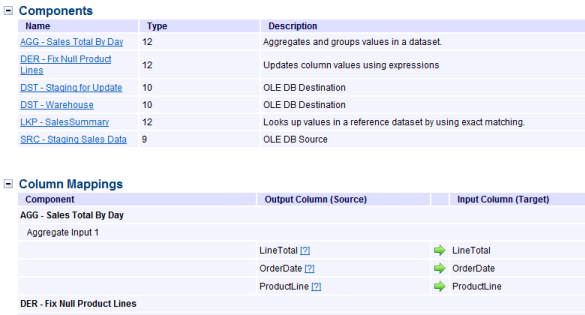
Of all the features though, the absolute coolest is it’s support for Integration Services. You can point it at either your SSIS server, or to a file store, or just to the directory with your solution. Here’s a sample that uses the package from my Intro to SSIS presentation:

image

Not only does it provide detailed info (it appears below the pic) but it will also reproduce the graphical flow! And if that wasn’t cool enough, you can drill down into the other executable parts, such as the data flow.

image


Here’s a small sample of the details:

image

It doesn’t stop there either, providing complete support for SSRS as well. Just point it at your Reporting Services server and away it’ll go!

Now, I realize this sounds a lot like a commercial, and since I now work for Pragmatic Works probably more so. Bu I just think this is an awesomely cool product, I can think of a lot of uses for it too. Providing turn over documentation, running it weekly to create version snapshots so you can track changes to your SQL Server, providing reference material for developers, and probably a zillion other things I haven’t thought of. (If you have thought of some, by all means leave a comment, would love to hear how YOU are using this.)

I’m sure I’m not doing the product justification, so if you want to see some video demos head on over to http://pragmaticworks.com/ for more info. And again, I apologize if this sounds like a commercial but I am blown away by how cool this product is so I just had to share.


Disclaimer: I do work for Pragmatic Works, and received my copy of this really cool software as a result of my employment.

Visual Studio Database Project Course

I’ve recently completed another course for Pluralsight, this one is on Visual Studio Database Projects. In it, I cover how to reverse engineer an existing database, then the many options you can configure for deployment. I then cover data comparisons, schema comparisons, and pre/post deployment scripts.

One of the most powerful features of Visual Studio is the data generation tools which give you the ability to generate vast quantities of realistic, predictable test data. Finally, I cover how to unit test your database code.

While I use Visual Studio 2010 and SQL Server 2008 R2 in the course, everything I teach is applicable all the way back to Visual Studio / SQL Server 2005, so even if you are still on an older version of your development tools the lessons you learn here can still be applied.

Deep Fried Arcane

At TechEd last year I was interviewed by the Deep Fried Bytes guys, along with another great SQL guy Denny Cherry. The topic of our interview was What Should Developers Know About SQL Server. (Click the link for the show.)

In the interview we cover SQL Server Full Text Search, SQL Server Service Broker, and SQL Server Integration Services. And if you listen, you’ll hear about my favorite deep fried food!

Visual Studio Database Developer – Data Dude at SQL Saturday 21

On Saturday August 21, 2010 I will be presenting “Visual Studio Database Developer Edition – Data Dude” at the Nashville SQL Saturday #51. This looks to be a great event, and I’m excited to be a part of it.

My slide deck is downloadable from this link: DataDude.pdf

In my presentation I also used some data from a previous post to generate data. That post has detailed information on how to generate sample data, and can be found here: https://arcanecode.com/2009/04/02/sql-server-sample-data-the-sql-name-game/

Thanks to everyone who attended, hopefully after my presentation you’ll have the same passion for Data Dude that I do.

SSIS For Developers at DevLink 2010

I have the honor of presenting at DevLink 2010 today. DevLink is a great conference in Nashville, TN, this year attendance topped 800 people. In my session,  SSIS For Developers, we’ll look at how SSIS, commonly used in Data Warehousing, can also be used by most developers to solve issues that frequently come up in the course of their job. Data conversion and exporting data are two good examples, and we’ll also look at how to call your new SSIS job from your .Net application.

There are two code demos used during the presentation, both available at my Code Gallery site. The first is the basic SSIS For Devs demo with the three packages. The second is the more complex example showing how to call SSIS from your .Net application.

SSRS Quick Tip – An item with the same key has already been added

I was in the process of creating a new report in SQL Server Reporting Services today. I was loading my dataset from a stored procedure, and when I hit the “Refresh Fields” button I recieved the following error:

“Could not create a list of fields for the query. Verify that you can connect to the data source and that your query syntax is correct.”

When I clicked the details button I got this further information:

“An item with the same key has already been added.” Here’s a screen shot of my error.

Well this had me scratching my head, as I had made sure to run the stored procedure, and it executed with no errors. After doing some considerable research I finally found a question in the Technet forums that was tangentially related to the error. This gave me the clue to figure out what I had done.

In my stored procedure, I had inadvertantly included the same column name from two different tables. My query looked something like:

SELECT a.Field1, a.Field2, a.Field3, b.Field1, b.field99
FROM TableA a JOIN TableB b on a.Field1 = b.Field1

SQL handled it just fine, since I had prefixed each with an alias (table) name. But SSRS uses only the column name as the key, not table + column, so it was choking.

The fix was easy, either rename the second column, i.e. b.Field1 AS Field01 or just omit the field all together, which is what I did.

As it took me a while to figure this out, tought I’d pass it along to anyone else who might be looking.

SQL Server Integration Services for Developers

Today I presented SSIS For Developers, we looked at how SSIS, commonly used in Data Warehousing, can also be used by most developers to solve issues that frequently come up in the course of their job. Data conversion and exporting data are two good examples, and we also looked at how to call your new SSIS job from your .Net application.

There are two code demos used during the presentation, both available at my Code Gallery site. The first is the basic SSIS For Devs demo with the three packages. The second is the more complex example showing how to call SSIS from your .Net application.

Linked Subreports in SQL Server 2008 Reporting Services

Note, before getting started with this lesson there are some prerequisites you should know about. Please read my post Getting Started with SQL Server 2008 to ensure you have everything setup correctly, otherwise you will be missing objects required to get the code here to work correctly.

The previous lesson showed how to include a subreport into another report. This could be used to link independent reports together into a single report. It can also be useful to have a related subreport. A subreport whose data is driven by that of the main report. This can be accomplished by the use of paramenters.

For this lab we’ll create a subreport that returns category totals for the region passed in from the main report. Note that this is a greatly simplified example to illustrate the technique. Even though in this sample everything comes from the same database, each report could just as easily come from completely different data sources. Subreports would be a great technique for combining data from different systems.

Step 1. Create the subreport.

Use Contoso as the shared datasource. For the query, enter:

SELECT [Region]
     , [ProductCategoryName]
     , SUM([TotalAmount]) AS ProductTotal
  FROM [ContosoRetailDW].[Report].[V_SubcategoryRegionTotalsByYear]
 WHERE [Region] = @pRegion
 GROUP BY [Region], [ProductCategoryName]
 ORDER BY [Region], [ProductCategoryName]

Use a tabular report, move everything into the details area, Generic for the table style, and for the report name use “Subreport – Region Category Totals”.

Step 2. Cleanup the subreport.

Click the edge Region texbox in the header (so it’s selected instead of being edited), and press delete. Repeat with the [Region] textbox in the detail row. We won’t need it since Region will be displayed on the parent report.

Change the other headers to Category and Total. Make them wider, make what had been the Region column smaller but leave it, it will give a nice indent padding when included on the parent report. In the textbox properties for ProductTotal, make sure to set the Number to Currency, and in the Alignment area change the Horizontal to right align.

Remove the “Subreport – Region Category Totals” text box

Click on the main table grid, then move it to top of body. Collapse the body to fit the table.

Step 3. Add the parameter.

In the Report Data window, right click on Parameters and pick Add Parameter. Name the property Region. For the prompt, enter “Region – Hidden”. Since the prompt will never be visible, it really doesn’t matter, but making a habit of entering the name and the word Hidden will give a clear indicator that this parameter is a hidden one.

Leave the data type set to text, and check on “Allow blank value”. If you don’t, the report will error out when used as a subreport. Next, set the visibility to Hidden. This means it won’t appear if you run the report, but you can still pass in parameters, from another report or via a URL. Click OK to close the properties window.

Finally, we need to bind the parameter to the parameter the dataset needs. Right click on the dataset and go to properties. On the parameters area @pRegion should already be present (remember, it was part of the WHERE clause in the SQL query). Pick @Region in the drop down for Parameter Value.

Step 4. Create the main report.

Add a new report, using Contoso as the shared datasource. For the query, use:

SELECT [RegionCountryName]
  FROM [Report].[V_Regions]

Use a tabular report, move the RegionCountryName to the details area, and pick Corporate for the style. Finally, for the name use “Regional Report”.

Step 5. Layout the report.

Since there’s only one column, expand it to take up the width of the body.

Right click on the row selector (the gray box with the lines on the left of the table) and pick Insert Row->Inside Group Below.

Into that area, drag a Subreport control from the toolbox. Note in this case there is only one column, but if there were multiple cells you could highlight them, right click and pick Merge Cells.

Step 6. Setup the subreport.

Right click on the subreport control.

Under “Use this report as a subreport” select the “Subreport – Region Category Totals”. Under the parameters area, click Add. Select Region under Name, and for the Value select RegionCountryName.

Step 7. Preview the report

Preview the report to see your results:

clip_image002[4]

Notes

Just a few notes. In this report, we left the table headers in the subreport (Category and Total). Often these are removed, to make the subreport blend in more with the parent.

Here only one parameter was passed, however you can pass multiple parameters if you need to.

Adding Charts to SQL Server Reporting Services Reports

Note, before getting started with this lesson there are some prerequisites you should know about. Please read my post Getting Started with SQL Server 2008 to ensure you have everything setup correctly, otherwise you will be missing objects required to get the code here to work correctly.

Often adding a chart can help give perspective mere numbers cannot. A quick glace can allow users to quickly focus on the important areas of data. Reporting Services supports many chart types, all of which are highly customizable. In this lab we’ll add a simple chart to the executive summary report we created in the previous lesson.

Step 1. Clone an existing report

Often we start new reports from an existing one. In solution explorer, right click on the “Subreport – Executive Summary” and pick Copy. Now go to the base of the project tree and pick Paste. In the Solution Explorer you’ll now see “Copy of Subreport – Executive Summary”. Rename it “Subreport – Executive Summary with Graph”. (Note, if you don’t have this you’ll need to do yesterday’s lesson, or download the code from the Getting Started post, mentioned at the top of this post).

Step 2. Make room for the chart.

Expand the body to double the width.

Step 3. Add the chart control.

In the toolbox, grab the Chart and drag it into the empty area in the body. You’re then asked what type of chart to create, pick a pie chart (it will be the top right one in the “Shape” category). Click OK.

Click inside the pie chart. You’ll now see small boxes slide out to the side and top/bottom of the chart control. Go to the Report Data tab. In the Contoso Dataset1 click on CategoryTotal and drag it above the chart to the area that reads “Drop data fields here”.

Next, click on the ProductCategoryName and drop it below the chart where it reads “Drop category fields here”.

Right click on the title, and pick “Title properties”, then for title text click the fx expression button. For the expression enter:

=Sum(Fields!CurrentYear.Value, "CurrentFiscalYear") & " Values"

(To see an explanation on the logic for this see the previous lesson).

Step 4. Preview the report

Click on the Preview tab. You should now see your chart, linked to the data.

clip_image002

There are many more customizations you can do to a chart, this lab demonstrated how quick and easy it is to add charts of all types to your reports.

Using Subreports as Areas of Your SQL Server Reporting Services Report

Note, before getting started with this lesson there are some prerequisites you should know about. Please read my post Getting Started with SQL Server 2008 to ensure you have everything setup correctly, otherwise you will be missing objects required to get the code here to work correctly.

Subreports are an incredibly useful concept within Reporting Services. They allow you to compartmentalize complex logic. They also allow you to create reports that can be used in many different parent reports.

In this lab, we’ll look at how to create a subreport and use it as a region within a parent report. For this example, we’ll create a base report, then a subreport that will function as an executive summary which we can place at the top of the report body. These types of summaries are commonplace in the reporting world.

Let’s get started by creating our base report. This will be identical to the base report used in other labs.

Step 1. Add the main report

As with our other reports, right click on the Reports branch in Solution Explorer, pick Add New Report, and (if you haven’t already disabled it) click next to move past the welcome screen.

Step 2. Set the data source.

Pick the Contoso shared data source, or setup a new source to Contoso, and click Next.

Step 3. Setup the query.

In the query builder, we’ll be using one of our views. Enter this SQL statement:

SELECT [FiscalYear]

      ,[ProductCategoryName]

      ,[ProductSubcategory]

      ,[Region]

      ,[TotalAmount]

  FROM [ContosoRetailDW].[Report].[V_SubcategoryRegionTotalsByYear]

and click next.

Step 4. Set the format.

For the report type we’ll use the simple Tabular format, so just click Next.

Step 5. Determine field placement in the report.

To keep this simple we’ll not use any groups on this report, so just put all report fields into the Details section. You can do it in one easy step by clicking on the top most item (FiscalYear), holding down the shift key, and clicking the bottom item (TotalAmount). This will select all of the fields, just click the Details button to move them. Then click Next.

Step 6. Select the formatting Style

Once again we’ll go with Corporate for the style and click Next.

Step 7. Name the report.

Finally we’ll give the report a name of “Regional Sales by Subcategory Subreports as Report Areas” and click Finish.

Step 8. Format report columns

To make the report a little easier to read, expand the width of the columns and format the Total Amount as Currency. (See the previous labs if you don’t recall how to accomplish this.)

Step 9. Add the subreport

It’s now time to create the subreport. Just like with a regular report, right click on the Reports branch in Solution Explorer, pick Add New Report, and (if you haven’t already disabled it) click next to move past the welcome screen.

Step 10. Set the data source.

Pick the Contoso shared data source, or setup a new source to Contoso, and click Next.

Step 11. Setup the query.

In the query builder, we’ll be using one of our views. Enter this SQL statement:

SELECT [ProductCategoryName]

      ,[CategoryTotal]

  FROM [ContosoRetailDW].[Report].[V_ProdcutCategoryExecutiveSummary]

 ORDER BY [ProductCategoryName]


and click next.

Step 12. Set the format.

For the report type we’ll use the simple Tabular format, so just click Next.

Step 13. Determine field placement in the report.

To keep this simple we’ll not use any groups on this report, so just put all report fields into the Details section.

Step 14. Select the formatting Style

Unlike other reports, we will pick Generic for the style and click Next.

Step 15. Name the report.

Finally we’ll give the report a name of “Subreport – Executive Summary” and click Finish. Note that is common to start the names of subreports with the name “Subreport” to make them easier to find.

Step 16. Format subreport columns and body

To make the report a little easier to read, expand the width of the columns and format the Total Amount as Currency. (See the previous labs if you don’t recall how to accomplish this.)

In addition, we don’t need the body to be any wider that what is needed. Click on the text box that has the body title “Subreport – Executive Summary” and shrink it to match the width of the table. Then hover the mouse over the right side of the report and drag it over to bump against the right side of the table.

Gotcha: If you try and shink the body first, it will not go. The right edge of the body can never be less than the right edge of the widest object (or the object whose right edge is farthest to the right).

Step 17. Setup the detail header

Start by changing the titles of the detail grid to “Product Category” and “Total”. Now highlight the entire row by clicking the gray row selector square to the left of the row.

We can change the fore and background color of this row to match those of the main report. You can pick from standard colors, or enter your own color value. As an example of the first, go to the Color property, and from the drop down pick the color white. You will see the property name change to “White”.  You could also have chose to just type in the word White.

You can also enter a hexadecimal value for the color. Click on the Background Color property and enter “#1c3a70”. (No quotes, but make sure to include the # so the entered value will be understood as hex and not a standard color, such as “White”.

Note that you can also change the values of each textbox independently, using the same technique. Most commonly though you will want to set the entire row.

Step 18. The “Green Bar” effect

Once upon a time, in a computer room in the distant past, all reports were printed on paper that had alternating blocks of green and white background. This was known as “Green Bar” paper. The color made it easy to follow long lines of text across the page.

It’s possible to setup the same effect within our report today. Highlight the detail row, then in the Background Color of the properties window, click the drop down, then instead of a color pick the Expression option. For the expression, enter:

=iif((RowNumber(NOTHING) MOD 2) = 0, "LightBlue", "White")

Using the MOD function we determine if it’s an odd or even row, and set the background color accordingly. For the colors any color constant or hexadecimal value would work.

Step 19. Add a value for the body header.

When a report is used as a subreport, any headers or footers are ignored. It can be useful to have a nice title though, so in this step we’ll create one.

19.1                Hover over the bottom of the body, and drag it down to expand the body height.

19.2                Now click on the grid. When the grid row/column bars appear, click on the one in the very upper left corner. When you do, the row/column bars hide themselves, and the grid sizing handles appear. In the upper left is an icon that points up/down/left/right. Click on it and drag the grid down, leaving space at the top for a textbox. Also leave a little space at the bottom that can serve as a gap between it and other items that might appear on the main report we place this subreport on.

19.3                Next drag a textbox from the toolbox onto the top of the page. Expand the textbox to take up the width of the body. Increase the font size to 12, make the font bold, and center it.

19.4                We have a place now to put our title, lets grab some data to put there. Add a new dataset by right clicking on the Contoso data connection in the Report Data window.

19.5                Name it “CurrentFiscalYear”, for the query text enter:

SELECT MAX(FiscalYear) AS CurrentYear

   FROM [Report].[V_ProdcutCategoryExecutiveSummary]

Click OK to save this new dataset.

19.6                Returning to the textbox, right click and pick Expression. For the expression text, enter:

="Executive Summary for " & Sum(Fields!CurrentYear.Value, "CurrentFiscalYear")

To build the center part of the string, click on the Datasets option under category. Then click on the CurrentFiscalYear dataset. In the Values area, one item appears, Sum(CurrentYear). Click on it to add the text to the current expression.

There is an oddity with getting fields from other datasets then the main one that supplies data to the body, they must be an aggregate expression such as Sum. However, since we are SUMing one value, the subreport will look like.
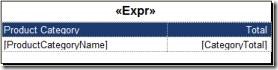
clip_image002   clip_image004

        Design Mode                                                                     Preview Mode

Step 20. Add subreport to main report.

Adding the subreport is quite simple. First, expand the body to make room above the grid similar to what was done in the above step. Then, drag the subreport from the Solution Explorer onto a blank area of the body.

Positioning it can be a bit of a pain, there’s no nice “put in the center” button. But with a little math you can accomplish it.

Return to the subreport a moment, and click on the grid which should take up the entire width of the body. In the properties window, expand the Size property to see the width. In this case it’s 2.3 inches.

Back in the main report, repeating the procedure with the main report’s grid, we see the width is 6.58 inches. Now it’s easy, (6.58 – 2.3) / 2 yields 2.14 inches. Use this for the left property of the subreport. The width isn’t that important, just set it wide in this case.

Step 21. Preview the report.
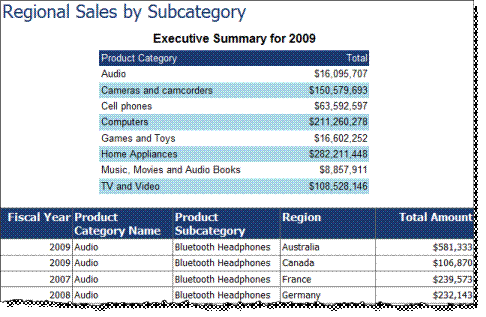
 

clip_image006

As you see, you now have an attractive subreport that you can reuse in multiple reports.