Upcoming Events

Just thought I’d fill you in on some of the upcoming user events in the Birmingham area. February is shaping up to be an active month for tech in Birmingham! Follow the links for more info on any of these events you are interested in.

VS2008 Seminar / Geek Dinner – Feb 4, 2008 – Doug Turnure and Chad Brooks will be doing a VS2008 seminar in Jackson MS, then a Geek Dinner in Hattiesburg MS.

BSDA – Feb 7, 2008 6:30 pm – Doug Turnure of Microsoft will be speaking on Visual Studio 2008. Geek dinner afterward!

Microsoft TS2 Event – Feb 7, 2008 1:00 pm – Event showcasing Windows Server 2008 and SQL Server 2008.

IPSA – Feb 8, 2008 11:30am – Jere Chandler will be speaking on Simplicity in Design.

Huntsville User Group – Feb 12, 2008 – 6:00 pm – Yours truly will be giving the presentation on SQL Server 2005 Full Text Searching

TechMixer Expo – Feb 12, 2008 5:30 pm – Birmingham’s Tech Event – TechMixer Expo is back! Come mingle with IT’s Finest.

Steel City SQL Group Meeting – Feb 19, 2008 – Join the group for it’s first program meeting of the year

Alabama Code Camp – Feb 23, 2008 – This time Huntsville will play host city to the Alabama Code Camp. Registration is now open!

Getting Table Space Usage in SQL Server 2005

I had the need to determine how much space was being used by each of my tables in a certain schema. I found various solutions on the web, most of which involved the built in system stored procedure sp_spaceused. However none of them produced the output quite like I wanted it. Most worked on a single table, or else produced the output in multiple returns. So I did what comes naturally and cobbled together my own solution.It’s fairly straight forward. I create a temp table to hold the output, then create a cursor to cycle through all the table names in the schema set in the variable @schemaname. I set it to the most common one, dbo, but you may wish to change it. Next I cycle through each of the tables using a cursor and for each one call the sp_spaceused and insert the output as a new row in my temp table. Finally I select the results back to the user and drop the temp table to clean up.

You may note I check to see if the temp table exists as the very first thing, then if it is I drop it. Then as the last step I drop it. Call it paranoid programming, if something crashes part way through the routine I wanted the code to be “self repairing”, i.e. I didn’t want to have to remember to run the drop table statement just to start the procedure all over.

Also, you may have read somewhere that cursors in SQL Server are “evil”. Well, as a general rule you should avoid them in favor of set based coding. However there are times, such as this when I need to call a stored procedure for each row in the cursor, that a cursor will solve the issue nicely. Additionally this isn’t code I’m going to be running 500 times a day on a production server, but instead just occasionally as a system monitor type of utility.

You may notice that most of the columns are all returned as strings (varchars). That’s because the stored procedure returns them in that way. I may go back later and modify this to convert them to numbers so I can do some math, but we’ll see if that need arises.

Here’s the code, use it and abuse it, modify it and enjoy it!

/******************************************************************************

**    File: “GetTableSpaceUseage.sql”

**    Name: Get Table Space Useage for a specific schema

**    Auth: Robert C. Cain

**    Date: 01/27/2008

**

**    Desc: Calls the sp_spaceused proc for each table in a schema and returns

**        the Table Name, Number of Rows, and space used for each table.

**

**    Called by:

**     n/a – As needed

**

**    Input Parameters:

**     In the code check the value of @schemaname, if you need it for a

**     schema other than dbo be sure to change it.

**

**    Output Parameters:

**     NA

**

*******************************************************************************

**        Change History

*******************************************************************************

**    Date:            Author:                Description:

**    ——–        ——–            —————————————

**

*******************************************************************************/


/*—————————————————————————-*/

/* Drop the temp table if it’s there from a previous run                     */

/*—————————————————————————-*/

if object_id(N‘tempdb..[#TableSizes]’) is not null

  drop table #TableSizes ;

go


/*—————————————————————————-*/

/* Create the temp table                                                     */

/*—————————————————————————-*/

create table #TableSizes

  (

    [Table Name] nvarchar(128)   /* Name of the table */

  , [Number of Rows] char(11)    /* Number of rows existing in the table. */

  , [Reserved Space] varchar(18) /* Reserved space for table. */

  , [Data Space] varchar(18)    /* Amount of space used by data in table. */

  , [Index Size] varchar(18)    /* Amount of space used by indexes in table. */

  , [Unused Space] varchar(18)   /* Amount of space reserved but not used. */

  ) ;

go


/*—————————————————————————-*/

/* Load the temp table                                                        */

/*—————————————————————————-*/

declare @schemaname varchar(256) ;

— Make sure to set next line to the Schema name you want!

set @schemaname = ‘dbo’ ;


— Create a cursor to cycle through the names of each table in the schema

declare curSchemaTable cursor

  for select sys.schemas.name + ‘.’ + sys.objects.name

      from    sys.objects

            , sys.schemas

      where   object_id > 100

              and sys.schemas.name = @schemaname

              /* For a specific table uncomment next line and supply name */

            –and sys.objects.name = ‘specific-table-name-here’    

              and type_desc = ‘USER_TABLE’

              and sys.objects.schema_id = sys.schemas.schema_id ;


open curSchemaTable ;

declare @name varchar(256) ;  /* This holds the name of the current table*/


— Now loop thru the cursor, calling the sp_spaceused for each table

fetch curSchemaTable into @name ;

while ( @@FETCH_STATUS = 0 )

  begin    

    insert into #TableSizes

            exec sp_spaceused @objname = @name ;       

    fetch curSchemaTable into @name ;   

  end


— Important to both close and deallocate!

close curSchemaTable ;     

deallocate curSchemaTable ;


/*—————————————————————————-*/

/* Feed the results back                                                     */

/*—————————————————————————-*/

select [Table Name]

      , [Number of Rows]

      , [Reserved Space]

      , [Data Space]

      , [Index Size]

      , [Unused Space]

from    [#TableSizes]

order by [Table Name] ;


/*—————————————————————————-*/

/* Remove the temp table                                                     */

/*—————————————————————————-*/

drop table #TableSizes ;

Visual Studio 2008 Loadfest – Birmingham

On Thursday night, January 24th 2008 the BUG.NET group in conjunction with Microsoft is sponsoring a Visual Studio 2008 Loadfest. Bring your laptop or desktop and lets load VS 2008 on it! The first 75 people to register will get a free copy of VS2008. In addition there will be some fun and games, there will be several XBox 360’s and huge TVs to play games on. (Sorry, no give aways of the XBoxes or TVs, but you still get to have fun with them.)

The event will begin at 6:30 pm across from the New Horizons training center,  and will last about 2 hours. (See the link below for more details and directions).

To attend and get your free copy of VS2008 you must register! Go to

https://www.clicktoattend.com/invitation.aspx?code=124185

No cost, but like I said you must register. See you there!

Feng Shui and the Art of Development

I’m not a big proponent of Feng Shui. For those unfamiliar with it, Feng Shui is a Chinese philosophy that essentially says that the placement of your furniture can have a big affect on your health and prosperity. Like a lot of things, something that starts off as a good idea seems to me to be carried too far. I do however firmly believe that your physical environment can have a dramatic effect on your mental environment. I saw a blog posting by Scott Hanselman describing his new home office layout. It was then that I realized something important: my own home office no longer worked for me.

I’ve been in my house eight years now. Like a lot of folks, I accumulate a lot of things related to my work / hobby. Books, computers, CDs/DVDs, and gadgets galore. It probably doesn’t help that my home office is also my ham radio “shack”, the place that contains all my radios, books and associated gear. For some time now I’ve been pretty unhappy with my basement office, having problems concentrating, etc. It had even gotten to the point where I had no place to even lay a book and reference it while working. After reading Scott’s post I immediately realized what my problem was: my environment.

Unfortunately December and early January were a bit hectic, what with my wife’s health problems and work, I haven’t had much spare time. Well, this weekend good luck finally arrived. My wife is healing very nicely and is much more self sufficient. We had snow, which made going out impractical, so it was the perfect opportunity. I pulled nearly everything out of my office, placed a lot of my “junk” into storage and relaid out the tables I use for working.

I’m typing now from my reconstructed office. A lot of the spare parts I had accumulated are gone, boxed up and placed in the storage area under the stairs. A lot of old catalogs and magazines hit the trash, many of the books I seldom reference were moved to another area of the house that had space. I now have plenty of space for my computer and can finally have all three monitors laid out side by side. I have a workspace now, somewhere to put the book I’m using for learning or reference. In addition, the moving of old books gave me space to put away my new books. I was able to do a little shuffling so the books I currently reference the most were on the lower shelf within arm’s reach, instead of piled on the floor.

Once again my office feels like a safe place to learn. When it comes to your office, whether it be your desk at your employer or your desk at home, don’t overlook your environment. Everyone has their own style. Look around your office right now. Is it comfortable? Quiet? Can you think effectively? Are the tools you need close at hand? If you answered any of these “no”, then start thinking about what you can do to make your home office a refuge, a safe place to work and learn. Then go do it.

SOA Society Meeting

Just thought I’d let you know of more doings in Birmingham. The SOA Society will hold it’s first meeting of 2008 next Tuesday, the 22nd. SOA stands for Service Oriented Architecture, a methodology for integrating IT and Business. That’s a pretty broad simplification, to learn more about SOA you’ll just have to come to the meetings!

See the Society’s website at http://soasociety.com for more info.

Does MacGyver Dream of Mark Miller?

For Christmas this year my family gave me a copy of MacGyver, Season 1 and 2 on DVD. My wife’s side of the family gave me a gift card which I used to get seasons 3 & 4. I’m a long time MacGyver fan, but my wife had only seen one or two episodes and my kids had never seen it at all, so we’ve been having a lot of fun watching. My favorite part of the series was the voice-overs, where you’d hear MacGyver’s voice as he explained what he was doing. It always started with some odd thought or story that led you through the thought process of how he came to the conclusion to build whatever wacky life saving device he was constructing.

I’ve come to realize in some ways these blog entries are sort of like the MacGyver voice-overs, my inner thoughts being created for you on the web. So I hope you’ll bear with me a few minutes while I relate a rather bizarre dream I had last night.

In my dream I’m standing on stage, in front of a fully loaded computer. It has all the bells and whistles, VS2008, SQL Server, and so on. On the other side of the stage, Mark Miller is there, in front of a similar computer. For those unfamiliar with Miller, he’s the genius behind CodeRush and RefactorPro, tools to help you write code faster. Some time back, when the product was first released Miller used to challenge the audience to beat him in a code writing contest. His machine had CodeRush, and he would use chopsticks to write code, his competitor could use their fingers but did not have CodeRush on their machine. Of course Mark always won.

So sure enough, in my dream there’s Miller, chopsticks in hand ready to go, and I’m the guy going up against him. Our task is to take data from table A1, create a mirror table and name it table A2, and then move all million rows from A1 into A2. As you might guess, in my dream, I win. How?

Well I didn’t write a program. Instead I first jumped into SQL Server Management Studio (SSMS) and used its script generating capability to produce a create table script. Make a quick search and replace and boom I’ve got table A2 created. I then jump over to the Business Intelligence Developer Studio (BIDS) to create a SQL Server Integration Services (SSIS) package to do the data move. (Yes, I probably could have used the script generation of SSMS again to generate an Insert script, but I was showing off.) In about three to four minutes I had accomplished the task and moved all the data while Miller was pecking away at computer with his chopsticks.

I didn’t win because I’m a hot shot coder who is smarter than my competitor. Miller is a (some say mad) genius who can run circles around me in the coding world. As I told the folks in my dream, and I’m telling you now sometimes the best solution to a programming challenge isn’t to program at all! If you read yesterday’s post, Straining at Gnats, you may recall I said “…take some time. Push back from your computer and think for a moment. Think what the true outcome of your application is supposed to be. Not “what will the program do” but “what will the program do for the user???” Think about how best to achieve the user’s goals.

When you are thinking about solutions, take a minute to look outside of your favorite programming language. Is it possible to achieve the goal without writing any code at all? What tool or tools do you have in your tool box that you can combine to get the job done? Here’s a great example that happened to me just before I took off on my holiday vacation.

As I’ve mentioned before at work we have a Business Intelligence (BI) app I work as the lead on, it imports data to a SQL Server 2005 warehouse via SSIS then uses SQL Server Reporting Services (SSRS) to generate reports. The data is imported from a work order management system we bought many years ago. We also have some engineers who have a tiny little Microsoft Access database. This database has a primary key column; we’ll call it a part number for purposes of this example. There are three more columns, some data they need to know for each part but are not found in our big system. They’d like to add this data to the reports our BI app generates. Two last pieces of information, they only update this data once per quarter. Maybe. The last few years they have only done 3 updates a year. Second, the big system I mentioned is due to be replaced sometime in the next two years with a new system that will have their three fields.

A lot of solutions presented themselves to me. Write an ASP.Net app, with a SQL Server back end then use SSIS to move the data. Elegant, but a lot of work, very time consuming for a developer, especially for something that can go away in the near future. Write an SSIS package to pull data from Access? Risky, since we had no control over the Access database. A user could rename columns or move the database all together, in either case trashing the SSIS. Several other automation solutions were considered and rejected, before the final solution presented itself: not to automate at all.

Once per quarter I’ll simply have the engineers send me their Access database. Microsoft Access has a nice upsizing wizard that will move the table to SQL Server, I’ll use that to push the data onto the SQL Server Express that runs on my workstation. I’ll then use the script generating capability of SSMS to make an Insert script for the data. Add a truncate statement to the top to remove the old data and send it to the DBA to run. When I ran through it the first time my total time invested was less than ten minutes. In a worst case scenario I spend 40 minutes a year updating the data so it’s available for reporting. That’s far, far less time that I would have spent on any other solution.

The next time you have a coding challenge, take a moment to “think like MacGyver”. Look at all the tools you have lying around your PC and see what sort of solutions you can come up with. Once you are willing to step outside the comfort zone of your favorite coding language, you may be able to come up with some creative, MacGyver like solutions to your user’s problems.


PS – If you missed the announcement while on vacation, DevExpress just released CodeRush / RefactorPro 3.0. More than 150 refactorings and lots of new CodeRush features! Update yours today.

Straining at Gnats

Here in the south (I live in Alabama) we have a saying “quit straining at gnats”. A gnat, by the way, is a very tiny bug that proliferates during the summer and tends to fly in your face when you walk outdoors. The saying essentially means “you’re working very hard to get rid of something very small”.

In Episode 300 of Dot Net Rocks (a great episode) Richard Campbell tells a great story. The short version is Richard is called in to look at a computer that’s having problems. It’s the mid 80’s or so, and this PC is responsible for downloading financial info. Every hour the computer reboots itself and they have to go start it all back up. He says “I can fix it, but it’ll cost you 3 grand”. Client sputters and says they’ll think about it.

Two weeks later he gets the call “OK, you got the 3 grand, come fix it.” So on the way to the client he stops and spends 1500 bucks on a new PC, puts it in place at the client, copies all the old software over and boom it’s up and running perfectly. As he’s walking out the door, check in hand, he’s asked “what was wrong with it?” “Heck if I know.” Richard replies. “But the problems fixed.”

It’s a great story (and much funnier when you hear Richard tell it), but it illustrates a great point. All too often we obsess over some problem, and lose sight of the desired result. All too often we focus on some piece of code, trying to come up with the most “elegant” solution, or frustrate ourselves over some piece of code instead of tossing it and rewriting.

I’m not saying write bad code, or write sloppy code in a hurry just to get it done. I am saying when you run across a problem, don’t get so invested in it that you don’t see alternatives. Time and again I see a developer getting stuck on a problem, trying to fix some arcane piece of code, or spending hours to get that extra millisecond from a SQL query.

When you run across that road block, take some time. Push back from your computer and think for a moment. Think what the true outcome of your application is supposed to be. Not “what will the program do” but “what will the program do for the user???” Think about how best to achieve the users goals.

As Campbell pointed out several times in the episode, when you are writing software for a business it’s all about making money. Your program should either make or save the company money in some fashion. Whether it’s by crunching numbers in a faster, more efficient way than a human could, by providing information in a more timely fashion, or any of a thousand other scenarios. Never lose sight of the fact your software is to provide a solution, and not being written for artistic purposes.

Don’t get so lost in the code that you wind up straining at gnats.

SQL Server Staging Tables – Truncate versus Delete

I’ve been reading a lot of books on SSIS (SQL Server Integration Services) and BI (Business Intelligence) over the course of the year. I want to pass along a little tidbit I haven’t seen in any of them. I’ll preface this by stating our staging tables and data warehouse are all in SQL Server 2005.

Our process is probably similar to others, we pull the data in, and if the warehouse needs to be updated we place the data into a staging table. At the end of the process we do a mass update (via a SQL statement) from the staging table to the main data warehouse tables we use for reporting. Then we delete the records in the staging table. Which seemed like a reasonable thing to do, but wound up getting us in a lot of trouble. Over the course of the last few months our run times for the SSIS job have gotten slower and slower and sloooooooooooooower. Our job was taking as long as 50 minutes to complete sometimes. One of our developers noticed the database seemed to be taking up a lot of space. He found a simple select count(*) was taking eight minutes on what was supposed to be an empty staging table.

Some research on the web explained what we were doing wrong. In one of my favorite SQL Server blogs, I want some Moore, blogger Mladen Prajdic has a great article on the differences between delete and truncate.

http://weblogs.sqlteam.com/mladenp/archive/2007/10/03/SQL-Server-Why-is-TRUNCATE-TABLE-a-DDL-and-not.aspx

The solution then was to not perform a delete, but a truncate on our staging tables. We went ahead and manually issued a truncate on our staging tables, and saw an immediate beneift. Our average run time went from 50 minutes to 8 minutes!

I’m not sure why I haven’t seen this mentioned before, perhaps I just haven’t read the right blog or book yet. But I wanted to pass this along so you could be spared some of the headaches we went through. If your SSIS uses SQL Server 2005 tables, use a truncate and not a delete to avoid speed issues. Alternatively, at least make sure to run truncates on a regular basis to keep those staging areas cleaned out!

ITAC Lunch and Learn – Dec 4th

My friend and co-worker, Jeff W. Barnes, MVP will be speaking on Tuesday December the 4th at the Emmet O’Neal Library during lunch. His topic will be “The Future of .Net Development” which sounds pretty interesting. Come on out, here a good presentation and grab some lunch.

For more info, including registration info, see Jeff’s blog entry at http://jeffbarnes.net/portal/blogs/jeff_barnes/archive/2007/11/27/itac-lunch-and-learn-for-net-on-dec-4th.aspx

See ya’ll there!

SQL Server 2005 Reporting Services ReportViewer Control and IE7

I’ve spent the last few days pulling my hair out over an issue with my reports rendering correctly inside and ASP.Net page and IE7. Like many companies we are preparing to roll out Internet Explorer 7 to all of the desktops. As part of that we’re doing regression testing on our applications, and in doing my tests uncovered an issue with IE7 and our BI (Business Intelligence) solution. It is an ASP.Net 2.0 page that uses the Report Viewer control to display SQL Server 2005 Reporting Services reports.

In IE6, everything has been running fine, reports rendering correctly and users happy. In testing for IE7, we found the reports only drew enough to fill up the available space inside the browser, and then stopped. No scroll bars, and if you resized the browser it did not paint the interior correctly.

The solution, as it turns out was pretty obscure. A co-worker found a thread at http://www.eggheadcafe.com/software/aspnet/27965101/re-problems-setting-webf.aspx that put me on the correct track. The solution needed three minor tweaks to our code.

First, you need to remove the DOCTYPE line from your aspx page. Yes, that’s correct, the line that is automatically inserted when you create a new page. It should look like:

<!DOCTYPE html PUBLIC “~//W3C//DTD XHTML 1.0 Transitional//EN” "http://www.w3.org/TR/xhtml1/DTD/xhtml1-transitional.dtd">

Find it and delete it.

Next, on the ReportViewer control, make sure the AsyncRendering property is set to False. When you set it to true (the default) the report did render correctly, but instead of using the entire webpage to scroll it put another scroll bar onto the report viewer itself, and you had to use it to move through your report. Our testing found having two scroll bars (one for the page and one for the report) to be a bit confusing to the users. Try it both ways though and see what works best for you, as your mileage may vary. For us, we went with False as the setting.

In examining the AsyncRendering property, I found this article on MSDN which further confirmed the need to remove the DocType: http://msdn2.microsoft.com/en-us/library/ms252090(VS.80).aspx

In the final tweak, I made sure to set the width of the ReportViewer control to 100% and removed any setting of height. This allowed the page to scale automatically to the size it needed to be.

Since this was not an intuitive fix, I’m hoping getting the word out will help others and save them the two weeks of frustration I went through.

The Arcane Coder

For all those of you who have written, yes it was my e-mail that Richard Campbell read on a recent .Net Rocks. Specifically episode 291, http://www.dotnetrocks.com/default.aspx?showNum=291 (the e-mail is read about 6 minutes into it if you are the impatient type).

It’s a really good episode, and I don’t just say that because they read my mail. Kent Alstad gave a great interview in talking about scalability and application development. I highly encourage you to listen all the way through. I have a select group of DNR episodes that I will listen to several times, and this one is going to be added to that list, great stuff.

An Early Christmas from Redmond

They’re here! Today Microsoft released Visual Studio 2008 RTM. If you have an MSDN subscription you can download today and start producing all those new .Net 3.5 applications.

Also released today via the connect.microsoft.com site is CTP 5 of SQL Server 2008. It’s my understanding in this CTP most of the features are working, except for clustering.

I can see I won’t be getting any sleep tonight.

.Net University – BizTalk

Earlier this week I was privilidged to attend the first .Net University for BizTalk. It was a very informative day long session, I feel like I now have a grasp on at least the fundementals of BizTalk and can talk intelligently about it. I have a long way to go, of course, but this was a great launching point.

If you are not familiar with .Net University, you need to check out their website http://www.dotnet-u.com/ . All of the slide decks, labs, and other courseware are availble not only for you to look at, but to use in doing your own presentation. Your user group or business could put on it’s very own .Net University using the supplied materials. Don’t worry if you are not a guru, they are even publishing videos of the sessions for you to watch and see how the “pros” did it. Currently courseware is available for .Net 3.0 and BizTalk, and the video sessions for .Net 3.0 were just released. They videoed the presentations at the BizTalk session I was in, so I would expect them to be released in the near future. Coming soon will be courseware for Sharepoint and Silverlight.

.Net University was the brainchild of Microsoft Developer Evangelist Doug Tunure ( http://blogs.msdn.com/dougturn/ ). Recently he and Mark Dunn of Dunn Training (http://www.dunntraining.com/) went to TechEd in Asia and used .Net U there. Mark Dunn recorded interviews and talked about it in a recent Dot Net Rocks episode (#288: http://www.dotnetrocks.com/default.aspx?showNum=288 ). Take a listen, they do a better job of explaining it than I can. Mark, by the way, was also one of the presenters at the BizTalk session I was in.

If your user group is looking for a good opportunity to reach out to the community, consider putting on your own .Net U. You can do it in one day, or break it into two or four sessions. Looks like there will be a lot of good material to get you started, and you can even get certificates to present to your attendees.

A Developer’s Guide to Installing SQL Server 2005 – Part 2 – Installing SQL Server 2005 Express Edition with Advanced Services SP2

OK, so you read my instructions on my previous post, and downloaded the appropriate bits from http://msdn2.microsoft.com/en-us/express/bb410792.aspx If you are planning to, are have already installed the Developer Edition, you only need to download the “Microsoft SQL Server 2005 Express Edition with Advanced Services” link. If you are only planning on doing the Express Edition, you’ll also want to download the link under it, “Microsoft SQL Server 2005 Express Edition Toolkit”. My instructions below only cover the database, not the toolkit.

OK, you’ve just downloaded the bits and it’s already time for the first “gotcha”. Before installing, you’ll want to make sure you have the IIS components installed on your machine. Odds are if you are an ASP.NET developer you probably already have them, but if not it’s a good idea to check.

In Vista, go to Control Panel, pick Programs and Features, then “Turn Windows Features on or off”. In the dialog that appears, scroll to Internet Information Services and expand the tree. Make sure all the items under “Web Management Tools” are checked. Now go down to “World Wide Web Services”. Under “Application Development Features” make sure .Net Extensibility, ASP.Net, and the ISAPI items are on. In “Common Http Features” check on everything but redirection. Everything under Health and Diagnostics should be on so you can log errors. Finally, under Security all you need on is Request Filtering.

XP is a little simplier. Under the control panel, Go to Add or Remove Programs, Add or Remove Windows Components. In the dialog that pops up, scroll down to Internet Information Services and check it. Click on details, and add FrontPage 2000 Server Extensions to what’s already checked. Then click OK a few times to get the updates installed.

In either situation, you may need your Windows disk handy to install the additional components.

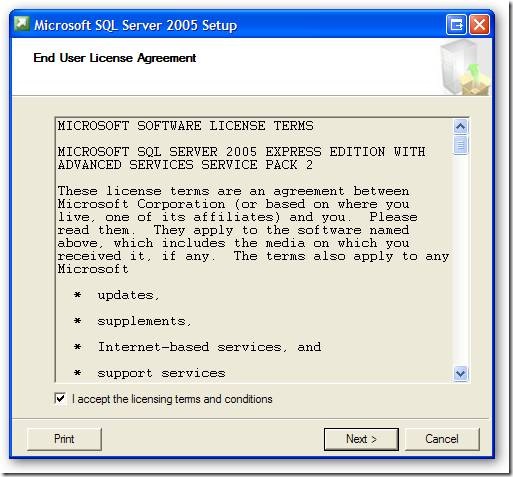
OK, now you’re finally ready to run the setup. Double click on your sqlexpr_adv.exe to see this screen. All you have to do is check on the “I accept..” to accept the license agreement, then click Next.
clip_image001

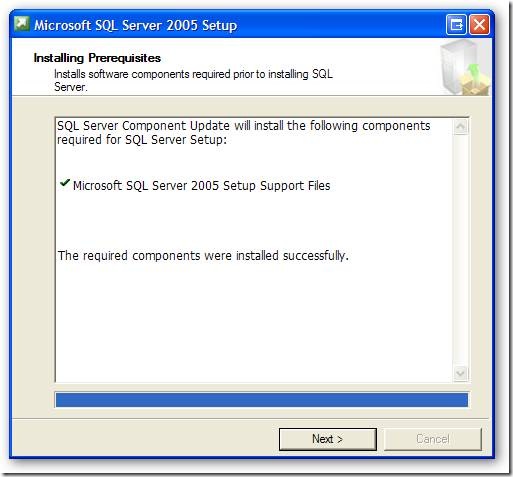
Now SQL Server will check to see if it has everything it needs. This is the screen where it would yell at you if you didn’t have IIS installed. Since you do, just click Next.
clip_image002

Now we get a nice welcome screen. I’m feeling all warm and fuzzy now! Click next to continue.
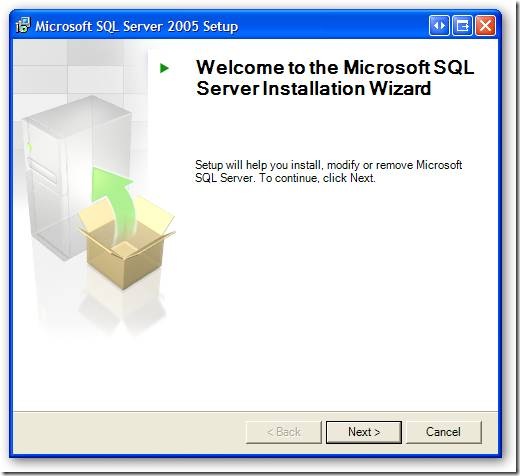
clip_image003

Here SQL Server is going to make sure you have everything you need installed. If there is anything missing you should fix it before you proceed. If you get all greens, you’re good to go.
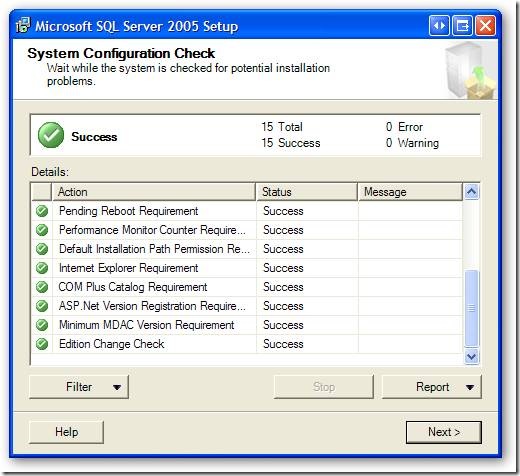
clip_image004

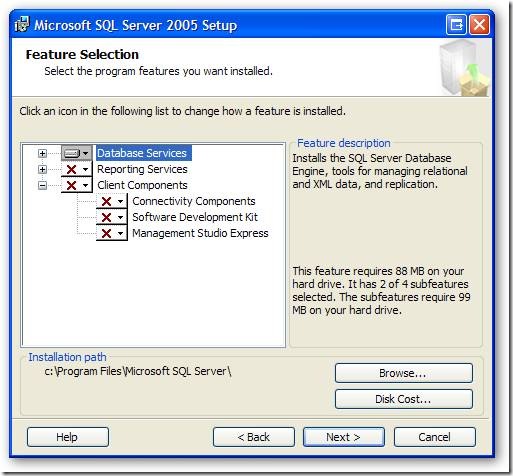
OK, here we need to deviate from the standard “next next next” default model a lot of us are used to. Make absolutely sure you UNCHECK the box you see below, “Hide advanced configuration options” We definitely want to see those advanced options.
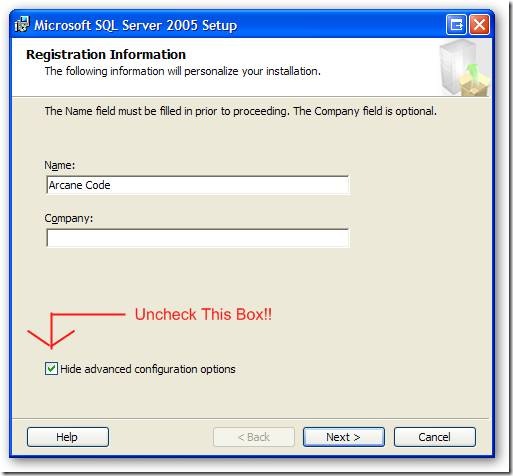
clip_image005

Do you have it unchecked yet? If you don’t, you won’t get Reporting Services or Full Text Searching or the other cool features installed. Go ahead and fill out your name and company. Oh, and did I mention the box should be unchecked? If it is, like the screen below, you can click next.
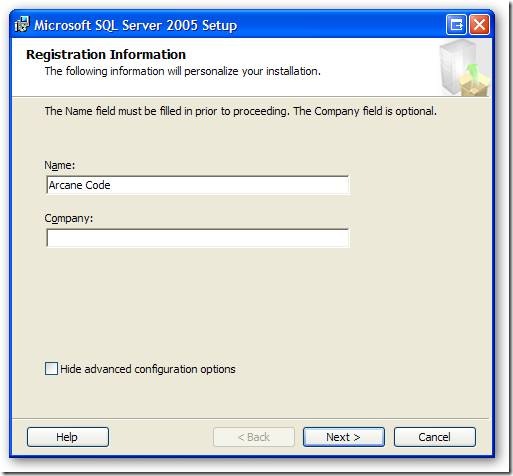
clip_image006

OK, here we are on that advanced options screen. As you can see, all the cool toys are set to not install. Well that’s no fun. Go through each one and set it to install.
clip_image007

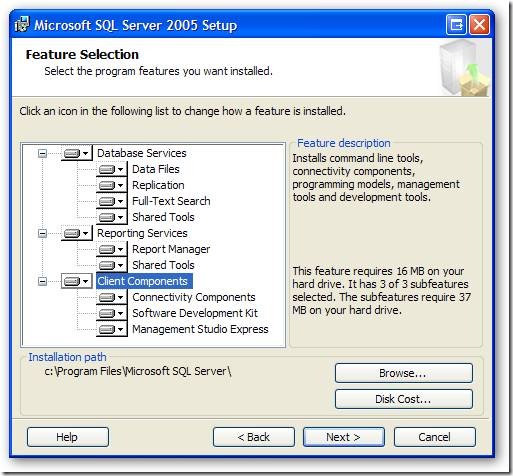
You can see below I have all the items checked on. I want to mention one thing. On the box I’m installing this on, I’ve already got the developer edition installed. So I don’t really need the Client Components. I’ve checked them on so I can show you something later. For now, click Next.
clip_image008

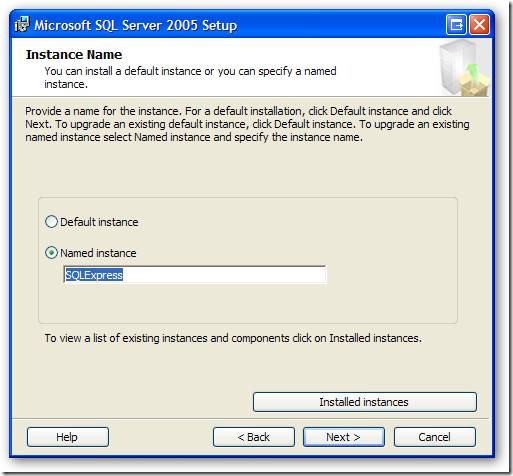
OK, here is your chace to give your server a name. Since everyone in the world uses SQLExpress, you should definitely not use it. Pick a name that’s logical, perhaps your computer name_express or computer_sql. Whatever you pick, change it now click Next.
clip_image009

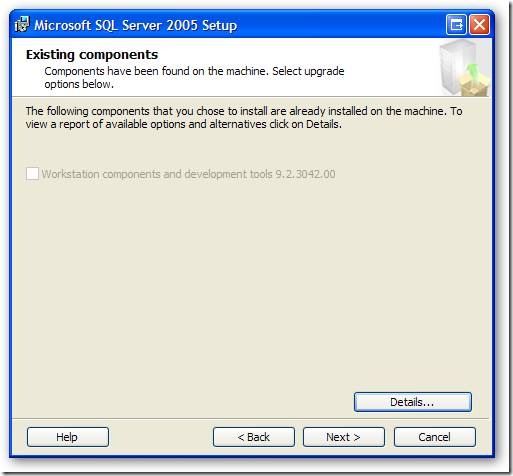
Remember a few screens back when I said I was installing SQL Express on a machine that already had the Developer version installed? This is where it lets me know. The nice thing is the installer is smart enough not to choke. It simply says “Hey, I’ve already got this piece installed so I’ll skip it.” This is handy so you don’t have to think too much about the pieces you’re installing, you can pick everything and if it’s already there the installer will let you know then go on it’s merry way. Speaking of which, it’s time to get on our merry way by clicking Next.
clip_image010

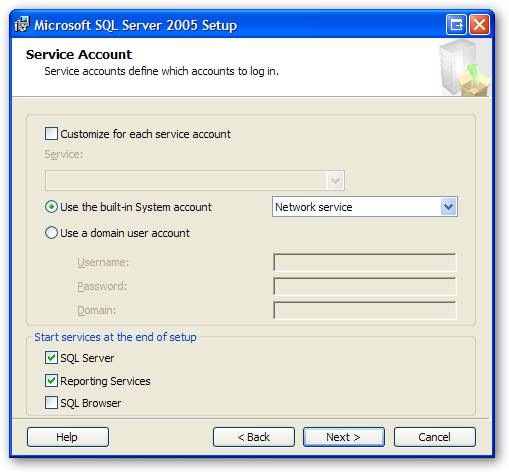
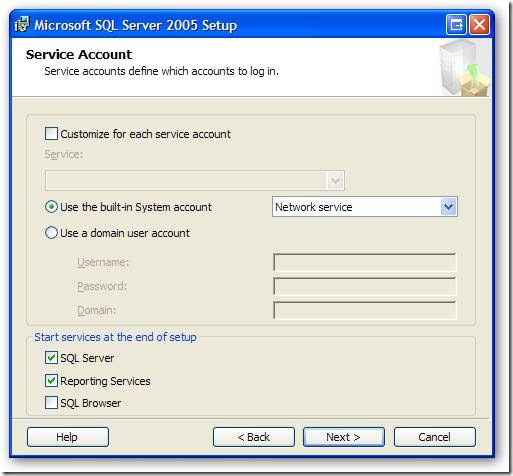
OK, now it wants to know a few things about how to run. First it wants to know what user id to run the service as. The default you see below will work just fine. Next it wants to what pieces it should run at startup. If you are going to be running this once in a blue moon, I would uncheck the SQL Server and Reporting Services options, then run them manually when you need them. On the other hand, if you are going to be in SQL Server nearly every day, like I am, it makes sense to leave these checked so they are started and ready for you. You’ll also want to leave these on if you are going to let other people connect to your box for testing reasons. Once you make your choices, pick Next.
clip_image011

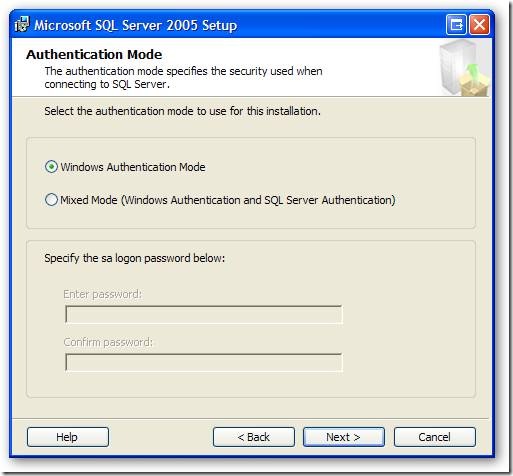
OK, here SQL Server wants to know how you are logging into the server. DO NOT click next. Instead look at the next screen shot.
clip_image012

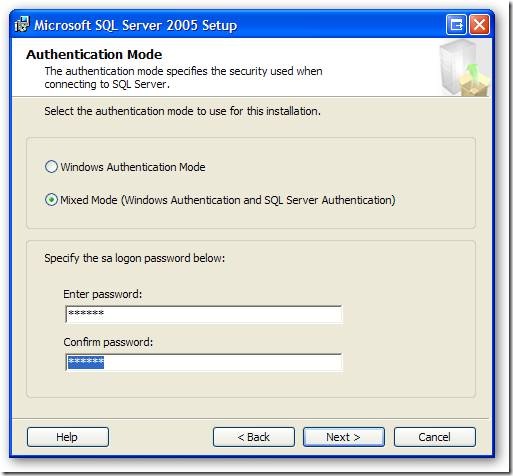
I don’t like using strictly windows authentication. Instead I much prefer using Mixed Mode. Pick it, then enter a password you can use for the sa account. I prefer this method as it gives me a little flexibility on how to use the database. Make sure you pick a password you’ll remember! Enter it and yes, you guessed it, click next.
clip_image013

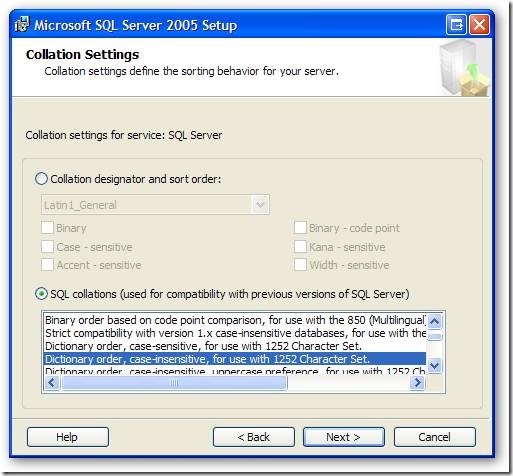
Next it’s asking how you want SQL Server to sort text. I always take the default here, and click next. If you have special sorting needs you can change this, but odds are you can click next too.
clip_image014

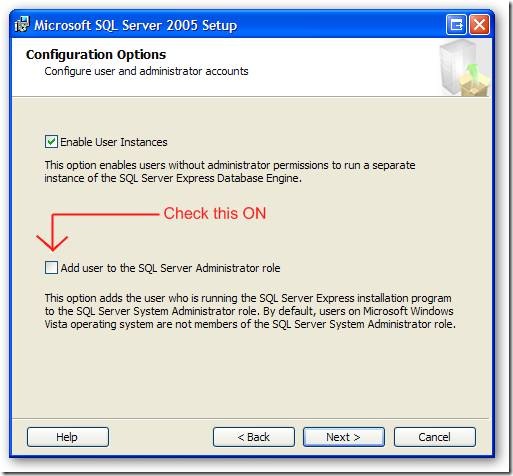
This next screen is another one of those “Gotchas”.
clip_image015

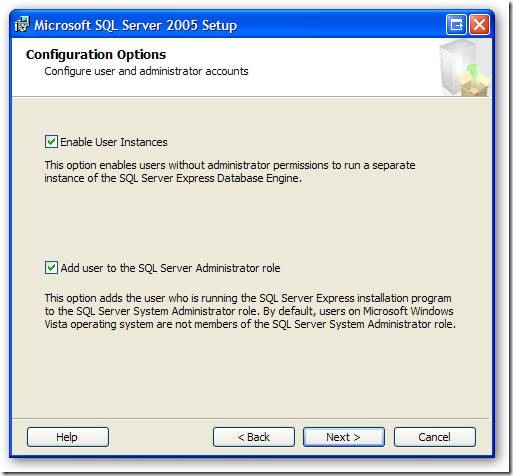
This is really important to check on, so you can easily administer your own database. Check it on so it looks like the screen below, and hit next.
clip_image016

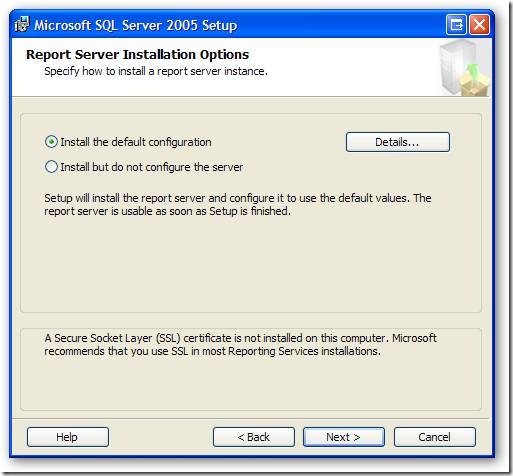
OK, time for another important question. You can install Reporting Services using the default config, or you can install but not configure now. The idea behind this was to allow you to install but not configure, then copy the configuration from another existing server. This is ideal for the enterprise where we are setting up one server after another and want them all to be identical. However, for our workstation we can simply install using the default configuration, and hit next.
clip_image017

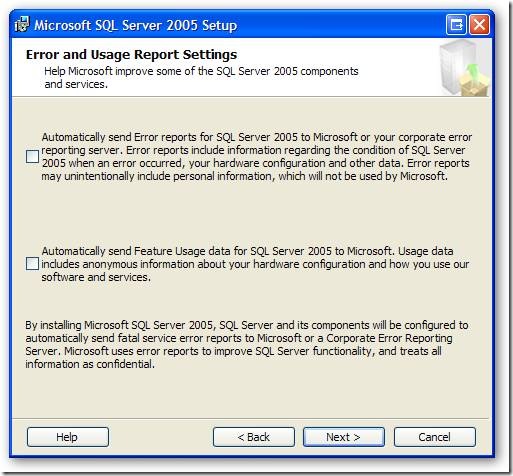
Here Microsoft would like your help. Any data Microsoft can gather about SQL Server will help make it a better product. In some small way you’ll be contributing to the next version. However, I do recognize there are some people or shops that are wary of anonymous statistics gathering. I turned it on for my install, but if you have any doubts leave it off like I show below. Once your decision is made, click Next.
clip_image018

It’s finally time to begin the install. SQL Server shows you your choices one last time, and gives a big “are you sure”. You are, so just hit next.
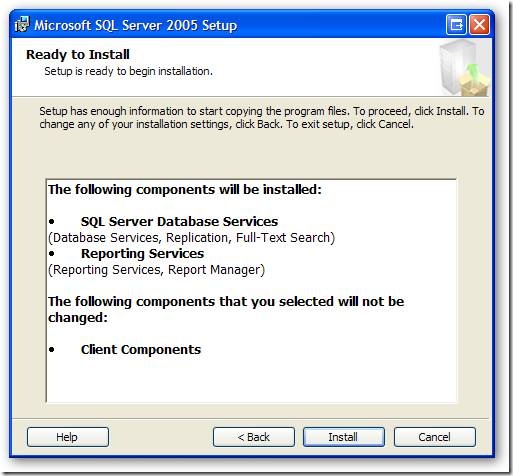
clip_image019

OK, go get us a couple of cups of coffee, we’ll sit here and wait a bit. This screen will keep us updated on the install process.
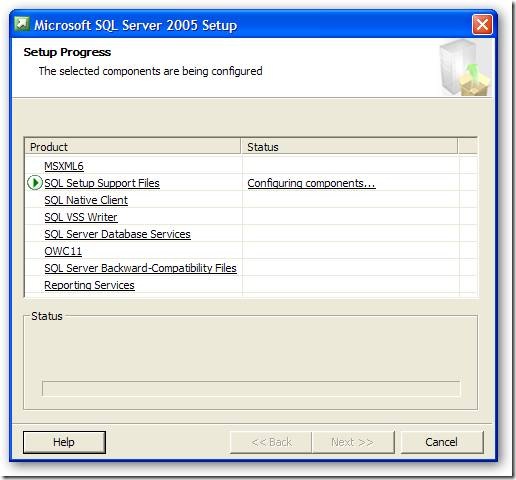
clip_image020

As things are completed, they turn green, as you see here. When everything is installed, the Next button will become enabled. Click it to proceed.
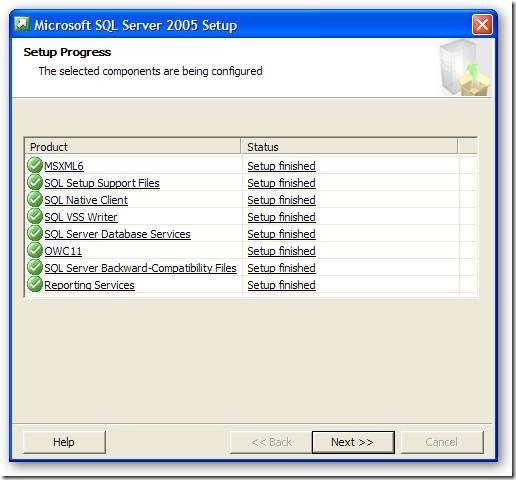
clip_image021

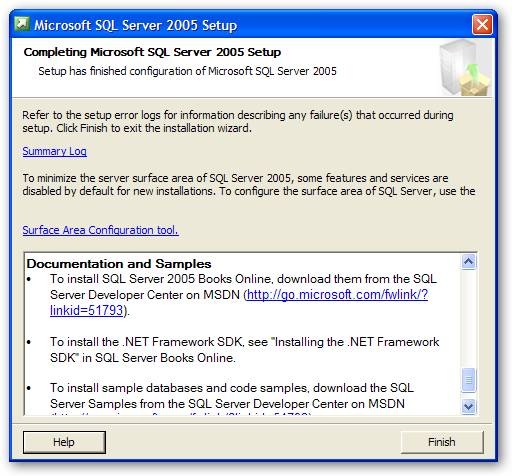
This is the last screen of the install, but don’t blow it off casually. It has some good info. Scroll the message window down to the bottom, as you see here, and you’ll find some good links. First, as you see on the screen, is a link to the Books on Line. You should download these and install them, they will become an often referenced companion and you learn SQL Server. Below that (just off the screen) are links to sample databases. If you are installing on a developer workstation and have the space, you should seriously consider installing these. Many, many authors (including myself, so you’ve been warned) will use these as material for their articles and samples. If nothing else it is very informative to see how Microsoft created a database.
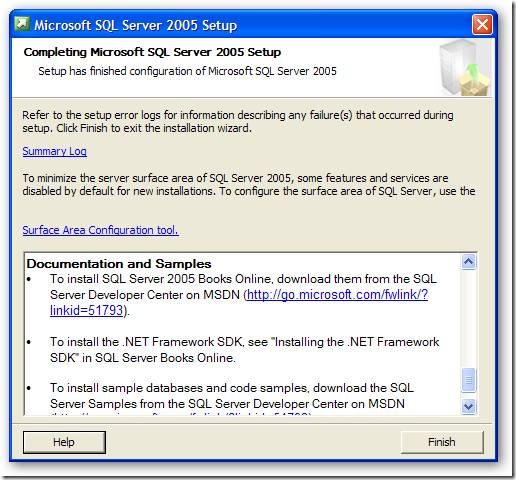
clip_image022

That completes our installation of SQL Server Express with Advances Services. But the fun is just beginning…

A Developer’s Guide to Installing SQL Server 2005 – Part 1 – Selecting a version

As a developer of applications that use SQL Server in some way, it can be valuable to have a database local to your box. It can be used for development, testing, or debugging in an off line environment. While there are many versions of SQL Server 2005, there are only two versions that are really suitable for the developer’s computer: SQL Server Express With Advanced Options, and SQL Server Developers Edition.

The first, SQL Server 2005 Express, is free. There are actually two versions of Express, the standard and the one entitled SQL Server 2005 Express Edition with Advanced Services SP2. It can be a little hard to find, so here’s a handy link: http://msdn2.microsoft.com/en-us/express/bb410792.aspx The standard edition does not include Full Text Search, Reporting Services, or the SQL Server Management Studio Express. These are all features that you, as a developer will want.

The other version of SQL Server that’s geared toward developers is the SQL Server 2005 Developer Edition. This version has the same features as the Enterprise Edition, but it’s only licensed for a single developer to access. It also comes with the full blown BIDS (Business Intelligence Developer Studio) tools. It’s not free, however it’s not expensive either. At only 49.99 it’s priced so even a small one person development shop can easily afford it. This link has more info, including a link to purchase:

http://www.microsoft.com/products/info/product.aspx?view=22&pcid=f544888c-2638-48ed-9f0f-d814e8b93ca0&type=ovr

If you have an MSDN License, the SQL Server 2005 Developer Edition is included with it and can be downloaded via your subscription.

So as a developer, which version version should you install? That answer is easy. Both.

Yes, both. The Express edition will allow you to perform small scale testing, let multiple users bang away at your solution and let you perform some small measure of scalability testing. With it’s database size limited to 4 gig, it may nor may not be big enough to hold your entire database, but it’s certainly large enough for a good hunk of your data. The Developer Edition will give you all of the tools and let you emulate your Enterprise system, at least in terms of the database sizes and structures. However since it’s licensed only for the developer, you won’t be able to have multiple users access it.

So you’ve decided OK, you want to install. If you’re not a trained DBA there a few gotcha’s you should know about when installing SQL Server. By default, not all of the features are installed. In the next few posts, I’ll show step by step instructions on how to install SQL Server for your development workstation.