SQL Server Data Tools in Visual Studio 2012–Safe Refactoring

With Visual Studio Database Projects (VSDB), you entered into Safe Refactoring mode through the Schema View window. But in SSDT, the Schema View window no longer exists. So how the heck do you do it??

Well first off, let’s define safe refactoring for those who may not have been familiar with the feature in VSDB. It allowed you to right click on a column name, and pick rename. You could then enter a new name, and hit the preview button. Visual Studio would comb through your source code and find every occurrence of that column name for that table and show it to you. If you clicked OK, Visual Studio would then go through and make the change everywhere for you, ensuring you didn’t miss anything.

Before we can do a safe refactor, we need to have something to refactor, and to test with. For this demo, we’ll create a simple view to read the dbo.ArcaneCode table we created in the previous post. Since there is no folder in the dbo schema for views, we’ll first have to create it.

Still working with our AdvWorks sample, open the dbo folder. Right click on it, and pick Add, Folder. Name the folder Views. Let me interject that strictly speaking, this isn’t a requirement. We could have placed the new view source file we’re about to create anywhere. But keeping a file/folder structure consistent with this and other SSDT projects will make maintenance far easier.

OK, once the folder is there, right click on it, again pick add, only this time pick a new View. Name the view dbo.vwArcaneCode.

CREATE VIEW [dbo].[vwArcaneCode] AS 
SELECT [BlogUrl], [BlogAuthor]
FROM dbo.ArcaneCode

And save it. Now return to the table designer for the new ArcaneCode table.

Let’s decide we don’t like the name BlogUrl, and we’d rather call it BlogSite. Well, first we could try putting our cursor into the T-SQL area, and just typing over BlogUrl with BlogSite. What happens?

SNAGHTMLbdd349

Well, as you can see above, the designer on the upper half changes, but the column name in Create Index did not update. Not nearly what we wanted.

Let’s start over. Restore the name in the T-SQL area back to BlogUrl. Now go into the grid at the top, and change it there.

SNAGHTMLc00ed2

Hey, that’s better! Once we tabbed out of the Name column (or clicked elsewhere) it changed the name in all the locations in the T-SQL area. Just what we wanted!

Or is it?

Remember, we also used this column in the vwArcaneCode. Go take a look at its code.

image

As you can see, it remained unchanged. Even worse, there’s now a big red squiggly under the BlogUrl name, indicating we have now created an error in our project. Sigh. OK, one more time.

Go back to the table designer, and reset the name back to BlogUrl. Now we’re finally ready to do this the right way.

Put your cursor somewhere in the column name in the T-SQL area, then right click on the column name. Note, this will not work if you try it in the grid area at the top!

From the menu, pick Refactor, Rename.

image

You’ll now see a dialog appear, giving you a place to enter a new name. Change the name to BlogSite, and make sure the Preview Changes is checked on, then click OK.

SNAGHTMLc89a4f

Once you do, a new window will appear. It will show you everywhere the change would be made.

SNAGHTMLca7716

Looking at the window,  the upper part shows you all the files and the line of code in the file for which a change would be made. If you click on a line, the new version of the code will appear in the lower window. Ahh, there’s the view, and you can see it is being shown with the new change that will be made.

Note that no change has occurred as of yet. You must click the Apply button for anything to actually change. You can also click Cancel to abandon the change.

If you need to know everywhere a column name is used, but don’t want to change it, there’s an easy way to do that too. When we right clicked on the column name and picked Refactor, well a few menu options down was another option called “Find All References”. Picking that will populate a window in your Visual Studio environment.

image

When you click on a line in the above window, your central display in Visual Studio changes to now show the file you clicked on in this window.

There you go, you can now not only safely refactor column names in Visual Studio 2012 SSDT, but you can also find all references to that column within your project.

SQL Server Data Tools in Visual Studio 2012–Table Designer–Other Objects

image

Above is the screen shot of where things were left at the end of the previous post. We had just added a new table and used the designer to create four columns, along with their data types. We also saw how we can edit the table in T-SQL and see updates in the designer’s grid above.

But what’s all that stuff to the right of the grid? It would seem to list the various objects that would be associated with a table. In this case there’s only one, the unnamed Primary Key. But through this are we can also add new objects.

Let’s add a simple index. Right click on the Indexes (0) area. from the menu pick Add New, then for this example we’ll pick a standard Index.

image


When you do, a new index name appears below the Indexes (0) area, with a default name.

SNAGHTMLa8b905

Since this is going to be for the BlogUrl, I’m going to change the name to IX_ArcaneCode_BlogUrl. You’ll see the Indexes collection area has updated to reflect the new name, and the number in parenthesis has been updated to (1), to reflect the number of Indexes.

In the T-SQL area at the bottom, you’ll see some new T-SQL setup and ready for you to update. Here, all you have to do is change the [Column] to be the actual field name you wish to use in the index. In this case, [BlogUrl].

SNAGHTMLaa70bf

Think of the new designer as a combination of easy to use UI with a code generator. Creating other objects works just like you’ve seen here. You right click, pick what you want to add, and Visual Studio SSDT inserts the code template read for you to update.

SQL Server Data Tools in Visual Studio 2012–Table Designer

One of most noticeable enhancements to the data tools (over the previous database projects) is the table designer. Using the AdvWorks project we started in previous posts, let’s add a new table. Since the dbo schema has few tables, let’s add it there.

Expand the  dbo schema, right click on the Tables folder, right click and pick Add, Table as you can see in this illustration.

SNAGHTML28a093

Next you’ll be asked to confirm the type of object you wish to add, and what you want to name it. Ensure the “Table” object type is selected (the red arrow points it out below). Then, give your new table a good name. If you use multiple schemas in your database (and you should) then get into the habit of always typing in the schema name before the table name, even if it’s the default schema. This will prevent you from putting tables into the wrong schema, then having to clean up the mess later.

SNAGHTML2ae15a

You are now presented with the spiffy new table designer. Using it is fairly straightforward, but has some nice abilities.

image

You can begin by simply going to the Name area, and typing in new column names. I’m going to start by changing the word Id to ArcaneId. Next, move to the Data Type box and hit the dropdown. You’ll be presented with a dizzying array of data types!

image

For now I’ll leave it as int, since this will be my primary key, but I’ll add other types momentarily. I’ll leave Allow Nulls off, as well as leaving the default empty. Now add a column by moving down to the next row in the grid, perhaps call it BlogUrl, nvarchar(256). Note that when you pick the nvarchar column type, you’ll have to type right inside the Data Type text area to change the length of the column. Finally add a DateUpdated column, Date data type, an set the default to GETDATE().

Note that as you’ve filled in your columns in the designer, the T-SQL in the box underneath is also updating. It’s a two way street, shift down to the T-SQL code on the bottom. Let’s add a fourth column, but put it under the BlogUrl but above the DateUpdated. Let’s name it BlogAuthor, nvarchar(256), NULL (we’ll allow nulls) and no default.

When you get to the end of the line and VS has confirmed this is valid T-SQL code, it will update the designer area on the top to reflect what you’ve done below.

There is one more thing we should do, something that’s quite common especially in data warehousing. We should have the primary key be an Identity type, that is a column whose value auto-increments with each inserted record. We can’t do that via the designer area at the top. While we could move down to the T-SQL area at the bottom and just type it in, there is a way to do it graphically.

In the designer, click on the row with the ArcaneId. Now go to the Properties window (generally over on the right, below the Solution Explorer if you still have the default VS seutp). About 2/3 the way down you’ll see a property called Identity Specification. Using the + button expand it, then change the Is Identity property to true.

image

Now your designer window should look something like:

image

But that’s just the start, for this isn’t just a table designer, but a designer for keys, constraints, indexes, and more! But that will wait for the next post in the series.

SQL Saturday 167–Columbus GA–Sept 8 2012

It’s almost here! SQL Saturday #167, the first ever for Columbus GA. It looks to be quite a nice event, with a great variety of topics. There’s a lot of BI, including a PreCon on PowerPivot. I’ll be giving a presentation on Saturday on “The Decoder Ring for Data Warehousing/BI” in which you’ll cut through all the hype to get an understanding of all the words behind data warehousing and business intelligence.

This looks to be a great event, so hurry up and register before it sells out. It seems to be in the perfect location, centrally located (in other words just a few hours drive) between Birmingham, Atlanta, Montgomery, Troy and Dothan. So no more excuses, get your SQL Saturday on!

SQL Server Data Tools in Visual Studio 2012–Publish Database Profile

One of the new features in SSDT, and what I consider to be my favorite, is the Publish Database Profiles. With database projects you could set a multitude of settings, everything from ANSI NULLS to whether to drop and create the database with each build. The only issue was these settings applied to the entire project; you had to change them each time you wanted to deploy to a different server, or to change the rules (overwrite vs. incremental for example).

New with SSDT are Publish profiles. They allow you to establish a set of rules and save them for reuse. To start with, right click on the project name and pick Publish from the menu.

image

You’ll now see a blank publish page.

SNAGHTML360f9789

Let’s start by tweaking some database settings. Click the Advanced button on the lower right.

SNAGHTML36114075

Here you can get to all of the options you can use to fine tune your database deployment. The most common appear at the top, the less changed ones appear in the list below. In this image I’ve checked on the option to Always re-create the database. This option will wipe out the existing database and recreate it from scratch.

Use this particular option with caution, especially if you are doing it to a database you are sharing with your co-workers (or even worse, production!). When your rebuild the database you’ll also lose any data and have to reload. Sometimes this is a good option, especially in the early stages of development when you’ve made massive changes to the database, or perhaps have gone into the database and made a lot of changes outside the scope of SSDT.

There may be other options you need to change, based on your environment or DBA requirements. Once you’ve changed your options click OK to return to the previous screen.

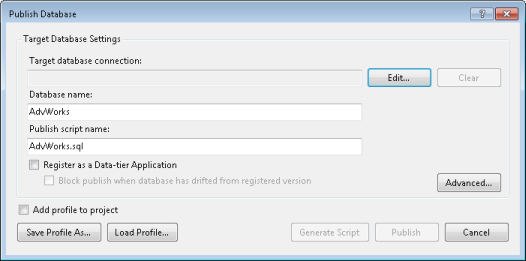
Back on the Publish Database settings dialog I’ll set the target database connection, and the name I want to use for the database. I can also set the output script name if I wish.


SNAGHTML36153d0b

Next, I want to be able to save this profile so I can reuse it later. Check on the “Add profile to project” option in the lower left, then click the Save Profile As… button.

SNAGHTML36195ad8

I gave it a good name, and made sure to include the most important options such as RecreateDB to indicate a database recreate was one of the options.

As I write this however, there is a bug with SSDT. When you click the “Add Profile to project” button it immediately adds a profile with the original default name. Then when you click the Save button in the dialog above, it adds the profile again, totally ignoring the name you give it. Instead it uses the default name again, only this time with an _1.

I’ve been assured that this bug is already known and has been fixed, and will be released with the next update to SSDT in VS2012. So depending on when you read this, it may or may not be an issue. Regardless, the fix is very easy, just rename the new .publish.xml file to reflect what you wanted it to be.

Once saved come back and hit Publish. The database will now be deployed to the server and the profile will be added to the solution. Here it is, after I’ve renamed the publish profile.

image

Note that I’ve given it a naming convention that specifies the database name, the target server, and any critical options. Here I’ve added “Overwrite” to indicate what will happen when I run it.

To run it, just double click on it. First, Visual Studio will do a build of the SSDT project. If there are any errors the process will be halted and you’ll need to fix them. If not, you’ll be presented with the publish dialog, this time with everything filled out.

SNAGHTML98453db

All you have to do is click Publish and the database will be created/updated using the options you’d picked previously, to the server which you had previously indicated.

Now for the real fun. Repeat the above steps only this time do NOT check the overwrite database option. Now, (after renaming the new profile) you have two publish profiles to pick from.

image

Take this even further. In my current project I have 8 profiles. An incremental and overwrite option for my local computer, the development server, the user acceptance testing server, and the production server. (In my case it’s a one man project, I’m the developer and the DBA all in one.) No longer do I have to juggle the server name, or even worse do a publish but forget to change the server from production back to local.

By far I think this is my favorite feature in SSDT.

SQL Server Data Tools in Visual Studio 2012–Importing a Database

In the previous post we saw how to create a new project using SSDT. In this entry we’ll see how to import an existing database into the project. Start by right clicking on the project (not the solution) and pick Import, Database.

image

The Import Database is similar to the one from the 2010 database projects, but simplified. Use the New Connection button to setup a connection to your database (here I picked Adventure Works 2012). Target Project is disabled, since it’s in the context of the current project.

Import settings can be left at their defaults. The one thing to note is the Folder structure drop down. I personally prefer the default of Schema\Object Type. You can also pick None, which will put all the SQL files in the root of the project. I wouldn’t recommend this option, as it will quickly get difficult to find the files you need to edit. You can also organize by just Schema, or just Object Type. If you are a hard core DBA you might find Object Type more comfortable, since it’s closer to the Object Explorer in SSMS. As I said though, my experience has been Schema\Object Type is the easiest to work with.

SNAGHTML35019c45

When it’s done just click finish, and you’ll see the new structure in the Solution Explorer. Each folder at the top level represents a Schema, or database level object such as Database Triggers.

In the image below, you can see I expanded two of the schemas, HumanResources and Person. Under these are folders for all of the present object types.

image

Note that the HumanResources schema has a folder for Stored Procedures, while Person does not. This is simply because in the database the Person schema has no stored procedures. If you want to add a stored procedure to the Person schema, you’ll want to add a folder to the Person structure and name it Stored Procedures. This isn’t required, you can put the SQL file anywhere you want, but if you mimic the existing organization structure you’ll make it much easier to maintain and expand the SSDT project as you move forward.

Lets expand a branch to see all the files.

image

Finally! We’ve drilled down to the lowest level and can see the individual files that are needed to make up the project.

In the next installment we’ll look at altering some of the database settings. Over the next few weeks we’ll be looking at deployment tools, database snapshots, and how to edit the various file types, and some of the enhancements there, especially around the table editor.

SQL Server Data Tools in Visual Studio 2012

In August I’ll be giving a couple of presentations at devLink. One of them will be on the new SQL Server Data Tools that was released with SQL Server 2012. As you may be aware, I’ve been a proponent of Visual Studio Database Projects since their initial release with Visual Studio 2005.

With SQL Server 2012 the SQL team took ownership of the database projects. They completely retooled them so now they can release them as “out of band” add-ons for Visual Studio. The new version is called SQL Server Data Tools, or SSDT for short. It’s included with VS2012, or you can download a version compatible with Visual Studio 2010 at http://msdn.microsoft.com/en-us/data/tools.aspx.

I’ve been using it for a real world production project for some time now. While I like it, there are some major differences between the new SSDT and the former database projects. Over the next few blog posts I want to highlight some of those differences, culminating with the devLink presentation.

For this series of posts I’ll be using the Visual Studio 2012 Release Candidate, which from here on I’ll simply refer to as VS2012. As this is a Release Candidate there shouldn’t be any noticeable changes between now and the final release.

If you are still on VS 2010 don’t fret, what I’ll describe applies to it as well, assuming you have gone to the link above and downloaded the SSDT add in.

The first difference is with creating a new project. With VS 2012 the older database projects are gone. Only in 2010 can you still do both. Here’s the new project screen shot from VS2010:

SNAGHTML30634815


Here is the screen shot from VS2012.

SNAGHTML3065daa3

As you can see, the Database branch is gone and only the SQL Server Database Project exists.

Now for the next difference. With VSDB Projects, when you created a new project you were immediately walked through a wizard that helped you with various default choices, and allowed you to import a database. With SSDT, once you create a new project you are given a blank slate, an empty project to start from.

image 

If you are creating a new database from scratch, it is left to you to create the entire folder structure, and to name your files correctly.

I’d highly suggest though that you import at least one database, to see how the wizard organizes things, so that you can follow suit. Importing a database is as easy as it was in VSDB Projects, but we’ll save that for the subject of the next blog post.

Preventing PowerShell from Running in the ISE

Once in a great while you will have the need to force your scripts to only run in the console. Mostly likely you have created special formatting commands that only work in the console, but would cause the script to crash in the ISE. It is prudent then to prevent that code from even executing. But how?

Turns out it’s pretty simple. The PowerShell ISE has a built in variable called $psise. Within the ISE you can use this variable to alter various settings in the environment, such as colors, or the position of the code window. When you run from the console however, $psise will be null.

So the solution is simple, just check to see if $psise is null. To make it even easier, I put the code inside a simple function I can import to my various scripts. It checks to see if we’re in the ISE, and if so presents the user with an error and breaks out.

Note, the break will only be effective if you call this from the outermost level script, that is the script you actually run from the console command line. Break will return control to the outer script, which in that case would be nothing.

I admit this is not something you’ll use all that often, if it were you might consider throwing an error as opposed to breaking so you can nest it at any level.

Here is my simple version of the script.

function Prevent-IseExecution ()
{
<#
  .SYNOPSIS
  Prevents a script from executing any further if it's in the ISE
  
  .DESCRIPTION
  The function determines whether it's running in the ISE or a window, 
  if it's in the ISE it breaks, causing further execution of the script to halt. 
#>

  # If we're in the PowerShell ISE, there will be a special variable
  # named $PsIse. If it's null, then we're in the command prompt
  if ($psise -ne $null)
  {
    "You cannot run this script inside the PowerShell ISE. Please execute it from the PowerShell Command Window."
    break # The break will bubble back up to the parent
  }

}

# Stop the user if we're in the ISE
Prevent-IseExecution

# Code will only continue if we're in command prompt
"I must not be in the ISE"

Free Microsoft E-Books!

Yes,  you read that right, free! Microsoft has lost their minds and is now giving away a rather large collection of e-books, yours for the taking.

They cover quite a range of subjects too, including ASP.Net, Office, SharePoint, SQL Server, Visual Studio, Windows, Azure, Phone 7, and Server. As you would expect they come in PDF format, but it gets better! They  also have them in MOBI and EPUB formats, so if you have a device that supports them you get a full featured experience. (I know Kindle uses the MOBI format and Apple’s iBook EPUB, not sure what other readers use).

You can get these goodies from:

http://social.technet.microsoft.com/wiki/contents/articles/11608.e-book-gallery-for-microsoft-technologies.aspx

Looks like I have many more late nights of reading ahead of me. Oh well, I guess three hours of sleep a night ought to be fine for anyone. 

PowerShell Editors: PowerSE

I’ve seen interest really growing in PowerShell over the last year or two. The editor included with PowerShell v2 though, does leave much to be desired. I can say from experience the v3 editor is FAR better, but still has some room to grow.

There are many good editors on the market, but many people just getting into PowerShell need something cheap (i.e free) to learn on. I’ve found the PowerSE editor from PowerWF to be an excellent choice to fill this gap.

As I indicated it is indeed free. And for a free editor it’s remarkably full featured. It has a very good help system, intellisense, and the ability to see your call stack. It also has a variable pane where you can see all of the variables, and their values for the current session.

You can have multiple tabs open, each with a different script. It has some customizability, you can set the font for both the editor and the console. My favorite feature is the very easy to use debugger, complete with breakpoints and the ability to examine variables through the aforementioned variable pane.

I still think it’s important to know the PowerShell IDE, as it’s on all the latest builds of Windows. But once you have grasped it’s basics, go grab yourself a copy of PowerSE. Only then will you really be able to enjoy the happiness that is PowerShell.

Simulating SQL Server Work with PowerShell

No, I’m not talking about simulating your job so you can sit home in your PJs and play Call of Duty. (Although if you work out a way to do so, call me!) What I’m speaking of is emulating a workload on your server.

There’s many reasons for wanting to do this. For folks like me, who do a lot of demos, it can be a good way to get your server busy so you can demo things like DMVs or the SQL Provider. Another use would be stress or performance testing your applications. Ensuring you get good retrieval times when the server is loaded.

I have to give a little shout out here to my friend and fellow MVP Allen White (Blog | Twitter). I had attended one of his sessions back at a SQL Saturday, and when I downloaded his samples found a “SimulateWork” PowerShell script among the sample code. In Allen’s script he used the .Net SQLClient library to do his work. I decided to emulate the concept but to rewrite the entire thing using the SQL Provider. I borrowed a few of his queries so I could be sure my results were similar.

The script is pretty simple. I have a function that will load up the SQL Provider, if it’s not already loaded. Next is the SimulateWork function. It has one parameter, how many times you want to execute the code in the loop.

Within the function I load up a series of T-SQL queries against the AdventureWorks2012 database using “here” strings. I then execute them using the Invoke-SqlCmd cmdlet. Finally I have a little code which calls the functions.

My goal with this script was to get the server ram loaded up and simulate some I/O so I could demo a few simple things. Astute observers will notice that, because these are just executing the same T-SQL commands over and over, for the most part SQL Server will just hit its plan cache and memory each time. If those are important to you, I’d suggest altering the T-SQL commands to include a where clause of some sort then each time through the loop add your new where condition to the variable holding the T-SQL.

So without further ado, here’s the full script.

#******************************************************************************
# Simulate Work
#
# This routine will simulate work being done against a SQL Server. Ideal
# for demoing things like the SQL Profiler or DMV Stats. 
#
# The T-SQL queries were tested against the AdventureWorks2012 database. You
# may have to alter some queries if you are on previous versions of
# AdventureWorks.
#
# Author......: Robert C. Cain
# Blog........: http://arcanecode.com
# Twitter.....: http://twitter.com/arcanecode
# Last Revised: July 17, 2012
#
# Credit...: This script is based on one by SQL MVP Allen White.
#   Blog...: http://sqlblog.com/blogs/allen_white/default.aspx
#   Twitter: http://twitter.com/sqlrunr
#
# In his original script, he used the System.Data.SqlClient .Net library to 
# simulate work being done on a SQL Server. I liked the idea, but rewrote 
# using the SQL Provider. A couple of the SQL queries I borrowed from 
# his routine. 
#
# Other uses: The techniques below might also be a good way to stress test
# a system. Alter the t-sql (and probably variable names) and away you go. 
#******************************************************************************

#------------------------------------------------------------------------------
# Loads the SQL Provider into memory so we can use it. If the provider is 
# already loaded, the function does nothing. This makes it safe to call
# multiple times. 
#------------------------------------------------------------------------------
function Load-Provider
{
  # Get folder where SQL Server PS files should be
  $SqlPsRegistryPath = "HKLM:SOFTWARE\Microsoft\PowerShell\1\ShellIds\Microsoft.SqlServer.Management.PowerShell.sqlps"
  $RegValue = Get-ItemProperty $SqlPsRegistryPath
  $SqlPsPath = [System.IO.Path]::GetDirectoryName($RegValue.Path) + "\"
  
  # Check to see if the SQL provider is loaded. If not, load it. 
  [String] $IsLoaded = Get-PSProvider | Select Name | Where { $_ -match "Sql*" }

  if ($IsLoaded.Length -eq 0)
  { 
    # In this case we're only using the SQL Provider, so the code to load the
    # SMO has been commented out. Leaving it though in case you copy and paste it from somewhere
    # and need it. 
    <#
  # ----------------------------------------------------------------------------------------
    # Load the assemblies so we can use the SMO objects if we want. 
    # Note if all you need is the basic SMO functionality like was in 2005, you can get away
    # with loading only the first three assemblies. 
  # ----------------------------------------------------------------------------------------
    $assemblylist = 
    "Microsoft.SqlServer.ConnectionInfo ", 
    "Microsoft.SqlServer.SmoExtended ", 
    "Microsoft.SqlServer.Smo", 
    "Microsoft.SqlServer.Dmf ", 
    "Microsoft.SqlServer.SqlWmiManagement ", 
    "Microsoft.SqlServer.Management.RegisteredServers ", 
    "Microsoft.SqlServer.Management.Sdk.Sfc ", 
    "Microsoft.SqlServer.SqlEnum ", 
    "Microsoft.SqlServer.RegSvrEnum ", 
    "Microsoft.SqlServer.WmiEnum ", 
    "Microsoft.SqlServer.ServiceBrokerEnum ", 
    "Microsoft.SqlServer.ConnectionInfoExtended ", 
    "Microsoft.SqlServer.Management.Collector ", 
    "Microsoft.SqlServer.Management.CollectorEnum"
    foreach ($asm in $assemblylist) {[void][Reflection.Assembly]::LoadWithPartialName($asm)}
    #>

    # Set the global variables required by the SQL Provider    
    Set-Variable -scope Global -name SqlServerMaximumChildItems -Value 0
    Set-Variable -scope Global -name SqlServerConnectionTimeout -Value 30
    Set-Variable -scope Global -name SqlServerIncludeSystemObjects -Value $false
    Set-Variable -scope Global -name SqlServerMaximumTabCompletion -Value 1000

    # Load the actual providers  
    Add-PSSnapin SqlServerCmdletSnapin100
    Add-PSSnapin SqlServerProviderSnapin100
  
    # The Types file lets the SQL Provider recognize SQL specific type data.
    # The Format file tells the SQL Provider how to format output for the 
    # Format-* cmdlets.
    # First, set a path to the folder where the Type and format data should be
    $sqlpTypes = $SqlPsPath + "SQLProvider.Types.ps1xml"
    $sqlpFormat = $sqlpsPath + "SQLProvider.Format.ps1xml"
  
    # Now update the type and format data. 
    # Updating if its already loaded won't do any harm. 
    Update-TypeData -PrependPath $sqlpTypes
    Update-FormatData -prependpath $sqlpFormat
  }
  
  # Normally I wouldn't print out a message, but since this is a demo
  # it will give us a nice 'warm fuzzy' the provider is ready
  Write-Host "SQL Server Libraries are Loaded"

}

#------------------------------------------------------------------------------
# This function simply loads a series of SQL Commands into variables, then
# executes them. The idea is to simulate work being done on the server, so
# we can demo things like SQL Profiler. 
# 
# Parameters: $iterations - The number of times to repeat the loop
#------------------------------------------------------------------------------
function SimulateWork ($iterations) 
{

  $sqlSalesOrder = @"  
  SELECT d.SalesOrderID
       , d.OrderQty
       , h.OrderDate
       , o.Description
       , o.StartDate
       , o.EndDate
    FROM Sales.SalesOrderDetail d
   INNER JOIN Sales.SalesOrderHeader h ON d.SalesOrderID = h.SalesOrderID
   INNER JOIN Sales.SpecialOffer o ON d.SpecialOfferID = o.SpecialOfferID
   WHERE d.SpecialOfferID <> 1
"@

  $sqlSalesTaxRate = @"  
  SELECT TOP 5
         sp.Name
       , st.TaxRate
    FROM Sales.SalesTaxRate st
    JOIN Person.StateProvince sp 
         ON st.StateProvinceID = sp.StateProvinceID
   WHERE sp.CountryRegionCode = 'US'
   ORDER BY st.TaxRate desc ;
"@
  
  $sqlGetEmployeeManagers = @"
  EXECUTE dbo.uspGetEmployeeManagers 1
"@

  $sqlSalesPeople = @"
  SELECT h.SalesOrderID
       , h.OrderDate
       , h.SubTotal
       , p.SalesQuota
    FROM Sales.SalesPerson p
   INNER JOIN Sales.SalesOrderHeader h 
         ON p.BusinessEntityID = h.SalesPersonID ;
"@

  $sqlProductLine = @"
  SELECT Name
       , ProductNumber
       , ListPrice AS Price
    FROM Production.Product
   WHERE ProductLine = 'R'
     AND DaysToManufacture < 4
   ORDER BY Name ASC ;
"@

  $sqlHiringTrend = @"
  WITH HiringTrendCTE(TheYear, TotalHired)
    AS
    (SELECT YEAR(e.HireDate), COUNT(e.BusinessEntityID) 
     FROM HumanResources.Employee AS e
     GROUP BY YEAR(e.HireDate)
     )
   SELECT thisYear.*, prevYear.TotalHired AS HiredPrevYear, 
    (thisYear.TotalHired - prevYear.TotalHired) AS Diff,
    ((thisYear.TotalHired - prevYear.TotalHired) * 100) / 
                 prevYear.TotalHired AS DiffPerc
   FROM HiringTrendCTE AS thisYear 
      LEFT OUTER JOIN 
        HiringTrendCTE AS prevYear
   ON thisYear.TheYear =  prevYear.TheYear + 1;
"@

  
  $mi = $env:COMPUTERNAME + "\SQL2012"  
  Set-Location SQLSERVER:\sql\$mi\databases\AdventureWorks2012

  for ($i=1; $i -lt $iterations; $i++) 
  {
    Write-Host "Loop $i"
    $outSalesOrder = Invoke-Sqlcmd -Query $sqlSalesOrder -ServerInstance $mi -SuppressProviderContextWarning
    $outSalesTaxRate = Invoke-Sqlcmd -Query $sqlSalesTaxRate -ServerInstance $mi -SuppressProviderContextWarning
    $outGetEmployeeManagers = Invoke-Sqlcmd -Query $sqlGetEmployeeManagers -ServerInstance $mi -SuppressProviderContextWarning
    $outSalesPeople = Invoke-Sqlcmd -Query $sqlSalesPeople -ServerInstance $mi -SuppressProviderContextWarning
    $outProductLine = Invoke-Sqlcmd -Query $sqlProductLine -ServerInstance $mi -SuppressProviderContextWarning
    $outHiringTrend = Invoke-Sqlcmd -Query $sqlHiringTrend -ServerInstance $mi -SuppressProviderContextWarning
  }

}

#------------------------------------------------------------------------------
# This is the code that executes the above functions. To change the workload
# simply change the number of iterations. 
#------------------------------------------------------------------------------
Load-Provider

# Number of times to repeat the work simulation. 
$iterations = 100 

Write-Host "Starting simulated work"
SimulateWork $iterations
Write-Host "Done Working"

SAPIEN PowerShell Studio 2012

Over the next few blog posts I thought I’d present some of the various PowerShell IDE’s on the market. Yes, that’s right, there’s more out there then just the IDE that ships with PowerShell. I thought I’d kick things off with the “Cadillac” of tools, SAPIEN PowerShell Studio 2012.

This by far is the most comprehensive tool of any on the market. It’s key selling point is the ability to quickly and easily create Windows Forms that can be called from, and raise events in, your PowerShell scripts.

OK, I can already hear you. “Hey Robert this is supposed to be scripts, what do we need Windows Forms for?” That’s a great question.

A very common task to do in scripting is the creation of virtual machines. You can imagine though all of the things you would need to enter in order to create the machine. What’s the name? What’s the activation key? What do you want installed? SQL Server? SharePoint?

You could, of course, have the script prompt you one question at a time. Or have a vast array of command line switches and parameters you need to enter just right in order to run the script. You could reduce complexity by having multiple scripts, but then you increase the workload. Then there’s the issue of who is going to run the script.

It would be far preferable to have a simple, single windows dialog pop up and ask all these questions at once. The person running the script could enter the information in any order, and when they were done just click an big OK button to launch the script.

This also expands the sphere of people who can run the script. Now you will be able to let an experienced PowerShell developer create the complex script, then give it to someone who may not even know PowerShell. They just run a single command, enter in some information into an easy to understand Windows Form, and they are off and running.

But Windows Forms are just the tip of the iceberg. For example, PowerShell Studio makes it easy to package your scripts into executables. Yep, you can take all your proprietary code and keep it safe from prying eyes by compiling it into an easy to distribute EXE file. 

It also has the ability to run your scripts in either 32 or 64 bit mode, all within the same editor. Very nice if you are having to support older systems as well as more modern ones.

From a development standpoint, it has the nice feature of organizing your scripts into projects. This makes management of them much easier.

It has an outstanding editor, with a great help system, and a snippet library loaded up with snippet goodness. The object browser is one of my favorite features. Using it you can drill down into not only PowerShell objects, but .Net, WMI, the file system, and even databases. I find this incredibly useful, I can quickly lookup info without having to leave my IDE.

I will admit that at $349 (as I write this), it’s not the cheapest of the PowerShell IDE’s on the market. However I’m a firm believer in “you get what you pay for”. This price is low enough that it should be a no brainer for any sized company, from a huge multinational corporation to a single person consultant. By taking advantage of the features in SAPIEN’s PowerShell Studio 2012 you’ll recap that back in a very short time.

Without a doubt this is the most feature rich PowerShell IDE I’ve seen. It seems to have everything but the kitchen sink. And I wouldn’t be surprised if that’s in there too and I just haven’t found it yet.

PowerShell v3 Auto Loading of Modules

Modules are the main way to extend functionality in PowerShell. In v2, if you wanted to access the functionality of a module you had to explicitly load it, using the Import-Module functionality. Starting with v3, if PowerShell encounters a command it doesn’t recognize it will go through the list of valid modules looking for that command, and if found load it automatically. Let’s take a look at an example.

First, let’s see what modules are already loaded.

    Get-Module                      # Show modules loaded
ModuleType Name                                ExportedCommands                                                                                            
---------- ----                                ----------------                                                                                            
Manifest   Microsoft.PowerShell.Management     {Add-Computer, Add-Content, Checkpoint-Computer, Clear-Content...}                                          
Manifest   Microsoft.PowerShell.Utility        {Add-Member, Add-Type, Clear-Variable, Compare-Object...}                                                   

Next, let’s see what’s available.

    Get-Module -ListAvailable       # Show what's available to load
    Directory: C:\Users\rcain\Documents\WindowsPowerShell\Modules


ModuleType Name                                ExportedCommands                     
---------- ----                                ----------------                     
Script     adoLib                              {New-Connection, new-sqlcommand, i...
Script     Agent                               {Get-SqlConnection, Get-SqlServer,...
Script     ISECreamBasic                       {Add-IseMenu, Remove-IseMenu}        
Script     mySQLLib                            {New-MySQLConnection, new-MySqlCom...
Script     OracleClient                        {new-oracle_connection, invoke-ora...
Script     OracleIse                           {Connect-Oracle, Disconnect-Oracle...
Script     PBM                                 {Get-PolicyStore, Get-TargetServer...
Script     PerfCounters                        {Invoke-Sqlcmd2, Get-ProcessPerfco...
Script     Repl                                {Get-SqlConnection, Get-ReplServer...
Script     ShowMbrs                            {New-ShowMbrs, Set-ShowMbrs, Get-G...
Script     SQLIse                              {Test-SqlScript, Out-SqlScript, In...
Script     SQLMaint                            {Invoke-DBMaint, Get-SqlConnection...
Binary     SQLParser                           {Test-SqlScript, Out-SqlScript}      
Script     SQLProfiler                         {Invoke-Sqlcmd2, Save-InfoToSQLTab...
Script     SQLPSX                                                                   
Script     SQLServer                           {Get-SqlConnection, Get-SqlServer,...
Script     SSIS                                {New-ISApplication, Copy-ISItemSQL...
Script     WPK                                 {Add-CodeGenerationRule, ConvertFr...


    Directory: C:\Windows\system32\WindowsPowerShell\v1.0\Modules


ModuleType Name                                ExportedCommands                     
---------- ----                                ----------------                     
Manifest   AppLocker                           {Set-AppLockerPolicy, Get-AppLocke...
Manifest   BitsTransfer                        {Add-BitsFile, Remove-BitsTransfer...
Manifest   CimCmdlets                          {Get-CimAssociatedInstance, Get-Ci...
Manifest   Microsoft.PowerShell.Diagnostics    {Get-WinEvent, Get-Counter, Import...
Manifest   Microsoft.PowerShell.Host           {Start-Transcript, Stop-Transcript}  
Manifest   Microsoft.PowerShell.Management     {Add-Content, Clear-Content, Clear...
Manifest   Microsoft.PowerShell.Security       {Get-Acl, Set-Acl, Get-PfxCertific...
Manifest   Microsoft.PowerShell.Utility        {Format-List, Format-Custom, Forma...
Manifest   Microsoft.WSMan.Management          {Disable-WSManCredSSP, Enable-WSMa...
Manifest   PSDiagnostics                       {Disable-PSTrace, Disable-PSWSManC...
Binary     PSScheduledJob                      {New-JobTrigger, Add-JobTrigger, R...
Manifest   PSWorkflow                          New-PSWorkflowExecutionOption        
Manifest   TroubleshootingPack                 {Get-TroubleshootingPack, Invoke-T...

The CIM cmdlets are a new set that ships with v3. Looking at the output above, you’ll note the CIM module (CimCmdlets, highlighted in second set of modules) is not loaded. Let’s run one of the cmdlets from the module.

    # Note the CimCmdlets module isn't loaded. 
    # Now run a command from that module
    Get-CimInstance win32_bios
SMBIOSBIOSVersion : 8DET50WW (1.20 )
Manufacturer      : LENOVO
Name              : Default System BIOS
SerialNumber      : XXXXXXXX
Version           : LENOVO - 1200

Now let’s run Get-Module again, and you’ll see that the module has now been loaded. Pretty slick.

    # Run again to show CimCmdlets is now loaded
    Get-Module                      
ModuleType Name                                ExportedCommands                     
---------- ----                                ----------------                     
Binary     CimCmdlets                          {Get-CimAssociatedInstance, Get-Ci...
Manifest   Microsoft.PowerShell.Management     {Add-Computer, Add-Content, Checkp...
Manifest   Microsoft.PowerShell.Utility        {Add-Member, Add-Type, Clear-Varia...

Of course this does have some drawbacks. First, it will take time for PowerShell to search through all the paths looking for the commands. Second, if the requested module isn’t in one of the predefined path, it will still fail. Finally, just for the sake of self-documentation it’s better to know what modules your script depends on. For that reason when writing scripts or modules of my own I will continue to explicitly use Import-Module, and suggest you do too.

However, when working in interactive mode, i.e. running a PowerShell console and entering commands, auto loading can be a huge timesaver. No longer do I have to take time to issue an Import-Module cmdlet before I can use the commands I need.

Warning: This post was written using PowerShell v3 BETA. Changes between now and the final release may affect the validity of this post.

PowerShell v3 Online Help and Updateable Help

A good help system is important in any language, but especially when it comes to v3 of PowerShell. The number of cmdlets has jumped from around 260 to over 2,300. That’s a lot of new cmdlets to have to learn.

In version 2 syntax, Get-Help accessed the local install to get all of it’s help. And it’s syntax is of course still valid in v3.

  # Get help from the local help files (v2 way, still works in v3)
  Get-Help Get-CimClass

New with version 3 however, is the ability to use Get-Help with the new –Online switch to see the online version of help:

  # You can now pass in the -Online swtich to launch a web browser and
  # see the most recent help in TechNet
  Get-Help Get-CimClass -Online

This will open the default web browser and take you to the MSDN/TechNet entry for the command you are requesting help for. (Note: as I write this v3 is still in Beta, so running the command just takes you to a placeholder web page.)

The other new feature is the ability to update all your local help files dynamically. No longer do you have to wait to install a new release just to get your help updated. The command is very simple:

  # Make sure you are running as an admin!
  Update-Help

As the comment says, make sure you are running the PowerShell window in Admin mode. After executing the command wait a few minutes while PowerShell goes online and updates all the local help files. Very nice improvements for keeping your help system up to date.

Warning: This post was written using PowerShell v3 BETA. Changes between now and the final release may affect the validity of this post.

PowerShell v3 -In and–NotIn Operators

Two new operators have been added to PowerShell v3, –In and –NotIn. These are great for folks like me who are used to having this functionality in T-SQL. The syntax is very simple.

    $value = 3
    if ($value -in (1,2,3)) 
      {"The number $value was here"}

Produces:

The number 3 was here

The not in syntax is just as easy:

    $array = (3,4,5,7)
    if (6 -notin $array) 
      {"6 ain't there"}

Will yield:

6 ain't there

Very simple, but much needed additions to the PowerShell language.

Warning: This post was created using the PowerShell v3 BETA. Changes between now and the final release may affect the validity of this post.