What’s New in PowerShell 3… and 4!

I did a webinar today for Pragmatic Works, What’s New in PowerShell 3… and 4! You can find the recording at:

http://pragmaticworks.com/LearningCenter/FreeTrainingWebinars/PastWebinars.aspx?ResourceId=632

The demo files and slides can be found at:

http://gallery.technet.microsoft.com/Whats-New-in-PowerShell-3-78e1d49e

I had some audio issues during the early part, my apologies and bear with me as it gets better once I switched to phone.

Arcane-SQL–A PowerShell Module for Generating SQL Code

Overview

There are many PowerShell modules available for assisting the busy DBA with managing their SQL Server environment. This isn’t one of them. This module is targeted toward SQL Developers, with special functionality for data warehouse developers. A common task for BI professionals, one that is performed on almost every project, is the creation of a staging area. This might be a set of tables in the data warehouse, perhaps in their own schema, or in an entirely separate database often called an operational data store (ODS).

The staging tables are typically similar in structure to the ones in the source database. Similar, but not identical, as there are some small modifications which are commonly made to the staging tables. First, large data types such as VARCHAR(MAX) are seldom useful in data analysis and thus could be removed. Next, even the most casual user of SSIS will quickly see SSIS prefers to work with the double byte character sets (WSTR in SSIS, which maps to NVARCHAR in T-SQL) as opposed to the single byte (STR/VARCHAR) character sets. It can be helpful to convert these in the staging area.

This Module can (optionally) do all of these things and more when it is used to generate CREATE TABLE or SELECT statements. Imagine if you will a source system with thousands of tables and the need to create a staging area for it in a new data warehouse. This quickly becomes a long, boring tedious task. Now imagine being able to write a bit of PowerShell code and generate these tables in just a few minutes time.

Before diving in, it is highly suggested you download and review the example script, Arcane-SQL-Example.ps1. This demonstrates the most commonly used functions and provides patterns for their use.

Functionality

While the module is full of functions, there are a few core ones that should be highlighted. Complete documentation can be found in the module itself, which has been fully documented using the native PowerShell Help system. In addition there is an example script file which demonstrates some of the most common tasks.

  • Enable-SqlAssemblies – This is the most important function, without calling it nothing else works. Be aware the SQL Server assemblies (including the SMO – SQL Management Objects – and SQL Provider) need to be on the machine where this script is run. This module has been tested on, and intended for, SQL developers with SQL Server Developer Edition installed on their workstations.
  • Join-InvokeInstance and Join-ProviderInstance – Most of the interaction done with the SQL Provider requires the server name and instance name, assembled in a path like syntax. The Invoke-SQLCommand likewise requires this formatting, however it has a little quirk. If the instance is "default" then the Invoke requires it to be omitted while the provider requires it to be present. These two functions reduce the confusion, simply pass in the server name and instance, and they will format things correctly.
  • Get-TablesCollection – When working with tables it is common to iterate over all the tables in a database. This function will generate a PowerShell array of table objects, each object being of type Microsoft.SqlServer.Management.Smo.Table. By having table objects the wide variety of properties for the table are available, such as Schema name, Table name, and Row Count.
  • Get-TableByName – Most commonly scripts will retieve an array of tables using the above Get-TablesCollection, then iterate over them in a foreach loop. There are times however when only a single table from the collection is desired. For those types the Get-TableByName can be used to retrieve a specific table object based on the name of the table. 
  • Remove-SchemasFromTableCollection and Select-SchemasInTableCollection – Get-TablesCollection will return an array of all the tables in a database. Often there is a need to only work with a subset of that table collection. These two functions will filter based on the schema and return a new array. The first, Remove-SchemasFromTableCollection, removes all tables from the array of schemas that are passed in. The second, Select-SchemasInTableCollection, will retain only those tables in the schemas passed into the function.
  • Remove-TablesFromTableCollection and Select-TablesInTableCollection – These work as filters, similar to the functions above. Instead of the schema however, they are based on table name. All tables that begin with the text passed in are either removed, or in the latter function the only ones retained.
  • Get-PrimaryKeyIndex – Returns the primary key object for the passed in table object.
  • Get-PrimaryKeyColumnNames – returns a comma delimited list of the column names in the primary key
  • Decode-IsPrimaryKeyColumn – Will determine if the passed in column name is part of the primary key index
  • Get-TruncateStatement – Will generate a SQL Truncate Table statement based on the table object passed in.
  • Get-DropTableStatement – Generates a Drop Table statement, including the check to see if the table exists, for the passed in table object.
  • Get-CreateStatement – To simply say this function generates a create table statement would do it disservice. It will take a table object and reverse engineer it, generating a create table statement. Unlike other code generators, it has a suite of parameters which allow customization of the generated statement with an eye toward the needs of a data warehouse developer. A few are:
    • DataTypeAlignColumn – Set the column number to line up the data type declarations on. Passing in a value of 1, will suppress alignment and simply place the data type after the column name. The default is column 50.
    • OverrideSchema – It is common place staging tables in the data warehouse in their own schema, often named ‘Staging’ or ‘ETL’. Passing in a value here will include the new schema name in the create table declaration. If the table object passed in had a schema other than dbo, it is placed in front of the table name with an underscore. If it was dbo, the source schema is simply omitted.
    • PrependToTableName and AppendToTableName – Allows extra text to be placed before or after the table name. For example, it is common to create tables with _Delete, _Update, and _Insert in the staging area. This provides a simple way to do that.
    • AdditionalColumns – When creating tables in a data warehousing environment, there are often extra columns to hold metadata about the ETL process. A user of this function can create an array of additional columns using the Add-ColumnDefinition function and have them added to the create table statement.
    • Scrub – This is a very powerful switch. When added it will perform a cleanup to make the output suitible for data warehousing. Columns with large data types such as VARCHAR(MAX) are removed. All single byte character sets in the source are converted to double byte sets.
    • SuppressIdentity – Source systems will sometimes use the IDENTITY clause in the primary key column. Using this switch will suppress that identity clause from being generated in the new create table statement.
    • SuppressNotNull – Often staging tables will not be concerned with null versus not null values. Using this switch will create all columns as nullible, regardless of their setting in the source.
    • IncludeDropTable – Adding this switch will include a ‘if exists drop table’ style clause prior to the create table statement.
    • PrimaryKeysOnly – Will generate a create table statement that only has the primary keys found in the source system.

Finally, if a column in the source table object has a custom data type, the script will reverse engineer the data type back to its basic SQL data type.

  • Get-SelectStatement – Like its sister function Get-CreateStatement, under the covers this function provides a lot of power and flexibility to the statement it creates. Additional columns can be added, columns can be specified to order the output by, table aliases can be used, and most powerful of all is the ability to generate a HASHBYTES column, including the ability to remove specified columns from the hash byte calculation. Here are some of its parameters:
    • AsColumn – The routine will line up the AS <column alias> at the column number passed in here. The default is 50. To not use aligning, set this to 1.
    • PrependToColumnName – Text to include before each column name.
    • AppendToColumnName – Text to place after each column name.
    • AdditionalColumns – A collection of additional columns to be added to the SELECT statement. Useful for adding metadata columns. All items in the AdditionalColumns collection should be generated using the Add-OutputColumn function.
    • OrderByColumns – A list of columns to add to the ORDER BY clause. All items in the OrderByColumns collection should be generated using the Add-OutputColumn function.
    • TableAlias – Allows user to specify an alias to use for the table. The alias is then put in front of each column name.
    • HashBytes – If included the select statement will include a HASHBYTES function with all columns except the primary keys and any columns included in the OmitFromHashBytes collection. The name passed in this parameter will be used for the name of the HashBytes column.
    • OmitFromHashBytes – A collection of column names that should be excluded from the HashBytes calculated column. Useful for excluding metadata columns. All items in the OmitFromHashBytes collection should be generated using the Add-OutputColumn function.
    • Scrub – When included this will remove certain data columns from the output, such as BINARY, NVARCHAR(MAX), XML, and other large types not normally used in data warehouses. Additionally VARCHAR/CHAR are converted to NVARCHAR/NCHAR, and DATETIME converted to DATETIME2(4).
    • Flatten – When included will return the SELECT statement as one long string, without any Carriage Return / Line Feed characters. Additionally, any additional spacing (such as indicated with the AsColumn) is eliminated.
    • IncludeOrderByPK – When included the Primary Keys in the table object are included in the order by clause. If any columns are passed in the OrderByColumns parameter, the Primary Keys occur first in the Order By clause, followed by any columns in the OrderByColumns parameter.
    • IncludeNoLock – When included, a WITH NOLOCK clause is added to the SELECT statement.

Construction

Those PowerShell experts who review the code may note that in many places code does not follow the most "powershelly" way of doing things. In some places rather than using pipelining it was instead decided to use a foreach loop, for example. The intended audience for this module are T-SQL developers who may not be as comfortable in PowerShell as they are T-SQL. Thus using code that more closely aligned with T-SQL patterns would make it more useful and modifiable by SQL developers.

When development first started attempts were made to use advanced functions, using the pipeline for input and output. At some point however this didn’t make sense for a majority of the functions. Time constraints further impinged this effort. Some future revision may attempt to migrate selected functions back to an advanced design, but for now they will have to stand as is.

Development Environment

This module is intended to be used on a developer workstation, not on a server, and especially not on a production server. As such deployment has been made simple, just copy the Arcane-SQL folder to the developers PowerShell module library. On a standard Windows 7 machine this would be C:\Users\<<usernamehere>>Documents\WindowsPowerShell\Modules. If the Windows PowerShell folder and modules subfolder do not exist, they will need to be created first.

To keep things simple, no attempt was made to sign the script. If this is an issue the developer using this module can self sign it on their PC. Check the execution policy on the workstation where the module is installed to ensure sufficient rights to run the module.

This module was developed on machines with both SQL Server (Developer Edition) 2008R2 and 2012 installed (some machines with both) and worked without issue. One machine it was tested on had 3 versions of SQL Server, 2008R2, 2012, and 2014. On that one machine there were some errors with some of the functions passing in the SMO table objects. Those are still being investigated.

SQL Security was assumed to be handled using built in Windows Credentials. Thus the logged in user would need to have rights based on Windows credentials to the SQL Server they are targeting. 

The machine being developed on was using PowerShell v4, however v3 should work as well.

This module was developed using SAPIEN PowerShell Studio 2014. To make life easy for other developers the PowerShell Studio files (Arcane-SQL.psproj, Arcane-SQL.psproj.build, and Arcane-SQL.psprojs) were included in the code. If you are using a different editor, such as the PowerShell ISE, simply discard these files.

Warranty

To put it succinctly, there is none. No guarantee is made for the code in this module, users of this module assume all risks. While I am happy to receive bug reports, I make no promises or guarantees if, or when, they will be fixed.

Contributions

No, not the money kind, code contributions. If anyone wishes to extend the functionality of this module I am happy to collaborate as long as the coding standards demonstrated in this module are adhered to, and the contributions are relevant to the goals of this module. Be aware though this is not a money making effort, so expect no monetary reimbursement for any contributions.

Download

You can download the module and its example at:

http://gallery.technet.microsoft.com/Arcane-SQL-A-PowerShell-185651ad

Arcane Fun Fridays–Going Retro with PowerShell

In terms of the tech world I’m an old geezer. I actually remember the days of monochrome screens, both the amber and green kind. I even have my old Commodore 64 with its light blue font on dark blue background. So I was feeling a bit nostalgic, and decided to create some shortcuts to PowerShell windows with a retro look.

For pre Windows 8, in the start menu navigate to Start then go to your Accessories and/or Administrative tools (varies with which version of Windows you have). Find the icon for Windows PowerShell (not the ISE, just the regular window). (I figure if you are using PowerShell, you probably know where it is without me having to tell you.)

Right click on it, pick “Send To”, then “Desktop (create shortcut)”.

If you are on Windows 8, the simplest thing is to go to your start menu and locate Windows PowerShell. Pin it to your task bar. Now, desktop taskbar shift + right click (the shift is very important when you right click) and do the same Send To / Desktop I mention above.

OK, you now have a short cut, let’s start our retroization. First, give it a decent name. For my example I’ll pick “PS Amber”. Next, right click on it and pick Properties. In the dialog click on the Colors tab. Click on Screen Text, and set the Red / Green / Blue to 255, 185, 0 respectively.

image

Now, this is the part that will bring back the cool “retro” effect. If you are an old geezer like me, you’ll recall the amber monitors also had a big of an orangey background, they weren’t entirely black. Go to the Screen Background, and set its Red value to 32, then use 0 for Green and Blue. That will give it just the hint of orangeness to make it authentic. Of course based on your monitor calibration you may need to tweak it up or down just a tad, adjust until you are happy.

For the Pop-up text, I used the same settings as the Screen Background, and likewise for the Pop-up Background I used the same colors as the Screen Text. And here’s what I wound up with (click on it for a bigger image):

image

Following the same steps above, I created a second short cut called PS Green. I set its Screen Text to an RGB of 0, 255, 0, and the Screen Background to 0, 32, 0. Like with the previous section, I used the reverse colors for the pop ups, 0,255,0 for the background and 0, 32, 0 for the popup text.

image

And finally, the setting that made me wax eloquently over my beloved old Commodore 64:

Screen Text and Popup Background: 44 / 136 / 255

Screen Background and Popup Text: 0 / 0 / 34

image

(If you are too young to remember the Commodore 64, you can read more about it on Wikipedia http://en.wikipedia.org/wiki/Commodore_64 or see it in action, there’s a slew of videos about it on youtube http://www.youtube.com/results?search_query=commodore%2064&sm=3)

Setting up different shortcuts to different color themes can not only make you feel nostalgic, but it can also be quite beneficial when you have multiple PowerShell windows open at the same time. The drastically different colors can make it easy to know which window you have doing what task.

Have fun with it, adjust the colors until they look just right on your own monitor, then create your own crazy color combos. If the are really good post them in the comments area. If I get enough I’ll create a follow up post, giving appropriate credit for each submission.

SAPIEN PowerShell Studio 2014–Customization Redux

Earlier in the week (post) I started this series on SAPIEN PowerShell Studio 2014 discussing customization. How appropriate to wrap up returning to that same topic.

The original version I downloaded was 4.1.47. Late last night I found out a new version has already been released, 4.1.49. I downloaded it and to my pleasure found two more options for color themes, Visual Studio 2013 Dark and Visual Studio 2013 Light.

image

If you read my earlier post you’ll already know what I picked, the new VS dark theme is much darker and richer than the Office 2013 black theme. Take a look:

image

Note that the colors of the editor are not set with this selection, only the backgrounds for things like the menus, title bar, borders, etc. If you want the nifty dark settings in the editor you’ll still need to set them yourself, or use the XML data I listed at the bottom of the already mentioned first post in the series.

You may be wondering how I found out about the update with these new features. Well, SAPIEN has a particularly nice set of forums, located at http://sapien.com/forums/. As you might expect there are forums for all of their products, but you will also find forums for the various scripting languages. In here you can ask generic questions not directly related to any of their products.

After my initial download I had placed a post asking some questions, specifically this post: http://sapien.com/forums/viewtopic.php?f=12&t=7435

Within an hour a support person named David had answered my questions, one of which as you’ll see was on the color themes.

Now, what particularly impressed me was four days later David remembered my forum post, and placed a follow up post letting me know about the update with the new dark color theme. Now that is some outstanding customer service, big kudos to David (whoever you are) for the follow up.

SAPIEN PowerShell Studio 2014–Tools

As I’ve been working with the SAPIEN PowerShell Studio (website), there are a few things in the Tools menu I have found useful. I wanted to call these out, as some may overlook what could be a set of very beneficial items.

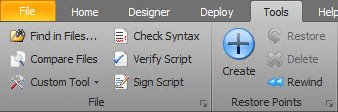
If you navigate to the tools menu, over to the left you’ll see these tools:

image

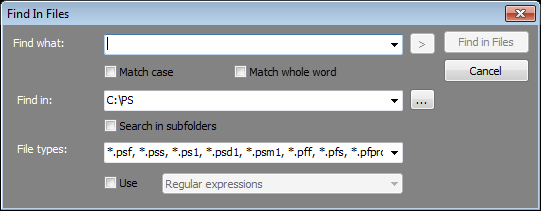
Find in Files is pretty obvious, but don’t over look it. How many times have you been working on something and thought “OK, I wrote something like this once, but just which file was it in?” This will allow you to search for a string you enter. You can specify the folder, and can add a list of file types to look through. By default it will limit the search to PowerShell oriented files, but you could change this easily if, for example, you wanted to search through a CSV file. Especially nice is the ability to use regular expressions or wild cards.

image

Compare Files does just what it says. You select two files, and it will compare them and produce a report of the differences.

Custom Tool is interesting, essentially it becomes a menu you can customize and use to launch executables, parameterized as you want it. Rather than repeating what is already published, I’ll point you to a blog post on the SAPIEN website which explains how to customize this for your needs.

http://www.sapien.com/blog/2013/01/08/powershell-studio-2012-with-git-subversion-and-mercurial-oh-my/

Check Syntax is great, it will quickly look through the current script and identify any syntax errors. I’ve gotten to the point where I always use this after making major edits to a script. Much nicer to find out this way rather than after you start running the script.

Verify Script is similar, but instead of syntax it checks to see if all the required “pieces parts” are present. For example, it looks at any Import-Module statements and validates that those modules are indeed available, and that the functions you reference are there.

Sign Script I haven’t needed to use yet, but if you are in an environment where this is required than this will be a great little shortcut for you.

Restore Points are the last item on the list. When you create a restore point, you can then go make changes to your code, then if you don’t like them you can Rewind to the previous restore point, or use the Restore button to revert back to the point at which you created the original restore point. Once you are happy with your code you can then Delete the restore point.

This is ideal for those situations where you think “hmm, I wonder if this would work…” and want to try out something. But, if it doesn’t you want to be able to roll back to the point prior to your editing. Previously you would have needed to make a copy of the PS1 (or whatever you are editing) file, make changes, then either copy the file back or copy parts of it back into your code. Yuck. Restore Points make this much easier. Even better, the persist between sessions. You can close the entire PowerShell Studio, and when you return and reopen the file those restore points are still active.

I am amazed how little many developers know about the tools at their disposal. Often people look no further than the main tab and never explore the rest of their environment.

Even though individually these tools may seem like small things, together they provide quite a toolbox to solve a lot of common, everyday issues developers face. I hope it encourages you to more fully explore the SAPIEN PowerShell Studio 2014.

SAPIEN PowerShell Studio 2014–Navigation

Continuing my series on SAPIEN PowerShell Studio (website), the next feature I want to focus on is Navigation, both of your files and inside the code.

From a file perspective, PowerShell Studio allows you to organize into projects. Right now I am working on two modules plus one set of scripts which accomplish a common task. Each module I have organized into a project. Here is the project window for one of the modules I’m developing:

image

This allows me to quickly navigate between the various files I have in the project. I can easily open and close these files as I work on them without having to go through the laborious “File, Open…” mechanism in the PowerShell ISE. My other project is the collection of files which consume these modules. Each file performs a specific task, but ultimately get us to a completed solution. Using the Project feature in PowerShell Studio allows me to organize these into one solution, quickly jumping back and forth between them.

Even better, I can have these three items open in separate PowerShell Studio windows at the same time. Note that I did need to go into the Options window, and check on “Allow multiple instances” option.

image

This is a far, far easier way to work than inside the PowerShell IDE included with the native Microsoft PowerShell installation. Speaking of easy, let’s look at code navigation.

One of the first features is the functions window. This simply lists all the functions in the currently open code editor window. Simply double click on one to jump to that function.

image

This is awesome in an large script with many functions.

Next is the ability to easily expand / contract code.

image

You can quickly expand and collapse sections of code to make scrolling through it easier, allowing you to look at only the sections you need to see. I have one script of nearly 1,500 lines, and have placed regions throughout. This feature allows me to focus only on the code I want, and neatly hide what I am not currently working on.

The next thing I’d like to show is the split code window. This allows me to take a single code window, and look at two different parts at the same time. While many editors do have this feature, it is especially great for PowerShell.

image

The final feature I want to mention is Bookmarks. We’ve all had big scripts where we are working on a section of code, need to go look at something elsewhere in the code, then need to jump back to the previous line we were working on. It is useful, then, to drop a bookmark, scroll down to the code you want to look at, then quickly jump back.

image

Using the Bookmark menu you can place a marker in your code. Over to the left of the editor you’ll see the marker.

image

Now you can scroll down and find the other piece of code you want to look at. If it is something you’ll want to come back to continually, you can place a second bookmark. Then using the Next/Previous bookmark buttons you can easily jump back and forth between the two locations in your code.

image

While these are features that come with some editors, such as Visual Studio, they are certainly lacking in the PowerShell ISE. These are basic but critical features that make you much more productive when developing your own PowerShell scripts.

SAPIEN PowerShell Studio 2014–Customization

SAPIEN Technologies (website) released their PowerShell tool, PowerShell Studio 2014 this month. They give a 45 day trial, so I’ve downloaded it and am truly impressed. In the first day it already helped my productivity. I thought I’d spend a few blog posts looking at some of the features.

The focus for this first post is customization. Out of the box, here is the look and feel (click on image for bigger view):

image

And here is what my environment looks like:

image

Yes, I am one of those oddballs who likes dark color themes. And it was pretty easy to set this up. First, in the upper right there’s a drop down. From it you can pick from one of the standard “Office” themes.

image

As you can see, I selected Office 2012 Black. This gives the darker colors that surround the environment. Next to tackle the colors within the editor. In the Home toolbar there is an Options button…

image

which brings up an Options window.

image

Through the Font Style button you can set the values for each

image

Once you have everything set the way you wish, you can save your settings and move them from machine to machine. Just go back to the General tab.

image

Through it you can Save All Settings, which saves everything, from the colors to the layout of all the panels on the screen. Alternately, you can save just the editor settings by clicking the Save Editor Settings. To make it easy should you like this theme I’ve pasted the XML for the dark editor at the end of this blog. All you’ll have to do is copy it to notepad, save it as an XML file, then use the “Load Settings” feature to load it.

PowerShell Studio also makes it easy to alter the layout of the various panels that surround the editor. At the bottom left is a “Layouts” button. Clicking it shows the layouts optimized for the task you are doing.

image

Once you get a layout you like, you can save your custom layout for later. You’ll note my customized layout that I previously saved has been added to the list (ArcaneCode Layout). Now you can quickly jump back and forth between layouts to work on a specific task.

I love the fact that PowerShell Studio 2014 allows me to customize the environment to work the way I want to. You too can customize to your favorite settings.

Finally, as promised, here is the XML for my editor settings.


<registry name="SOFTWARE\SAPIEN Technologies, Inc.\PowerShell Studio 2014">
  <k name="Editor">
    <v name="ShowLineNumbers" value="1" kind="DWord" />
    <v name="EnableOutlining" value="1" kind="DWord" />
    <v name="EnableCurrentLineHighlighting" value="0" kind="DWord" />
    <v name="EnableAutoComplete" value="1" kind="DWord" />
    <v name="EnableObjectDescriptions" value="1" kind="DWord" />
    <v name="ShowColumnGuide" value="0" kind="DWord" />
    <v name="ColumnGuide" value="80" kind="DWord" />
    <v name="EnableTrackChanges" value="1" kind="DWord" />
    <v name="EnableAutomaticSyntaxCheck" value="1" kind="DWord" />
    <v name="EnableAliasTabExpansion" value="1" kind="DWord" />
    <v name="EnableCmdletAutoSelect" value="1" kind="DWord" />
    <v name="ConvertTabsIntoSpaces" value="1" kind="DWord" />
    <v name="TabSize" value="2" kind="DWord" />
    <v name="ShowModuleCmdlets" value="1" kind="DWord" />
    <v name="AutoCompleteRequiresExactMatch" value="0" kind="DWord" />
    <v name="AutoInsertModules" value="1" kind="DWord" />
    <v name="ShowExternalTools" value="1" kind="DWord" />
    <v name="EnableDotSourcePrimalSense" value="1" kind="DWord" />
    <k name="Code Formatting">
      <v name="EnableSmartIndent" value="1" kind="DWord" />
      <v name="AutomaticallyFormatOnNewLine" value="1" kind="DWord" />
      <v name="AutomaticallyFormatOnOpenBraces" value="1" kind="DWord" />
      <v name="AutomaticallyFormatOnSemicolon" value="1" kind="DWord" />
      <v name="CurlyBracketsNewLine" value="1" kind="DWord" />
      <v name="IndentParamBlock" value="1" kind="DWord" />
      <v name="IndentAttributeParameters" value="2" kind="DWord" />
      <v name="AlignParameters" value="1" kind="DWord" />
      <v name="AlignAttributeParameters" value="1" kind="DWord" />
    </k>
    <k name="Default Assemblies">
      <v name="mscorlib, Version=4.0.0.0, Culture=neutral, PublicKeyToken=b77a5c561934e089" value="" kind="String" />
      <v name="System, Version=4.0.0.0, Culture=neutral, PublicKeyToken=b77a5c561934e089" value="" kind="String" />
      <v name="System.Windows.Forms, Version=4.0.0.0, Culture=neutral, PublicKeyToken=b77a5c561934e089" value="" kind="String" />
      <v name="System.Data, Version=4.0.0.0, Culture=neutral, PublicKeyToken=b77a5c561934e089" value="" kind="String" />
      <v name="System.Drawing, Version=4.0.0.0, Culture=neutral, PublicKeyToken=b03f5f7f11d50a3a" value="" kind="String" />
      <v name="System.Xml, Version=4.0.0.0, Culture=neutral, PublicKeyToken=b77a5c561934e089" value="" kind="String" />
      <v name="System.DirectoryServices, Version=4.0.0.0, Culture=neutral, PublicKeyToken=b03f5f7f11d50a3a" value="" kind="String" />
      <v name="System.Core, Version=4.0.0.0, Culture=neutral, PublicKeyToken=b77a5c561934e089" value="" kind="String" />
      <v name="System.ServiceProcess, Version=4.0.0.0, Culture=neutral, PublicKeyToken=b03f5f7f11d50a3a" value="" kind="String" />
    </k>
    <k name="Style">
      <v name="FontName" value="Consolas" kind="String" />
      <v name="FontSize" value="11" kind="String" />
      <v name="BackColor" value="-16777216" kind="DWord" />
      <k name="Alias">
        <v name="Bold" value="True" kind="String" />
        <v name="Italic" value="False" kind="String" />
        <v name="Underline" value="False" kind="String" />
        <v name="ForeColor" value="-1" kind="DWord" />
        <v name="BackColor" value="-16777216" kind="DWord" />
      </k>
      <k name="Cmdlet">
        <v name="Bold" value="False" kind="String" />
        <v name="Italic" value="False" kind="String" />
        <v name="Underline" value="False" kind="String" />
        <v name="ForeColor" value="-160" kind="DWord" />
        <v name="BackColor" value="-16777216" kind="DWord" />
      </k>
      <k name="Code Snippet Field">
        <v name="Bold" value="False" kind="String" />
        <v name="Italic" value="False" kind="String" />
        <v name="Underline" value="False" kind="String" />
        <v name="ForeColor" value="-16711681" kind="DWord" />
        <v name="BackColor" value="-16777216" kind="DWord" />
      </k>
      <k name="Command As Parameter">
        <v name="Bold" value="False" kind="String" />
        <v name="Italic" value="True" kind="String" />
        <v name="Underline" value="False" kind="String" />
        <v name="ForeColor" value="-256" kind="DWord" />
        <v name="BackColor" value="-16777216" kind="DWord" />
      </k>
      <k name="Comment">
        <v name="Bold" value="False" kind="String" />
        <v name="Italic" value="False" kind="String" />
        <v name="Underline" value="False" kind="String" />
        <v name="ForeColor" value="-5329234" kind="DWord" />
        <v name="BackColor" value="-16777216" kind="DWord" />
      </k>
      <k name="External Tool">
        <v name="Bold" value="True" kind="String" />
        <v name="Italic" value="False" kind="String" />
        <v name="Underline" value="False" kind="String" />
        <v name="ForeColor" value="-65536" kind="DWord" />
        <v name="BackColor" value="-16777216" kind="DWord" />
      </k>
      <k name="Function">
        <v name="Bold" value="False" kind="String" />
        <v name="Italic" value="False" kind="String" />
        <v name="Underline" value="False" kind="String" />
        <v name="ForeColor" value="-256" kind="DWord" />
        <v name="BackColor" value="-16777216" kind="DWord" />
      </k>
      <k name="Highlighted Reference">
        <v name="Bold" value="False" kind="String" />
        <v name="Italic" value="False" kind="String" />
        <v name="Underline" value="False" kind="String" />
        <v name="ForeColor" value="-65281" kind="DWord" />
        <v name="BackColor" value="-16777216" kind="DWord" />
      </k>
      <k name="Number">
        <v name="Bold" value="False" kind="String" />
        <v name="Italic" value="False" kind="String" />
        <v name="Underline" value="False" kind="String" />
        <v name="ForeColor" value="-6750690" kind="DWord" />
        <v name="BackColor" value="-16777216" kind="DWord" />
      </k>
      <k name="Operator">
        <v name="Bold" value="False" kind="String" />
        <v name="Italic" value="False" kind="String" />
        <v name="Underline" value="False" kind="String" />
        <v name="ForeColor" value="-1" kind="DWord" />
        <v name="BackColor" value="-16777216" kind="DWord" />
      </k>
      <k name="Parameter">
        <v name="Bold" value="False" kind="String" />
        <v name="Italic" value="False" kind="String" />
        <v name="Underline" value="False" kind="String" />
        <v name="ForeColor" value="-256" kind="DWord" />
        <v name="BackColor" value="-16777216" kind="DWord" />
      </k>
      <k name="Parameter Attribute">
        <v name="Bold" value="False" kind="String" />
        <v name="Italic" value="False" kind="String" />
        <v name="Underline" value="False" kind="String" />
        <v name="ForeColor" value="-16722899" kind="DWord" />
        <v name="BackColor" value="-16777216" kind="DWord" />
      </k>
      <k name="Reserved Word">
        <v name="Bold" value="False" kind="String" />
        <v name="Italic" value="False" kind="String" />
        <v name="Underline" value="False" kind="String" />
        <v name="ForeColor" value="-256" kind="DWord" />
        <v name="BackColor" value="-16777216" kind="DWord" />
      </k>
      <k name="String">
        <v name="Bold" value="False" kind="String" />
        <v name="Italic" value="False" kind="String" />
        <v name="Underline" value="False" kind="String" />
        <v name="ForeColor" value="-16722899" kind="DWord" />
        <v name="BackColor" value="-16777216" kind="DWord" />
      </k>
      <k name="Text">
        <v name="Bold" value="False" kind="String" />
        <v name="Italic" value="False" kind="String" />
        <v name="Underline" value="False" kind="String" />
        <v name="ForeColor" value="-1" kind="DWord" />
        <v name="BackColor" value="-16777216" kind="DWord" />
      </k>
      <k name="Type">
        <v name="Bold" value="False" kind="String" />
        <v name="Italic" value="False" kind="String" />
        <v name="Underline" value="False" kind="String" />
        <v name="ForeColor" value="-9144343" kind="DWord" />
        <v name="BackColor" value="-16777216" kind="DWord" />
      </k>
      <k name="Unknown Command">
        <v name="Bold" value="False" kind="String" />
        <v name="Italic" value="False" kind="String" />
        <v name="Underline" value="False" kind="String" />
        <v name="ForeColor" value="-1" kind="DWord" />
        <v name="BackColor" value="-16777216" kind="DWord" />
      </k>
      <k name="Variable">
        <v name="Bold" value="False" kind="String" />
        <v name="Italic" value="False" kind="String" />
        <v name="Underline" value="False" kind="String" />
        <v name="ForeColor" value="-16722899" kind="DWord" />
        <v name="BackColor" value="-16777216" kind="DWord" />
      </k>
    </k>
  </k>
</registry>

Installing Windows PowerShell Modules on Multiple User’s Computers–Updated

A few years ago (2010, wow 4 years now) Ed Wilson, aka the Scripting Guy, wrote a blog post on how to copy PowerShell modules onto multiple user’s computers. You’ll find the original version of his script at:

http://blogs.technet.com/b/heyscriptingguy/archive/2010/01/19/hey-scripting-guy-january-19-2010.aspx

Although I got my copy from the new version of his excellent book, Windows PowerShell 4.0 Best Practices.

I have used this for a while, but it turned out there was a drawback. Let me explain.

I’m currently developing what is becoming a rather large module. For management, I wanted to break it down into smaller pieces. The solution is to put logical groupings of functions into individual PS1 files, then dot source those from the module.

. $PSScriptRoot\MyPiecesPartsScript.ps1

Then I could break it up as much as I wanted. The problem with the original script was it only copied PSM1 and PSD1 files. In his script he has a Get-ChildItem which feeds his Copy-Module function. When I added *.PS1 to the list of things to include, the script created a folder for each script. Not what I wanted.

The solution for me was to write another function which would get all the folders in my source and copy the PS1s to the appropriate module folder. I had one other criteria though. In each of my module folders I have a test script where I can test out my module. I name these with the same name as the module but with a –Test on the end. Naturally I don’t want to copy these to the users module folder.

Here then is the function I created. You could copy and paste this right below the functions in Ed’s script:

function Copy-SupportingScripts ()
{
  [CmdletBinding()]
  param ([Parameter( Mandatory = $true,
                     ValueFromPipeline = $true,
                     ValueFromPipelineByPropertyName = $true,
                     HelpMessage = ‘Please pass a Directoy object.’
                     )]
         [System.IO.DirectoryInfo] $Folder,
         [Parameter( Mandatory = $false,
                     ValueFromPipeline = $true,
                     ValueFromPipelineByPropertyName = $true,
                     HelpMessage = ‘Enter files to exclude.’
                     )]
         [string] $Exclude
        )

  foreach($dir in $Folder)
  {
    $UserPath = $env:PSModulePath.split(";")[0]
    $targetPath = "$UserPath\$($dir.Name)"
    $sourcePath = "$($dir.FullName)\*.ps1"
    Write-Verbose "Copy $sourcePath to $targetPath"
    if ($Exclude.Length -gt 0)
    {
      Write-Verbose "    Excluding $Exclude in the copy."
      Copy-Item -Path $sourcePath `
                -Destination $targetPath `
                -Exclude *-Test.ps1 `
                -Force | Out-Null
    }
    else
    {
      Copy-Item -Path $sourcePath `
                -Destination $targetPath `
                -Force | Out-Null
    }
  }
}

To call it, at the bottom of Ed’s original script you can use:

Get-ChildItem -Path C:\PS\Arcane-Modules -Directory |
  ForEach-Object { Copy-SupportingScripts -Folder $_ -Exclude *-Test.ps1 -Verbose }

Here is the final result of my script merged with Ed’s. Make sure to give him plenty of kudo’s for the original.

# —————————————————————————–
# Script: Copy-Modules.ps1
# Author: ed wilson, msft
# Date: 09/07/2013 17:33:15
# Updated by: Robert C. Cain, @ArcaneCode, Pragmatic Works
# Updated Date: 02/20/2014
# Keywords: modules
# comments: installing
# Windows PowerShell 4.0 Best Practices, Microsoft Press, 2013
# Chapter 10
# —————————————————————————–
Function Get-OperatingSystemVersion
{
(Get-WmiObject -Class Win32_OperatingSystem).Version
} #end Get-OperatingSystemVersion

Function Test-ModulePath
{
$VistaPath = "$env:userProfile\documents\WindowsPowerShell\Modules"
$XPPath =  "$env:Userprofile\my documents\WindowsPowerShell\Modules"
if ([int](Get-OperatingSystemVersion).substring(0,1) -ge 6)
   {
     if(-not(Test-Path -path $VistaPath))
       {
         New-Item -Path $VistaPath -itemtype directory | Out-Null
       } #end if
   } #end if
Else
   { 
     if(-not(Test-Path -path $XPPath))
       {
         New-Item -path $XPPath -itemtype directory | Out-Null
       } #end if
   } #end else
} #end Test-ModulePath

Function Copy-Module([string]$name)
{
$UserPath = $env:PSModulePath.split(";")[0]
$ModulePath = Join-Path -path $userPath `
               -childpath (Get-Item -path $name).basename
if ( (Test-Path $modulePath) -eq $false)
   { New-Item -path $modulePath -itemtype directory | Out-Null }
Copy-Item -path $name -destination $ModulePath -force | Out-Null

}

function Copy-SupportingScripts ()
{
  [CmdletBinding()]
  param ([Parameter( Mandatory = $true,
                     ValueFromPipeline = $true,
                     ValueFromPipelineByPropertyName = $true,
                     HelpMessage = ‘Please pass a Directoy object.’
                     )]
         [System.IO.DirectoryInfo] $Folder,
         [Parameter( Mandatory = $false,
                     ValueFromPipeline = $true,
                     ValueFromPipelineByPropertyName = $true,
                     HelpMessage = ‘Enter files to exclude.’
                     )]
         [string] $Exclude
        )

  foreach($dir in $Folder)
  {
    $UserPath = $env:PSModulePath.split(";")[0]
    $targetPath = "$UserPath\$($dir.Name)"
    $sourcePath = "$($dir.FullName)\*.ps1"
    Write-Verbose "Copy $sourcePath to $targetPath"
    if ($Exclude.Length -gt 0)
    {
      Write-Verbose "    Excluding $Exclude in the copy."
      Copy-Item -Path $sourcePath `
                -Destination $targetPath `
                -Exclude *-Test.ps1 `
                -Force | Out-Null
    }
    else
    {
      Copy-Item -Path $sourcePath `
                -Destination $targetPath `
                -Force | Out-Null
    }
  }
}

# *** Entry Point to Script ***
$sourceFolder = "C:\PS\Arcane-Modules"

# Ensure the PowerShell folder exists in the users Documents folder
Test-ModulePath

# Copy the modules (psd1 and psm1) files
Get-ChildItem -Path $sourceFolder -Include *.psm1,*.psd1 -Recurse |
  ForEach-Object { Copy-Module -name $_.fullName }

# Copy any supporting ps1 files.
# Remove the -Exclude directive if you don’t want to exclude anything.
Get-ChildItem -Path $sourceFolder -Directory |
  ForEach-Object { Copy-SupportingScripts -Folder $_ `
                                          -Exclude *-Test.ps1 `
                                          -Verbose
                 }

One final and very important note. Ed’s original script was written in the PowerShell v2 days. My function uses the new –Directory switch introduced in PowerShell v3, so you will need at least v3 to make this work.

Importing MongoDB Data Using SSIS 2012

I have embarked on a little quest to learn other database platforms (especially NoSQL) as more and more of our clients at Pragmatic Works have them in their enterprise, and want to be able to import data from them into their SQL Server data warehouses using SQL Server Integration Services (SSIS). While I found several articles that showed how to do so, these were outdated due to changes in the MongDB C# driver. After quite a bit of effort figuring out how to get this working, I thought I’d pass along my hard fought knowledge.

First, I assume you are familiar with MongoDB (http://www.mongodb.org/) and SQL Server (https://www.microsoft.com/en-us/sqlserver/default.aspx). In my examples I am using SSIS 2012 and MongoDB 2.4.8, along with the C# driver version 1.7 for MongoDB available at http://docs.mongodb.org/ecosystem/drivers/csharp/ .

First, download and install the C# driver. This next step is important, as there was a change that occurred with version 1.5 of the driver: the DLLs are no longer installed in the GAC (Global Assembly Cache) automatically. They must be there, however, for SSIS to be able to use them.

By default, my drivers were installed to C:\Program Files (x86)\MongoDB\CSharpDriver 1.7. You’ll want to open a CMD window in Administrator mode, and navigate to this folder. Next you’ll need GACUTIL, on my computer I found the most recent version at:

C:\Program Files (x86)\Microsoft SDKs\Windows\v8.1A\bin\NETFX 4.5.1 Tools\x64\

A simple trick to find yours: Since you are already in the CMD window, just move to the C:\Program Files (x86) folder, and do a “dir /s gacutil.exe”. It will list all occurrences of the program, just use the one with the most recent date. Register the dlls by entering these commands:

“C:\Program Files (x86)\Microsoft SDKs\Windows\v8.1A\bin\NETFX 4.5.1 Tools\x64\gacutil” /i MongDB.Bson.dll

“C:\Program Files (x86)\Microsoft SDKs\Windows\v8.1A\bin\NETFX 4.5.1 Tools\x64\gacutil” /i MongDB.Driver.dll

Note the “ quote marks around the path are important for the CMD window to correctly separate the gacutil program from the parameters.

Once that is done, create a new SQL Server Integration Services project in SQL Server Data Tools (SSDT), what used to be called BIDS in SQL Server 2008R2 (and previous). Put a Data Flow Task on the Control Flow design surface. Then open the Data Flow Task for editing.

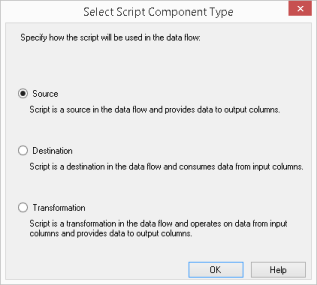
Next, drag and drop a Script Component transformation onto the Data Flow design surface. When prompted, change the component type to Source.

image

Now edit the script transform by double clicking on it. Move to the Inputs and Outputs page. For my test, I am using the dbo.DimCurrency collection I created using the technique I documented in the previous post, Exporting Data from SQL Server to CSV Files for Import to MongoDB Using PowerShell ( https://arcanecode.com/2014/01/13/exporting-data-from-sql-server-to-csv-files-for-import-to-mongodb-using-powershell/ )

I renamed the output from “output” to “MongoDB_DimCurrency”. I then added four columns, CurrencyName, CurrencyAlternateKey, CurrencyKey, and ID.

image

Make sure to set CurrencyName, CurrencyAlternateKey, and ID to “Unicode string [DT_WSTR]” Data Type. Then change CurrencyKey to “four byte signed integer [DT_I4]”.

Now return to the Script page and click Edit Script. In the Solution Explorer pane, expand References, right click and pick Add Reference. Go to Browse, and navigate to the folder where the MongoDB C# drivers are installed. On my system it was in C:\Program Files (x86)\MongoDB\CSharpDriver 1.7\. Add both MongoDB.Driver.dll and MongoDB.Bson.dll.

image

Click OK when done, your Solution Explorer should now look something like:

image

Now in the script, expand the Namespaces region and add these lines:

using MongoDB.Bson;
using MongoDB.Driver;
using MongoDB.Bson.Serialization;

Now scroll down to the CreateNewOutputRows() procedure. Here is a sample of the code I used:

public override void CreateNewOutputRows()
{
  string connectionString = "mongodb://localhost";
  string databaseName = "AdventureWorksDW2014";

  var client = new MongoClient(connectionString);
  var server = client.GetServer();
  var database = server.GetDatabase(databaseName);
  string CurrencyKey = "";

  foreach (BsonDocument document in database.GetCollection<BsonDocument>("dbo.DimCurrency").FindAll())
  {
    MongoDBDimCurrencyBuffer.AddRow();
    MongoDBDimCurrencyBuffer.CurrencyName = document["CurrencyName"] == null ? "" : document["CurrencyName"].ToString();
    MongoDBDimCurrencyBuffer.CurrencyAlternateKey = document["CurrencyAlternateKey"] == null ? "" : document["CurrencyAlternateKey"].ToString();
    CurrencyKey = document["CurrencyKey"] == null ? "" : document["CurrencyKey"].ToString();

    MongoDBDimCurrencyBuffer.CurrencyKey = Convert.ToInt32(CurrencyKey);
    MongoDBDimCurrencyBuffer.ID = document["_id"] == null ? "" : document["_id"].ToString();
  }

}

I start by defining a connection string to the MongoDB server, followed by the database name. I then create a MongoClient object. Note the MongoClient is the new way of connecting to the MongoDB server. In earlier versions of the C# driver, you used MongoServer objects.

I then cycle through each document in the collection “dbo.DimCurrency”, using the FindAll() method. For each item I use the AddRow() method to add a row to the buffer. In order to find the proper name for the buffer I went to the Solution Explorer and expanded the BufferWrapper.cs file. This is a class created by the script transform with the name of the output buffer.

image

For each column in my outputs, I map a column from the document. Note the use of the ternary operator ? : to strip out nulls and replace them with empty strings. String columns you can map directly from the document object to the output buffers columns.

The CurrencyKey column, being an integer, had to be converted from a string to an integer. To make it simple I created a string variable to hold the return value from the document, then used the Convert class to convert it to an INT 32.

Once you’ve done all the above, validate the code by building the code. If that all checks out save your work, close the code window, then close the Script Transformation Editor by clicking OK.

Now place a destination of some kind on the Data Flow. Since I have my company’s Task Factory tools I used a TF Terminator Destination, but you could also use a Row Count destination. On the precedence constraint between the two, right click and Enable Data Viewer. Execute the package, if all goes well you should see:

image

A few final notes. This test was done using a MongoDB document schema that was flat, i.e. it didn’t have any documents embedded in the documents I was testing with. (Hopefully I’ll be able to test that in the future, but it will be the subject of a future post.) Second, the key was the registering of the DLLs in the GAC. Until I did that, I couldn’t get the package to execute. Finally, by using the newer API for the MongoDB objects I’ve ensured compatibility for the future.

Exporting Data from SQL Server to CSV Files for Import to MongoDB Using PowerShell

I’ve been exploring other database systems, in order to determine how to import data from them using SQL Server Integration Services (SSIS). My first step though was to create some test data. I wanted something familiar, so I decided to export the Adventure Works Data Warehouse sample database and import into MongoDB. While I had many options I decided the simplest way was to first export the data to CSV files, then use the MongoDB utility mongimport. Naturally I turned to PowerShell to create an automated, reusable process.

First, if you need the Adventure Works DW database, you’ll find it at http://msftdbprodsamples.codeplex.com/. Second, I did my export from a special version of Adventure Works DW I created called AdventureWorksDW2014. This is optional, but if you want to have a version of Adventure Works DW updated with current dates, see my post at https://arcanecode.com/2013/12/08/updating-adventureworksdw2012-for-2014/. Third, I assume you are familiar with MongoDB, but if you want to learn more go to http://www.mongodb.org/.

Below is the PowerShell 3 script I created. The script is broken into four regions. The first, User Settings, contains the variables that you the user might need to change to get the script to run. It has things like the name of the SQL Server database, the path to MongoDB, etc.

The second region, Common, establishes variables that are used by the remaining two regions. You shouldn’t need to change or alter these. The third region accesses SQL Server and exports each table in the selected database to a CSV format file.

The final region, “Generate MongoDB import commands”, creates a batch (.BAT) file which has all the commands needed to run mongoimport for each CSV file. I decided not to have the PowerShell script execute the .BAT file so it could be reviewed before it is run. There might be some tables you don’t want to import, etc.

It is also quite easy to adapt this script to just create CSV files from SQL Server without using the MongoDB piece. Simply remove the fourth and final region, then in the Common and User Settings regions remove any variables what begin with the prefix “mongo”.

As the comments do a good job of explaining what happens I’ll let you review the included documentation for step by step instructions.

#==================================================================================================
# SQLtoCSVtoMongoDb.ps1
# Robert C. Cain | @ArcaneCode |
http://arcanecode.com
#
# If you need a simple way to export data from SQL Server to MongoDb, here is one way to do it.
# The script starts by setting up some variables to the server environment (see the User Settings
# region)
#
# Next, it exports data from each table in the selected database to individual CSV files.
# Finally, it generates a batch file which executes mongoimport for each csv file to import
# into MongoDb.
#
# I broke this into four regions so if all that is desired is a simple export of data to CSVs,
# you can simply omit the final region along with any variables that begin with "mongo".
#
# While I could have gone ahead and run the batch file at the end, I chose not to in order to
# give you time to review the output prior to running the batch file.
#==================================================================================================

Clear-Host

#region User Settings

  # In this section, set the variables so they are appropriate for your project / environment
 
  # This is the spot where you want to store the generated CSVs.
  # Make sure it does NOT end in a \
  $csvPath = "C:\mongodb"

  # If you are running this on a computer other than the server, set the name of the server below
  $sqlServer = $env:COMPUTERNAME

  # If you have a named instance be sure replace "default" with the name of the instance
  $sqlInstance = "\default"

  # Enter the name of the database to export below
  $sqlDatabaseName = "AdventureWorksDW2014"

  # The settings below only apply to the MongoDB code generation
  # Assemble path to mongodb. This assumes utlities are stored in the default bin folder
  $mongoPath = "C:\mongodb"
  $mongoImport = "$mongoPath\bin\mongoimport"

  # Set the server name and port
  $mongoHost = "localhost"   # Leave blank to default to localhost
  $mongoPort = ""            # Leave blank to default to 27107
 
  # Set the user name and password, leave blank if it isn’t needed
  $mongoUser = ""
  $mongoPW = ""

  # Enter the name of the database to import to.
  $mongoDatabaseName = "AdventureWorksDW2014"

  # Upserts are REALLY slow, especially on large datasets. Setting this to $true will turn off
  # the upsert option. If set to true, you are responsible for either deleting all documents
  # in the collection before hand, or allowing the risk of duplicates.
  #
  # Setting to false will enable the upsert option for mongoimport, and attempt to determine the
  # keys and (if found) add them to the final mongoimport command.
  $mongoNoUpsert = $true

#endregion

#region Common ————————————————————————————
 
  # This section sets variables used by both regions below. There is no need to alter anything
  # in this region.

  # Import the SQLPS provider (if it’s not already loaded)
  if (-not (Get-PSProvider SqlServer))
    { Import-Module SQLPS -DisableNameChecking }

  # Assemble the full servername \ instance
  $sqlServerInstance = "$sqlServer\$sqlInstance"

  # Assemble the full path for the SQL Provider to get to the database
  $sqlDatabaseLocation = "SQLSERVER:\sql\$sqlServerInstance\databases\$sqlDatabaseName"

  # Now tack on the Tables ‘folder’ to the SQL Provider path, the move there
  $sqlTablesLocation = $sqlDatabaseLocation + "\Tables"
  Set-Location $sqlTablesLocation

  # Get a list of tables in this database
  $sqlTables = Get-ChildItem

#endregion

#region Export SQL Data —————————————————————————
  # In this section we will export data from each table in the database to a CSV file.
  # WARNING: If the CSV file exists, it will be overwritten.

  # These are just used to display informational messages during processing
  $sqlTableIterator = 0
  $sqlTableCount = $sqlTables.Count

  # Iterate over each table in the database
  foreach($sqlTable in $sqlTables)
  {
    $sqlTableName = $sqlTable.Schema + "." + $sqlTable.Name   

    # I’ll grant you the next little bit of formatting for the progress messages is a bit
    # OCD on my part, but I like my output formatted and easy to read.
    $sqlTableIterator++
    $padCount = " " * (1 + $sqlTableCount.ToString().Length – $sqlTableIterator.ToString().Length)
    $sqlTableIteratorFormatted = $padCount + $sqlTableIterator

    if( $sqlTableName.Length -gt 50 )
      { $padTable = " " }
    else
      { $padTable = " " * (50 – $sqlTableName.Length) }

    Write-Host -ForegroundColor White -NoNewline "Processing Table $sqlTableIteratorFormatted of $sqlTableCount : $sqlTableName $padTable"
   
    # If the instance is "default", we have to exclude it when we use Invoke-SqlCmd
    if($sqlInstance.ToLower() -eq "\default")
      { $sqlSI = $sqlServer }
    else
      { $sqlSI = $sqlServerInstance }

    # Load an object with all the data in the table
    # Note if you have especially large tables you may need to modify this
    # section to break things into smaller chunks.
    $sqlCmd = "SELECT * FROM " + $sqlTableName
    $sqlData = Invoke-Sqlcmd -Query $sqlCmd `
                             -ServerInstance $sqlSI `
                             -SuppressProviderContextWarning `

    # Now write the data out.
    # Note utf8 encoding is important, as it is all mongoimport understands
    # Also need to omit the Type Info header PowerShell wants to write out
    Write-Host -ForegroundColor Yellow "    Writing to table $sqlTableName.csv"
    $sqlData | Export-Csv -NoTypeInformation -Encoding "utf8" -Path "$csvPath\$sqlTableName.csv"

  }

  # Just add a blank line after the processing ends
  Write-Host

#endregion

#region Generate MongoDB import commands ———————————————————-

  # In this region we will generage the commands to import our newly exported data
  # into an existing database in MongoDB. This is an example of our desired output (wrapped
  # onto multiple lines for readability, in the output it will be a single line):

  #  C:\mongodb>bin\mongoimport –host localhost -port 27107
  #                             –db AdventureWorksDW2014 –collection DimSalesReason
  #                             –username Me –password mySuperSecureP@ssW0rd!
  #                             –type csv –headerline –file DimSalesReason.csv
  #                             –upsert –upsertFields SalesReasonKey

  # Note several of these parameters are optional, and could use defaults, or be potentially
  # omitted from the final output, based on the choices at the very beginning of this script

  # Feel free to alter the $mongoCommand as needed for other circumstances

  # Final warning, the database must already exist in MongoDb in order to import the data. This
  # script will not generate the database for you.

  # Create the name for the batch file we will generate
  $mongoBat = $csvPath + "\Import_SQL_" + $sqlDatabaseName + "_to_MongoDb_" + $mongoDatabaseName + ".bat"

  # See if file exists, if so delete it
  if (Test-Path $mongoBat)
    { Remove-Item $mongoBat }

  # These are just used to display informational messages during processing
  $sqlTableIterator = 0
  $sqlTableCount = $sqlTables.Count

  # mongoimport allows us to do upserts, helping to eliminate duplicate rows on import.
  #
  # To make an upsert work there has to be a key column to match up on. Fortunately,
  # most tables in the SQL Server world have Primary Keys, so we can find out what
  # columns those are and add it to the command. Note if there is no PK in SQL Server,
  # no upsert will be attempted.
  #
  # Note though that upserts are REALLY slow, so the option to skip them is
  # built into the script and set at the top (mongoNoUpsert). The generated batch file
  # assumes that either a) you have deleted all data from the collection ahead of time,
  # or b) you are OK with the risk of duplicate data.

  # Iterate over each table in the database to build the mongoimport command
  foreach($sqlTable in $sqlTables)
  {
    $sqlTableName = $sqlTable.Schema + "." + $sqlTable.Name

    # A bit more OCD progress messages
    $sqlTableIterator++
    $padCount = " " * (1 + $sqlTableCount.ToString().Length – $sqlTableIterator.ToString().Length)
    $sqlTableIteratorFormatted = $padCount + $sqlTableIterator
    Write-Host -ForegroundColor Green "Building mongoimport command for table $sqlTableIteratorFormatted of $sqlTableCount : $sqlTableName"

    # Begin building the command
    $mongoCommand = "$mongoImport "
   
    if ($mongoHost.Length -ne 0)
      { $mongoCommand += "–host $mongoHost " }

    if ($mongoPort.Length -ne 0)
      { $mongoCommand += "–port $mongoPort " }

    $mongoCommand += "–db $mongoDatabaseName –collection $sqlTableName "

    if ($mongoUser.Length -ne 0)
      { $mongoCommand += " –username $mongoUser –password $mongoPW " }

    $mongoCommand += " –type csv –headerline –file $csvPath\$sqlTableName.csv "
       
    # Build the upsert clause, if the user has elected to use it.
    if ($mongoNoUpsert -eq $false)
    {
      $mongoPKs = ""
      foreach($sqlIndex in $sqlTable.Indexes)
      {
        if($sqlIndex.IndexKeyType -eq ‘DriPrimaryKey’)
        {
          foreach($sqlCol in $sqlIndex.IndexedColumns) #$sqlPKColumns)
          {
            if ($mongoPKs.Length -ne 0)
              { $mongoPKs += "," }
            # Note column names are returned with [ ] around them, and must be removed
            # Have to use -replace instead of .Replace() because $sqlCol is an column not a string
            $mongoPKs += ($sqlCol -replace "\[", "") -replace "\]", ""
          }
               
          $mongoCommand += " –upsert –upsertFields $mongoPKs"
        }           
      }
    }

    # Append the command to the batch file
    $mongoCommand | Out-File -FilePath $mongoBat -Encoding utf8 -Append

  }

  # Just add a blank line after the processing ends
  Write-Host

#endregion


Updating AdventureWorksDW2012 for 2014

A while back I did a post that contained a script to update the AdventureWorksDW2012 database to have dates for the 2013 time period. This will allow folks to demo date related queries and be able to simply use things like GETDATE or NOW without having to do funky math tricks to take into account the pitifully out of date offering.

I’ve now updated the script for 2014, thought I’d pass along the updated version. Note some browsers don’t seem to render the script using the mono-spaced font I intend, but just ignore. Copy and paste into SQL Server Management Studio and it should work fine.

/*-----------------------------------------------------------------------------------------------*/
/* Updating AdventureWorks2012 for Today                                                         */
/*                                                                                               */
/* Robert C. Cain, http://arcanecode.com @ArcaneCode                                             */
/*                                                                                               */
/* Script Copyright (c) 2013 by Robert C. Cain                                                   */
/* AdventureWorks database Copyright (c) Microsoft.                                              */
/*                                                                                               */
/* This script will make a backup of the AdventureWorks2012DW database, then copy and restore it */
/* as AdventureWorksDW2014. It will then update it for current dates. 2008 now becomes 2014,     */
/* 2007 is now 2012, and so forth. This script is dependent on the AdventureWorks2012DW sample   */
/* database already being installed. It won't change AdventureWorksDW2012 in anyway.             */
/*                                                                                               */
/* Be warned, if AdventureWorksDW2014 exists, it will be deleted as part of this process.        */
/*                                                                                               */
/*-----------------------------------------------------------------------------------------------*/

PRINT 'Updating AdventureWorks2012 for Today - Starting'
GO

/*-----------------------------------------------------------------------------------------------*/
/* Step 1 - Make a copy of AdventureWorksDW2012 and restore as AdventureWorksDW2014              */
/*-----------------------------------------------------------------------------------------------*/
SET NOCOUNT ON

USE [master]

-- Step 1.1. Make a backup of AdventureWorksDW2012 ----------------------------------------------
PRINT 'Backing up AdventureWorksDW2012'
GO

BACKUP DATABASE [AdventureWorksDW2012] 
    TO DISK = N'C:\Program Files\Microsoft SQL Server\MSSQL11.MSSQLSERVER\MSSQL\Backup\AdventureWorksDW2012.bak' 
  WITH NOFORMAT, 
       INIT,  
       NAME = N'AdventureWorksDW2012-Full Database Backup', 
       SKIP, 
       NOREWIND, 
       NOUNLOAD,  
       STATS = 10
GO


-- Step 1.2. Delete the database AdventureWorksDW2014 if it exists ------------------------------
PRINT 'Deleting AdventureWorksDW2014, if it exists'
GO

IF (EXISTS (SELECT 1 
              FROM master.dbo.sysdatabases 
             WHERE name = 'AdventureWorksDW2014' )
   )
   EXEC msdb.dbo.sp_delete_database_backuphistory @database_name = N'AdventureWorksDW2014'
GO

IF (EXISTS (SELECT 1 
              FROM master.dbo.sysdatabases 
             WHERE name = 'AdventureWorksDW2014' )
   )
   DROP DATABASE [AdventureWorksDW2014]
GO

-- Step 1.3. Restore the database to a new copy -------------------------------------------------
PRINT 'Restoring AdventureWorksDW2012 to AdventureWorksDW2014'
GO

RESTORE DATABASE [AdventureWorksDW2014] 
   FROM  DISK = N'C:\Program Files\Microsoft SQL Server\MSSQL11.MSSQLSERVER\MSSQL\Backup\AdventureWorksDW2012.bak' 
   WITH  FILE = 1,  
   MOVE N'AdventureWorksDW2012_Data' 
     TO N'C:\Program Files\Microsoft SQL Server\MSSQL11.MSSQLSERVER\MSSQL\DATA\AdventureWorksDW2014_Data.mdf',  
   MOVE N'AdventureWorksDW2012_Log' 
     TO N'C:\Program Files\Microsoft SQL Server\MSSQL11.MSSQLSERVER\MSSQL\DATA\AdventureWorksDW2014_log.ldf',  
        NOUNLOAD,  STATS = 5

GO

PRINT 'Done Creating AdventureWorksDW2014'
GO


/*-----------------------------------------------------------------------------------------------*/
/* Step 2. Create a helper function to convert dates to a YYYYMMDD format Date Id.               */
/*-----------------------------------------------------------------------------------------------*/

USE [AdventureWorksDW2014]
GO

IF EXISTS (SELECT [name] FROM [sys].[all_objects] WHERE [name] = 'DateToDateId')
  DROP FUNCTION [dbo].[DateToDateId];
GO

CREATE FUNCTION [dbo].[DateToDateId]
(
  @Date DATETIME
)
RETURNS INT
AS
BEGIN

  DECLARE @DateId  AS INT
  DECLARE @TodayId AS INT

  SET @TodayId = YEAR(GETDATE()) * 10000
               + MONTH(GETDATE()) * 100
               + DAY(GETDATE())         

  -- If the date is missing, or a placeholder for a missing date, set to the Id for missing dates
  -- Else convert the date to an integer
  IF @Date IS NULL OR @Date = '1900-01-01' OR @Date = -1
    SET @DateId = -1  
  ELSE
    BEGIN
      SET @DateId = YEAR(@Date) * 10000
                  + MONTH(@Date) * 100
                  + DAY(@Date)         
    END  
  
  -- If there's any data prior to 2000 it was incorrectly entered, mark it as missing
  IF @DateId BETWEEN 0 AND 19991231 
    SET @DateId = -1

  -- Commented out for this project as future dates are OK
  -- If the date is in the future, don't allow it, change to missing
  -- IF @DateId > @TodayId 
  --   SET @DateId = -1

  RETURN @DateId

END

GO


/*-----------------------------------------------------------------------------------------------*/
/* Step 3. Add new dates to the dbo.DimDate table.                                               */
/*-----------------------------------------------------------------------------------------------*/
PRINT 'Adding new dates to dbo.DimDate'
GO

SET NOCOUNT ON

-- Later we will be writing an INSERT INTO... SELECT FROM to insert the new record. I want to 
-- join the day and month name memory variable tables, but need to have something to join to. 
-- Since everything is calculated, we'll just create this little bogus table to have something
-- to select from.
DECLARE @BogusTable TABLE
  ( PK TINYINT)

INSERT INTO @BogusTable SELECT 1;


-- Create a table variable to hold the days of the week with their various language versions
DECLARE @DayNameTable TABLE
  ( [DayNumberOFWeek]      TINYINT
  , [EnglishDayNameOfWeek] NVARCHAR(10)
  , [SpanishDayNameOfWeek] NVARCHAR(10)
  , [FrenchDayNameOfWeek]  NVARCHAR(10)
  )

INSERT INTO @DayNameTable
SELECT DISTINCT 
       [DayNumberOFWeek]      
         , [EnglishDayNameOfWeek] 
         , [SpanishDayNameOfWeek] 
         , [FrenchDayNameOfWeek]  
  FROM dbo.DimDate

-- Create a month table to hold the months and their language versions.
DECLARE @MonthNameTable TABLE
  ( [MonthNumberOfYear] TINYINT
  , [EnglishMonthName]  NVARCHAR(10)
  , [SpanishMonthName]  NVARCHAR(10)
  , [FrenchMonthName]   NVARCHAR(10)
  )

INSERT INTO @MonthNameTable
SELECT DISTINCT
       [MonthNumberOfYear] 
     , [EnglishMonthName]  
     , [SpanishMonthName]  
     , [FrenchMonthName]   
  FROM dbo.DimDate

-- This is the start and end date ranges to use to populate the 
-- dbo.DimDate dimension. Change if it's 2014 and you run across this script.
DECLARE @FromDate AS DATE = '2011-01-01'
DECLARE @ThruDate AS DATE = '2015-12-31'

-- CurrentDate will be incremented each time through the loop below.
DECLARE @CurrentDate AS DATE
SET @CurrentDate = @FromDate

-- FiscalDate will be set six months into the future from the CurrentDate
DECLARE @FiscalDate  AS DATE

-- Now we simply loop over every date between the From and Thru, inserting the
-- calculated values into DimDate.
WHILE @CurrentDate <= @ThruDate
BEGIN

  SET @FiscalDate = DATEADD(m, 6, @CurrentDate)

  INSERT INTO dbo.DimDate
  SELECT [dbo].[DateToDateId](@CurrentDate)
       , @CurrentDate
       , DATEPART(dw, @CurrentDate) AS DayNumberOFWeek
       , d.EnglishDayNameOfWeek
       , d.SpanishDayNameOfWeek
       , d.FrenchDayNameOfWeek
       , DAY(@CurrentDate) AS DayNumberOfMonth
       , DATEPART(dy, @CurrentDate) AS DayNumberOfYear
       , DATEPART(wk, @CurrentDate) AS WeekNumberOfYear
       , m.EnglishMonthName
       , m.SpanishMonthName
       , m.FrenchMonthName
       , MONTH(@CurrentDate) AS MonthNumberOfYear
       , DATEPART(q, @CurrentDate) AS CalendarQuarter
       , YEAR(@CurrentDate) AS CalendarYear
       , IIF(MONTH(@CurrentDate) < 7, 1, 2) AS CalendarSemester
       , DATEPART(q, @FiscalDate) AS FiscalQuarter
       , YEAR(@FiscalDate) AS FiscalYear
       , IIF(MONTH(@FiscalDate) < 7, 1, 2) AS FiscalSemester
    FROM @BogusTable
    JOIN @DayNameTable d
      ON DATEPART(dw, @CurrentDate) = d.[DayNumberOFWeek]
    JOIN @MonthNameTable m
      ON MONTH(@CurrentDate) = m.MonthNumberOfYear

  SET @CurrentDate = DATEADD(d, 1, @CurrentDate)
END
GO

-- If you want to verify you can uncomment this line.
-- SELECT * FROM dbo.DimDate WHERE DateKey > 20110000

PRINT 'Done adding new dates to dbo.DimDate'
GO


/*-----------------------------------------------------------------------------------------------*/
/* Step 4. Update the Fact Tables with the new dates.                                            */
/*-----------------------------------------------------------------------------------------------*/


PRINT 'Update Fact Tables'
GO

SET NOCOUNT ON

-- To move forward five years, we simply add 50,000 to the date key

-- 4.1 FactFinance ------------------------------------------------------------------------------
PRINT '  FactFinance'
GO

UPDATE [dbo].[FactFinance]
   SET [DateKey] = [DateKey] + 60000;


-- 4.2 FactInternetSales ------------------------------------------------------------------------
PRINT '  FactInternetSales'
GO

-- There are a few rows where the due date is on leap year. Update these to back off a day 
-- so the date add works OK
UPDATE [dbo].[FactInternetSales]
   SET [OrderDateKey] = 20080228
     , [OrderDate] = '2008-02-28'
 WHERE [OrderDateKey] = 20080229

UPDATE [dbo].[FactInternetSales]
   SET [DueDateKey] = 20080228
     , [DueDate] = '2008-02-28'
 WHERE [DueDateKey] = 20080229

UPDATE [dbo].[FactInternetSales]
   SET [ShipDateKey] = 20080228
     , [ShipDate] = '2008-02-28'
 WHERE [ShipDateKey] = 20080229

-- Now update the rest of the days. 
UPDATE [dbo].[FactInternetSales]
   SET [OrderDateKey] = [OrderDateKey] + 60000
     , [DueDateKey] = [DueDateKey] + 60000
     , [ShipDateKey] = [ShipDateKey] + 60000
     , [OrderDate] = DATEADD(yy, 6, [OrderDate])
     , [DueDate] = DATEADD(yy, 6, [DueDate])
     , [ShipDate] = DATEADD(yy, 6, [ShipDate])


-- 4.3 FactResellerSales ------------------------------------------------------------------------
PRINT '  FactResellerSales'
GO

-- As with Internet Sales, there are rows where the due date is on leap year. 
-- Update these to back off a day so the date add works OK
UPDATE [dbo].[FactResellerSales]
   SET [OrderDateKey] = 20080228
     , [OrderDate] = '2008-02-28'
 WHERE [OrderDateKey] = 20080229

UPDATE [dbo].[FactResellerSales]
   SET [DueDateKey] = 20080228
     , [DueDate] = '2008-02-28'
 WHERE [DueDateKey] = 20080229

UPDATE [dbo].[FactResellerSales]
   SET [ShipDateKey] = 20080228
     , [ShipDate] = '2008-02-28'
 WHERE [ShipDateKey] = 20080229

-- Now update the table
UPDATE [dbo].[FactResellerSales]
   SET [OrderDateKey] = [OrderDateKey] + 60000
     , [DueDateKey] = [DueDateKey] + 60000
     , [ShipDateKey] = [ShipDateKey] + 60000
     , [OrderDate] = DATEADD(yy, 6, [OrderDate])
     , [DueDate] = DATEADD(yy, 6, [DueDate])
     , [ShipDate] = DATEADD(yy, 6, [ShipDate])

-- 4.4 FactSalesQuota ---------------------------------------------------------------------------
PRINT '  FactSalesQuota'
GO

UPDATE [dbo].[FactSalesQuota] 
   SET [DateKey] = [DateKey] + 60000

-- 4.5 FactSurveyResponse -----------------------------------------------------------------------
PRINT '  FactSurveyResponse'
GO

UPDATE [dbo].[FactSurveyResponse]
   SET [DateKey] = [DateKey] + 60000

-- 4.6 FactCallCenter ---------------------------------------------------------------------------
PRINT '  FactCallCenter'
GO

-- All the rows in call center have a 2010 date, just add 3 years to make these 2014
UPDATE [dbo].[FactCallCenter]
   SET [DateKey] = [DateKey] + 40000


-- 4.7 FactCurrencyRate -------------------------------------------------------------------------
PRINT '  FactCurrencyRate'
GO

-- Because the DateKey is part of the PK, we have to drop the key before we can update it
ALTER TABLE [dbo].[FactCurrencyRate] DROP CONSTRAINT [PK_FactCurrencyRate_CurrencyKey_DateKey]
GO

-- Shift the 2008 Leap Year days to 2012 Leap Year
UPDATE [dbo].[FactCurrencyRate]
   SET [DateKey] = 20120229
 WHERE [DateKey] = 20080229

-- Update everything except the leap year we fixed already
UPDATE [dbo].[FactCurrencyRate]
   SET [DateKey] = [DateKey] + 60000
 WHERE [DateKey] <> 20120229

-- Add the PK back
ALTER TABLE [dbo].[FactCurrencyRate] 
  ADD CONSTRAINT [PK_FactCurrencyRate_CurrencyKey_DateKey] PRIMARY KEY CLUSTERED 
      ( [CurrencyKey] ASC,
          [DateKey] ASC
      )
 WITH ( PAD_INDEX = OFF
      , STATISTICS_NORECOMPUTE = OFF
      , SORT_IN_TEMPDB = OFF
      , IGNORE_DUP_KEY = OFF
      , ONLINE = OFF
      , ALLOW_ROW_LOCKS = ON
      , ALLOW_PAGE_LOCKS = ON
      ) ON [PRIMARY]
GO


-- 4.8 FactProductInventory ---------------------------------------------------------------------
PRINT '  FactProductInventory'
GO

-- As with the previous step, the date is part of the primary key, so we need to drop it first.
ALTER TABLE [dbo].[FactProductInventory] DROP CONSTRAINT [PK_FactProductInventory]
GO

-- Shift the 2008 Leap Year days to 2012 Leap Year
UPDATE [dbo].[FactProductInventory]
   SET [DateKey] = 20120229
 WHERE [DateKey] = 20080229

-- Update everything except the leap year we fixed already
UPDATE [dbo].[FactProductInventory]
   SET [DateKey] = [DateKey] + 60000
 WHERE [DateKey] <> 20120229
 
-- Add the PK back
ALTER TABLE [dbo].[FactProductInventory] 
  ADD CONSTRAINT [PK_FactProductInventory] PRIMARY KEY CLUSTERED 
      (    [ProductKey] ASC
      , [DateKey] ASC
      )
 WITH ( PAD_INDEX = OFF
      , STATISTICS_NORECOMPUTE = OFF
      , SORT_IN_TEMPDB = OFF
      , IGNORE_DUP_KEY = OFF
      , ONLINE = OFF
      , ALLOW_ROW_LOCKS = ON
      , ALLOW_PAGE_LOCKS = ON
      ) ON [PRIMARY]
GO

PRINT 'Done updating the Fact tables'
GO


/*-----------------------------------------------------------------------------------------------*/
/* Step 5. Cleanup, remove the helper function we added earlier.                                 */
/*-----------------------------------------------------------------------------------------------*/
PRINT 'Removing Helper Function'
GO

IF EXISTS (SELECT 1 FROM [sys].[all_objects] WHERE [name] = 'DateToDateId')
  DROP FUNCTION [dbo].[DateToDateId];
GO

/*-----------------------------------------------------------------------------------------------*/
/* All done!                                                                                     */
/*-----------------------------------------------------------------------------------------------*/
PRINT 'Updating AdventureWorks2012 for Today - Completed'
GO

.csharpcode, .csharpcode pre
{
font-size: small;
color: black;
font-family: consolas, “Courier New”, courier, monospace;
background-color: #ffffff;
/*white-space: pre;*/
}
.csharpcode pre { margin: 0em; }
.csharpcode .rem { color: #008000; }
.csharpcode .kwrd { color: #0000ff; }
.csharpcode .str { color: #006080; }
.csharpcode .op { color: #0000c0; }
.csharpcode .preproc { color: #cc6633; }
.csharpcode .asp { background-color: #ffff00; }
.csharpcode .html { color: #800000; }
.csharpcode .attr { color: #ff0000; }
.csharpcode .alt
{
background-color: #f4f4f4;
width: 100%;
margin: 0em;
}
.csharpcode .lnum { color: #606060; }

CISCO VPN Error 442 and Windows 8.1

After upgrading to Windows 8.1 I had issues running Cisco VPN software. When attempting to run I got an error 442. (Note this applies to Cisco VPN, not Cisco AnyConnect.) As a first step in troubleshooting I ensured that I was on the latest version, 5.0.07.0440.

As I was already on the latest version, I began to do some web searching. Likely you, as I did, found many blog posts referring to a fix for the registry. In case you haven’t seen it, the basic instructions are:

1. Open RegEdit.

2. Navigate to HKEY_LOCAL_MACHINE\SYSTEM\CurrentControlSet\Services\CVirtA

3. If the DisplayName does not already read:

Cisco Systems VPN Adapter for 64 bit Windows

Change it so matches what you see above. Some installs have some “gibberish” on the front, this should be removed. In my case it was already set to what you see above, so it was on to the next step. After some more searching and experimentation, I finally came upon a solution that worked for me.

Open Windows Explorer, and navigate to C:\Program Files (x86)\Cisco Systems\VPN Client. Right click on the first .exe you find, in my case cisco_cert_mgr.exe and pick Properties from the menu. Switch to the Compatibility page.

Check on “Run this program in compatibility mode for:” and pick Windows 7. Then at the bottom, check on “Run this program as an administrator. Then click on OK.

image


Repeat this for every exe in the folder.

image

Unfortunately you can’t apply these in mass, you have to do these one at a time. There’s only a handful though so it shouldn’t take long.

After you are done, reboot. Before you run the VPN software, verify the Cisco network connector is not active by going to Control Panel, Network and Internet, Network Connections and validate the Cisco Systems VPN Adapter for 64 bit Windows is Disabled.

Note after you connect this will become Enabled, you just want to be sure it is disabled before you connect. If you see multiple connections for the Cisco adapter, you will need to delete the excess ones, I’ve also seen suggestions to uninstall the Cisco VPN, make sure all the Cisco connections are deleted, then reinstall. I didn’t have to go through this though, so your mileage may vary.

Also note that after you reboot, you may see a prompt asking if you want to run the Cisco service as Administrator, naturally you’ll say Yes. Then go run the Cisco VPN client again, confirming you want to run as an Admin, and you should be good to go!

Atlanta Code Camp 2013

On Saturday August 24, 2013 I’m presenting “What’s New In PowerShell v3… and 4!” at the Atlanta Code Camp. If you would like a copy of the demos, you can e-mail me either arcanecode at gmail.com or rcain at pragmaticworks.com.

Or, if you have BitTorrent Sync, you can use this secret key to get a copy of all my demos: BYEHZZ5K2DQ2AEBJDVSS4UUHZEGG646GZ  (Note this is the read-only key.)

Dealing with the Date Dimension Deployment Dilemma

For those of you who have routines that load up a date dimension, you know that it can be a little slow to run. There are times when I am deploying my database project (hey, you are using SSDT SQL Server Database Tools SQL Server Projects aren’t you???) and I want to recreate the database from scratch. While it is a great opportunity to grab another cup of coffee, tea, or read through a fantastic blog like this one, after doing this a few times you wind up with a bad case of caffeine jitters.

I had a date dimension to load today that was particularly challenging. They legitimately needed a couple hundred years worth of dates, plus there were some special calculated columns that needed to be populated. All total it took about 25 minutes to populate, on a reasonably decent sized server. Ouch. So I came up with an alternate solution that I thought I’d share with you, my adoring public (at least is seems like it from the spam comments that appear as love letters lol).

I created a second database project as part of my same solution. You can name it something generic, like “DateData”, or if you are using a date routine specific to each project, you can name it after your project database with something like “Dates” or “DateData” at the end.

This new project has two files. One is the create table script to create the only table, DimDate. The second is a post deployment script, in which I just copied over the original date dimension population script from the original project. I was able to deploy this, waiting the 25 minutes or so for it to populate my date dimension.

Back in the main database project, I deleted the code in the DimDate population post deployment script, and simply put in an INSERT statement to insert the rows in the DateData’s DimDate into the main projects DimDate. Load time was maybe 50 seconds, although it may have been shorter as I looked away for a moment.

The beauty of this is I only had to do a real load of DimDate once, since the date dimension isn’t likely to change during development, or generally at any point. Once your project is complete and on-line, you can even delete the DateData database. Should you need it again you can simply recreate it from the DateData project that was part of your solution. I can now do a full drop and create deployment (aka Publish in SSDT) as often as I want without risking caffeine poisoning or being condemned to staying awake all night doing a Phineas and Ferb marathon (which actually sounds kinda fun, now I wish I hadn’t fixed this issue. Oh well.)

Updating AdventureWorksDW2008R2 for Today

Back in May I did a post called “Updating AdventureWorksDW2012 for Today”. In that post I included a script that would take the AdventureWorksDW2012 sample database, available on CodePlex, and convert it to use current dates.

As part of my job at PragmaticWorks I teach classes on SQL Server Analysis Services. My upcoming class is using SQL Server 2008R2, and as such I wanted to update the 2008R2 version of AdventureWorksDW. I did find some subtle differences between the 2008R2 and 2012 versions of the Adventure Works Data Warehouse that I wanted to post an updated version of the script to use with 2008R2.

If you don’t have the AdventureWorksDW2008R2 data warehouse database, you can obtain it from http://msftdbprodsamples.codeplex.com/releases/view/59211 or go to CodePlex and search for SQL Server 2008 Sample Databases. Note there are several versions of Adventure Works here. The file for the data warehouse is either “AdventureWorks 2008R2 DW Script”, which is a T-SQL script that creates and populates the 2008R2 data warehouse, or “AdventureWorksDW2008R2 Data File” which is a database file you’ll need to reattach.

The structure of the script is basically the same as the one in the first post, so I’ll let you refer back to it for the explanations. Without further ado, here is the script for AdventureWorksDW2008R2, which will create a new AdventureWorksDW2013R2 database.


/*-----------------------------------------------------------------------------------------------*/
/* Updating AdventureWorks2008R2 for Today */
/* */
/* Robert C. Cain, http://arcanecode.com @ArcaneCode */
/* */
/* Script Copyright (c) 2013 by Robert C. Cain */
/* AdventureWorks database Copyright (c) Microsoft. */
/* */
/* This script will make a backup of the AdventureWorks2012DW database, then copy and restore it */
/* as AdventureWorksDW2013. It will then update it for current dates. 2008 now becomes 2013, */
/* 2007 is now 2012, and so forth. This script is dependent on the AdventureWorks2008R2DW sample */
/* database already being installed. It won't change AdventureWorksDW2008R2 in anyway. */
/* */
/* Be warned, if AdventureWorksDW2013R2 exists, it will be deleted as part of this process. */
/* */
/*-----------------------------------------------------------------------------------------------*/

PRINT 'Updating AdventureWorksDW2008R2 for Today - Starting'
GO

/*-----------------------------------------------------------------------------------------------*/
/* Step 1 - Make a copy of AdventureWorksDW2008R2 and restore as AdventureWorksDW2013 */
/*-----------------------------------------------------------------------------------------------*/
SET NOCOUNT ON

USE [master]

-- Step 1.1. Make a backup of AdventureWorksDW2008R2 ----------------------------------------------
PRINT 'Backing up AdventureWorksDW2008R2'
GO

BACKUP DATABASE [AdventureWorksDW2008R2]
TO DISK = N'C:\Program Files\Microsoft SQL Server\MSSQL10_50.SQL2008R2\MSSQL\Backup\AdventureWorksDW2008R2.bak'
WITH NOFORMAT,
INIT,
NAME = N'AdventureWorksDW2008R2-Full Database Backup',
SKIP,
NOREWIND,
NOUNLOAD,
STATS = 10
GO


-- Step 1.2. Delete the database AdventureWorksDW2013 if it exists ------------------------------
PRINT 'Deleting AdventureWorksDW2013R2, if it exists'
GO

IF (EXISTS (SELECT 1
FROM master.dbo.sysdatabases
WHERE name = 'AdventureWorksDW2013R2' )
)
EXEC msdb.dbo.sp_delete_database_backuphistory @database_name = N'AdventureWorksDW2013R2'
GO

IF (EXISTS (SELECT 1
FROM master.dbo.sysdatabases
WHERE name = 'AdventureWorksDW2013R2' )
)
DROP DATABASE [AdventureWorksDW2013R2]
GO

-- Step 1.3. Restore the database to a new copy -------------------------------------------------
PRINT 'Restoring AdventureWorksDW2008R2 to AdventureWorksDW2013R2'
GO

RESTORE DATABASE [AdventureWorksDW2013R2]
FROM DISK = N'C:\Program Files\Microsoft SQL Server\MSSQL10_50.SQL2008R2\MSSQL\Backup\AdventureWorksDW2008R2.bak'
WITH FILE = 1,
MOVE N'AdventureWorksDW2008R2_Data'
TO N'C:\Program Files\Microsoft SQL Server\MSSQL10_50.SQL2008R2\MSSQL\DATA\AdventureWorksDW2013R2_Data.mdf',
MOVE N'AdventureWorksDW2008R2_Log'
TO N'C:\Program Files\Microsoft SQL Server\MSSQL10_50.SQL2008R2\MSSQL\DATA\AdventureWorksDW2013R2_log.ldf',
NOUNLOAD, STATS = 5

GO

PRINT 'Done Creating AdventureWorksDW2013R2'
GO


/*-----------------------------------------------------------------------------------------------*/
/* Step 2. Create a helper function to convert dates to a YYYYMMDD format Date Id. */
/*-----------------------------------------------------------------------------------------------*/

USE [AdventureWorksDW2013R2]
GO

IF EXISTS (SELECT [name] FROM [sys].[all_objects] WHERE [name] = 'DateToDateId')
DROP FUNCTION [dbo].[DateToDateId];
GO

CREATE FUNCTION [dbo].[DateToDateId]
(
@Date DATETIME
)
RETURNS INT
AS
BEGIN

DECLARE @DateId AS INT
DECLARE @TodayId AS INT

SET @TodayId = YEAR(GETDATE()) * 10000
+ MONTH(GETDATE()) * 100
+ DAY(GETDATE())

-- If the date is missing, or a placeholder for a missing date, set to the Id for missing dates
-- Else convert the date to an integer
IF @Date IS NULL OR @Date = '1900-01-01' OR @Date = -1
SET @DateId = -1
ELSE
BEGIN
SET @DateId = YEAR(@Date) * 10000
+ MONTH(@Date) * 100
+ DAY(@Date)
END

-- If there's any data prior to 2000 it was incorrectly entered, mark it as missing
IF @DateId BETWEEN 0 AND 19991231
SET @DateId = -1

-- Commented out for this project as future dates are OK
-- If the date is in the future, don't allow it, change to missing
-- IF @DateId > @TodayId
-- SET @DateId = -1

RETURN @DateId

END

GO


/*-----------------------------------------------------------------------------------------------*/
/* Step 3. Add new dates to the dbo.DimDate table. */
/*-----------------------------------------------------------------------------------------------*/
PRINT 'Adding new dates to dbo.DimDate'
GO

SET NOCOUNT ON

-- Later we will be writing an INSERT INTO... SELECT FROM to insert the new record. I want to
-- join the day and month name memory variable tables, but need to have something to join to.
-- Since everything is calculated, we'll just create this little bogus table to have something
-- to select from.
DECLARE @BogusTable TABLE
( PK TINYINT)

INSERT INTO @BogusTable SELECT 1;


-- Create a table variable to hold the days of the week with their various language versions
DECLARE @DayNameTable TABLE
( [DayNumberOFWeek] TINYINT
, [EnglishDayNameOfWeek] NVARCHAR(10)
, [SpanishDayNameOfWeek] NVARCHAR(10)
, [FrenchDayNameOfWeek] NVARCHAR(10)
)

INSERT INTO @DayNameTable
SELECT DISTINCT
[DayNumberOFWeek]
, [EnglishDayNameOfWeek]
, [SpanishDayNameOfWeek]
, [FrenchDayNameOfWeek]
FROM dbo.DimDate

-- Create a month table to hold the months and their language versions.
DECLARE @MonthNameTable TABLE
( [MonthNumberOfYear] TINYINT
, [EnglishMonthName] NVARCHAR(10)
, [SpanishMonthName] NVARCHAR(10)
, [FrenchMonthName] NVARCHAR(10)
)

INSERT INTO @MonthNameTable
SELECT DISTINCT
[MonthNumberOfYear]
, [EnglishMonthName]
, [SpanishMonthName]
, [FrenchMonthName]
FROM dbo.DimDate


-- Some dates for 2010 are already there so we have to work around it in two passes
-- FiscalDate will be set six months into the future from the CurrentDate
DECLARE @FiscalDate AS DATE

-- Pass 1
DECLARE @FromDate AS DATE = '2010-01-01'
DECLARE @ThruDate AS DATE = '2010-10-31'
DECLARE @CurrentDate AS DATE

-- CurrentDate will be incremented each time through the loop below.
SET @CurrentDate = @FromDate

-- Now we simply loop over every date between the From and Thru, inserting the
-- calculated values into DimDate.
WHILE @CurrentDate <= @ThruDate
BEGIN

SET @FiscalDate = DATEADD(m, 6, @CurrentDate)

INSERT INTO dbo.DimDate
SELECT [dbo].[DateToDateId](@CurrentDate)
, @CurrentDate
, DATEPART(dw, @CurrentDate) AS DayNumberOFWeek
, d.EnglishDayNameOfWeek
, d.SpanishDayNameOfWeek
, d.FrenchDayNameOfWeek
, DAY(@CurrentDate) AS DayNumberOfMonth
, DATEPART(dy, @CurrentDate) AS DayNumberOfYear
, DATEPART(wk, @CurrentDate) AS WeekNumberOfYear
, m.EnglishMonthName
, m.SpanishMonthName
, m.FrenchMonthName
, MONTH(@CurrentDate) AS MonthNumberOfYear
, DATEPART(q, @CurrentDate) AS CalendarQuarter
, YEAR(@CurrentDate) AS CalendarYear
, CASE WHEN MONTH(@CurrentDate) < 7
THEN 1
ELSE 2
END AS CalendarSemester
, DATEPART(q, @FiscalDate) AS FiscalQuarter
, YEAR(@FiscalDate) AS FiscalYear
, CASE WHEN MONTH(@FiscalDate) < 7
THEN 1
ELSE 2
END AS FiscalSemester
FROM @BogusTable
JOIN @DayNameTable d
ON DATEPART(dw, @CurrentDate) = d.[DayNumberOFWeek]
JOIN @MonthNameTable m
ON MONTH(@CurrentDate) = m.MonthNumberOfYear

SET @CurrentDate = DATEADD(d, 1, @CurrentDate)
END

-- Pass 2
-- This is the start and end date ranges to use to populate the
-- dbo.DimDate dimension. Change if it's 2014 and you run across this script.
SET @FromDate = '2010-12-01'
SET @ThruDate = '2013-12-31'

-- CurrentDate will be incremented each time through the loop below.
SET @CurrentDate = @FromDate

-- Now we simply loop over every date between the From and Thru, inserting the
-- calculated values into DimDate.
WHILE @CurrentDate <= @ThruDate
BEGIN

SET @FiscalDate = DATEADD(m, 6, @CurrentDate)

INSERT INTO dbo.DimDate
SELECT [dbo].[DateToDateId](@CurrentDate)
, @CurrentDate
, DATEPART(dw, @CurrentDate) AS DayNumberOFWeek
, d.EnglishDayNameOfWeek
, d.SpanishDayNameOfWeek
, d.FrenchDayNameOfWeek
, DAY(@CurrentDate) AS DayNumberOfMonth
, DATEPART(dy, @CurrentDate) AS DayNumberOfYear
, DATEPART(wk, @CurrentDate) AS WeekNumberOfYear
, m.EnglishMonthName
, m.SpanishMonthName
, m.FrenchMonthName
, MONTH(@CurrentDate) AS MonthNumberOfYear
, DATEPART(q, @CurrentDate) AS CalendarQuarter
, YEAR(@CurrentDate) AS CalendarYear
, CASE WHEN MONTH(@CurrentDate) < 7
THEN 1
ELSE 2
END AS CalendarSemester
, DATEPART(q, @FiscalDate) AS FiscalQuarter
, YEAR(@FiscalDate) AS FiscalYear
, CASE WHEN MONTH(@FiscalDate) < 7
THEN 1
ELSE 2
END AS FiscalSemester
FROM @BogusTable
JOIN @DayNameTable d
ON DATEPART(dw, @CurrentDate) = d.[DayNumberOFWeek]
JOIN @MonthNameTable m
ON MONTH(@CurrentDate) = m.MonthNumberOfYear

SET @CurrentDate = DATEADD(d, 1, @CurrentDate)
END
GO

-- If you want to verify you can uncomment this line.
-- SELECT * FROM dbo.DimDate WHERE DateKey > 20110000

PRINT 'Done adding new dates to dbo.DimDate'
GO


/*-----------------------------------------------------------------------------------------------*/
/* Step 4. Update the Fact Tables with the new dates. */
/*-----------------------------------------------------------------------------------------------*/


PRINT 'Update Fact Tables'
GO

SET NOCOUNT ON

-- To move forward five years, we simply add 50,000 to the date key

-- 4.1 FactFinance ------------------------------------------------------------------------------
PRINT ' FactFinance'
GO

UPDATE [dbo].[FactFinance]
SET [DateKey] = [DateKey] + 50000;


-- 4.2 FactInternetSales ------------------------------------------------------------------------
PRINT ' FactInternetSales'
GO

-- There are a few rows where the due date is on leap year. Update these to back off a day
-- so the date add works OK
UPDATE [dbo].[FactInternetSales]
SET [OrderDateKey] = 20080228
WHERE [OrderDateKey] = 20080229

UPDATE [dbo].[FactInternetSales]
SET [DueDateKey] = 20080228
WHERE [DueDateKey] = 20080229

UPDATE [dbo].[FactInternetSales]
SET [ShipDateKey] = 20080228
WHERE [ShipDateKey] = 20080229

-- Now update the rest of the days.
UPDATE [dbo].[FactInternetSales]
SET [OrderDateKey] = [OrderDateKey] + 50000
, [DueDateKey] = [DueDateKey] + 50000
, [ShipDateKey] = [ShipDateKey] + 50000


-- 4.3 FactResellerSales ------------------------------------------------------------------------
PRINT ' FactResellerSales'
GO

-- As with Internet Sales, there are rows where the due date is on leap year.
-- Update these to back off a day so the date add works OK
UPDATE [dbo].[FactResellerSales]
SET [OrderDateKey] = 20080228
WHERE [OrderDateKey] = 20080229

UPDATE [dbo].[FactResellerSales]
SET [DueDateKey] = 20080228
WHERE [DueDateKey] = 20080229

UPDATE [dbo].[FactResellerSales]
SET [ShipDateKey] = 20080228
WHERE [ShipDateKey] = 20080229

-- Now update the table
UPDATE [dbo].[FactResellerSales]
SET [OrderDateKey] = [OrderDateKey] + 50000
, [DueDateKey] = [DueDateKey] + 50000
, [ShipDateKey] = [ShipDateKey] + 50000

-- 4.4 FactSalesQuota ---------------------------------------------------------------------------
PRINT ' FactSalesQuota'
GO

UPDATE [dbo].[FactSalesQuota]
SET [DateKey] = [DateKey] + 50000

-- 4.5 FactSurveyResponse -----------------------------------------------------------------------
PRINT ' FactSurveyResponse'
GO

UPDATE [dbo].[FactSurveyResponse]
SET [DateKey] = [DateKey] + 50000

-- 4.6 FactCallCenter ---------------------------------------------------------------------------
PRINT ' FactCallCenter'
GO

-- All the rows in call center have a 2010 date, just add 3 years to make these 2013
UPDATE [dbo].[FactCallCenter]
SET [DateKey] = [DateKey] + 30000


-- 4.7 FactCurrencyRate -------------------------------------------------------------------------
PRINT ' FactCurrencyRate'
GO

-- Because the DateKey is part of the PK, we have to drop the key before we can update it
ALTER TABLE [dbo].[FactCurrencyRate] DROP CONSTRAINT [PK_FactCurrencyRate_CurrencyKey_DateKey]
GO

-- Shift the 2008 Leap Year days to 2012 Leap Year
UPDATE [dbo].[FactCurrencyRate]
SET [DateKey] = 20120229
WHERE [DateKey] = 20080229

-- Update everything except the leap year we fixed already
UPDATE [dbo].[FactCurrencyRate]
SET [DateKey] = [DateKey] + 50000
WHERE [DateKey] <> 20120229

-- Add the PK back
ALTER TABLE [dbo].[FactCurrencyRate]
ADD CONSTRAINT [PK_FactCurrencyRate_CurrencyKey_DateKey] PRIMARY KEY CLUSTERED
( [CurrencyKey] ASC,
[DateKey] ASC
)
WITH ( PAD_INDEX = OFF
, STATISTICS_NORECOMPUTE = OFF
, SORT_IN_TEMPDB = OFF
, IGNORE_DUP_KEY = OFF
, ONLINE = OFF
, ALLOW_ROW_LOCKS = ON
, ALLOW_PAGE_LOCKS = ON
) ON [PRIMARY]
GO


PRINT 'Done updating the Fact tables'
GO


/*-----------------------------------------------------------------------------------------------*/
/* Step 5. Cleanup, remove the helper function we added earlier. */
/*-----------------------------------------------------------------------------------------------*/
PRINT 'Removing Helper Function'
GO

IF EXISTS (SELECT 1 FROM [sys].[all_objects] WHERE [name] = 'DateToDateId')
DROP FUNCTION [dbo].[DateToDateId];
GO

/*-----------------------------------------------------------------------------------------------*/
/* All done! */
/*-----------------------------------------------------------------------------------------------*/
PRINT 'Updating AdventureWorksDW2008R2 for Today - Completed'
GO