TechMixer University – SSIS for Developers

In addition to help recruit speakers, I also had the privilege of speaking at TechMixer University 2009.

The slide deck and main demo can be found at my Code Gallery site:

https://code.msdn.microsoft.com/Release/ProjectReleases.aspx?ProjectName=SSISForDevs&ReleaseId=2883

The calling of SSIS from .Net demo can be found at:

http://code.msdn.microsoft.com/ssisfromnet

Thanks to everyone who attended TechMixer University. I look forward to seeing you next year!

SQL Saturday Redmond – October 3 2009

I am fortunate enough to be able to give three presentations at Redmond WA’s SQL Saturday event. The first session is “Introduciton to Data Warehousing / Business Intelligence”. Here is the PDF slide deck for that presentation. (Right click and save as if you want to save a copy for later reference).

The second presentation is SQL Server Full Text Searching. You can find the slide deck in PDF format as well as sample code at http://code.msdn.microsoft.com/SqlServerFTS.

The final presentation of the day was Introduction to SQL Server Integration Services. The sample project, slide deck, and step by step instructions can be found at http://code.msdn.microsoft.com/introssis . In addition I also showed how to call SSIS from a .Net application. You can find that sample at http://code.msdn.microsoft.com/ssisfromnet .

Calling SSIS from .Net

In a recent DotNetRocks show, episode 483, Kent Tegels was discussing SQL Server Integration Services and how it can be useful to both the BI Developer as well as the traditional application developer. While today I am a SQL Server BI guy, I come from a long developer background and could not agree more. SSIS is a very powerful tool that could benefit many developers even those not on Business Intelligence projects. It was a great episode, and I high encourage everyone to listen.

There is one point though that was not made very clear, but I think is tremendously important. It is indeed possible to invoke an SSIS package from a .Net application if that SSIS package has been deployed to the SQL Server itself. This article will give an overview of how to do just that. All of the sample code here will also be made available in download form from the companion Code Gallery site, http://code.msdn.microsoft.com/ssisfromnet .

In this article, I do assume a few prerequisites. First, you have a SQL Server with SSIS installed, even if it’s just your local development box with SQL Server Developer Edition installed. Second, I don’t get into much detail on how SSIS works, the package is very easy to understand. However you may wish to have a reference handy. You may also need the assistance of your friendly neighborhood DBA in setting up the SQL job used in the process.

Summary

While the technique is straightforward, there are a fair number of detailed steps involved. For those of you just wanting the overview, we need to start with some tables (or other data) we want to work with. After that we’ll write the SSIS package to manipulate that data.

Once the package is created it must be deployed to the SQL Server so it will know about it. This deploy can be to the file system or to SQL Server.

Once deployed, a SQL Server Job must be created that executes the deployed SSIS package.

Finally, you can execute the job from your .Net application via ADO.NET and a call to the sp_start_job stored procedure built into the msdb system database.

OK, let’s get to coding!

Setup the Tables

First we need some data to work with. What better than a listing of previous Dot Net Rocks episodes? I simply went to the Previous Shows page, highlighted the three columns of show number, show name, and date, and saved them to a text file. (Available on the Code Gallery site.)

Next we need a place to hold data so SSIS can work with it. I created a database and named it ArcaneCode, however any database should work. Next we’ll create a table to hold “staging” DNR Show data.

CREATE TABLE [dbo].[staging_DNRShows](
  [ShowData] [varchar](250) NOT NULL
) ON [PRIMARY]

This table will hold the raw data from the text file, each line in the text file becoming one row here. Next we want a table to hold the final results.

CREATE TABLE [dbo].[DNRShows](
  [ShowNumber] [int] NOT NULL,
  [ShowName] [varchar](250) NULL,
  [ShowDate] [datetime] NULL,
  CONSTRAINT [PK_DNRShows] PRIMARY KEY CLUSTERED
  (
  [ShowNumber] ASC
  )WITH (PAD_INDEX = OFF, STATISTICS_NORECOMPUTE = OFF, IGNORE_DUP_KEY = OFF, ALLOW_ROW_LOCKS = ON, ALLOW_PAGE_LOCKS = ON) ON [PRIMARY]
  ) ON [PRIMARY]

The job of the SSIS package will be to read each row in the staging table and split it into 3 columns, the show’s number, name, and date, then place those three columns into the DNRShows table above.

The SSIS Package

The next step is to create the SSIS package itself. Opening up Visual Studio / BIDS, create a new Business Intelligence SQL Server Integration Services project. First let’s setup a shared Data Source to the local server, using the ArcaneCode database as our source.

The default package name of “Package.dtsx” isn’t very informative, so let’s rename it ”LoadDNRShows.dtsx”. Start by adding a reference to the shared data source in the Connection Managers area, taking the default. Then in the Control Flow surface add 3 tasks, as seen here:
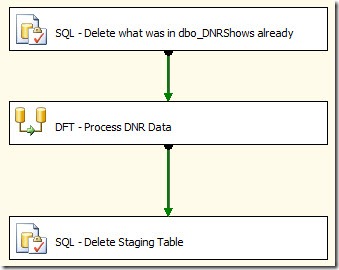
clip_image001

The first task is an Execute SQL Task that simply runs a “DELETE FROM dbo.DNRShows” command to wipe out what was already there. Of course in a true application we’d be checking for existing records in the data flow and doing updates or inserts, but for simplicity in this example we’ll just wipe and reload each time.

The final task is also an Execute SQL Task, after we have processed the data we no longer need it in the staging table, so we’ll issue a “DELETE FROM dbo.staging_DNRShows” to remove it.

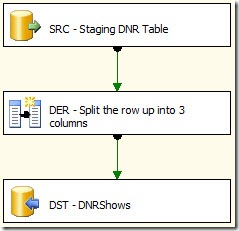
The middle item is our Data Flow Task. This is what does the heavy lifting of moving the staging data to the main table. Here is a snapshot of what it looks like:
clip_image002

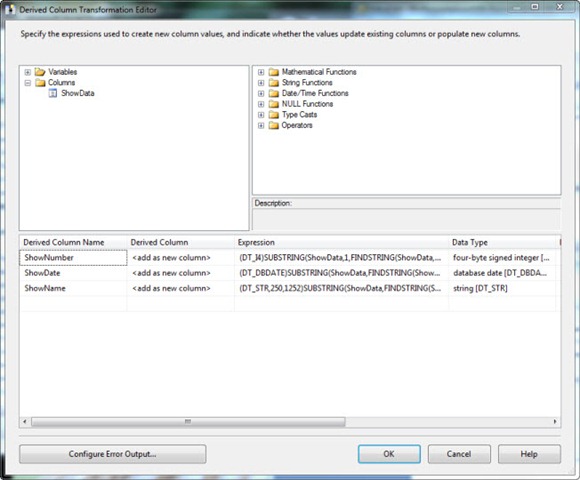
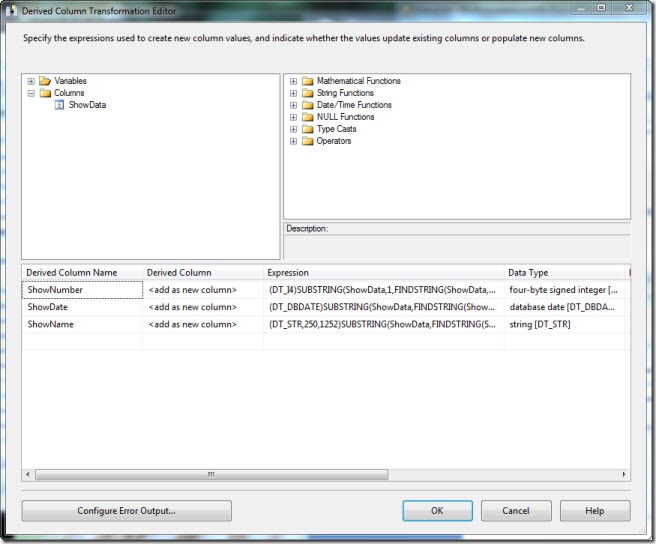
The first task is our OLEDB Source, it references the staging_DNRShows table. Next is what’s called a Derived Column Transformation. This will allow you to add new calculated columns to the flow, or add columns from variables. In this case we want to add three new columns, based on the single column coming from the staging table.
clip_image003

As you can see in under Columns in the upper left, we have one column in our source, ShowData. In the lower half we need to add three new columns, ShowNumber, ShowDate, and ShowName. Here are the expressions for each:

ShowNumber
    (DT_I4)SUBSTRING(ShowData,1,FINDSTRING(ShowData,"\t",1))

ShowDate
    (DT_DBDATE)SUBSTRING(ShowData,FINDSTRING(ShowData,"\t",2) + 1,LEN(ShowData) – FINDSTRING(ShowData,"\t",2))

ShowName
    (DT_STR,250,1252)SUBSTRING(ShowData,FINDSTRING(ShowData,"\t",1) + 1,FINDSTRING(ShowData,"\t",2) – FINDSTRING(ShowData,"\t",1) – 1)

The syntax is an odd blend of VB and C#. Each one starts with a “(DT_”, these are type casts, converting the result of the rest of the expression to what we need. For example, (DT_I4) converts to a four byte integer, which we need because in our database the ShowNumber column was defined as an integer. You will see SUBSTRING and LEN which work like their VB counterparts. FINDSTRING works like the old POS statement, it finds the location of the text and returns that number. The “\t” represents the tab character, here the C# fans win out as the Expression editor uses C# like escapes for special characters. \t for tab, \b for backspace, etc.

Finally we need to write out the data. For this simply add an OLEDB Destination and set it to the target table of dbo.DNRShows. On the mappings tab make sure our three new columns map correctly to the columns in our target table.

Deploy the Package

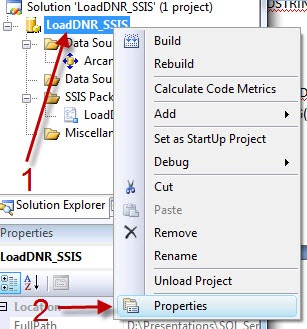
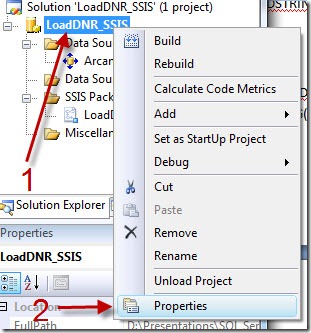
This completes the coding for the package, but there is one final step we need to do. First, in the solution explorer right click on the project (not the solution, the project as highlighted below) and pick properties.
clip_image004

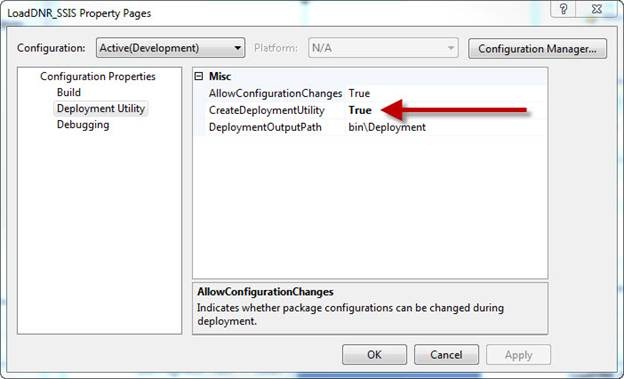
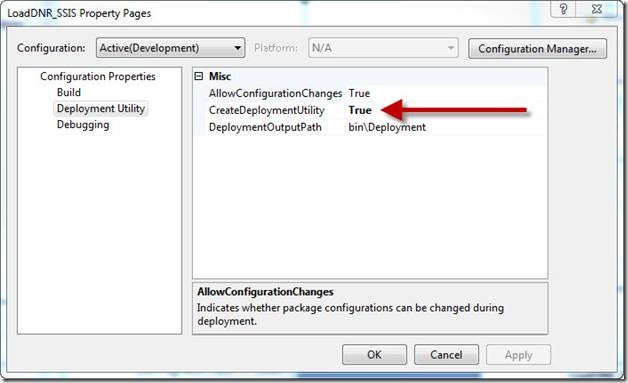
In the properties dialog, change the “CreateDeploymentUtility” option from false (the default) to True.
clip_image006

Now click the Build, Build Solution menu item. If all went well you should see the build was successful. It’s now time to deploy the package to the server. Navigate to the folder where your project is stored, under it you will find a bin folder, and in it a Deployment folder. In there you should find a file with a “.SSISDeploymentManifest” extension. Double click on this file to launch the Package Installation Wizard.

When the wizard appears there are two choices, File system deployment and SQL Server deployment. For our purposes we can use either one, there are pros and cons to each and many companies generally pick one or the other. In this example we’ll pick SQL Server deployment, but again know that I’ve tested this both ways and either method will work.

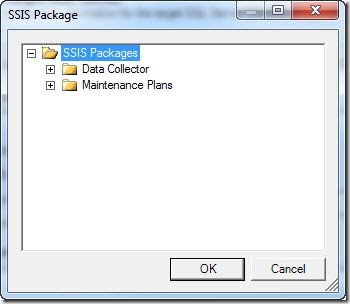
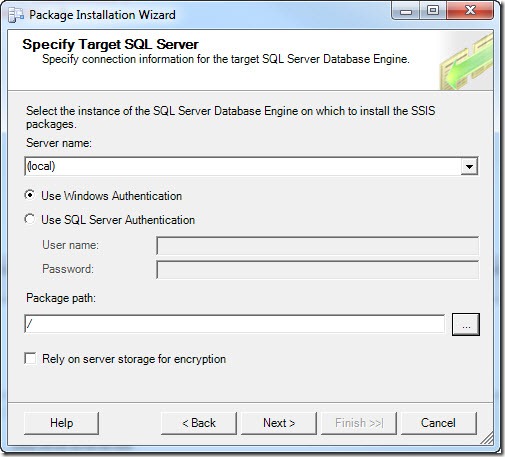
Once you pick SQL Server deployment, just click Next. Now it asks you for the server name, I’ve left it at (local) since I’m working with this on a development box; likewise I’ve left “Use Windows Authentication”. Finally I need the package path, I can select this by clicking the ellipse (the …) to the right of the text box. This brings up a dialog where I can select where to install.
clip_image007

In a real world production scenario we’d likely have branches created for each of our projects, but for this simple demo we’ll just leave it in the root and click OK.

Once your form is filled out as below, click Next.
clip_image008

We are next queried to what our installation folder should be. This is where SSIS will cache package dependencies. Your DBA may have a special spot setup for these, if not just click next to continue.

Finally we are asked to confirm we know what we are doing. Just click Next. If all went well, the install wizard shows us it’s happy with a report, and we can click Finish to exit.

Setup the SQL Server Job

We’ve come a long way and we’re almost to the finish line, just one last major step. We will need to setup a SQL Server Job which will launch the SSIS package for us. In SQL Server Management Studio, navigate to the “SQL Server Agent” in your Object Explorer. If it’s not running, right click and pick “Start”. Once it’s started, navigate to the Jobs branch. Right click and pick “New Job”.

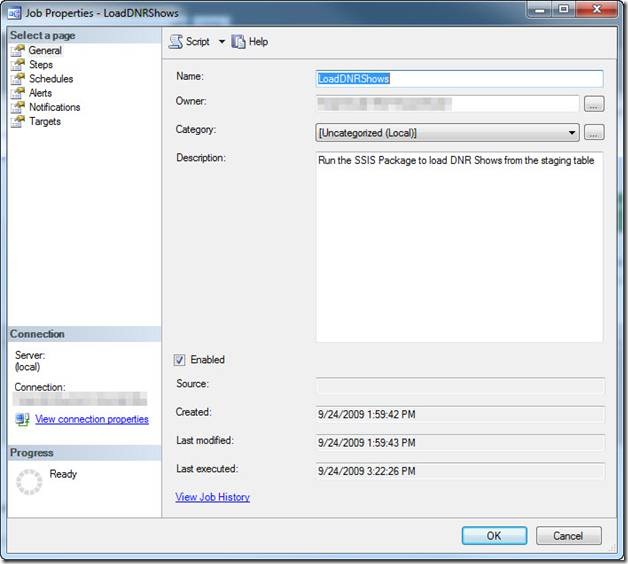
When the dialog opens, start by giving your job a name. As you can see below I used LoadDNRShows. I also entered a description.
clip_image010

Now click on the Jobs page over on the left “Select a page” menu. At the bottom click “New” to add a new job step.

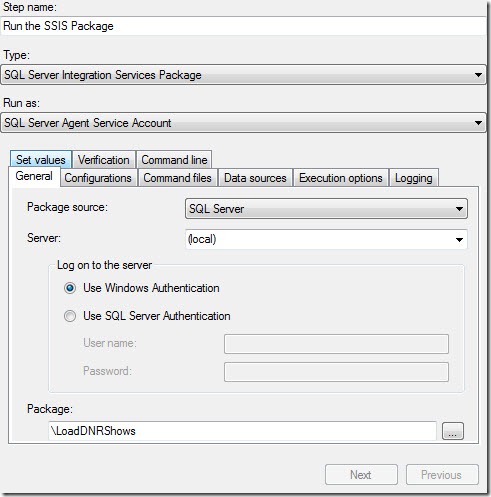
In the job step properties dialog, let’s begin by naming the step “Run the SSIS package”. Change the Type to “SQL Server Integration Services Package”. When you do, the dialog will update to give options for SSIS. Note the Run As drop down, this specifies the account to run under. For this demo we’ll leave it as the SQL Server Agent Service Account, check with your DBA as he or she may have other instructions.

In the tabbed area the General tab first allows us to pick the package source. Since we deployed to SQL Server we’ll leave it at the default, however if you had deployed to the file system this is where you’d need to change it to pick your package.

At the bottom we can use the ellipse to pick our package from a list. That done your screen should look something like:
clip_image011

For this demo that’s all we need to set, I do want to take a second to encourage you to browse through the other tabs. Through these tabs you can set many options related to the package. For example you could alter the data sources, allowing you to use one package with multiple databases.

Click OK to close the job step, then OK again to close the Job Properties window. Your job is now setup!

Calling from .Net

The finish line is in sight! Our last step is to call the job from .Net. To make it a useful example, I also wanted the .Net application to upload the data the SSIS package will manipulate. For simplicity I created a WinForms app, but this could easily be done in any environment. I also went with C#, again the VB.Net code is almost identical.

I started by creating a simple WinForm with two buttons and one label. (Again the full project will be on the Code Gallery site).
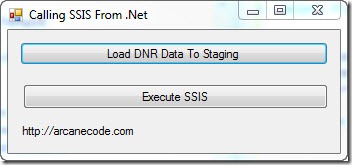
clip_image012

In the code, first be sure to add two using statements to the standard list:

using System.Data.SqlClient;

using System.IO;

Behind the top button we’ll put the code to copy the data from the text file we created from the DNR website to the staging table.

    private void btnLoadToStaging_Click(object sender, EventArgs e)

    {

      /* This method takes the data in the DNRShows.txt file and uploads them to a staging table */

      /* The routine is nothing magical, standard stuff to read as Text file and upload it to a  */

      /* table via ADO.NET                                                                      */


      // Note, be sure to change to your correct path

      string filename = @"D:\Presentations\SQL Server\Calling SSIS From Stored Proc\DNRShows.txt";

      string line;


      // If you used a different db than ArcaneCode be sure to set it here

      string connect = "server=localhost;Initial Catalog=ArcaneCode;Integrated Security=SSPI;";

      SqlConnection connection = new SqlConnection(connect);

      connection.Open();


      SqlCommand cmd = connection.CreateCommand();


      // Wipe out previous data in case of a crash

      string sql = "DELETE FROM dbo.staging_DNRShows";

      cmd.CommandText = sql;

      cmd.ExecuteNonQuery();


      // Now setup for new inserts

      sql = "INSERT INTO dbo.staging_DNRShows (ShowData) VALUES (@myShowData)";


      cmd.CommandText = sql;

      cmd.Parameters.Add("@myShowData", SqlDbType.VarChar, 255);


      StreamReader sr = null;


      // Loop thru text file, insert each line to staging table

      try

      {

        sr = new StreamReader(filename);

        line = sr.ReadLine();

        while (line != null)

        {

          cmd.Parameters["@myShowData"].Value = line;

          cmd.ExecuteNonQuery();

          lblProgress.Text = line;

          line = sr.ReadLine();

        }

      }

      finally

      {

        if (sr != null)

          sr.Close();

        connection.Close();

        lblProgress.Text = "Data has been loaded";

      }


Before you ask, yes I could have used any number of data access technologies, such as LINQ. I went with ADO.NET for simplicity and believing most developers are familiar with it due to its longevity. Do be sure and update the database name and path to the file in both this and the next example when you run the code.

This code really does nothing special, just loops through the text file and uploads each line as a row in the staging table. It does however serve as a realistic example of something you’d do in this scenario, upload some data, then let SSIS manipulate it on the server.

Once the data is there, it’s finally time for the grand finale. The code behind the second button, Execute SSIS, does just what it says; it calls the job, which invokes our SSIS package.

    private void btnRunSSIS_Click(object sender, EventArgs e)

    {

      string connect = "server=localhost;Initial Catalog=ArcaneCode;Integrated Security=SSPI;";

      SqlConnection connection = new SqlConnection(connect);

      connection.Open();


      SqlCommand cmd = connection.CreateCommand();


      // Wipe out previous data in case of a crash

      string sql = "exec msdb.dbo.sp_start_job N’LoadDNRShows’";

      cmd.CommandText = sql;

      cmd.ExecuteNonQuery();

      connection.Close();

      lblProgress.Text = "SSIS Package has been executed";


    }

The key is this sql command:

exec msdb.dbo.sp_start_job N’LoadDNRShows’

“exec” is the T-SQL command to execute a stored procedure. “sp_start_job” is the stored procedure that ships with SQL Server in the MSDB system database. This stored procedure will invoke any job stored on the server. In this case, it invokes the job “LoadDNRShows”, which as we setup will run an SSIS package.

Launch the application, and click the first button. Now jump over to SQL Server Management Studio and run this query:

select * from dbo.staging_DNRShows;

select * from dbo.DNRShows;

You should see the first query bring back rows, while the second has nothing. Now return to the app and click the “Execute SSIS” button. If all went well running the query again should now show no rows in our first query, but many nicely processed rows in the second. Success!

A few thoughts about xp_cmdshell

In researching this article I saw many references suggesting writing a stored procedure that uses xp_cmdshell to invoke dtexec. DTEXEC is the command line utility that you can use to launch SSIS Packages. Through it you can override many settings in the package, such as connection strings or variables.

xp_cmdshell is a utility built into SQL Server. Through it you can invoke any “DOS” command. Thus you could dynamically generate a dtexec command, and invoke it via xp_cmdshell.

The problem with xp_cmdshell is you can use it to invoke ANY “DOS” command. Any of them. Such as oh let’s say “DEL *.*” ? xp_cmdshell can be a security hole, for that reason it is turned off by default on SQL Server, and many DBA’s leave it turned off and are not likely to turn it on.

The techniques I’ve demonstrated here do not rely on xp_cmdshell. In fact, all of my testing has been done on my server with the xp_cmdshell turned off. Even though it can be a bit of extra work, setting up the job, etc., I still advise it over the xp_cmdshell method for security and the ability to use it on any server regardless of its setting.

In Closing

That seemed like a lot of effort, but can lead to some very powerful solutions. SSIS is a very powerful tool designed for processing large amounts of data and transforming it. In addition developing under SSIS can be very fast due to its declarative nature. The sample package from this article took the author less than fifteen minutes to code and test.

When faced with a similar task, consider allowing SSIS to handle the bulk work and just having your .Net application invoke your SSIS package. Once you do, there are no ends to the uses you’ll find for SQL Server Integration Services.

Intro to DW/BI at the Steel City SQL Users Group

Tonight I’ll be presenting “Introduction to Data Warehousing / Business Intelligence” at the Steel City SQL users group, right here in Birmingham Alabama. If you attended my Huntsville presentation last week, I’ve already added some new slides and revised the deck, so it will be worth another look.

My slide deck is IntroToDataWarehouse.pdf . Come join us tonight at 6 pm at New Horizons, there will be pizza and fun for all.

UPDATE: Before the presentation I was showing a video of Sara Ford jumping off a tower to support CodePlex. Got tons of laughs so here’s a link to the video:

http://blogs.msdn.com/saraford/archive/2009/09/14/my-codeplex-jump-from-tallest-building-in-the-southern-hemisphere-the-full-video.aspx

Intro to DW/BI at the Huntsville User Group meeting

Tonight at the Huntsville User group I am presenting “Introduction to Data Warehousing / Business Intelligence”. The slide deck for my presentation is now available in PDF format at the link below. If you have attended this presentation in the past you may wish to download the slides again as I have updated it with new information.

IntroToDataWarehousing

Data Warehousing / BI at the next HuntUG Meeting!

Business Intelligence is one of the most in demand skill sets right now. Do you want to know more about it? Be guided through all the terminology and concepts? Do you live in the Huntsville Alabama area? Well here’s your golden opportunity!

On Tuesday, September 8th I will be presenting “Introduction to Data Warehousing / Business Intelligence” at the next meeting of the Huntsville User Group. I’ll demystify all the terms around DW/BI and give a demonstration of the Microsoft SQL Server tools used in the DW/BI process. See their site for meeting time and directions. 

Welcome to COMFRAME

I admit to being remiss lately, my poor blog has been neglected for these past few weeks. I can only plead mea culpa and explain.

A few weeks ago I had an opportunity placed before me that I simply could not refuse. I’d been happy at my old job and wasn’t looking, but a good friend of mine works for a great company called COMFRAME. They are a consulting firm that does a variety of things, including Enterprise Project Management, .Net and Java development projects, SOA, and most important to me, Business Intelligence.

To make a long story short my friend took a lesson from the Godfather movies and “made me an offer I couldn’t refuse”. I am now a COMFRAME employee! The work is very exciting, I’ll be an architect on a BI project that is using Silverlight 3 for it’s front end. We are working with data from Microsoft Project, not only that but it’s the world’s biggest implementation of Project Server, so I’ll get to work with the fine folks at Microsoft even more closely. We’re also a Microsoft Partner, which will give me new avenues for relationships that will compliment my MVP.

I got to meet the customer this week, although brief they seemed very easy to work with, and nice as well. I also got to meet the development team I’ll be working with, I’m impressed with the work they’ve done so far and can’t wait to roll up my sleeves and dive in.

I’ve had a crazy time wrapping up my old job and starting my new one, hopefully I can get back to regular blogging soon. I’ve been doing a lot with SSIS and SSAS which will give me lots of good material to talk about, not to mention any Silverlight 3 work I get to explore.

SSIS For Developers at CodeStock 2009

At the 2009 CodeStock event I am presenting SQL Server Integration Services for Developers. This class will demonstrate tasks commonly done by VB.Net or C# developers within SQL Server Integration Services.

The sample project and documentation for the lab can be found on the code gallery site at http://code.msdn.microsoft.com/SSISForDevs .

SQL Saturday 7 – Introduction to Data Warehousing and Business Intelligence

At the Birmingham SQL Saturday 2009 I am presenting “Introduction to Data Warehousing and Business Intelligence”.

You can download the slide deck for this presentation in PDF format.

Any sample code came from either my Intro to SSIS presentation or the book Programming SQL Server 2008.

Introduction To Data Warehousing and Business Intelligence

At the Atlanta SQL Saturday 2009 one of the presentations I am doing is “Introduction to Data Warehousing and Business Intelligence”.

You can download the slide deck for this presentation in PDF format.

Any sample code came from either my Intro to SSIS presentation or the book Programming SQL Server 2008.

Tracking down SQL Server Integration Services issues with Collation

At work I’ve been developing a big suite of packages to convert data from an Oracle system into our Data Warehouse. A lot of the supporting tables are almost a straight pull, except we are of course adding our own primary key, and then setting up a non clustered unique index on what had been the primary key in the old system.

A few tables have been driving us batty though, giving us “duplicate value” errors when trying to insert the rows from our SSIS package. The first thing I did to try and track down the problem was create an error table, and instead of having the package fail have it redirect error rows to my new error table. In case you are wondering, this is going to be a “one time shot” use for the packages, so we chose not to invest a lot of time and effort into error handling. We either want all the rows or none, and we’ll be running the packages manually so we’ll be there to know the results. But I digress.

When I went to look at the error table, it had all the rows from our source system in it. I scratched my head, thinking that can’t be right. A quick search found the answer in the Technet Forums. I needed to go into the OLE DB Destination and set the Max Commit count to 1. Of course you wouldn’t want to leave it like that for production, but for debugging it worked great. Once I did that, I was able to rerun the package and quickly identify my misbehaving row.

Next I looked at the value, and then looked for a similar value in my table. What I found was my source system had two rows, something like this example:

Arcane Code

Arcane code

Yes, the only difference was the second row had a lowercase letter at the beginning of the second word. Our Oracle instance had case sensitivity turned on. To it, these were two entirely different values. However, by default SQL Server is case insensitive; to it these two were the same. So my dilemma, how to fix this one column without having to alter my entire database?

It turns out there is an option in the Create Table syntax to set the collation. First, you should find out what your collation is currently set to. This is easy enough, just open SQL Server Management Studio, right click on the database and pick properties. Right there on the front page is the Collation.

image

Alternatively I could have run this SQL in SSMS (substitute your database name where I have AdventureWorks2008):

select databasepropertyex('AdventureWorks2008', 'collation')

Either way, in this example the default is SQL_Latin1_General_CP1_CI_AS. The important thing to note is the “_CI_”, which indicates case insensitivity. If we wanted to set the entire database, we would issue commands to change this to SQL_Latin1_General_CP1_CS_AS, which stands for case sensitivity. But as I said, in my case I don’t want to affect the entire database, so instead I will use this collation name in the create table syntax. Here is a simple example:

create table TestTable
(
  BogusPK bigint identity
  , FieldFromOracle varchar(200) collate SQL_Latin1_General_CP1_CS_AS not null
  , AnotherField varchar(200) null
)

All that I had to do was insert the collate clause between the data type and the not null clause. Note that this only affects the one column I had an issue with. FieldFromOracle is now a case sensitive column, I can add “Arcane Code” and “Arcane code” and still be able to add a unique index. The second column, here named “AnotherField” will remain case insensitive, the behavior you normally expect.

Before I wrap this up, I know someone will point out that allowing primary keys in your system that only differ in case is bad practice. For the record I totally agree, however this is a soon to be legacy system built by a vendor. Additionally, for various reasons I was not allowed to do any data cleansing to the source system. Just pull it like it is and put it in the warehouse. I imagine most of you are like me, that you don’t get to live in the ideal world, so hopefully knowing how to diagnose and deal with collation issues between databases will make your life a little easier.

SQL Server Reporting Services, Oracle, and Multivalued Parameters

I am working on a series of reports that will use SQL Server Reporting Services 2005 for the reporting tool, with the data stored in Oracle. One of the requirements was that several of the parameters had to be Multivalued, users could pick from one to all of the items in a drop down list. Sounds like it should be straight forward, but there were a lot of gotcha’s that drove me nuts trying to get this to work. Some of the workarounds I had seen on the web, one I figured out for myself, but none had this information consolidated in one spot. So I thought I’d pass along the hard fought hours I spent and perhaps save you some time.

I’m going to keep my example very simple. I’m also going to assume you are familiar with using parameters and reporting services, perhaps just not with Oracle. We’ll pull our data out of a table called “table1”, and have four fields, field1, field2, field3, and field4. Field1 will be the one we’ll use for our multivalued parameter.

So the first thing we’d do with our report is create two datasets. The first will be used to populate the dropdown list for the parameter. We’ll call it dataset1, and it will have some simple SQL with it:

Select field1 from table1 order by field1

Pretty easy so far. Now create a parameter for the report. Name the parameter prmField1, and have it supply the values and labels from dataset1. This should all be familiar so far if you’ve done parameters with SQL Server. Now let’s create dataset2, which will be the main one to supply data to the report. When you create the new dataset, use this for the SQL:

Select field1, field2, field3, field4 
  from table1
 where field1 in ( :prmField1 )

Then click on the parameters tab, and bind :prmField1 to the Parameters!prmField1 parameter.

Now if you’ve used parameters with SQL Server, you’re probably scratching your head. It’s time for that first “gotcha” I mentioned. While SQL Server uses an @ sign for it’s parameters, Oracle uses a : (colon) to prefix it’s parameters. Thus :prmField1 is the parameter in this SQL. Note I could have named it anything, I just used :prmField1 to make it consistent with the parameter we setup to make debugging easier.

There’s one other potential gotcha here, depending on your version of Oracle. Only Oracle 9 and greater support this multivalued parameter syntax. It wasn’t an issue for me since we are on a version later than 9, but if you are on version 8 or earlier, you will have to turn the whole thing into an expression and break out the multivalues manually. Very ugly.

OK, if you run the report it would work, but it would have a few drawbacks. If you use the “Select All” check mark, Reporting Services will create SQL that looks like:

Select field1, field2, field3, field4 from table1 where field1 in ( ‘a’, ‘b’, ‘c’, ‘d’, …

Which works OK if you only have a limited number of items in the list, but if you have a lot of items selected your performance is going to be poor, and if you have more than 1000 Oracle won’t run the query at all. So how do we get around this gotcha?

The common wisdom here is to add your own ‘ALL’ selection to your drop down multiparameter list. Let’s go back to dataset1, and change the SQL statement to read:

selectALLas field1 
  from dual
union all
select field1 
  from table1
 order by field1

This will add ‘ALL’ as the first item in your list. If you are not familiar with Oracle, I’ll also mention “from dual” is just a way to tell Oracle that no table really exists, just return this one row with the fields I specify. Now we need to modify the query in dataset2 to take advantage of this shortcut. My first pass looked like:

select field1, field2, field3, field4 
  from table1
 where ( field1 in ( :prmField1 ) OR :prmField1 = ‘ALL’ )

Only problem is, this didn’t work right. If I picked ‘ALL’, or one item in my list the report worked, but if I picked more than one item from the list the report errored out. I believe that by using the :prmField1 = ‘ALL’ syntax, my multivalued parameter was getting converted to a single valued parameter. After several hours of head bashing though, I finally came up with this rewrite:

select field1, field2, field3, field4 
  from table1
 where ( field1 in ( :prmField1 ) orALLin ( :prmField1 ) )

Success! By changing my syntax to check for IN on both items I don’t coerce prmField1 into a single valued parameter, instead leaving it as multivalued. Another benefit / gotcha. You can execute this query from the dataset editor window. When you do a small dialog pops up and asks you to supply values for each parameter in the query. Through this dialog you can supply one value, thus I could use ‘ALL’, or some other valid value for prmField1, but only 1. This dialog does not allow you to enter more than one value, if you want to test your multivalue functionality, you’ll have to actually execute the full report.

You may also be wondering why I wrapped my where clause in parenthesis. Future maintenance. It will make it easier should I come back later and add more items to the where clause, like so.

select field1, field2, field3, field4 
  from table1
 where ( field1 in ( :prmField1 ) orALLin ( :prmField1 ) )
   and field2 = ‘Arcane Code’

Because there’s an OR in there, wrapping in parenthesis will keep my and/or logic correct for the rest of the query.

There is one final “gotcha” you need to be aware of when using this approach. While it does indeed solve the problem, it will take some education to train the users to use your ‘ALL’ feature instead of the built in ‘select all’ that comes with SQL Server Reporting Services. Once our users got used to it, it worked fine, but did take some education.

So let me summarize the key points for quick reference:

  1. Be sure your Oracle version is 9 or greater, none of this works on versions 8 or older.
  2. When using parameters with Oracle, use a : instead of an @ sign – :param instead of @param.
  3. Add an ‘ALL’ option to your datasets that supply values for multivalued drop down parameters.
  4. Check for the ALL in your where clause by using “where ( field1 in ( :prmField1 ) or ‘ALL’ in ( :prmField1 ) )” syntax.
  5. You can execute your query from the dataset window, but can only supply 1 value. However that value can be ‘ALL’.
  6. Educate your users on ‘ALL’ versus ‘(select all)’ .

Hopefully this will help you as you create your own SQL Server Reporting Services reports against Oracle databases using multivalued parameters.

Arcane Review: Expert SQL Server 2005 Integration Services

If you recall my “Good Reads” post from June 25th, you will remember I am a big believer in books as a learning medium. I like to employ a lot of different ways to learn: user groups, blogs, podcasts, videocasts, and magazines to name a few. But for really in depth coverage, it’s hard to beat a nice book in your hands. I got some good feedback from my mention last week of Andy Leonard’s new e-book on Data Dude, so I thought that I would continue by adding book reviews to the blog every so often.

Expert SQL Server 2005 Integration Services For this review I thought I’d cover a book that seems to constantly be on my desk lately: Expert SQL Server 2005 Integration Services, by Brian Knight and Eric Veerman. This book does a really good job and is specifically targeted toward the data warehousing professional. One entire chapter is devoted to ETL for dimension tables; another chapter focuses on the fact tables. It was great to have coverage so focused on these topics.

Another favorite part of the book is the two chapters on deploying and managing SSIS packages. So often these topics are glossed over, especially the managing piece. The book does a great job in covering all the tools and practices around this subject. I’ll mention one more chapter, one that focuses on package reliability. They cover logging, auditing, event handling, checkpoint files, and even suggestions on testing error handling logic.

There are many more chapters in the book, such as migration from DTS (SQL Server 2000) and Scalability, for you to discover. The other thing I love about this book is the brevity. The authors cover an amazing amount of information in just 382 pages. As a busy, busy person I very much appreciate the conciseness they achieved without sacrificing any clarity.

I’ve met both authors, and have heard them speak. They are both very nice, knowledgeable individuals, and I highly encourage you to attend one of their presentations if you get the chance, or if not at least buy their book from your favorite retailer; you will find it a great investment.

Presenting SQL Server 2005 2008 Full Text Searching at the TechEd 2008 InBetween conference

On June 7th, 2008 I am presenting “Getting Started with SQL Server 2005/2008” at the InBetween SQL Saturday conference that is taking place between the two weeks of Microsoft TechEd. This post will have all the links relevant to my talk.

Detailed descriptive material can be found on my blog, ArcaneCode.com, with links to specific posts below.

First off, the slides and sample code can be located at the Code Gallery site I setup specifically for Full Text Searching with SQL Server:

http://code.msdn.microsoft.com/SqlServerFTS

Look on the downloads page to see various projects around SQL Server Full Text Searching. I’ve created one “release” for each of the projects around FTS. Be sure to look on the right side at the various releases in order to see the various projects.

Next, you can get started with the basics by reading these entries on my blog:

Lesson 0 – Getting the Bits to do Full Text Searching in SQL Server 2005
Lesson 1 – The Catalog
Lesson 2 – The Indexes
Lesson 3 – Using SQL
Lesson 4 – Valid Data Types
Lesson 5 – Advanced Searching

After that you’ll be ready for some advanced topics.

Can you hear me now? Checking to see if FTS is installed.
Exploring SQL Servers FullTextCatalogProperty Function
Using the ObjectPropertyEx Function
Using FORMSOF in SQL Server Full Text Searching
Creating Custom Thesaurus Entries in SQL Server 2005 and 2008 Full Text Search
Creating and Customizing Noise Words in SQL Server 2005 Full Text Search
Creating and Customizing Noise Words / StopWords in SQL Server 2008 Full Text Search
Advanced Queries for Using SQL Server 2008 Full Text Search StopWords / StopLists

Atlanta Code Camp

I just wanted to let everyone know I will be speaking at the Atlanta Code Camp, on Saturday March 29th 2008. My subject will be Introduction to SQL Server 2005 Integration Services (SSIS). From the preliminary schedule I’ve seen, this looks like an awesome code camp, eight tracks this time! The SQL Server track concentrates a lot on BI (Business Intelligence). Three of the five sessions are on SSIS, so if you are looking to learn more about this subject this is the place to be!

The camp fills up quick, I’m surprised it hasn’t reached it’s limit yet. Just a little over a week away so head over to their site and register now!