Fun with PowerShell Enum Flags

Fun with PowerShell Enum Flags

Introduction

In my last two posts, I introduced the concept of Enums in PowerShell, then got into some of the more advanced uses. In this post we’ll examine a special way to use an enum, known as a Flag.

First let me mention that for all of the examples we’ll display the code, then under it the result of our code. In this article I’ll be using PowerShell Core, 7.2, and VSCode. The examples should work in PowerShell 5.1 in the PowerShell IDE, although they’ve not been tested there.

To run a snippet of code highlight the lines you want to execute, then in VSCode press F8 or in the IDE F5. You can display the contents of any variable by highlighting it and using F8/F5.

A Brief Refresher on Binary Math

In order to understand how flags work you need at least a basic understanding of binary math. In this section I’ll see if I can’t provide a short, simple refresher on the subject.

In my previous article, I mentioned that I am a ham radio operator, and am a member of multiple clubs. In a small club it’s not unusual to hold multiple offices, for example I’m both the secretary and the webmaster for one of the clubs, as well as a paid member. We can denote this by using a single variable to hold this information through the use of an enum flag.

A flag is a single variable that can be broken into its individual bits to indicate multiple values. In our example, we’ll use a flag to indicate a member’s paid status, their office, and if they hold more than one position in the club, all with a single variable.

Let’s say we have six people standing in a row. Each person has a sign, the first reads "paid", the rest have the names of club offices.

When a member walks into a room, people hold up signs that indicate the person’s status in the club, while the others leave their signs face down. When the Vice President walks in, the paid sign is raised up, as is the Vice President sign. We then take a photograph to capture this information in a single place.

I happen to be both Secretary and Webmaster of my club, as well as a paid member, so in my case three signs would go up and be captured in a photo. If we happen to have a visitor to the club, none of the signs will be raised, and a photo will record that.

Bit flags work the same way. Each sign is a bit, and the photo corresponds to the variable that holds all the bits.

Let’s say we have a 32 bit integer. If all 32 of the bits are set to a 0, then the value of that integer will be 0.

If the bit in position one is set to 1, and all of the other bits are 0, it indicates the value of the variable is 1.

In the second bit position, if the value is set to 1 and all other bits set to 0, the integer value is 2. If both bits one and two are set to 1, the integer value will be 3, and so on.

This chart of binary numbers and their decimal counterparts may help clarify.

Binary Decimal
0000 0
0001 1
0010 2
0011 3
0100 4
0101 5
0110 6
0111 7
1000 8
1001 9
1010 10

These are just the first few as an example, you could continue this chart into the trillions of values if not higher.

Should you need a further refresher on binary numbers, I’d suggest the Binary Number article on Wikipedia as a good guide. It’s important to understand binary values in order to fully understand how flags work.

Enum Flags

Let’s create our own enum flag to hold the status of club members. You declare an enum as a flag by placing the [Flags()] modifier in front of the enum declaration, as you’ll see below. Note that the values must correspond to the integer value if a bit is set. The Wikipedia article includes a nice chart that shows a decimal number and what that number looks like in binary.

[Flags()] enum MemberStatus
{
  Paid = 1
  President = 2
  VicePresident = 4
  Secretary = 8
  Treasurer = 16
  Webmaster = 32
}

I could add more to this list if needed, using the value of 64 for the next member status, then 128, then 256, and so on.

Now lets represent a member status in a variable to show a member is the Vice President, and is also a paid member. To do so, we simply add the various statuses together.

$memStatus = [MemberStatus]::Paid + [MemberStatus]::VicePresident

$memStatus

Result:

Paid, VicePresident

What’s nice about using an enum flag is that when we display the variable PowerShell converts the flags back into the members from the enum.

We could also simply assign the total number. In this case, Paid (value of 1), plus Vice President (value 4), adds up to 5.

$memStatus = [MemberStatus] 5
$memStatus

Result:

Paid, VicePresident

Finally, if we want to display the numeric value behind our flag, we can cast it as an int.

[int]$memStatus

Result:

5

Is the Flag Set? HasFlag to the Rescue!

Often you will want to see if a specific flag is set, for example we want to see if a member is paid. Now, if the paid status is the only flag set, it’s easy, just use $someVariable -eq [MemberStatus]::Paid.

It gets much more complex if a variable has multiple flags set. Fortunately, enums have a method built in called HasFlag you can use to test with.

First, let’s load a variable with several flags from our MemberStatus enum.

$memStatus = [MemberStatus]::Webmaster + [MemberStatus]::Secretary + [MemberStatus]::Paid

$memStatus

Result:

Paid, Secretary, Webmaster

So now we’ve got our $memStatus variable loaded with multiple statuses. Also note that even though we added the status in reverse order, they are always returned in ascending order from the enum declaration.

Now we want to know if our secretary / webmaster has paid their dues for the year. To do so, we’ll call the HasFlag method of our variable, and pass in the status we wish to check.

$memStatus.HasFlag([MemberStatus]::Paid)

Result:

True

The GetHashCode Method

So far, when we’ve wanted to see the value of our enum derived variable, we’ve used [int] to cast the variable in integer form.

$memStatus = [MemberStatus]::Webmaster + [MemberStatus]::Secretary + [MemberStatus]::Paid

[int]$memStatus

Result:

41

This shortcut works, and is something I’ve seen in many blog posts and examples. However, there is a method that is more clear in terms of code self-documentation. Like using [int], it will return an unsigned, 32 bit integer: GetHashCode.

$memStatus = [MemberStatus]::Webmaster + [MemberStatus]::Secretary + [MemberStatus]::Paid

$memStatus.GetHashCode()

Result:

41

Both methods work, but in my opinion GetHashCode is clearer in terms of intention, especially to someone unfamiliar with enum flags. Whichever route you go I suggest being consistent throughout your code.

Conclusion

This article focused on the use of enums as flags. While it is not something I use frequently, enum flags can be extremely useful when an item can have multiple states simultaneously. Our club member status is one such example, another is file attributes. A file could have both the hidden and compressed attributes.

Enum flags can reduce the size of your data for an item. Rather than having six individual variables for the six member statuses, a single variable can hold them all. This reduction in the size of your data can be even more valuable when that data is being stored in a database or file.

The demos in this series of blog posts were derived from my Pluralsight course PowerShell 7 Quick Start for Developers on Linux, macOS and Windows, one of many PowerShell courses I have on Pluralsight. All of my courses are linked on my About Me page.

If you don’t have a Pluralsight subscription, just go to my list of courses on Pluralsight . At the top is a Try For Free button you can use to get a free 10 day subscription to Pluralsight, with which you can watch my courses, or any other course on the site.
More Fun with PowerShell Enums

Introduction

In a previous post, Fun with PowerShell Enums I introduced the concept of Enums.

In this post we’ll dive deeper into enums, taking a look at more of its properties a well as other ways to use enums.

First let me mention that for all of the examples we’ll display the code, then under it the result of our code. In this article I’ll be using PowerShell Core, 7.2, and VSCode. The examples should work in PowerShell 5.1 in the PowerShell IDE, although they’ve not been tested there.

To run a snippet of code highlight the lines you want to execute, then in VSCode press F8 or in the IDE F5. You can display the contents of any variable by highlighting it and using F8/F5.

Enums for Code Clarity

One major way enums can be used is to clarify your code. In my previous post on enums I mentioned I was a ham radio operator. The clubs I belong to meet on alternate Thursday nights. Let’s say I wrote a small PowerShell function to let me know if tonight is a ham club meeting.

Into that function I need to pass one parameter, a number that indicates the day of the week. If 0 is Sunday, and 6 Saturday, the number 4 represents a Thursday.

function IsItHamClubNight($Day)
{
  if ($Day -eq 4)
  { Write-Host "Yay! It's ham club night" }
  else 
  { Write-Host "Sorry, just a boring night" }
}

When I call this function, I have to know what number to use.

$day = 4
IsItHamClubNight $day

Result:

Yay! It's ham club night

Obviously it would be easier to pass in the name of the day of the week rather than a number. But this function is now heavily embedded in your organization, changing it would require a large effort.

By using an enum, we can provide the ability to use a human readable name, without the need to rewrite our function.

Enum DaysOfWeek
{
  Sunday = 0
  Monday = 1
  Tuesday = 2
  Wednesday = 3
  Thursday = 4
  Friday = 5
  Saturday = 6
}

Enums allow us to assign a value to each label. Here we made Sunday 0, and so on, but we can use any integer value. Now we can assign one of the enums to a variable and pass that into our function.

$day = [DaysOfWeek]::Thursday
IsItHamClubNight $day

Result:

Yay! It's ham club night

Even better, we can skip the use of a variable.

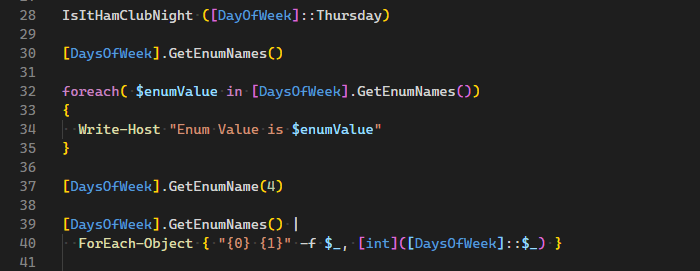
IsItHamClubNight ([DayOfWeek]::Thursday)

Which gives the same result. Now users of your function don’t have to remember which number represents Thursday, they can simply use the name of our enum followed by the day of the week. All of this without the need to modify our IsItHamClubNight function!

Getting the Enum Values

Let’s say you know the enum you want to use is DaysOfWeek, but you can’t quite recall the various day names. Was it Monday, or the short abbreviation Mon? Or maybe you just want the full list so you can iterate over them.

The Enum type has a method, GetEnumNames. It can be used to retrieve the members of the enum.

[DaysOfWeek].GetEnumNames()

Result:

Sunday
Monday
Tuesday
Wednesday
Thursday
Friday
Saturday

It actually returns a collection so you can use it to iterate over the members, as in a foreach loop.

foreach( $enumValue in [DaysOfWeek].GetEnumNames() )
{
  Write-Host "Enum Value is $enumValue"
}

Result:

Enum Value is Sunday
Enum Value is Monday
Enum Value is Tuesday
Enum Value is Wednesday
Enum Value is Thursday
Enum Value is Friday
Enum Value is Saturday

Alternatively you can pipe it, for example into a ForEach-Object.

[DaysOfWeek].GetEnumNames() |
  ForEach-Object { "{0} {1}" -f $_, [int]([DaysOfWeek]::$_) }

Result:

Sunday 0
Monday 1
Tuesday 2
Wednesday 3
Thursday 4
Friday 5
Saturday 6

This looks a bit cryptic so let me break it down. The "{0} {1}" -f indicates we want to create a formatted string. The {0} and {1} are placeholders. After the -f is a list of values. The first value will go into the {0}, the second into the {1}.

The next thing you see is $_. This is simply a PowerShell shortcut for "the current object coming through the pipeline". From the enum, Sunday will be first, then Monday, and so on.

Next you see [int]([DaysOfWeek]::$_). The [int] is used to convert what comes after it into an integer value. Next, we access the DayOfWeek enum, and give it the current object.

As a result, the output displays both the name from the enum, as well as the value associated with it.

If you want to learn more about string formatting, I’ll refer you to my post Fun With PowerShell String Formatting.

Enums with Duplicate Values

It is possible to assign the same numeric value to multiple items in an enum. For each position in our radio club, we want to indicate their level. President and Vice President are at the top, with Secretary and Treasurer in the second tier. Finally there are some appointed positions that are important, but not the top of the chain.

Here’s how this might be expressed in an enum.

Enum ClubPositions
{
  President = 1
  VicePresident = 1
  Secretary = 2
  Treasurer = 2
  Webmaster = 3
  Greeter = 3
  SnackBringer = 3
}

We can do comparisons between our various offices and their associated numeric value.

[ClubPositions]::President -eq 1
[ClubPositions]::VicePresident -eq 1

Result:

True
True

You can even compare two enums to each other.

[ClubPositions]::President -eq [ClubPositions]::VicePresident

Result:

True

Remember the GetEnumNames method we looked at a moment ago? This works as well.

[ClubPositions].GetEnumNames()

Result:

President
VicePresident
Secretary
Treasurer
Webmaster
Greeter
SnackBringer

There is one other method very similar to GetEnumNames, GetEnumValues. It doesn’t work quite like you’d think though.

First, let’s use it with our DaysOfWeek enum.

[DaysOfWeek].GetEnumValues()

Result:

Sunday
Monday
Tuesday
Wednesday
Thursday
Friday
Saturday

As you can see, there’s no real difference compared to GetEnumNames. But now let’s run it for the ClubPositions enum.

[ClubPositions].GetEnumValues()

Result:

VicePresident
VicePresident
Treasurer
Treasurer
Greeter
Greeter
Greeter

In the second example it went through the enum, and only returned one text value for each integer. This is why we only see one entry for each numeric value.

It actually does the same thing with the DaysOfWeek enum, but because we only used each integer value once, only one label for each value was returned.

Conclusion

Using enums to aid with code clarity was the first item in this blog post. We then saw how to assign values to the individual members of an enum, as well as how to iterate over the members of an enum.

In the next article in this series, we’ll look at the concept of using enums as bit flags for when you need to save multiple states for a single item.

The demos in this series of blog posts were derived from my Pluralsight course PowerShell 7 Quick Start for Developers on Linux, macOS and Windows, one of many PowerShell courses I have on Pluralsight. All of my courses are linked on my About Me page.

If you don’t have a Pluralsight subscription, just go to my list of courses on Pluralsight . At the top is a Try For Free button you can use to get a free 10 day subscription to Pluralsight, with which you can watch my courses, or any other course on the site.

Fun with PowerShell Enums

Introduction

This post begins a series on using Classes in PowerShell. As a first step, we will cover the use of an Enum, as enums are frequently used in combination with classes.

An Enum is a way to provide a set of predetermined values to the end user. This allows the user to pick from a finite list, and assure a value being passed into a function or class will be valid.

We’ll take a deeper look in a moment, but first let me mention that for all of the examples we’ll display the code, then under it the result of our code. In this article I’ll be using PowerShell Core, 7.2, and VSCode. The examples should work in PowerShell 5.1 in the PowerShell IDE, although they’ve not been tested there.

To run a snippet of code highlight the lines you want to execute, then in VSCode press F8 or in the IDE F5. You can display the contents of any variable by highlighting it and using F8/F5.

Basic Enum Declaration

Enum is short for enumerated value. As mentioned in the intro, it is a set of predetermined values that will ensure users of your script select a valid value required by your PowerShell code. Let’s start by defining a basic Enum.

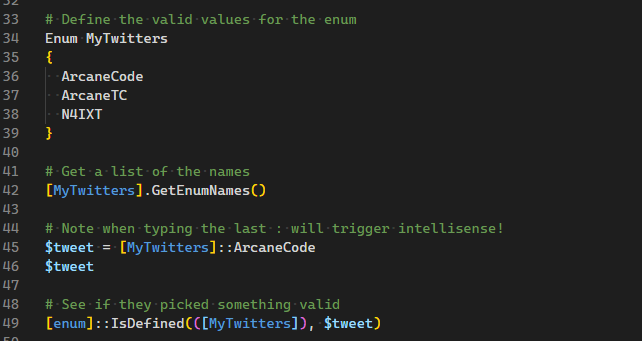
Enum MyTwitters
{
  ArcaneCode
  ArcaneTC
  N4IXT
}

As you can see, the basic declaration is very simple. You simply use the keyword Enum followed by what you wish to name it. In the squiggly braces you list the valid values.

Here I’ve listed three of my Twitter accounts. The first is the main one I use, ArcaneCode. The second is the one I use for my company ArcaneTC (short for Arcane Training and Consulting). I use it primarily to announce new Pluralsight courses, so it doesn’t see a huge amount of use.

One of my hobbies is amateur radio, also known as ham radio. N4IXT is my FCC assigned amateur radio call sign I use to identify myself on the air. I don’t post a lot, I use it mostly to read through the latest news in the ham radio world.

Note that Enums cannot have spaces in their names, although you could use separators such as an underscore. Arcane_Code would be a valid value for an enum.

What are my valid Enum values?

You’ve now created an Enum, perhaps you’ve included it within a module you are providing to other programmers in your company. How can they retrieve a list of valid values?

Hopefully you’ve provided documentation, but it’s also easy for a user to have PowerShell return a list of values. First, make sure you have executed the code above by highlighting it and using F8 (VSCode) or F5 (PowerShell IDE) to get the Enum into memory. Then you can run the line of code below.

[MyTwitters].GetEnumNames()

Result:

ArcaneCode
ArcaneTC
N4IXT

As you can see, it simply returns a list of the values that we declared in the Enum.

Assigning an Enum to a Variable

Now we have our enum, and know what the values are. We’re now ready to use our enum in our script. Here I’ll just assign it to a variable, but we could also pass an enumerated value into a function.

Begin typing out the following code sample, and note what happens when you hit the second colon.

$tweet = [MyTwitters]::

When you have entered the second colon, you should see a list of the enumerated values in VSCode.

I say should as sometimes I’ve had VSCode return enums that were declared in my script, and not for the specific enum I was working with.

In the PowerShell ISE though, I’ve had it work right every time.

When complete, your assignment should look like:

$tweet = [MyTwitters]::ArcaneCode

Is it Valid?

So you have a value from the enum copied into your variable, $tweet. How do we test it?

It’s important to understand enums are objects. In addition to the values you provide they have a set of properties and methods you can use. In the previous example, you saw the GetEnumNames method being used.

Another useful method is IsDefined.

[enum]::IsDefined(([MyTwitters]), $tweet)

Result:

True

Into the IsDefined method you pass in your enumeration, then the value you want to test. Here our value is in the variable $tweet. If the value is contained in the enum, the method returns True.

What if the user passes in a value that is not contained in our enum?

$tweet = 'Invalid'
[enum]::IsDefined(([MyTwitters]), $tweet)

Result:

False

Returning False makes it easy to use an if statement and raise an error if the user tries to use an invalid value. For more on the if statement, see my post Fun with PowerShell Logic Branching.

Conclusion

For these examples we used my Twitter accounts for our enum values, but there are many more uses some of them extremely common. You could load an enum with the days of the week, months of the year, colors, and other common values your scripts might use.

In the introduction I mentioned we are starting our series on classes with the enum as enums are frequently used with classes. However this is not a requirement. You can use enums with any PowerShell code you want to write.

In the my next post we’ll continue exploring the enum. We’ll look at a few more useful methods, as well as see how to assign values to our enum values.

The demos in this series of blog posts came from my Pluralsight course PowerShell 7 Quick Start for Developers on Linux, macOS and Windows, one of many PowerShell courses I have on Pluralsight. All of my courses are linked on my About Me page.

If you don’t have a Pluralsight subscription, just go to my list of courses on Pluralsight . At the top is a Try For Free button you can use to get a free 10 day subscription to Pluralsight, with which you can watch my courses, or any other course on the site.