Welcome To Kent!

Introduction

I’m happy to announce that effective today, August 28th, 2023 I will be going work for the Kent Corporation as a Business Intelligence Engineer.

This opportunity came about from a friend, Patrick Phelan. He works for Kent, and reached out to me to see I was interested in the job. After looking at the company, and the role, I was very interested!

Kent is an agriculture manufacturing company that was started in 1927. They use various types of grains, such as wheat, and make a variety of products. Animal food for horses, sheep, dogs, cats and more. They make distilled grain alcohol for medical use or distilleries. In addition they make additives for a variety of food products such as bread. Another aspect I really appreciate about Kent is their environmental consciousness. They strive to reduce waste by-products as much as possible.

In my role I’ll be working to upgrade and expand their SQL Server Data Warehouse, working with their SSIS packages, create cubes in SSAS, and lots of SSRS reports. I’ll also be working heavily in PowerBI. At some point in the future we plan to be shifting a lot of this up to Azure. Along the way I’ll be whipping up some PowerShell scripts to help automate as much work as possible.

The Future

For the next few months I’ll be focused on Kent. At some point though I plan to resume my videos for Pluralsight working on the evenings / weekends.

In addition, my blogging will become irregular. Previously I’ve been posting weekly, the blog posts focused on the subjects in my videos. Working full time for Kent I won’t have time to dedicate to blogging. I’ll still blog, and while I will try for weekly there may be some weeks that get skipped due to my daytime workload especially in the first few months.

The subjects will also vary, tied more toward some of the BI subjects I’ll be working with at Kent, such as Data Warehousing, SSIS/SSAS/SSRS, PowerBI, and of course PowerShell!

Conclusion

Thanks for joining me on my journey over the last few years as a full time Pluralsight video course author and book writer. I hope you’ll keep my company as I begin a new phase in my career!

Fun With KQL Windowing Functions – Row_Window_Session

Introduction

This post will conclude our look at the Kusto Query Language with the row_window_session function. It can be used to group rows of data in a time range, and will return the starting time for that range of data in each row.

If you’ve not read my introductory post on Windowing Functions, Fun With KQL Windowing Functions – Serialize and Row_Number yet, you should do so now as it introduced several important concepts needed to understand how these Windowing Functions work.

The samples in this post will be run inside the LogAnalytics demo site found at https://aka.ms/LADemo. This demo site has been provided by Microsoft and can be used to learn the Kusto Query Language at no cost to you.

If you’ve not read my introductory post in this series, I’d advise you to do so now. It describes the user interface in detail. You’ll find it at https://arcanecode.com/2022/04/11/fun-with-kql-the-kusto-query-language/.

Note that my output may not look exactly like yours when you run the sample queries for several reasons. First, Microsoft only keeps a few days of demo data, which are constantly updated, so the dates and sample data won’t match the screen shots.

Second, I’ll be using the column tool (discussed in the introductory post) to limit the output to just the columns needed to demonstrate the query. Finally, Microsoft may make changes to both the user interface and the data structures between the time I write this and when you read it.

Row_Window_Session Basics

The row_window_session function allows you to group data into time based groups. It will find the beginning of a time group, which KQL calls a session, then will return the beginning time of the session (along with other data) until the conditions are met to cause a new session to start.

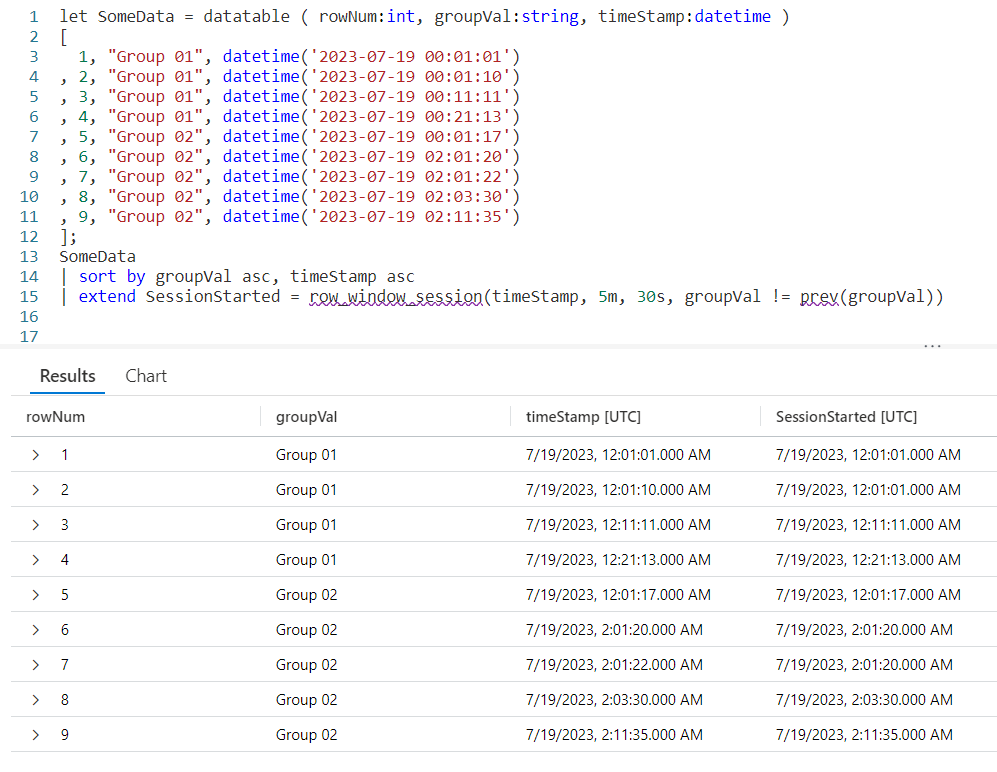
Let’s look at an example query, then we’ll break down the various parts.

We begin by declaring a datatable to hold our sample data. It has three columns. The rowNum is included to make it easier to discuss the logic of row_window_session in a moment, otherwise it’s just an extra piece of data.

I then include a groupVal column. It will be used to trigger the beginning of a new time group (aka session). Working with real world data, you may use something like the name of a computer for the group.

Finally we have a column of datatype datetime. When working with log data from, for example, the Perf table this would typically be the TimeGenerated column but it doesn’t have to be. Any datetime datatype column can be used. I’ve crafted the data to make it easier to explain how row_window_session works.

Next, I take our SomeData dataset and pipe it into a sort, sorting by the group and time in ascending order. The sort has the added benefit of creating a dataset that is serializable. See my previous post on serialization, mentioned in the introduction, for more on why this is important.

Finally we fall into an extend where we create a new column I named SessionStarted. We then assign it the output of the row_session_started function, which requires four parameters.

The first parameter is the datetime column to be used for determining the session window. Here it is timeStamp. The next three parameters are all conditions which will trigger the beginning of a new “session” or grouping.

The second parameter is a timespan, here I used a value of 5m, or five minutes. If more than five minutes have elapsed since the current row and the first row in this group, it will trigger the creation of a new window session (group).

The third parameter is also a timespan, and indicates the maximum amount of time that can elapse between the current row and the previous row before a new window session is started. Here we used 30s, or thirty seconds. Even if the current row is still within a five minute window from the first row in the group, if the current row is more than thirty seconds in the future from the previous row a new session is created.

The final parameter is a way to trigger a change when the group changes. Here we use the groupVal column, but it’s more likely you’d use a computer name or performance counter here.

Breaking it Down

Since this can get a bit confusing, let’s step through the logic on a row by row basis. You can use the rowNum column for the row numbers.

Row 1 is the first row in our dataset, with a timeStamp of 12:01:01. Since it is first, KQL will use the same value in the SessionStarted column.

In row 2, we have a timeStamp of 12:01:10. Since this is less than five minutes from our first record, no new session is created.

Next, it compares the timeStamp from this row with the previous row, row 1. Less than 30 seconds have elapsed, so we are still in the same window session.

Finally it compares the groupVal with the one from row 1. Since the group is the same, no new session window is triggered and the SessionStarted time of 12:01:01, the time from row 1 is used.

Now let’s move to row 3. It has a time stamp of 12:11:11. This is more than five minutes since the time in row 1, which is the beginning of the session, so it then begins a new window session. It’s time of 12:11:11 is now used for the SessionStarted.

Row 4 comes next. It’s time of 12:21:13 also exceeds the five minute window since the start of the session created in row 3, so it begins a new session.

Now we move into row 5. Because the groupVal changed, we begin a new session with a new session start time of 12:01:17.

In row 6 we have a time of 02:01:20. Well a two am time is definitely more than five minutes from the row 5’s time, so a new session is started.

The time in row 7 is 02:01:22. That’s less than five minutes from row 6, and it’s also less than 30 seconds. Since it is in the same group, no new session occurs and it returns 02:01:20 for the SessionStarted.

Now we get to row 8. The time for this row is 02:03:30, so we are still in our five minute window that began in row 6. However, it is more than 30 seconds from row 7’s time of 02:01:22 so a new window session begins using row 8’s time of 02:03:30.

Finally we get to row 9. By now I’m sure you can figure out the logic. Its time of 02:11:35 is more than five minutes from the session start (begun in row 8), so it triggers a new session window.

Remember the Logic

While this seems a bit complex at times, if you just remember the logic it can be pretty easy to map out what you want.

Did the group change as defined in the fourth parameter? If yes, then start a new window session.

Compared to the session start row, is the time for the current row greater in the future by the value specified in parameter 2? Then start a new window session.

Compared to the previous row, is the time for the current row farther in the future then the amount of time in parameter 3? If so, start a new window session.

TimeSpans

In this example I used small values for the timespans, 5m and 30s. You can use any valid timespan though, including days and hours.

For a complete discussion on the concept of timespans, see my blog post Fun With KQL – Format_TimeSpan.

Let’s Use Real Data

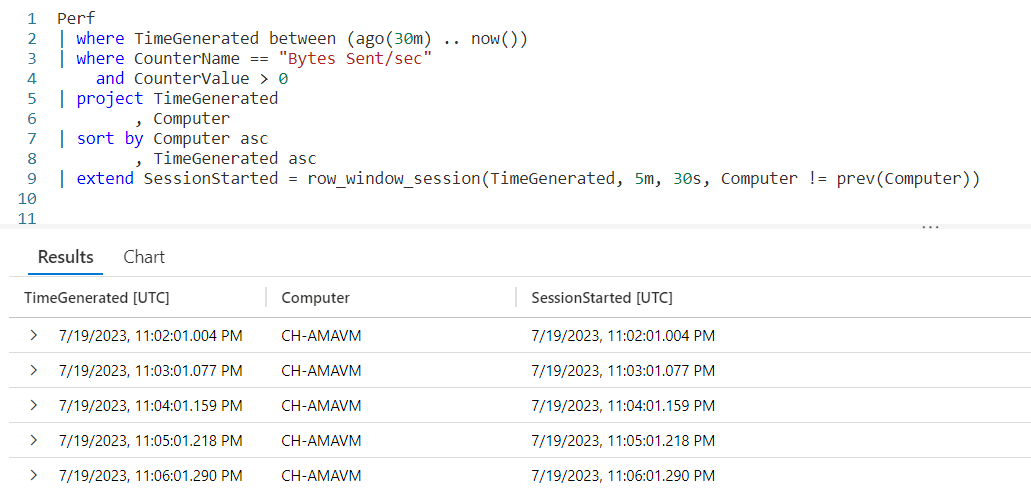
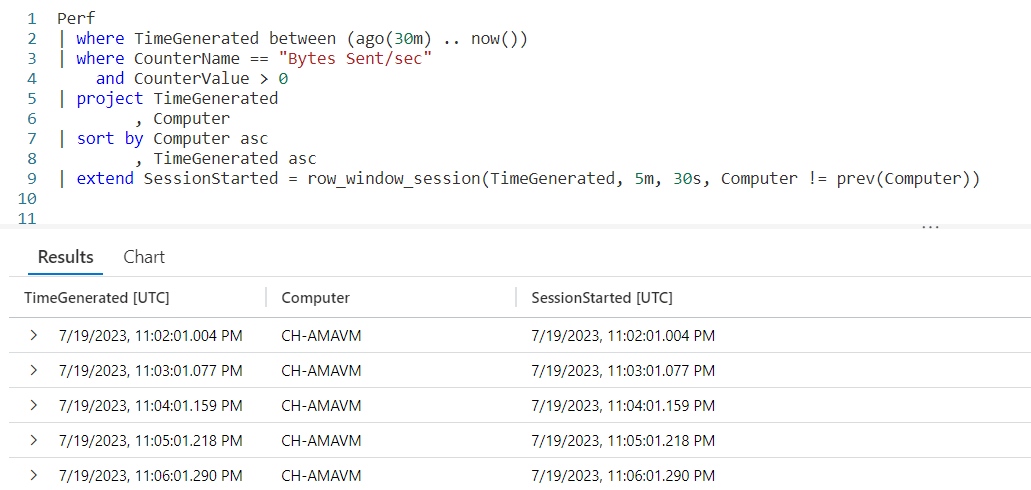
For completeness I wanted to include a final example that uses the Perf table from the LogAnalytics demo website.

The logic is similar to the previous example. Since you now have an understanding of the way row_window_session works, I’ll leave it up to you to step through the data and identify the new window sessions.

See Also

The following operators, functions, and/or plugins were used or mentioned in this article’s demos. You can learn more about them in some of my previous posts, linked below.

Fun With KQL – Datatable

Fun With KQL – Extend

Fun With KQL – Format_TimeSpan

Fun With KQL – Let

Fun With KQL Windowing Functions – Prev and Next

Fun With KQL – Project

Fun With KQL – Sort

Fun With KQL – Where

Conclusion

With this post on row_window_session, we complete our coverage of Kusto’s Windowing Functions. You saw how to use it to group data into timespans based on a beginning date, with the ability to group on total elapsed time since the start of a window or since the previous row of data.

The demos in this series of blog posts were inspired by my Pluralsight courses on the Kusto Query Language, part of their Kusto Learning Path.

There are three courses in this series so far:

I have two previous Kusto courses on Pluralsight as well. They are older courses but still valid.

These are a few of the many courses I have on Pluralsight. All of my courses are linked on my About Me page.

If you don’t have a Pluralsight subscription, just go to my list of courses on Pluralsight. On the page is a Try For Free button you can use to get a free 10 day subscription to Pluralsight, with which you can watch my courses, or any other course on the site.

Fun With KQL Windowing Functions – Row_Rank_Dense

Introduction

The Kusto Windowing Function row_rank_dense is an interesting function. It lets you get a unique count of a specific column in a dataset. Unlike other methods of getting counts, row_rank_dense allows you to see each individual row of data.

First though, if you’ve not read the introductory post on Windowing Functions, Fun With KQL Windowing Functions – Serialize and Row_Number, you should do so now as it introduced several important concepts needed to understand how these Windowing Functions work.

The samples in this post will be run inside the LogAnalytics demo site found at https://aka.ms/LADemo. This demo site has been provided by Microsoft and can be used to learn the Kusto Query Language at no cost to you.

If you’ve not read my introductory post in this series, I’d advise you to do so now. It describes the user interface in detail. You’ll find it at https://arcanecode.com/2022/04/11/fun-with-kql-the-kusto-query-language/.

Note that my output may not look exactly like yours when you run the sample queries for several reasons. First, Microsoft only keeps a few days of demo data, which are constantly updated, so the dates and sample data won’t match the screen shots.

Second, I’ll be using the column tool (discussed in the introductory post) to limit the output to just the columns needed to demonstrate the query. Finally, Microsoft may make changes to both the user interface and the data structures between the time I write this and when you read it.

Row_Rank_Dense Basics

The row_rank_dense is used to determine the density of a value. By passing in a sorted dataset, you can get a rank number for each item. The rank number changes only when the value we’re evaluating changes.

An example will make this much clearer. We start by creating a datatable with three columns. The rowNum is just used to make it easier to discuss the output in a moment. Likewise rowVal provides some easy to consume text.

The important column is valToRankOn. It is this value that is going to be evaluated within our row_rank_dense Windowing Function.

The SomeData dataset is piped into a sort, where we sort on the value we are evaluating in ascending order. We will also sort on the rowVal, so when we have two identical values in valToRankOn, we can display the output in a logical fashion. In a real world situation, this might be the name of computer or perhaps a counter of some kind.

Using a sort will also mark the data as serializable, which is required in order to use row_rank_dense. For more on serialization, see the Fun With KQL Windowing Functions – Serialize and Row_Number post I mentioned in the introduction.

Finally we fall into an extend, creating a new column Rank. We’ll assign it the output of our row_rank_dense function. In it we use one parameter, the name of the column to be evaluated, here it is valToRankOn.

In the output, our first row is row 7, with a valToRankOn of 1. Thus it is assigned a Rank of 1.

The next row is row 8, it has the next smallest value of 6 in the valToRankOn column, so it gets a Rank of 2.

Rows 6 and 9 both have the same valToRankOn, 17. Since 17 is the third smallest value, both rows are given a Rank of 3. Because we included rowVal in the sort, they are listed in order of the rowVal, Value 06 then Value 09.

This continues for the remaining rows of data. We can see both how many unique values we have, six, and still see each individual row of data.

Density by Largest Value

In the above example, by sorting the valToRankOn in ascending order the smallest values come first, then increase with a Rank of 1 being given to the smallest value.

If we had instead sorted valToRankOn in descending order, sort by valToRankOn desc, ..., then the Rank of 1 would have been assigned to the largest value, then as the valToRankOn decreased the Rank would have increased. I’ll leave it as an exercise for you to play with this by altering the sort order for your sample queries.

Grouping In Row_Rank_Dense

It is also possible to organize rankings within a group. For example, within a single computer you might want to rank a counter value. With the next computer you’d want the rankings to begin again. This would allow you to have rankings that are unique to each computer.

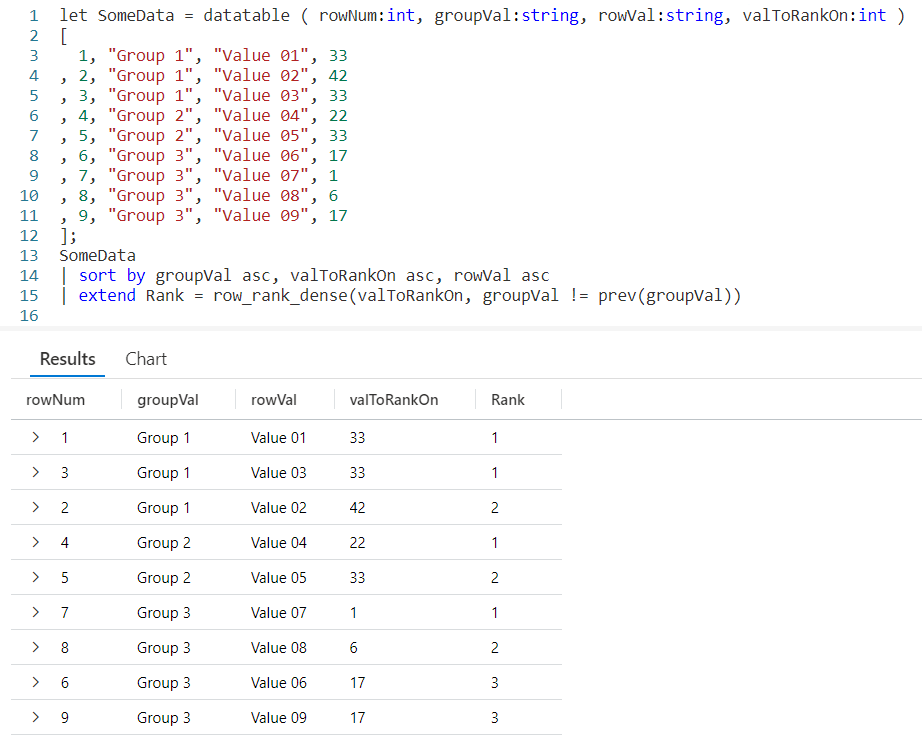
In the example below I’ve added a new column to the datatable named groupVal. We’ll be using this column for our grouping. It was also added to the sort operator so we’ll sort by group first, then the value to rank on, and finally the rowVal text.

The row_rank_dense function supports a second parameter, a boolean value that when true will trigger a new group to begin. Here we are using an equation, which will compare the groupVal for the current row to the one of the previous row using the prev Windowing Function. If they are not equal, the comparison will return true and trigger row_rank_dense to begin a new dense rank grouping.

In the output, rows 1 and 3 (from the rowNum column) have the same valToRankOn, so are both given the Rank of 1. The third row in this group, row 2, is assigned a Rank of 2.

With row 4, we see the groupVal has changed. So the row_rank_dense function reset and began a new ranking, assigning this row a Rank of 1.

When the group changes again in row 7, the Rank value is again reset to 1 and we work our way up.

Row_Rank_Dense in the Real World

Let’s take a look now at an example of using row_rank_dense for a “real world” query. Here, we are going to query the Perf table to bring back rows for the last five minutes where the CounterValue is Bytes Sent/sec, and we’ll remove any rows with a value of zero.

We’ll project each column we need and sort the data. Here we’ll again sort in ascending order so the smallest counter values come first, but we could just have easily sorted the CounterValue in descending order so the largest values came first.

When we call row_rank_dense, we’ll pass in the value we want to rank in the first parameter, CounterValue. In the second parameter we’ll compare the name of the computer in this row to the one of the previous row using the prev function. When they don’t match the comparison will return true, which will trigger the row_rank_dense function to begin a new group.

As you can see, we begin with computer CH-AMAVM, with its value of 2.26333 given the rank of 1, then the rank values increase as the counter values increase.

When we hit computer CH1-AVSMGMTVM, note the Rank reset itself. The first row for this computer, with a counter value of 2.34613 has a Rank of 1.

This pattern will repeat for the remaining rows of data from our query.

See Also

The following operators, functions, and/or plugins were used or mentioned in this article’s demos. You can learn more about them in some of my previous posts, linked below.

Fun With KQL – Datatable

Fun With KQL – Extend

Fun With KQL – Let

Fun With KQL Windowing Functions – Prev and Next

Fun With KQL – Project

Fun With KQL – Sort

Fun With KQL – Where

Conclusion

In this post you saw how to use the row_rank_dense Windowing Function to order and rank values in a dataset from smallest to largest, or largest to smallest.

The next and final post in the Kusto Window Functions series will cover the use of row_window_session to group and organize data into time windows.

The demos in this series of blog posts were inspired by my Pluralsight courses on the Kusto Query Language, part of their Kusto Learning Path.

There are three courses in this series so far:

I have two previous Kusto courses on Pluralsight as well. They are older courses but still valid.

These are a few of the many courses I have on Pluralsight. All of my courses are linked on my About Me page.

If you don’t have a Pluralsight subscription, just go to my list of courses on Pluralsight. On the page is a Try For Free button you can use to get a free 10 day subscription to Pluralsight, with which you can watch my courses, or any other course on the site.
Fun With KQL Windowing Functions – Row_Rank_Min

Introduction

In this post we’ll cover the next in our series on KQL Windowing Functions, row_rank_min. The row_rank_min function will assign rank numbers to an incoming dataset, with the rank of 1 being assigned to the minimal value in the dataset and increasing as the values increase.

First though, if you’ve not read the introductory post on Windowing Functions, Fun With KQL Windowing Functions – Serialize and Row_Number, you should do so now as it introduced several important concepts needed to understand how these Windowing Functions work.

The samples in this post will be run inside the LogAnalytics demo site found at https://aka.ms/LADemo. This demo site has been provided by Microsoft and can be used to learn the Kusto Query Language at no cost to you.

If you’ve not read my introductory post in this series, I’d advise you to do so now. It describes the user interface in detail. You’ll find it at https://arcanecode.com/2022/04/11/fun-with-kql-the-kusto-query-language/.

Note that my output may not look exactly like yours when you run the sample queries for several reasons. First, Microsoft only keeps a few days of demo data, which are constantly updated, so the dates and sample data won’t match the screen shots.

Second, I’ll be using the column tool (discussed in the introductory post) to limit the output to just the columns needed to demonstrate the query. Finally, Microsoft may make changes to both the user interface and the data structures between the time I write this and when you read it.

Row_Rank_Min Basics

We being by using let to define a datatable with some values to use for our example. The rowNum and rowVal are just included to have some data to look at.

The important column is valToRankOn. This is the column that will be evaluated and used to rank the data. Let’s see how our query works.

We take our SomeData and pipe it into a sort, sorting by the value to rank on and the row value (rowVal). Note we need to sort the valToRankOn in ascending order to get the row_rank_min to work correctly, and while we are at it we’ll sort the rowVal in ascending order as well.

The sort has the added benefit as making the data serializable, so it can be used with KQL Windowing Functions, in this case row_rank_min. For more on serialization see the post I referenced in the introduction, Fun With KQL Windowing Functions – Serialize and Row_Number.

After the sort we have an extend where we create a new column Rank. To it we assign the output of row_rank_min. Into the function we pass the column to evaluate for the rank, here we are using valToRankOn.

The smallest value is given a rank of 1, as you can see with rowNum 7. The next smallest value, found on rowNum 8 is assigned a rank of 2. Row 3 has a valToRankOn of 15, which is the next smallest value so it was given a rank of 3.

Rows 6 and 9 both have a value of 17, so both are assigned the same minimal rank number of 4. Because we added the rowVal to the sort, the rows are sorted in ascending order by the rowVal within the Rank of 4.

This pattern is repeated for the remaining rows, with the rank value increasing as the values in valToRankOn increases. As you can see, this provides an easy way to rank values from smallest to largest.

Ranking Within a Group

Similar to the row_cumsum Windowing Function we looked at in the previous post, we can create rankings within a group. In the following sample, a new column of groupVal was added to the SomeData sample dataset.

In the example we made two changes from the previous sample. First, the groupVal was added to the sort statement.

The next change occurred in the row_rank_min function. It supports a second parameter that will trigger a reset of the ranking value. It needs to evaluate to a boolean true/false value. When true, it resets the ranking value.

Here, we are comparing the groupVal of the current row to the groupVal of the previous row using the prev function. If the group name for the current row is different from the previous row, the comparison will return true since they are not equal. This will trigger the ranking to restart.

In rowNum 4 the group changes to Group 2, so Kusto starts the ranking again. Within Group 2, the value of 22 on row 4 is the smallest, so it gets the rank of 1.

This technique lets us create minimal ranking values within individual groups of data. Here we are using groupVal, in a real world you might use something like a computer name or performance counter name.

Real World Example

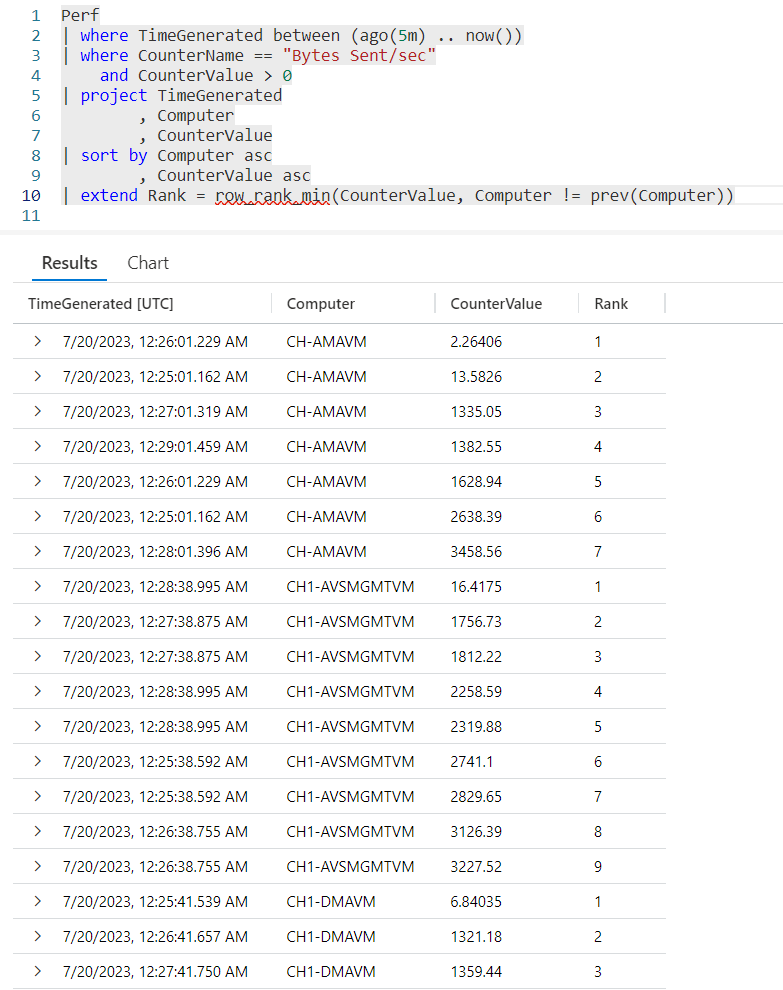
In this query we’ll create something you might use in the “real world”. We’re going to look at the Perf table for the counter “Bytes Sent/rec”, where there is data (the counter value is greater than zero).

We’ll project only the columns we need, then sort the output. We want to create rankings for each computer, from the smallest counter value to the biggest. By doing so we can easily see what times we had the smallest and largest values.

Here we use row_rank_min to evaluate the CounterValue. In the second parameter we are checking to see if the Computer name has changed, if so the rank will reset for the next computer.

Looking at one example, when the Computer changed from CH-AMAVM changes to CH1-AVSMGMTVM, the rank reset so the smallest value of 16.4175 is given the rank of 1.

See Also

The following operators, functions, and/or plugins were used or mentioned in this article’s demos. You can learn more about them in some of my previous posts, linked below.

Fun With KQL – Datatable

Fun With KQL – Extend

Fun With KQL – Let

Fun With KQL Windowing Functions – Prev and Next

Fun With KQL – Project

Fun With KQL Windowing Functions – Row_CumSum

Fun With KQL – Sort

Fun With KQL – Where

Conclusion

With this post we saw how to create rankings for values using the row_rank_min function. This allows us to easily identify the smallest value, with a rank of 1 and work up to the largest value.

In our next post we’ll continue our KQL Windowing Function series by looking at the row_rank_dense function, which is similar to this posts row_rank_min.

The demos in this series of blog posts were inspired by my Pluralsight courses on the Kusto Query Language, part of their Kusto Learning Path.

There are three courses in this series so far:

I have two previous Kusto courses on Pluralsight as well. They are older courses but still valid.

These are a few of the many courses I have on Pluralsight. All of my courses are linked on my About Me page.

If you don’t have a Pluralsight subscription, just go to my list of courses on Pluralsight. On the page is a Try For Free button you can use to get a free 10 day subscription to Pluralsight, with which you can watch my courses, or any other course on the site.