Fun With KQL – Extract

Introduction

Almost all languages have the ability to extract part of a string. In C#, this is the Substring method of a string. With SQL, it is the SUBSTRING command.

Kusto has an operator that will perform this same task, it is called extract. In this post we’ll see some examples of using it.

The samples in this post will be run inside the LogAnalytics demo site found at https://aka.ms/LADemo. This demo site has been provided by Microsoft and can be used to learn the Kusto Query Language at no cost to you.

If you’ve not read my introductory post in this series, I’d advise you to do so now. It describes the user interface in detail. You’ll find it at https://arcanecode.com/2022/04/11/fun-with-kql-the-kusto-query-language/.

Note that my output may not look exactly like yours when you run the sample queries for several reasons. First, Microsoft only keeps a few days of demo data, which are constantly updated, so the dates and sample data won’t match the screen shots.

Second, I’ll be using the column tool (discussed in the introductory post) to limit the output to just the columns needed to demonstrate the query. Finally, Microsoft may make changes to both the user interface and the data structures between the time I write this and when you read it.

Extract Basics

In this example, we want to extract the drive letter information from the InstanceName column.

We start with a standard query, taking the Perf table and piping it through a where operator to limit the dataset to ObjectName of LogicalDisk and using a regular expression to only get instances of drive letters.

Next we use a take to grab 20 random rows, to keep the sample data for this post small. This is then piped to a project to select just a few columns.

In the last column we employ the extract function. The first parameter is a regular expression that will grab a single letter in the range of A to Z, followed by a colon.

The second parameter, 0, indicates we should grab the entire text returned by the regular expression. In the output this is C:, D:, and so on.

The third and final parameter passed into extract is the column name we want to extract from, InstanceName. Finally we assign the result to the column name of DriveLetter, a name we picked. We could have called it Fred if we wanted, or omitted it entirely.

Extracting Part of a String

We also have the option of returning part of the text.

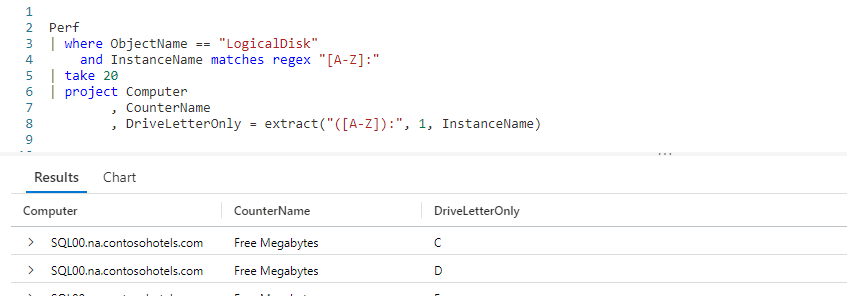
In this example, we wrap the [A-Z] in parenthesis. We then pass a 1 as the second parameter to the extract function. This tells extract to only return the portion of the string within the parenthesis.

In the output, you can see the DriveLetterOnly column only has the single drive letter, it omits the column.

Extracting Multiple Characters

In addition to a single character, the extract can grab multiple characters. You need some good regular expression skills to do so.
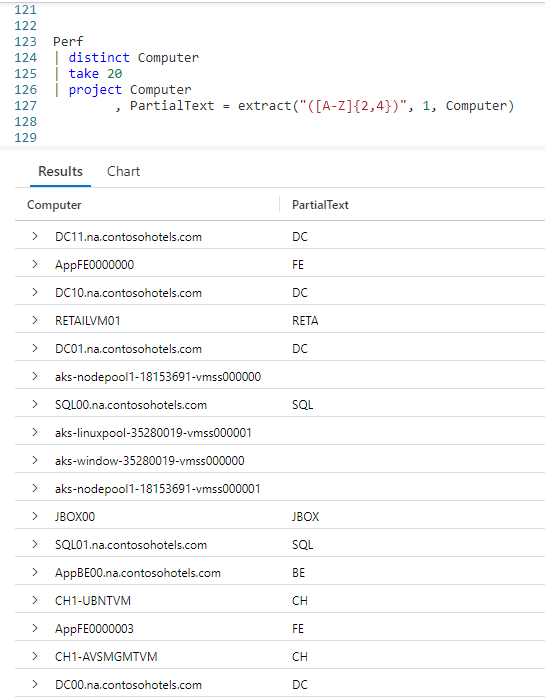
In this example we are using the distinct operator to get a unique list of computer names from the Perf table. We grab 20 random rows to keep the sample small, then go into a project.

In the first parameter to extract, inside the parenthesis, we pass in [A-Z]{2,4}. This translates to "look for upper case characters in the range A to Z, where there are between 2 and 4 of them in a row".

As before, the 1 parameter only returns the data in the parenthesis, and the third parameter is the column we want to look in.

In the output you see a list of matches in the PartialText column. When the PartialText column is blank, it means it did not find a match.

As you can see, you’ll need good skills at regular expressions to formulate good matches, but it can be done.

See Also

The following operators and / or functions were used in this article’s demos. You can learn more about them in some of my previous posts, linked below.

Fun With KQL – Where

Fun With KQL – Take

Fun With KQL – Project

Conclusion

Extracting parts of a string is a common need when authoring queries. In this article you saw how to use the extract function, combined with regular expressions, to accomplish this.

The demos in this series of blog posts were inspired by my Pluralsight courses Kusto Query Language (KQL) from Scratch and Introduction to the Azure Data Migration Service, two of the many courses I have on Pluralsight. All of my courses are linked on my About Me page.

If you don’t have a Pluralsight subscription, just go to my list of courses on Pluralsight . At the top is a Try For Free button you can use to get a free 10 day subscription to Pluralsight, with which you can watch my courses, or any other course on the site.
Fun With KQL – Sort

Introduction

Like most query languages, the Kusto Query Language as the ability to sort the output. It works almost, but not quite, like you expect. So let’s take a look at the KQL sort operator.

First though, let me mention the samples in this post will be run inside the LogAnalytics demo site found at https://aka.ms/LADemo. This demo site has been provided by Microsoft and can be used to learn the Kusto Query Language at no cost to you.

If you’ve not read my introductory post in this series, I’d advise you to do so now. It describes the user interface in detail. You’ll find it at https://arcanecode.com/2022/04/11/fun-with-kql-the-kusto-query-language/.

Note that my output may not look exactly like yours when you run the sample queries for several reasons. First, Microsoft only keeps a few days of demo data, which are constantly updated, so the dates and sample data won’t match the screen shots.

Second, I’ll be using the column tool (discussed in the introductory post) to limit the output to just the columns needed to demonstrate the query. Finally, Microsoft may make changes to both the user interface and the data structures between the time I write this and when you read it.

Sort Basics

Using sort is just about like you’d expect. You take your query, and pipe the output into the sort operator. After the by you simply list the column or columns to sort by.

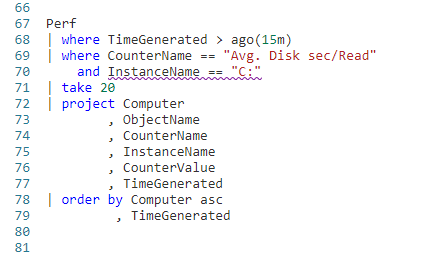
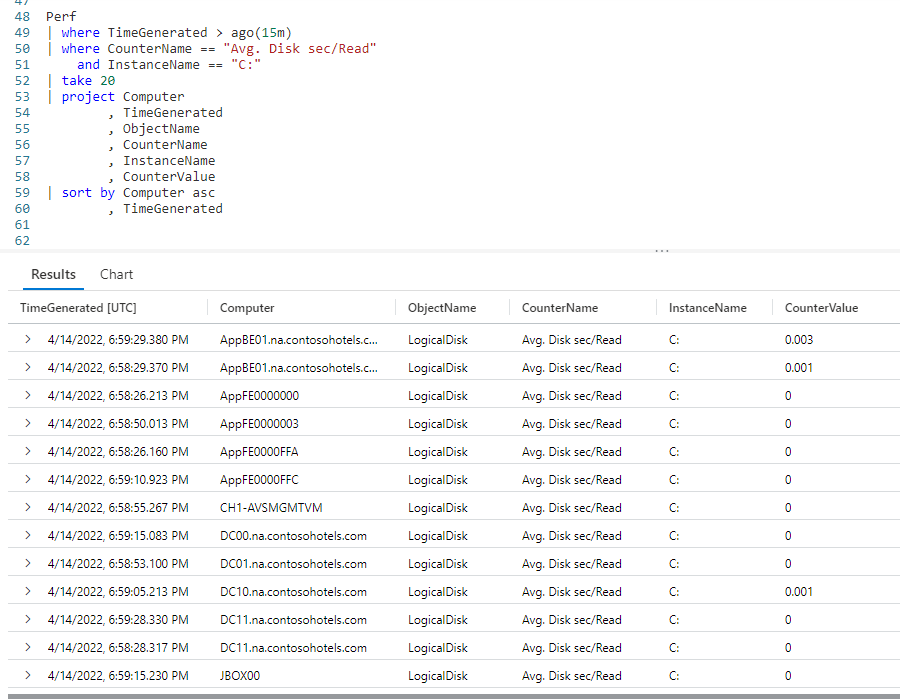
Here we pipe our Perf table into two where clauses to first reduce the output to the last 15 minutes using ago, then further reduce for only rows with a CounterName of Avg. Disk sec/Read and the InstanceName of C:.

From here we use a take, to grab 20 random rows just to keep this result set small for the demo. A project follows, to reduce the columns we want.

Finally is our sort operator. It will sort our output first by the Computer column, then by the TimeGenerated. (If you need further info on any of these commands, refer to the See Also section below.)

Now take a look at the output, specifically the Computer column. You’ll see we have computers with SQL first. Then there’s a Retail computer, then some entries for JBOX.

"Wait!" you might be yelling at your computer. "That’s not sorted right!"

Well in fact it is, since by default the sort operator sorts in descending order. With text based fields, like Computer, it sorts Z to A.

With numeric fields it sorts biggest to smallest, and with dates the most recent to the farthest back in time.

Frequently you want to get the biggest values for troubleshooting. Which computers had the biggest network latency? Which computers have the largest amount of disk space used? Hence the developers of Kusto chose to have the default for sort be descending.

Sort in Ascending Order

Not to worry though, it is easy to get your output to sort in ascending order.

All you have to do is place the asc keyword after the column name, and it will now sort smallest to largest. As you can see, the Computer column now starts with the A’s, then C’s, and so on. Likewise the TimeGenerated starts with the oldest, then works its way forward in time.

Mixed Sorting

The nice thing about placing the sort order after the column name is that you can set the sort order for each column independent of the other columns.

Here we simply removed the asc after the TimeGenerated column in the by. Now the Computer column will sort alphabetically, A to Z, but the TimeGenerated will sort in descending order, most recent to oldest.

There is actually a desc keyword you can use.

In terms of syntax, it makes no difference whether you use desc or not, as descending order is the default. However, I personally think it makes a big difference in terms of readability.

If you have asc on some columns, but not others, readers of your query (including you later) may wonder "well did they intend to sort in descending order, or did they forget to put an asc on the end?"

By explicitly having the desc in the query, you remove all doubt. Yes indeed, you meant for this column to be in descending order. As such I’d encourage you to always use desc whenever you have asc as part of your sort operator.

Order By

Are you coming to KQL from an SQL world? Well to make it easier, Kusto includes an order by operator.

The order by is just a synonym for sort by. As such it behaves exactly the same.

See Also

The following operators and / or functions were used in this article’s demos. You can learn more about them in some of my previous posts, linked below.

Fun With KQL – Where

Fun With KQL – Take

Fun With KQL – Project

Fun With KQL – Ago

Conclusion

In this post we saw how to sort your query results using the sort operator. We learned that it defaults to descending order, but you can override that with the asc keyword. Finally we learned about the synonym for sort by, order by.

The demos in this series of blog posts were inspired by my Pluralsight courses Kusto Query Language (KQL) from Scratch and Introduction to the Azure Data Migration Service, two of the many courses I have on Pluralsight. All of my courses are linked on my About Me page.

If you don’t have a Pluralsight subscription, just go to my list of courses on Pluralsight . At the top is a Try For Free button you can use to get a free 10 day subscription to Pluralsight, with which you can watch my courses, or any other course on the site.

Fun With KQL – Ago

Introduction

The ago function is very similar to the now function, which was discussed in my previous post Fun With KQL – Now. In this article we’ll take a look at ago, see how it works and how it differs from now.

We’ll be using both the print operator and the now function in this post, so if you aren’t familiar with them please go read my articles Fun With KQL – Print and Fun With KQL – Now.

In addition, I also use the where operator, documented in Fun With KQL – Where, the extend operator, which I discussed in the article Fun With KQL – Extend, and take, which you’ll find more information in Fun With KQL – Take.

The samples in this post will be run inside the LogAnalytics demo site found at https://aka.ms/LADemo. This demo site has been provided by Microsoft and can be used to learn the Kusto Query Language at no cost to you.

If you’ve not read my introductory post in this series, I’d advise you to do so now. It describes the user interface in detail. You’ll find it at https://arcanecode.com/2022/04/11/fun-with-kql-the-kusto-query-language/.

Note that my output may not look exactly like yours when you run the sample queries for several reasons. First, Microsoft only keeps a few days of demo data, which are constantly updated, so the dates and sample data won’t match the screen shots.

Second, I’ll be using the column tool (discussed in the introductory post) to limit the output to just the columns needed to demonstrate the query. Finally, Microsoft may make changes to both the user interface and the data structures between the time I write this and when you read it.

Ago Basics

The ago function allows you to pass in a time offset in as a parameter. It will then go that length of time into the past and retrieve the date. For example, to get yesterdays date, we would pass in a value of 1d.

Below is a chart of the time span notations you can use.

Abbreviation Time Unit
d days
h hours
m minutes
s seconds
ms milliseconds
microsecond microseconds

As you can see in the output, ago, like the now function, works with a variety of time spans. For this example we used the simple 1d, but the number can be anything. 365d, 12h, 30m are all valid time spans to use with both ago and now.

Ago vs Now

The big difference between ago and now is the way they handle input parameters. When you pass in a positive value into ago, it goes that many time spans into the past. With now, it goes that many time spans into the future.

The current date (when I did the screen capture) is April 13, 2022. Passing in 1d to now returned April 14th, where the same 1d into ago returned April 12.

So what happens if we pass in negative values to these functions? As it turns out, ago winds up behaving like now, and now behaves like ago.

With now being April 13, passing in a negative -2d to now gives us a date two days in the past, April 11.

Likewise, passing in a -2d into ago, gives us two days in the future.

Using Ago In Queries

The most common use of ago is in queries, combined with the where operator, to limit results for the last hour, day, or other time span.

Here, I used the where operator, combined with the ago function, to say "give all rows that occurred within the last hour".

I then added an extend operator to add the current date time (using now) just to show the current time. This isn’t something you’d normally do, but I wanted it to illustrate this concept. Finally it is piped into the take operator to give just a few rows for this sample.

In the output, the RightNow showed the current time when I ran the query was 9:45 pm. Thus, one hour ago would be 8:45 pm. As you can see in the TimeGenerated column, all of the times were after 8:45 pm.

Why Have Ago AND Now?

So after learning about these two functions, which essentially do the same thing, you may wonder "why have both ago and now?"

Simply put, readability. When we see negative values, the brain has to stop and think a moment about what is going on. Having both functions avoids this.

When you see ago, your brain automatically understands this is generating a date in the past. When you see just now(), you instinctively know this is the current date. Finally, if you see now with a parameter you know this is calculating a date in the future.

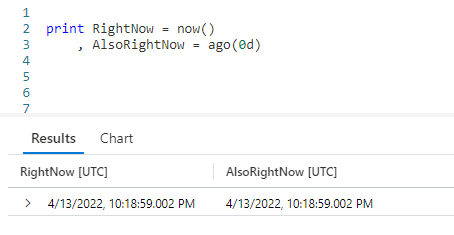
By the way, you can also make ago simulate now by passing in a time span with a value of 0 (zero).

Here I used a d for the time span, but any time span notation would have worked, 0m, 0s, and so on. I don’t actually recommend this however, this is a case where you really should be using now. I just wanted to mention it in case you happen to encounter it at some point in the future.

Conclusion

In article we covered the use of the ago function to calculate dates in the past. We contrasted it with the now function, and learned when to use each of these functions to make our code more readable.

The demos in this series of blog posts were inspired by my Pluralsight courses Kusto Query Language (KQL) from Scratch and Introduction to the Azure Data Migration Service, two of the many courses I have on Pluralsight. All of my courses are linked on my About Me page.

If you don’t have a Pluralsight subscription, just go to my list of courses on Pluralsight . At the top is a Try For Free button you can use to get a free 10 day subscription to Pluralsight, with which you can watch my courses, or any other course on the site.
Fun With KQL – Now

Introduction

What time is it? That’s what the KQL function now will tell you. It will return the current date and time. It is mostly used in queries where you need data relative to the current date and time.

Before we go on, let me mention the samples in this post will be run inside the LogAnalytics demo site found at https://aka.ms/LADemo. This demo site has been provided by Microsoft and can be used to learn the Kusto Query Language at no cost to you.

If you’ve not read my introductory post in this series, I’d advise you to do so now. It describes the user interface in detail. You’ll find it at https://arcanecode.com/2022/04/11/fun-with-kql-the-kusto-query-language/.

Note that my output may not look exactly like yours when you run the sample queries for several reasons. First, Microsoft only keeps a few days of demo data, which are constantly updated, so the dates and sample data won’t match the screen shots.

Second, I’ll be using the column tool (discussed in the introductory post) to limit the output to just the columns needed to demonstrate the query. Finally, Microsoft may make changes to both the user interface and the data structures between the time I write this and when you read it.

Now Basics

At its simplest, the now function returns the current date and time.

Here we used the print operator (covered in Fun With KQL – Print) to display the current date time to the results pane at the bottom. Just a reminder, all Kusto functions require the use of parenthesis at the end, even if they are left empty.

Now With An Offset

The now function can accept parameters. You can enter an offset to return a date in the past, or future, relative to the current date and time.

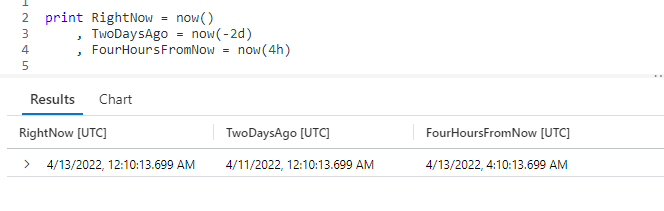
In the first column I get the current date time with now() and copy it into the RightNow column of the output.

In the second column I pass in a parameter of -2d to now. This will subtract two days from the current date time and place it in the TwoDaysAgo column.

Finally, I pass in a value of 4h to now. This will get the time four hours in the future, again from the current date and time.

Below is a quick reference for common date and time abbreviations that can be passed into Kusto’s many date time functions, including now.

Abbreviation Time Unit
d days
h hours
m minutes
s seconds
ms milliseconds
microsecond microseconds

Using Now in a Query

You can also use now as part of a query, as well as in its calculations.

Here, we took the Perf table and piped it through two where operators to limit the dataset to only rows with a counter name of Free Megabytes whose counter value is greater than zero.

It is then piped through the take operator to give us a small sample dataset of ten rows to work with, for demonstration purposes.

Next we use the extend operator to add a new column to the dataset naming it HowLongAgo. To get this, we subtract the TimeGenerated column from now(), to see how far in the past this entry was recorded in the Perf table. If you look at the value in the first row, the HowLongAgo indicates this data was recorded 0 hours, 20 minutes, and 20.9790581 seconds previous to the current date time.

The project operator is then used to get only the columns we want, including making a copy of the current date time (using now) into the CurrentTime column.

If you’re not familiar with the operators that were used in this query, you can refer to my past posts for more information.

Fun With KQL – Where

Fun With KQL – Take

Fun With KQL – Extend

Fun With KQL – Project

Conclusion

In this post we covered the useful now function. It is a function you’ll use a lot in your work with Kusto. In the next post we’ll look at the other common date function ago, and contrast it with now.

The demos in this series of blog posts were inspired by my Pluralsight courses Kusto Query Language (KQL) from Scratch and Introduction to the Azure Data Migration Service, two of the many courses I have on Pluralsight. All of my courses are linked on my About Me page.

If you don’t have a Pluralsight subscription, just go to my list of courses on Pluralsight . At the top is a Try For Free button you can use to get a free 10 day subscription to Pluralsight, with which you can watch my courses, or any other course on the site.