Make Your SSAS Data Source View Pretty

Anyone who works with SSAS (SQL Server Analysis Services) knows the DSV (Data Source View) is the key to the project. It is through the DSV that everything else is built on. Unfortunately, in most projects I’ve worked on, it is generally the biggest mess.

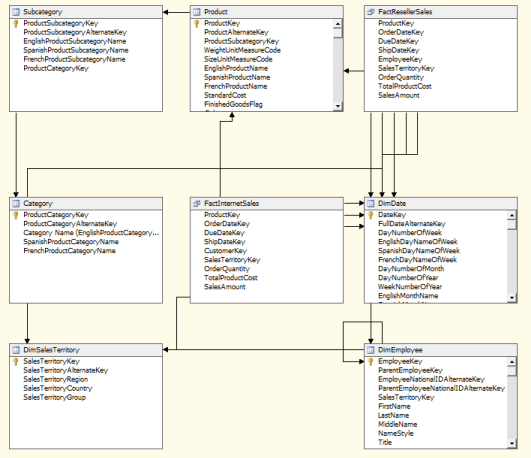
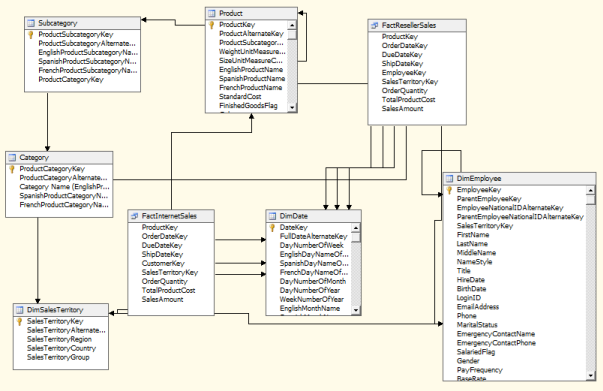
Take this simple example cube based on the Adventure Works data warehouse.

image

What a mess! Fortunately there is a very simple way to clean it up.

Go up to the toolbar area. Right click to bring up a list of available toolbars, and pick the Layout.

image

Now you see a new toolbar appear:

image

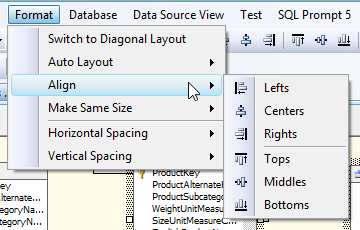
Hover your mouse over each item, you’ll see tool tips such as Left Alight, Right Alight, Align Tops, and more. Note that in the menus there is a menu named Format. The same items on the toolbar also appear in the menu. I find it a little easier to use the toolbar, but do what you are comfortable with.

image

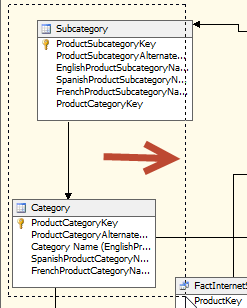
OK, now that we have our tools ready, we can start cleaning up that messy DSV. There are two ways to select the tables (or views) that we want fix up. First, you can simply click in an empty area of the design surface and drag the mouse. A little dotted line outline will appear showing you which tables will be in the selection.

image

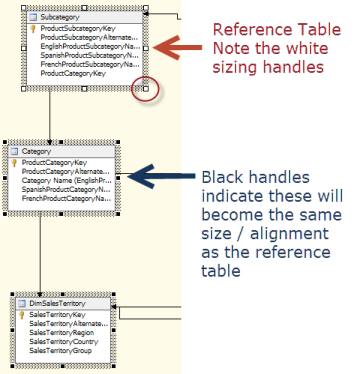
The other option is to click on the first table, what is known as the “reference”. You’ll know the reference because it has white border handles. Then CTRL+Click on the other tables you wish to align, or make the same size as, the reference table. You’ll know these because they have a thick black square on the sides and border.

image

Now go to the layout bar or the menu, and find the button for align lefts. Click, then click the button for make same width. Repeat the process for the other tables in the DSV. When you are done it could look this pretty:

image

With just a few minutes work your DSV is now organized into neat rows and columns of uniform width. This makes it much easier to read. Your eye is not distracted by the jagged alignment and the uneven widths. Instead, you can much more easily focus on the text inside the boxes, which is after all the important part.

One last tip, if you wish to move the selected table (or tables) a bit, hold down the CTRL key, then use the arrows to move everything in tiny steps to the position you want.

I did the above example using SQL Server 2008R2 BIDS, this technique also works with the SQL Server Data Tools that shipped with SQL Server 2012 (SSDT, aka Visual Studio 2010) and with the newer SSDT for Visual Studio 2012.

SSAS Duplicate Attribute Error – Another Cause

I had  a real head banger this afternoon and I’m not talking about the heavy metal playlist I was jamming to in my iPod.

I had a table that, in addition to the surrogate key, business keys, etc had these columns:

Level1 Level2
Phineas and Ferb Phineas
Phineas and Ferb Ferb
Phineas and Ferb Perry

I had a dimension in SSAS where I had a Level1 -> Level2 Hierarchy built. When I tried to process the dimension, SSAS kept kicking out “duplicate attribute error” on Perry. I did the usual checking, yes my attribute relationships were OK, the Key property was built correctly, etc.

So then I moved to look at the data itself. I first did a SELECT * FROM CoolShow WHERE Level1 = ‘Phineas and Ferb’ and Level2 = ‘Perry’.

I got back 4 rows. Hmm. After some more head banging (Guns ‘n Roses, Paradise City) I wound up doing a SELECT * FROM CoolShow WHERE Level1 = ‘Phineas and Ferb’ and I get back 42 rows with Perry. Hmm, I say to myself, “self, that looks odd”. To which self replied “duh”.

Then self suggested I do a SELECT ‘*’ + Level2 + ‘*’ FROM CoolShow WHERE Level1 = ‘Phineas and Feb’

This yielded some interesting results, 4 rows read *Perry* the other rows read *Perry *   (Note the blank space between y and * .)

Well obviously I needed a RTRIM, which I dutifully added then reran the query. Only to get the *Perry * again in the output. At this point self said I was on my own and abandoned me to drown its sorrows in a pitcher of margaritas.

I took the output and copied it into an editor that would do hex mode. So what do I see but a 0D 0A in the space between the y and the *, causing me to scream “AH-HA” as Queen’s Bohemian Rhapsody hit its crescendo. I also scared the cat, but I only mention that because cute cat things are supposed to be popular on the internet and I figure it might help my SEO. For those who don’t speak HEX, 0D 0A is 13 and 10, which turn into a Carriage Return and Line Feed.

Now by this point most of you have probably given up on this handy tip, deciding a pitcher of margaritas sounded pretty good and left to find some. But if you are still hanging in, I modified the view with this code:

RTRIM(REPLACE(REPLACE([Level2], CHAR(13), ”), CHAR(10), ”) ) AS [Level2]

Returning to the cube I was able to process the dimension successfully and answer the question of “Where’s Perry?” (Answer: He’s at the bar trying to keep a drunken self from using his evil margaritainator invention.)

So the moral of the story, if you get duplicates error, and your dimension looks okey-dokey, check the data to see if you have some errant CR/LFs. Apparently SSAS doesn’t handle them very well.

Now if you’ll excuse me, I’m going to join self at the bar before self guzzles all the margaritas (self is such a drunken sot). AC/DC, take me away with some “Highway to Hell”!

Updating AdventureWorksDW2012 for Today

Like many of my fellow MVPs and Presenters, I use the Adventure Works sample data from Microsoft to do my presentations. Being a BI guy, I specifically use the AdventureWorksDW2012 version, the Data Warehouse of Adventure Works. I think you’d agree though it’s gotten a little long in the tooth. All of dates range from 2005 to 2008. This is especially irritating when demonstrating features reliant on the current date ( think GETDATE() or NOW() ).

Before you read further, let me stress again this is NOT for the typical AdventureWorks2012 database. This script is for the Data Warehouse version, AdventureWorksDW2012.

I scoured the search engines but couldn’t find anyone who had taken time to come up with a way to update the database. Finally fed up, I did it myself. Below is a script which will add five years to each date in AdventureWorksDW2012. 2008 becomes 2013, 2007 becomes 2012, and so on. The script, below, turned out to be pretty simple.

Before you begin though, a few prerequisites. First, you will need to have AdventureWorksDW2012 installed on your system. A friend and co-worker, Bradley Ball (@SQLBalls | blog ) pointed out one issue which I’ll pass along. He had some issues with the version of AdventureWorksDW2012 located at http://msftdbprodsamples.codeplex.com/releases/view/55330. When he just grabbed the mdf file and tried to create the database using the attach_rebuild_log option it came out corrupted. Instead he suggested the version stored at http://www.wrox.com/WileyCDA/Section/Wrox-Books-Using-the-SQL-Server-2012-RTM-Database-Examples-Download.id-811144.html?DW_1118479580.zip. (I don’t think Wrox will mind, as I and many of my co-workers have written books for them, nice folks.)

Next, please note this script was written with SQL Server 2012 in mind. It could easily be adapted for 2008R2 by tweaking a few paths. Speaking of which, I use the default paths for everything, you’ll need to alter if you used other paths.

Not wanting to mess with the original AdventureWorksDW2012, in Step 1 (these steps are numbered in the script below) I make a backup of the existing 2012 version. I then do a restore, renaming it to AdventureWorksDW2013. Be warned, if you have run this before and AdventureWorksDW2013 exists it will be deleted. This might be good if you want an easy way to reset your 2013 version, if not alter the script for your needs.

Later I will be inserting dates. I have a handy little routine that converts a traditional datetime data type to an integer, using the traditional YYYYMMDD common for data warehouse date keys. I probably could have done this using some version of FORMAT but I already had the routine written so I just grabbed and reused it. Note it also does some bounds checking, etc that really wasn’t needed here, but like I said I did a grab and reuse. So in Step 2 I create the function.

In step 3 I tackle the biggest task of inserting new rows into the date dimension. The DimDate table already had dates through the end of 2010, so I only had to generate 2011-2013. Inside a WHILE loop I iterate over each date individually, do the calculations to break out the various pieces of a date such as month number, quarter number, etc, and do an INSERT into the DimDate table. If you recall, the DimDate table in AdventureWorks has mult-language versions of the month and day names. I simply read the existing ones into table variables, then in the SELECT part of the INSERT INTO… SELECT statement do a join to these two table variables.

Of course to do that, I had to have a table to select from. None of my date data though existed in the table, each piece of data was generated from the CurrentDate variable. So I simply created a third table variable named BogusTable, and inserted a single row in it. This gave me something to join the month and day name tables to. I suppose I could have used CASE statements for each of the names, but this was more fun.

With the dates added to DimDate, it was time to move on to the Fact tables. In some cases it was very simple. For example, in Step 4.1 I just add 50,000 to the date key. Why 50,000? Simple date math. The dates are integers, 20080101 is really 20,080,101. To bring it up to 2013, I simply added 50,000, thus 20,013,101 or 20130101.

The two Sales fact tables had dates on leap year from 2008. To fix those I simply backed those up a day, shifting them to February 28th. I took a slightly different approach with the Currency Rate fact table, simply shifting the 2008 leap year to 2012 leap year, then omitting February 29th from the rest of the update. Also note that on this and the Product Inventory table, the Date Key was actually part of the Primary Key of the tables. Thus I had to first drop the Primary Key, make the changes to the dates, then recreate the Primary Key.

One last note on the Fact tables, all of the dates in the Call Center table were set to 2010. For those I merely added 30,000, shifting them from 2010 to 2013. (Don’t ask me why those have 2010 dates when the rest of the sample data is 2005-2008. I have not a clue.)

As a last and final step, Step 5, I drop the little helper function DateToDateId I created way back in Step 2. And that’s it! You now have a handy demo / practice database with dates that are actually current.

A big thanks to my co-workers at Pragmatic Works (@PragmaticWorks | http://pragmaticworks.com ) for helping me test this out and making sure it worked with their stuff.

Enjoy!


PS Most browsers don’t seem to render the code in a monospace font. Be assured when you paste into SSMS everything should line back up again, assuming of course you use a monospace font in SSMS.


/*-----------------------------------------------------------------------------------------------*/
/* Updating AdventureWorks2012 for Today */
/* */
/* Robert C. Cain, http://arcanecode.com @ArcaneCode */
/* */
/* Script Copyright (c) 2013 by Robert C. Cain */
/* AdventureWorks database Copyright (c) Microsoft. */
/* */
/* This script will make a backup of the AdventureWorks2012DW database, then copy and restore it */
/* as AdventureWorksDW2013. It will then update it for current dates. 2008 now becomes 2013, */
/* 2007 is now 2012, and so forth. This script is dependent on the AdventureWorks2012DW sample */
/* database already being installed. It won't change AdventureWorksDW2012 in anyway. */
/* */
/* Be warned, if AdventureWorksDW2013 exists, it will be deleted as part of this process. */
/* */
/*-----------------------------------------------------------------------------------------------*/

PRINT 'Updating AdventureWorks2012 for Today - Starting'
GO

/*-----------------------------------------------------------------------------------------------*/
/* Step 1 - Make a copy of AdventureWorksDW2012 and restore as AdventureWorksDW2013 */
/*-----------------------------------------------------------------------------------------------*/
SET NOCOUNT ON

USE [master]

-- Step 1.1. Make a backup of AdventureWorksDW2012 ----------------------------------------------
PRINT 'Backing up AdventureWorksDW2012'
GO

BACKUP DATABASE [AdventureWorksDW2012]
TO DISK = N'C:\Program Files\Microsoft SQL Server\MSSQL11.MSSQLSERVER\MSSQL\Backup\AdventureWorksDW2012.bak'
WITH NOFORMAT,
INIT,
NAME = N'AdventureWorksDW2012-Full Database Backup',
SKIP,
NOREWIND,
NOUNLOAD,
STATS = 10
GO


-- Step 1.2. Delete the database AdventureWorksDW2013 if it exists ------------------------------
PRINT 'Deleting AdventureWorksDW2013, if it exists'
GO

IF (EXISTS (SELECT 1
FROM master.dbo.sysdatabases
WHERE name = 'AdventureWorksDW2013' )
)
EXEC msdb.dbo.sp_delete_database_backuphistory @database_name = N'AdventureWorksDW2013'
GO

IF (EXISTS (SELECT 1
FROM master.dbo.sysdatabases
WHERE name = 'AdventureWorksDW2013' )
)
DROP DATABASE [AdventureWorksDW2013]
GO

-- Step 1.3. Restore the database to a new copy -------------------------------------------------
PRINT 'Restoring AdventureWorksDW2012 to AdventureWorksDW2013'
GO

RESTORE DATABASE [AdventureWorksDW2013]
FROM DISK = N'C:\Program Files\Microsoft SQL Server\MSSQL11.MSSQLSERVER\MSSQL\Backup\AdventureWorksDW2012.bak'
WITH FILE = 1,
MOVE N'AdventureWorksDW2012_Data'
TO N'C:\Program Files\Microsoft SQL Server\MSSQL11.MSSQLSERVER\MSSQL\DATA\AdventureWorksDW2013_Data.mdf',
MOVE N'AdventureWorksDW2012_Log'
TO N'C:\Program Files\Microsoft SQL Server\MSSQL11.MSSQLSERVER\MSSQL\DATA\AdventureWorksDW2013_log.ldf',
NOUNLOAD, STATS = 5

GO

PRINT 'Done Creating AdventureWorksDW2013'
GO


/*-----------------------------------------------------------------------------------------------*/
/* Step 2. Create a helper function to convert dates to a YYYYMMDD format Date Id. */
/*-----------------------------------------------------------------------------------------------*/

USE [AdventureWorksDW2013]
GO

IF EXISTS (SELECT [name] FROM [sys].[all_objects] WHERE [name] = 'DateToDateId')
DROP FUNCTION [dbo].[DateToDateId];
GO

CREATE FUNCTION [dbo].[DateToDateId]
(
@Date DATETIME
)
RETURNS INT
AS
BEGIN

DECLARE @DateId AS INT
DECLARE @TodayId AS INT

SET @TodayId = YEAR(GETDATE()) * 10000
+ MONTH(GETDATE()) * 100
+ DAY(GETDATE())

-- If the date is missing, or a placeholder for a missing date, set to the Id for missing dates
-- Else convert the date to an integer
IF @Date IS NULL OR @Date = '1900-01-01' OR @Date = -1
SET @DateId = -1
ELSE
BEGIN
SET @DateId = YEAR(@Date) * 10000
+ MONTH(@Date) * 100
+ DAY(@Date)
END

-- If there's any data prior to 2000 it was incorrectly entered, mark it as missing
IF @DateId BETWEEN 0 AND 19991231
SET @DateId = -1

-- Commented out for this project as future dates are OK
-- If the date is in the future, don't allow it, change to missing
-- IF @DateId > @TodayId
-- SET @DateId = -1

RETURN @DateId

END

GO


/*-----------------------------------------------------------------------------------------------*/
/* Step 3. Add new dates to the dbo.DimDate table. */
/*-----------------------------------------------------------------------------------------------*/
PRINT 'Adding new dates to dbo.DimDate'
GO

SET NOCOUNT ON

-- Later we will be writing an INSERT INTO... SELECT FROM to insert the new record. I want to
-- join the day and month name memory variable tables, but need to have something to join to.
-- Since everything is calculated, we'll just create this little bogus table to have something
-- to select from.
DECLARE @BogusTable TABLE
( PK TINYINT)

INSERT INTO @BogusTable SELECT 1;


-- Create a table variable to hold the days of the week with their various language versions
DECLARE @DayNameTable TABLE
( [DayNumberOFWeek] TINYINT
, [EnglishDayNameOfWeek] NVARCHAR(10)
, [SpanishDayNameOfWeek] NVARCHAR(10)
, [FrenchDayNameOfWeek] NVARCHAR(10)
)

INSERT INTO @DayNameTable
SELECT DISTINCT
[DayNumberOFWeek]
, [EnglishDayNameOfWeek]
, [SpanishDayNameOfWeek]
, [FrenchDayNameOfWeek]
FROM dbo.DimDate

-- Create a month table to hold the months and their language versions.
DECLARE @MonthNameTable TABLE
( [MonthNumberOfYear] TINYINT
, [EnglishMonthName] NVARCHAR(10)
, [SpanishMonthName] NVARCHAR(10)
, [FrenchMonthName] NVARCHAR(10)
)

INSERT INTO @MonthNameTable
SELECT DISTINCT
[MonthNumberOfYear]
, [EnglishMonthName]
, [SpanishMonthName]
, [FrenchMonthName]
FROM dbo.DimDate

-- This is the start and end date ranges to use to populate the
-- dbo.DimDate dimension. Change if it's 2014 and you run across this script.
DECLARE @FromDate AS DATE = '2011-01-01'
DECLARE @ThruDate AS DATE = '2013-12-31'

-- CurrentDate will be incremented each time through the loop below.
DECLARE @CurrentDate AS DATE
SET @CurrentDate = @FromDate

-- FiscalDate will be set six months into the future from the CurrentDate
DECLARE @FiscalDate AS DATE

-- Now we simply loop over every date between the From and Thru, inserting the
-- calculated values into DimDate.
WHILE @CurrentDate <= @ThruDate
BEGIN

SET @FiscalDate = DATEADD(m, 6, @CurrentDate)

INSERT INTO dbo.DimDate
SELECT [dbo].[DateToDateId](@CurrentDate)
, @CurrentDate
, DATEPART(dw, @CurrentDate) AS DayNumberOFWeek
, d.EnglishDayNameOfWeek
, d.SpanishDayNameOfWeek
, d.FrenchDayNameOfWeek
, DAY(@CurrentDate) AS DayNumberOfMonth
, DATEPART(dy, @CurrentDate) AS DayNumberOfYear
, DATEPART(wk, @CurrentDate) AS WeekNumberOfYear
, m.EnglishMonthName
, m.SpanishMonthName
, m.FrenchMonthName
, MONTH(@CurrentDate) AS MonthNumberOfYear
, DATEPART(q, @CurrentDate) AS CalendarQuarter
, YEAR(@CurrentDate) AS CalendarYear
, IIF(MONTH(@CurrentDate) < 7, 1, 2) AS CalendarSemester
, DATEPART(q, @FiscalDate) AS FiscalQuarter
, YEAR(@FiscalDate) AS FiscalYear
, IIF(MONTH(@FiscalDate) < 7, 1, 2) AS FiscalSemester
FROM @BogusTable
JOIN @DayNameTable d
ON DATEPART(dw, @CurrentDate) = d.[DayNumberOFWeek]
JOIN @MonthNameTable m
ON MONTH(@CurrentDate) = m.MonthNumberOfYear

SET @CurrentDate = DATEADD(d, 1, @CurrentDate)
END
GO

-- If you want to verify you can uncomment this line.
-- SELECT * FROM dbo.DimDate WHERE DateKey > 20110000

PRINT 'Done adding new dates to dbo.DimDate'
GO


/*-----------------------------------------------------------------------------------------------*/
/* Step 4. Update the Fact Tables with the new dates. */
/*-----------------------------------------------------------------------------------------------*/


PRINT 'Update Fact Tables'
GO

SET NOCOUNT ON

-- To move forward five years, we simply add 50,000 to the date key

-- 4.1 FactFinance ------------------------------------------------------------------------------
PRINT ' FactFinance'
GO

UPDATE [dbo].[FactFinance]
SET [DateKey] = [DateKey] + 50000;


-- 4.2 FactInternetSales ------------------------------------------------------------------------
PRINT ' FactInternetSales'
GO

-- There are a few rows where the due date is on leap year. Update these to back off a day
-- so the date add works OK
UPDATE [dbo].[FactInternetSales]
SET [OrderDateKey] = 20080228
, [OrderDate] = '2008-02-28'
WHERE [OrderDateKey] = 20080229

UPDATE [dbo].[FactInternetSales]
SET [DueDateKey] = 20080228
, [DueDate] = '2008-02-28'
WHERE [DueDateKey] = 20080229

UPDATE [dbo].[FactInternetSales]
SET [ShipDateKey] = 20080228
, [ShipDate] = '2008-02-28'
WHERE [ShipDateKey] = 20080229

-- Now update the rest of the days.
UPDATE [dbo].[FactInternetSales]
SET [OrderDateKey] = [OrderDateKey] + 50000
, [DueDateKey] = [DueDateKey] + 50000
, [ShipDateKey] = [ShipDateKey] + 50000
, [OrderDate] = DATEADD(yy, 5, [OrderDate])
, [DueDate] = DATEADD(yy, 5, [DueDate])
, [ShipDate] = DATEADD(yy, 5, [ShipDate])


-- 4.3 FactResellerSales ------------------------------------------------------------------------
PRINT ' FactResellerSales'
GO

-- As with Internet Sales, there are rows where the due date is on leap year.
-- Update these to back off a day so the date add works OK
UPDATE [dbo].[FactResellerSales]
SET [OrderDateKey] = 20080228
, [OrderDate] = '2008-02-28'
WHERE [OrderDateKey] = 20080229

UPDATE [dbo].[FactResellerSales]
SET [DueDateKey] = 20080228
, [DueDate] = '2008-02-28'
WHERE [DueDateKey] = 20080229

UPDATE [dbo].[FactResellerSales]
SET [ShipDateKey] = 20080228
, [ShipDate] = '2008-02-28'
WHERE [ShipDateKey] = 20080229

-- Now update the table
UPDATE [dbo].[FactResellerSales]
SET [OrderDateKey] = [OrderDateKey] + 50000
, [DueDateKey] = [DueDateKey] + 50000
, [ShipDateKey] = [ShipDateKey] + 50000
, [OrderDate] = DATEADD(yy, 5, [OrderDate])
, [DueDate] = DATEADD(yy, 5, [DueDate])
, [ShipDate] = DATEADD(yy, 5, [ShipDate])

-- 4.4 FactSalesQuota ---------------------------------------------------------------------------
PRINT ' FactSalesQuota'
GO

UPDATE [dbo].[FactSalesQuota]
SET [DateKey] = [DateKey] + 50000

-- 4.5 FactSurveyResponse -----------------------------------------------------------------------
PRINT ' FactSurveyResponse'
GO

UPDATE [dbo].[FactSurveyResponse]
SET [DateKey] = [DateKey] + 50000

-- 4.6 FactCallCenter ---------------------------------------------------------------------------
PRINT ' FactCallCenter'
GO

-- All the rows in call center have a 2010 date, just add 3 years to make these 2013
UPDATE [dbo].[FactCallCenter]
SET [DateKey] = [DateKey] + 30000


-- 4.7 FactCurrencyRate -------------------------------------------------------------------------
PRINT ' FactCurrencyRate'
GO

-- Because the DateKey is part of the PK, we have to drop the key before we can update it
ALTER TABLE [dbo].[FactCurrencyRate] DROP CONSTRAINT [PK_FactCurrencyRate_CurrencyKey_DateKey]
GO

-- Shift the 2008 Leap Year days to 2012 Leap Year
UPDATE [dbo].[FactCurrencyRate]
SET [DateKey] = 20120229
WHERE [DateKey] = 20080229

-- Update everything except the leap year we fixed already
UPDATE [dbo].[FactCurrencyRate]
SET [DateKey] = [DateKey] + 50000
WHERE [DateKey] <> 20120229

-- Add the PK back
ALTER TABLE [dbo].[FactCurrencyRate]
ADD CONSTRAINT [PK_FactCurrencyRate_CurrencyKey_DateKey] PRIMARY KEY CLUSTERED
( [CurrencyKey] ASC,
[DateKey] ASC
)
WITH ( PAD_INDEX = OFF
, STATISTICS_NORECOMPUTE = OFF
, SORT_IN_TEMPDB = OFF
, IGNORE_DUP_KEY = OFF
, ONLINE = OFF
, ALLOW_ROW_LOCKS = ON
, ALLOW_PAGE_LOCKS = ON
) ON [PRIMARY]
GO


-- 4.8 FactProductInventory ---------------------------------------------------------------------
PRINT ' FactProductInventory'
GO

-- As with the previous step, the date is part of the primary key, so we need to drop it first.
ALTER TABLE [dbo].[FactProductInventory] DROP CONSTRAINT [PK_FactProductInventory]
GO

-- Shift the 2008 Leap Year days to 2012 Leap Year
UPDATE [dbo].[FactProductInventory]
SET [DateKey] = 20120229
WHERE [DateKey] = 20080229

-- Update everything except the leap year we fixed already
UPDATE [dbo].[FactProductInventory]
SET [DateKey] = [DateKey] + 50000
WHERE [DateKey] <> 20120229

-- Add the PK back
ALTER TABLE [dbo].[FactProductInventory]
ADD CONSTRAINT [PK_FactProductInventory] PRIMARY KEY CLUSTERED
( [ProductKey] ASC
, [DateKey] ASC
)
WITH ( PAD_INDEX = OFF
, STATISTICS_NORECOMPUTE = OFF
, SORT_IN_TEMPDB = OFF
, IGNORE_DUP_KEY = OFF
, ONLINE = OFF
, ALLOW_ROW_LOCKS = ON
, ALLOW_PAGE_LOCKS = ON
) ON [PRIMARY]
GO

PRINT 'Done updating the Fact tables'
GO


/*-----------------------------------------------------------------------------------------------*/
/* Step 5. Cleanup, remove the helper function we added earlier. */
/*-----------------------------------------------------------------------------------------------*/
PRINT 'Removing Helper Function'
GO

IF EXISTS (SELECT 1 FROM [sys].[all_objects] WHERE [name] = 'DateToDateId')
DROP FUNCTION [dbo].[DateToDateId];
GO

/*-----------------------------------------------------------------------------------------------*/
/* All done! */
/*-----------------------------------------------------------------------------------------------*/
PRINT 'Updating AdventureWorks2012 for Today - Completed'
GO

SSIS tip for Lookup Transformations

The Lookup Transformation is a cornerstone of almost any SSIS package. The vast majority of packages that load Fact tables use Lookups extensively. Many of these lookups reference the same tables over and over.

As we all (hopefully) know by now, opting to lookup against a table is akin to doing a SELECT *. Best practices guide you to only select the columns you really need for a lookup, typically the surrogate key and business key. Because I often reference the same tables over and over, I’ve taken to keeping all my frequently referenced tables in a single SQL file.

I typically store all my projects in a “Projects” folder off my root directory (aka C:\). Under it I create a folder for each project I work on. Within there I create a folder simply called SQL, where I store some SQL scripts. Some are just temporary as I work through issues, or as in this case a good place to store my commonly used lookups. It will wind up looking something like:

-- Employee SELECT DimEmployeeId, EmployeeBusinessKey FROM DimEmployee -- Company SELECT DimCompanyId, CompanyBusinessKey FROM DimCompany -- Office SELECT DimOfficeId, OfficeBusinessKey FROM DimOffice -- More here

That’s a very generic example, but you get the idea. Simple, but very handy.

The Phoenix Project

Just wanted to take a second during my lunch break to let you know about a book called “The Phoenix Project”. Back in ancient times, the 1980’s, a man named  named Eli Goldratt wrote a book entitled “The Goal”. It was about applying a concept called “Theory of Constraints” to the manufacturing process. But this wasn’t a boring textbook, but instead written as a novel. At the time a new concept, in the time since it was published the Theory of Constraints has become integrated into almost every manufacturing operation around the world.

“The Phoenix Project” takes the concepts of The Goal and updates them with new management techniques like Agile and Kanban, then applies them to the crazy world of IT. And just like in The Goal, The Phoenix Project uses the form of a novel to tell the story.

Bill is a newly minted VP of IT for Parts Unlimited. Bill inherits a mess, a project pivotal to the success of the company dubbed The Phoenix Project is over two years late and out of control. Not only that, operations in general is in a shambles. Bill is given just a few months to fix it, or the entire IT division will be outsourced.

Paralleling the goal, a mysterious figure steps in to mentor Bill. Using the Socratic method, he guides Bill in the application of Theory of Constraints, Agile, Kanban, and other techniques to the world of IT. Along the way Bill shifts the organization from a silo model of Dev, Operations, and Projects to the unified model known as DevOps.

So why am I delaying my lunch break (my lovely wife makes a killer cube steak) to blog about this? Well until Midnight, Wednesday April 3rd you can get the book for FREE in Kindle format from Amazon:

http://www.amazon.com/The-Phoenix-Project-Business-ebook/dp/B00AZRBLHO/ref=sr_1_1?s=digital-text&ie=UTF8&qid=1364912906&sr=1-1&keywords=the+phoenix+project

I had actually paid good money and loved the book so much I’d already started this review post, now that it’s free I’m happy to share with all of you. It’s not a long book, I read most of it on a Friday evening and finished it up on a Saturday. Since finishing it I’ve begun applying some of the concepts to my personal and professional life with good results. If you happen to run across this post after April 3rd I still recommend getting it, even if you have to pay for it like I did. It is well worth your time and money.

Don’t have a Kindle? No problem, there is free Kindle software for all the tablets; iPad, Android and yes even Surface. No device? There’s also a Kindle app for your PC and Mac. If all else fails, there’s even a cloud reader so you can read your books on any web browser.

If you want to know more about DevOps, the authors (Gene Kim, Kevin Behr, and George Spafford) run a website called IT Revolution at http://itrevolution.com/ where you can find out more.

This is a great book that should be required reading for everyone in IT. I believe it will have as big an impact to IT as The Goal did to manufacturing. And if you haven’t read The Goal, get it as well, perhaps even read it first. The Phoenix Project makes several references to The Goal, which will make more sense if you read The Goal first. (The Goal is also available as an audio book from Audible, I’m hoping the Phoenix Project will be converted to audio soon.)

Enjoy, now if you’ll excuse me I have a cube steak with my name on it.

Run As Robert

Recently I was a guest on Richard Campbell’s podcast “RunAs Radio”. It was a lot of fun, we talked about Business Intelligence as it’s evolved and what its future might be with technologies such as Hadoop up and coming. You can find the interview at:

http://www.runasradio.com/default.aspx?showNum=307 

One minor correction, in my bio he misread my “MCTS” certification as an MCT. Just wanted to clarify that point since I’m not an MCT (yet, LOL).

SSDT – Error SQL70001 This statement is not recognized in this context

One of the most common errors I get asked about when using SQL Server Data Tools (SSDT) Database Projects is the error “This statement is not recognized in this context”. This is actually a pretty simple error to fix.

Envision this scenario. You have a simple table:

CREATE TABLE [dbo].[Test]
( [Id] INT IDENTITY NOT NULL PRIMARY KEY
, [SomeData] NVARCHAR(20) NOT NULL
)

Great. So then you want to have a post deployment script which will populate it with some default value. Because we are following best practices we creating a post deployment script which then calls the script to populate the default data.

:r .\InsertSomeData.sql

Then we have the script InsertSomeData.sql itself:

INSERT INTO [dbo].[Test] ([SomeData])
VALUES (‘Arcane Code’)

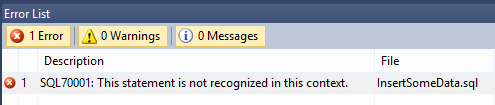
After inserting the code, or doing a build, you get this ugly error pop up in the error window:

image

So what happened? Well, when you went to insert the script you had these options in the dialog:

image


If you aren’t careful, you could accidentally pick the “Script (Build)” option (highlighted in blue). This option attempts to compile and run the code as DDL (Data Definition Language, the T-SQL syntax which creates tables, indexes, etc.) syntax. Things like Insert statements though are considered DML (Data Manipulation Language) code, and aren’t eligible to be compiled as part of the project. This is what generates the “This statement is not recognized in this context” error. You are essentially putting DML code where only DDL is allowed.

But don’t despair, this is extremely simple to fix. In SSDT, simply bring up the Properties dialog for the SQL script (click in the SQL script, then View, Properties in the menu). Pick the Build Action property, and change it to None.

image

And that’s it, the error “SQL70001 This statement is not recognized in this context” should now vanish from your error list.

Creating a Data Warehouse Date Id in Task Factory Advanced Derived Column Transformation

The company I work for, Pragmatic Works, makes a great tool called Task Factory. It’s a set of transformations that plug into SQL Server Integration Services and provides a wealth of new controls you can use in your packages. One of these is the Advanced Derived Column Transformation. If you are familiar with the regular Derived Column transformation built into SSIS, you know that it can be painful to use if you have to create anything other than a very basic calculation. Every try typing something complex into that single row tiny little box? Egad.

The Task Factory Advanced Derived Column transform allows you to pop up a dialog and have true multi-line editing. In addition there are 180 addition functions to make your life easier. Which is actually the point of this whole post.

As a Business Intelligence developer, one of the things I have to do almost daily is convert a date data type to an integer. Most dates (at least in the US) are in Month / Day / Year format. Overseas the format is usually Day / Month / Year (which to me makes more sense). SQL Server Analysis Services loves integer based field, so a common practice is to store dates as an integer in YYYYMMDD format.

Converting a date to an integer using the derived column transform can be ugly. Here’s an example of a fairly common (although not the only) way to do it:


(DT_I4)((DT_WSTR,4)YEAR(MyDateColumn) + RIGHT("00" + (DT_WSTR,2)MONTH(MyDateColumn),2) + RIGHT("00" + (DT_WSTR,2)DAY(MyDateColumn),2))

Task Factory makes this much easier. There is a ToChar function which converts columns or values to characters. This function allows you to pass in a format to convert to. Wrap all that in a ToInteger function and away you go. Check this out:


ToInteger(ToChar(MyDateColumn, "yyyyMMdd"))

Much, much simpler. One thing, the case of the format is very important. It must be yyyyMMdd, otherwise it won’t work. If you want to extend this more, you can actually check for a null, and if it is null return a –1 (a common Id for a missing row) or another special integer to indicate a missing value, such as 19000101.


IIf(IsNull(MyDateColumn)
   , -1
   , ToInteger(ToChar(MyDateColumn, "yyyyMMdd"))
   )

Here we first check to see if the column is null, if so we return the missing value, else we return the date converted integer. And yes, you can do multi line code inside the Advanced Derived Column Transformation.

As you can see the Advanced Derived Column Transformation makes working with dates much, much easier than the standard derived column transformation. This is such a common need that, at the risk of sounding like an ad, I decided to blog about it so I can share this with all my clients in the future.

(Just to be clear, it’s not an ad, I was not asked to do this, nor did I receive any money for it. Mostly I did this post just so I could share the syntax when I start each project or training class.)

I’m Speaking! SQL Saturday Nashville and PowerShell Saturday Atlanta

Just wanted to let folks know I’ll be doing presentations at two upcoming events.

The first is SQL Saturday #145 in Nashville. That’s this weekend, October 13th. I’ll be giving my “Introduction to Data Warehousing / Business Intelligence” presentation. Here is the slide deck I’ll be using: introtodatawarehousing.pdf

My second presentation will be October 27 in Atlanta at PowerShell Saturday #003. Yep, the PowerShell guys are taking the Saturday concept and kicking off a series of PowerShell Saturdays. This is only the third, but I see many more coming in the future.

At PowerShell Saturday I’ll be presenting “Make SQL Server Pop with PowerShell”. I’ll cover both the SMO and SQL Provider during this session.

Looks like it’ll be a busy October, but I’d hurry as both events are filling up so don’t wait and get registered now!

Intro to DW/BI at SQL Saturday #167 Columbus GA

Today, September 8th 2012, I’m presenting at SQL Saturday #167 in Columbus, GA. My slides for this presentation can be found at:

https://arcanecode.com/wp-content/uploads/2012/08/introtodatawarehousing.pdf

The shortcuts from the slides are:


Thanks for attending!

SQL Server Data Tools in Visual Studio 2012–Snapshots

A new feature of SSDT, one not found in VS Database Projects, is the ability to do snapshots. A snapshot captures a copy of your database project as it exists at the time you take the snapshot. Once you have a snapshot there are several useful things you can do with  them.

Taking a snapshot is simplicity itself. Using the same project we’ve been using over the last few posts, right click on the project name, and pick “Snapshot Project” on the menu.

SNAGHTML2b0695


image

Once you do, you’ll see a new file appear in the solution. You’ll be given the chance to rename it, but for this demo I’ll just take the default name.


So now that you have a snapshot, how do you use it? Well let’s start with a database comparison. First, let’s make a change of some type to the database. I’m going to use the safe refactor (see my blog post on this). I’m going to open the Employee table in the HumanResources schema and safe refactor the JobTitle column to become JobName.

With the file saved, let’s now decide we want to compare our current database project to what we’ve done in the past, namely our snapshot. The same tools we used for schema compare can also be used with a snapshot.

Right click on the snapshot and pick Schema Compare (for more info see my previous post). When the schema compare window appears the snapshot will be in the source side. Over on the right, use the pick target to pick the current project, then click compare. You will now see the differences between your snapshot and your current project.

image


So looking at differences is nice, but what if you want to dig in and see the entire snapshot? If you’ll notice, the snapshot is created as a dacpac file. If you happened to notice in the earlier post on creating an SSDT project, in addition to importing from an existing database, we also have the option to import from a dacpac file.

Right click on the solution, and pick Add, New Project.

image

Now pick a new SSDT project and give it a name. I’m going to name mine after the snapshot. Now right click on the project, and pick Import. then pick “Data-tier Application (*.dacpac).

image

Now navigate to the snapshot dacpac file you created and import it. (Hint, to find out where it’s at, before you start the import right click on the snapshot file, and pick properties. One of the properties is “FullPath”, it will hold the full path / file name of the snapshot.)

SNAGHTML42aae0


image

Once you click start, your new project will have an exact copy of your project at the time the snapshot was created.

Move down the AdvWorks_20120821_07-19-43 project tree and open up the Human Resources schema, then the Employee table in both projects. Assuming you were following along you will now see the snapshot as the Job field as JobTitle, the name prior to the change.

Within our AdvWorks project, also navigate down to the Employees table, and you’ll see it has the new name of JobName for the job column.


While snapshots will capture versions of your database over time, be aware they are not a substitute for good source code control. Snapshots are manually created, and are part of the project. Source control will capture each version upon check in, but more importantly serves as a good back up.

Snapshots can also be useful when asking for help. Simply take a snapshot and e-mail it to your friend. They can simply import it and create a copy of your project. Much easier than trying to zip up the entire project and mail it around.

devLink 2012–Intro to Data Warehousing / Business Intelligence

Today I’m presenting at devLink 2012. My slides for this presentation can be found at:

https://arcanecode.com/wp-content/uploads/2012/08/introtodatawarehousing.pdf

The shortcuts from the slides are:

SQL Server Data Tools in Visual Studio 2012–Schema Comparison

A feature carried over, but improved upon, from Visual Studio Database Projects is the Schema Comparison tool. The tool allows you to compare one database to another, a database to your project (or vice versa). It will also allow you to do comparisons between dacpacs and projects or databases (or them to dacpacs).

Doing one is pretty simple. We’ll keep using the project we’ve been using in previous lessons. For today’s example I’ve done a safe refactor on the JobTitle column in the HumanResources.Employee table, renaming it to JobName. I have also added a table and view to the dbo schema. For your example simply rename something in your project. After you make the changes, don’t publish them! We need something different for this example.

To kick off the schema compare, go to the SQL menu, then pick Schema Compare, New Schema Comparison. The dialog will be mostly empty, we’ll start with the upper portion.

SNAGHTML5a136e5

As you see, on the left we hit the drop down and will pick Select Source.

SNAGHTML5a33178

Here you have three choices. The top is to pick a project as your source. The second will let you pick an existing database as a source. The final choice will allow you to pick a dacpac file. For this example, we’ll pick the database that we created from our AdvWorks project, one prior to the changes you just made.

On the right, hit the drop down and for the target pick your AdvWorks project. Now click the Compare button in the upper left. SSDT will do the comparison and populate a dialog with the results.

image

In the upper half you will see a list of all the changes found. If you click on a change, the Object Definition area in the lower half populates with the code that creates the objects, and highlights the differences. In this example you’ll see that our source system has the JobTitle column, whereas the project on the right has our change to JobName.

The check boxes allow you to select or deselect individual changes. For example, you could go to the upper half which is designated to delete the ArcaneCode table and view and uncheck them. Then when you apply the changes these would be left untouched.

If you have a lot of changes you wish to omit, you can buik apply the exclusion (and likewise the inclusion) of files. Right click on a grouping (here the groups are changes and deletes), in the popup menu you can choose to Include All or Exclude All.

To apply the changes, simply click the Update button.

SNAGHTML5b39106You can choose how to group the comparisons findings. In the schema comparisons toolbar, you can choose to group by Action (the default), by the Schemas, or by Type (types being tables, views, etc).


You could have a situation that could result in data loss, for example the deletion of a table. By default SSDT will block any changes that will result in data loss in the target. Your target, however, might be a test database in which you don’t care if you lose data. There may also be other options you wish to override.

To see the options for applying updates, click on the gear immediately to the left of the grouping toolbar button.

SNAGHTML5b8182f

Here you can see a vast list of options available to you, that will affect the way in which SSDT applies updates to the target. You can see the “Block on possible data loss” option under the mouse, and could uncheck it to force your changes. There’s a lot of options here, so scroll through the list to see what other options you might be interested in.

Between the dropdowns for source and target is a little double arrow symbol. Click it will swap the source and target. Do it now, so the database now becomes the target and the project becomes the source. Now run the Compare again.

SNAGHTML5bcadd9You should now see the button between the Update and Options buttons become enabled. This is the Generate Script button, and becomes active when the target is a database.


Click it an a new window will appear with all the T-SQL that will change the target database to make it in sync with the project.

Let me stress something. This is not the way you should apply changes to your databases! The publish feature is the proper way to do that, in it are options to generate incremental updates.

This option is more for times when you have a test database you want to quickly get in sync, but for whatever reasons don’t want to create a full publish profile.

The Schema Comparison tool is surprisingly useful. A true story, I was working on a project one time that had considerable changes to an existing database. It was a short term project, so not a lot of time. In theory the source database was supposed to be left unchanged. Note I say “in theory”.

Bright and early Monday morning the very new to the job DBA comes to us and says “Oh by the way we had some issues over the weekend so I had to apply a bunch of changes.” When we asked for his scripts he just shrugged and said “I didn’t keep any of that junk. The changes are in the database just go get ‘em.” And with that wandered away, presumably to provide more sunshine to the lives of other dev teams.

At one time this would have been a major set-back. Fortunately the Schema Comparison tool quickly brought our project up to date. We were able to see the database changes before we applied them to our project, and in a few cases exclude the automatic changes and instead make them manually in our project.

Play around with the Schema Comparison tool, you can run it without actually applying changes. Knowing how to use it will help you on that fateful day when a new dba spreads a little sunshine into your own life.

SQL Server Data Tools in Visual Studio 2012–Customizing the Table Designer Layout

With this post I want to show you a few of the nice shortcuts provided to you in Visual Studio SSDT for quickly customizing the layout of your designers. A few of the items only apply to the table designer, but many apply to other windows within Visual Studio, no matter what project type is being hosted.

image

Number 1 points to the pane swap button. Clicking it will simply swap the positions of the grid and T-SQL windows, like so:

image

The double bar pointed to by number 2 is the resizing handle. Click and drag to adjust the amount of space used by either pane.

image

Note the change of the cursor shape when it’s hovered over the double bars.

There are three buttons pointed to by number 3. The middle one is the default, and indicates you want to split the panes horizontally. If you click the left most of these 3, it will split the panes vertically.

image

Vertical mode is really nice when you have a super wide screen monitor. As you can see, the three buttons have now shifted to the bottom center of the screen, next to the mouse in the above image.

What if you are working on a really small screen, and don’t even have enough real estate to work comfortably with any size split? Well that’s where the right (or bottom if vertically split) button comes in. Click it to shift to tabbed mode. (Note, I suggest you shift back to the default horizontal split first, otherwise the tabs will be on the right instead of the bottom and not quite as easy to use).

image

The last button, number 4, is for the T-SQL pane. It’s also found in almost all code editor windows in Visual Studio. Using it you can split the code view so you can see two different sections of you code at the same time.

image

Great for working with especially large code bases. And this split should exist in any text editor, not just the designer. Whether it’s straight T-SQL, VB.Net, C++, F#, or C# it should work for you.

For a typical desktop user, you’ll probably set these once and forget. But for folks like me who travel a lot, these are a real blessing. When I’m at home, with my laptop hooked up to my 25inch wide screen monitor, I can quickly shift to split screen vertical mode to take advantage of all that width.

When I’m on the road though, working on my laptops small screen (12 inches), I can shift back to horizontal mode, or more often (for me) tabbed mode, for doing my work.

Experiment with different layouts, and find out what works best for you!