
Introduction
In my previous post, Fun With KQL – Union I covered how to use the union operator to merge two tables or datasets together. The union has a few helpful modifiers, which I’ll cover in this post.
The samples in this post will be run inside the LogAnalytics demo site found at https://aka.ms/LADemo. This demo site has been provided by Microsoft and can be used to learn the Kusto Query Language at no cost to you.
If you’ve not read my introductory post in this series, I’d advise you to do so now. It describes the user interface in detail. You’ll find it at https://arcanecode.com/2022/04/11/fun-with-kql-the-kusto-query-language/.
Note that my output may not look exactly like yours when you run the sample queries for several reasons. First, Microsoft only keeps a few days of demo data, which are constantly updated, so the dates and sample data won’t match the screen shots.
Second, I’ll be using the column tool (discussed in the introductory post) to limit the output to just the columns needed to demonstrate the query. Finally, Microsoft may make changes to both the user interface and the data structures between the time I write this and when you read it.
The Kind Modifier
By default, when executing a Kusto Query if a column is null for every row in the result, that column is not displayed in the output. This is the behavior when using union without the kind a modifier. By default the kind modifier is set to kind=inner.
It is possible to force the union to display all columns, even if all the values for a column are null. To do so, after the union add kind=outer as shown in the example below.
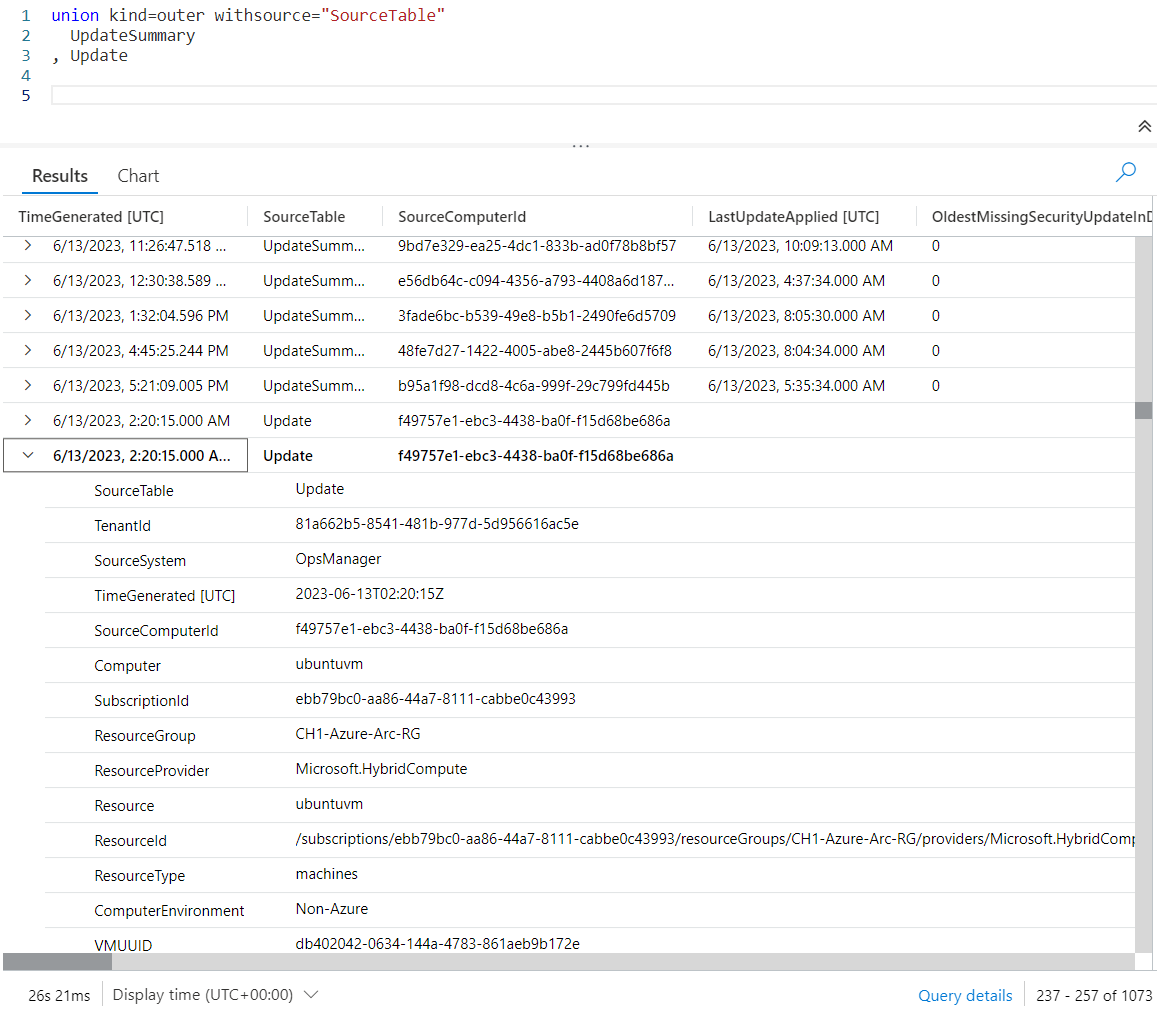
Unfortunately, there’s not enough space to display all the output, but if you execute your own queries you’ll find columns for which every value is null in the output.
As a side note, the order of the modifiers isn’t important. The withsource could have been placed before the kind, for example.
The IsFuzzy Modifier
We’ve all been there. You have a query that’s been working fine, then all of a sudden it fails because someone deleted a table.
You may also be in a situation where you wish to union two tables, but the second table is a temporary table. Sometimes its there, sometimes not. You’d like to write a query to handle it.
Fortunately union has a modifier, isfuzzy. When you set it to true, it will successfully execute the query even if the second table is absent.
In this example I will union two tables, Update and ArcaneCode. Obviously there is no table named ArcaneCode in the LogAnalytics sample database.
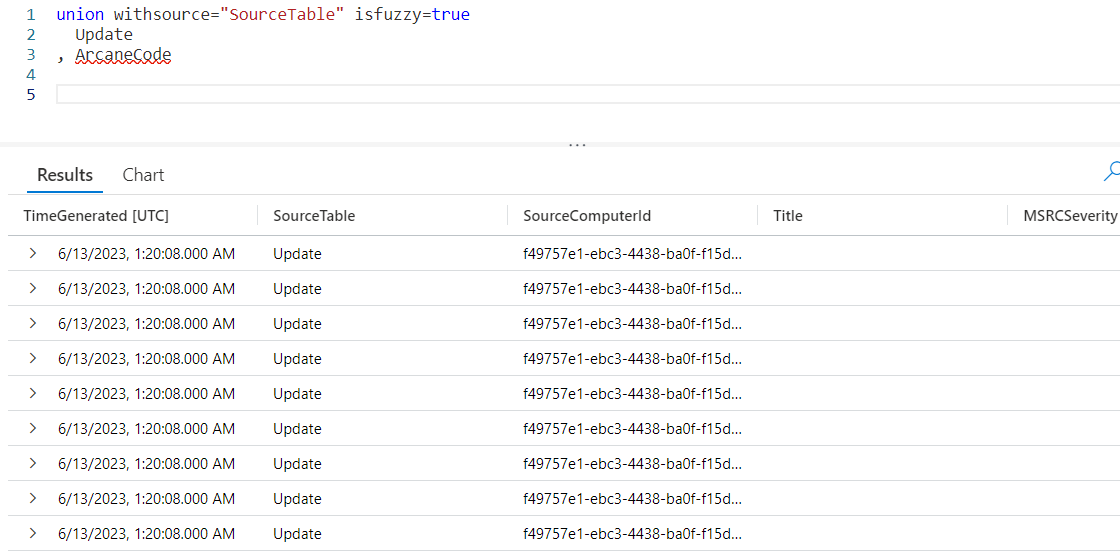
As you can see, Kusto still executed the query successfully. It simply ignored the absence of ArcaneCode.
Putting It All Together
I’ll wrap this series on union up with a more complex but real world example. This query might be one you want to use for troubleshooting. Let’s look at the query first, then we’ll see the results.
let compName = "JBOX10";
let dateDiffInDays = ( date1:datetime, date2:datetime = datetime(2023-01-01) )
                     {
                       (date1 - date2) / 1d
                     };
let UpdtSum = view() {
  UpdateSummary
  | where Computer == compName
  | project Computer
          , ComputerEnvironment
          , ManagementGroupName
          , OsVersion
          , Resource
          , ResourceGroup
          , SourceSystem
          , Type
          , NETRuntimeVersion
          , TimeGenerated
  } ;
let Updt = view() {
  Update
  | where Computer == compName
  | project Computer
          , ComputerEnvironment
          , ManagementGroupName
          , OSVersion
          , Resource
          , ResourceGroup
          , SourceSystem
          , Type
          , Title
          , UpdateState
          , TimeGenerated
  } ;
union withsource = "SourceTable"
      UpdtSum
    , Updt
| extend DaysSinceStartOfYear=dateDiffInDays(TimeGenerated)
It begins with a let, in which we define a variable, compName, to hold the name of the computer we want to get data for. This will make it easy to reuse the query with other computers.
In the next let we will create our own function to calcuate the difference between two dates. I’ll cover functions in more detail in a future post, but for now let me provide a simple overview.
After giving the function a name, here dateDiffInDays, we have a set of parenthesis. Inside we declare the parameters for the function. The first parameter is named date1, although we could use any name we want here such as endDate, thruDate, or even HeyHereIsTheThruDateWeWantToUse.
Following is a colon, then the datatype for the variable. In this case it will be a datetime datatype. After this is a comma, then the second parameter.
We’ll call this one date2 and it also be of type datetime. Then we have something interesting, an equal sign. With this we can assign a default value to this parameter, if the user fails to pass in a value the default is used.
In this example we want it to be from the start of the year, so we entered 2023-01-01. If that’s all we were to put though, KQL would try to do a calculation and generate an error, since the result of 2021 isn’t a datetime datatype.
To fix this we need to wrap the date in the datetime() function, which is built into KQL. This will correctly convert the date to January 1, 2023.
We then have a set of squiggly braces {}, in which we define our function. Here the function is only one line. We subtract date2 from date1, and wrap it in parenthesis so that calculation will be done first.
We then divide it by 1d to convert it to the number of days. The result is then returned. For more on datetime math, see my post Fun With KQL – DateTime Arithmetic.
Next are two let statements where I create views on top of the UpdateSummary and Update tables. Since I covered this method in the previous post Fun With KQL – Union, I won’t go into any further detail here.
We then fall into the hero of our story, the union. Having declared our data with the let statements its very easy to read.
Finally we finish up with an extend. We create a new column, DaysSinceStartOfYear. We assign it the function dateDiffInDays, and pass in the TimeGenerated column. This will be placed in the functions date1 parameter.
Since we didn’t pass in a second parameter, the default value of Jan 1, 2023 will be used as the value for date2.
Let’s take a look at the result of our query.
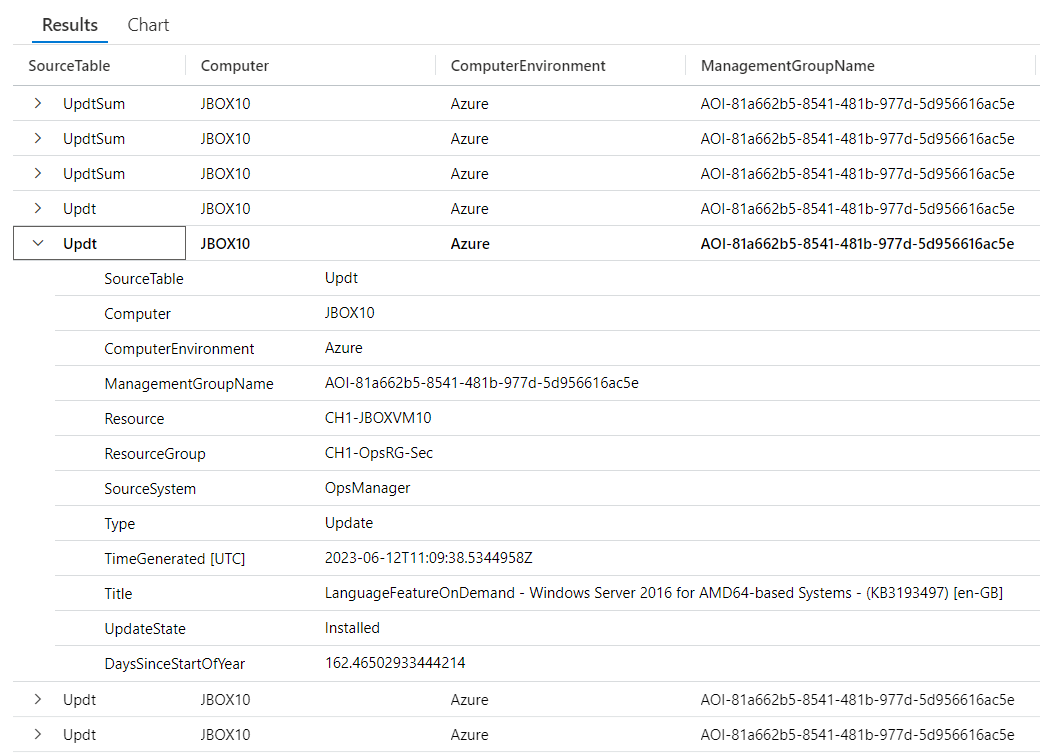
I expanded one of the rows from the Updt dataset so you could see all the columns (there were too many to fit on a single screen width wise). At the bottom of the expanded rows you can see our calculated value of DateSinceStartOfYear, showing 146.465 days.
This worked, by the way, because both tables had a column named TimeGenerated. If the column name was different between the tables, for example table one called it TimeGen and table two GeneratedTime, you could just rename them within the view definitions using project. For example:
project MyTimeGenerated = TimeGen, ...more columns
and
project MyTimeGenerated = GeneratedTime, ...more columns
See Also
The following operators, functions, and/or plugins were used or mentioned in this article’s demos. You can learn more about them in some of my previous posts, linked below.
Fun With KQL – DateTime Arithmetic
Conclusion
With this post we’ve added to our knowledge of the KQL union operator. We saw two of its useful modifiers, kind and isfuzzy. Finally we wrapped it up with an example that put everything we’ve learned together, plus introduced the concept of functions within the Kusto Query Language.
The demos in this series of blog posts were inspired by my Pluralsight courses on the Kusto Query Language, part of their Kusto Learning Path.
There are three courses in this series so far:
I have two previous Kusto courses on Pluralsight as well. They are older courses but still valid.
These are a few of the many courses I have on Pluralsight. All of my courses are linked on my About Me page.
If you don’t have a Pluralsight subscription, just go to my list of courses on Pluralsight. On the page is a Try For Free button you can use to get a free 10 day subscription to Pluralsight, with which you can watch my courses, or any other course on the site.
 Arcane Code