
Introduction
In today’s post we will look at the union operator. A union will create a result set that combines data from two or more tables into a single result set.
Unlike the join, which was covered in my previous post Fun With KQL – Join, the union does not combine the columns from each table into single rows. Rather it returns rows from the first table, then rows from the second table, then if supplied third, forth and so on.
The examples in this post will demonstrate the union and make its use clearer.
The samples in this post will be run inside the LogAnalytics demo site found at https://aka.ms/LADemo. This demo site has been provided by Microsoft and can be used to learn the Kusto Query Language at no cost to you.
If you’ve not read my introductory post in this series, I’d advise you to do so now. It describes the user interface in detail. You’ll find it at https://arcanecode.com/2022/04/11/fun-with-kql-the-kusto-query-language/.
Note that my output may not look exactly like yours when you run the sample queries for several reasons. First, Microsoft only keeps a few days of demo data, which are constantly updated, so the dates and sample data won’t match the screen shots.
Second, I’ll be using the column tool (discussed in the introductory post) to limit the output to just the columns needed to demonstrate the query. Finally, Microsoft may make changes to both the user interface and the data structures between the time I write this and when you read it.
Union Explained
Let’s say we have two tables. The first table might be called SalesPeople.
| Name | District | Sales Quota |
|---|---|---|
| Fred | US | 33,000 |
| Gunther | Europe | 42,000 |
Now let’s say we also have a Sales table.
| Name | District | Company | Sale Amount |
|---|---|---|---|
| Fred | US | Big Tech Inc | 1,033 |
| Fred | US | Fun Chemicals | 927 |
| Fred | US | Farm Stuff Corporation | 2,237 |
| Gunter | Europe | Satellites R Us | 383 |
| Gunther | Europe | Fox Brothers | 5,235 |
When you union these tables, the result would look like:
| Name | District | Sales Quota | Company | Sale Amount |
|---|---|---|---|---|
| Fred | US | 33,000 | ||
| Gunther | Europe | 42,000 | ||
| Fred | US | Big Tech Inc | 1,033 | |
| Fred | US | Fun Chemicals | 927 | |
| Fred | US | Farm Stuff Corporation | 2,237 | |
| Gunter | Europe | Satellites R Us | 383 | |
| Gunther | Europe | Fox Brothers | 5,235 |
The empty cells are due to columns that are only in one table or the other (or, they could be empty in the source table). Sales Quota is only in the first table, SalesPeople, so there is no data for it in the lower rows where Sales is displayed.
When the column names are identical, they are lined up, as happened with Name and District.
Union Basics
In this example, we will be unioning two tables, Update and UpdateSummary. You’ll find these under the Security and Audit branch in the Log Analytics samples.
If we were to run UpdateSummary | count, it would show we had 47 rows (at least at the time of this writing). Running Update | count shows there are 997 rows.
Let’s create our first union query. We start with the name of the first table, UpdateSummary, the comes the pipe character. Next comes the union, and the second table, Update.
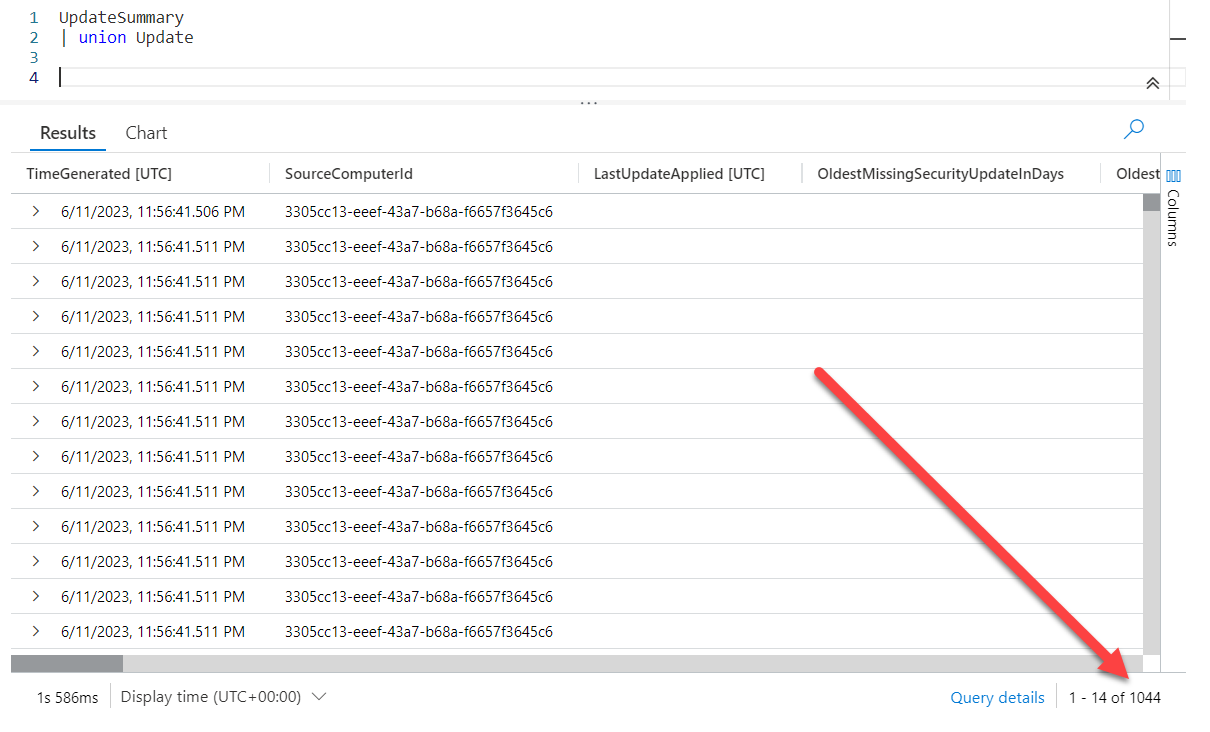
If you look on the lower right, you see the query returned 1044 rows, which is the sum of 47 + 997.
If you scroll through the output though, you have a problem. You can’t tell which rows came from which table. There is a way to fix that however. The union operator has a modifier which will add a column that indicates which table the data comes from, withsource.
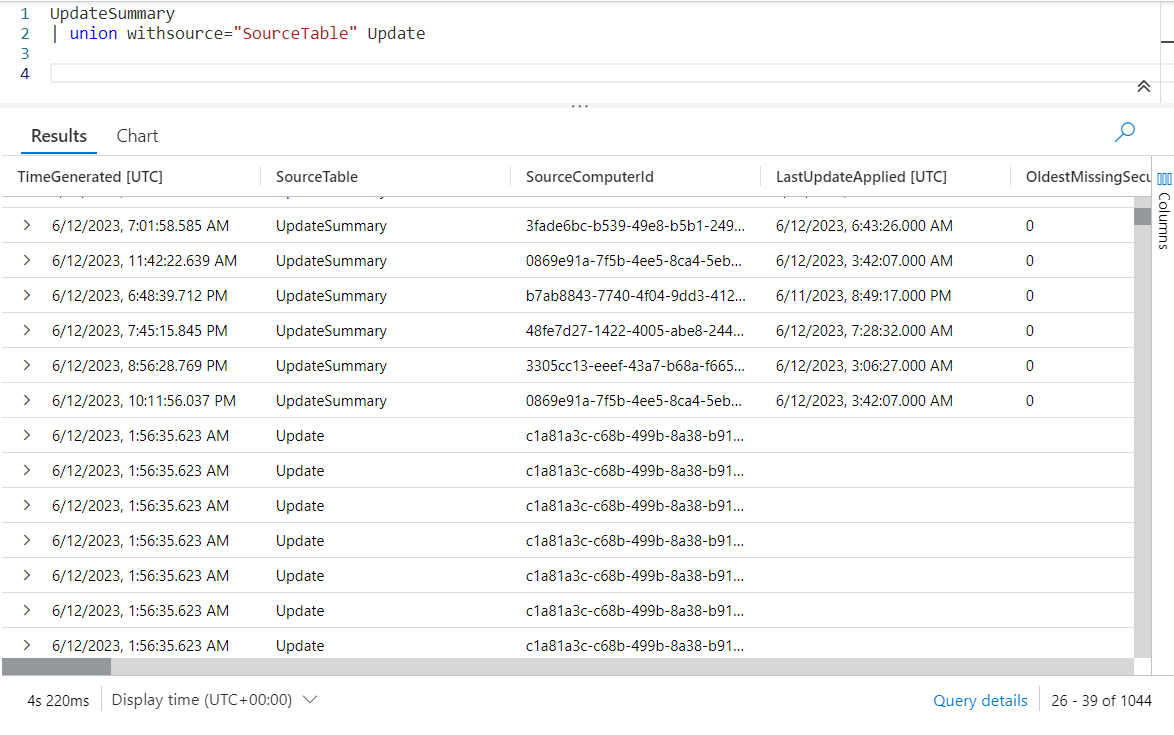
As you can see, there is a new column, SourceTable, which indicates which table the data came from. Here I picked SourceTable as the column name, but you can use anything you want, FromTable, TheSource, even WhichTableDidThisComeFrom.
Union – The Preferred Way
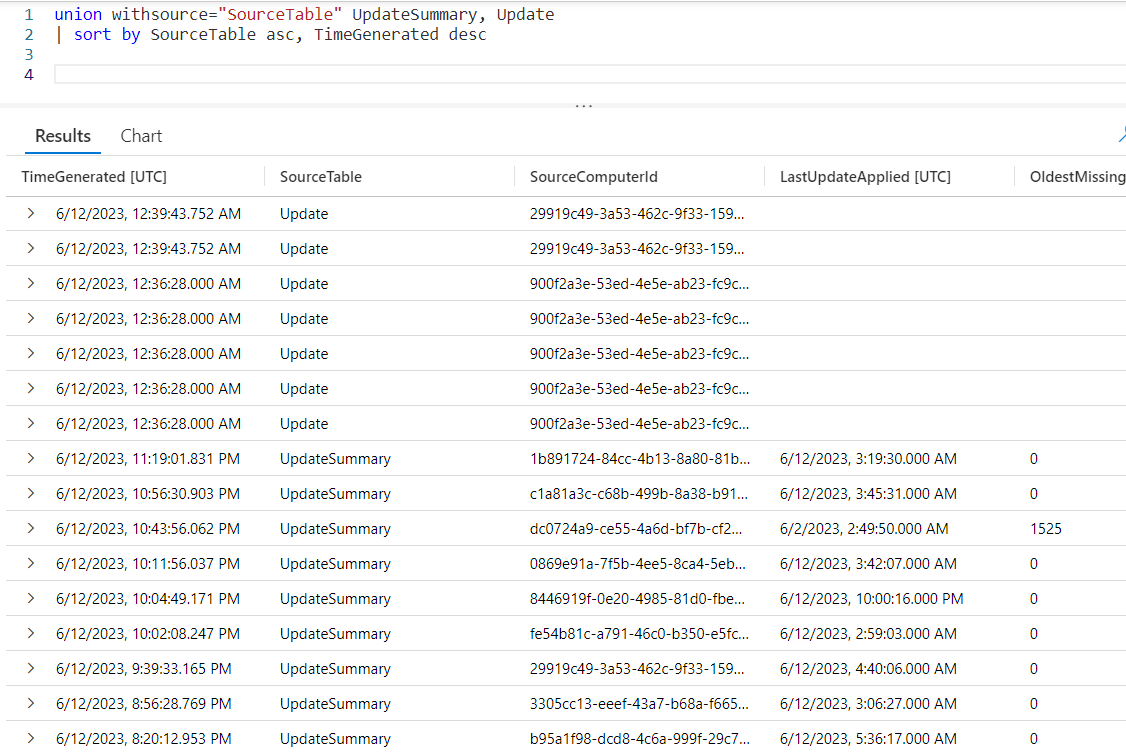
Since I first began using KQL, the language has evolved a bit. The method I just showed was created to make users coming from the world of SQL more comfortable with the language. Today, the preferred way of doing a union though is to place the union first.

As you can see, we begin with the union which is then followed by the withsource. Afterward we list the tables to be unioned separated by commas. Here we only have two, but you could list more as needed.
This is an opportune time to point out that by default the order of the rows is not set. If you were to keep scrolling down, you would see more rows from the Update table.
This can easily be fixed though by adding a sort after the union.
A More Complex Union
Let’s look at a slightly more complex example. Here, we are going to union the results of two queries.

Instead of table names, we supply two queries each wrapped in parenthesis. If you look in the SourceTable though, the names aren’t really very clear.
The first is union_arg0. This indicates the data came from the first query in the union. Then we have union_arg1, which is the second query in the union.
We can create better names for the sources, and make the query easier to read, by using our old friend the let operator.
Using Let to Name Sources
In this demo we’ll use let to create new datatables. Well, sort of. By using = view() in front we create a view on top of the query. This is more memory efficient than actually pulling all the data into memory.
After this we have our query. Note that instead of parenthesis we wrap the query in squiggly braces {}.
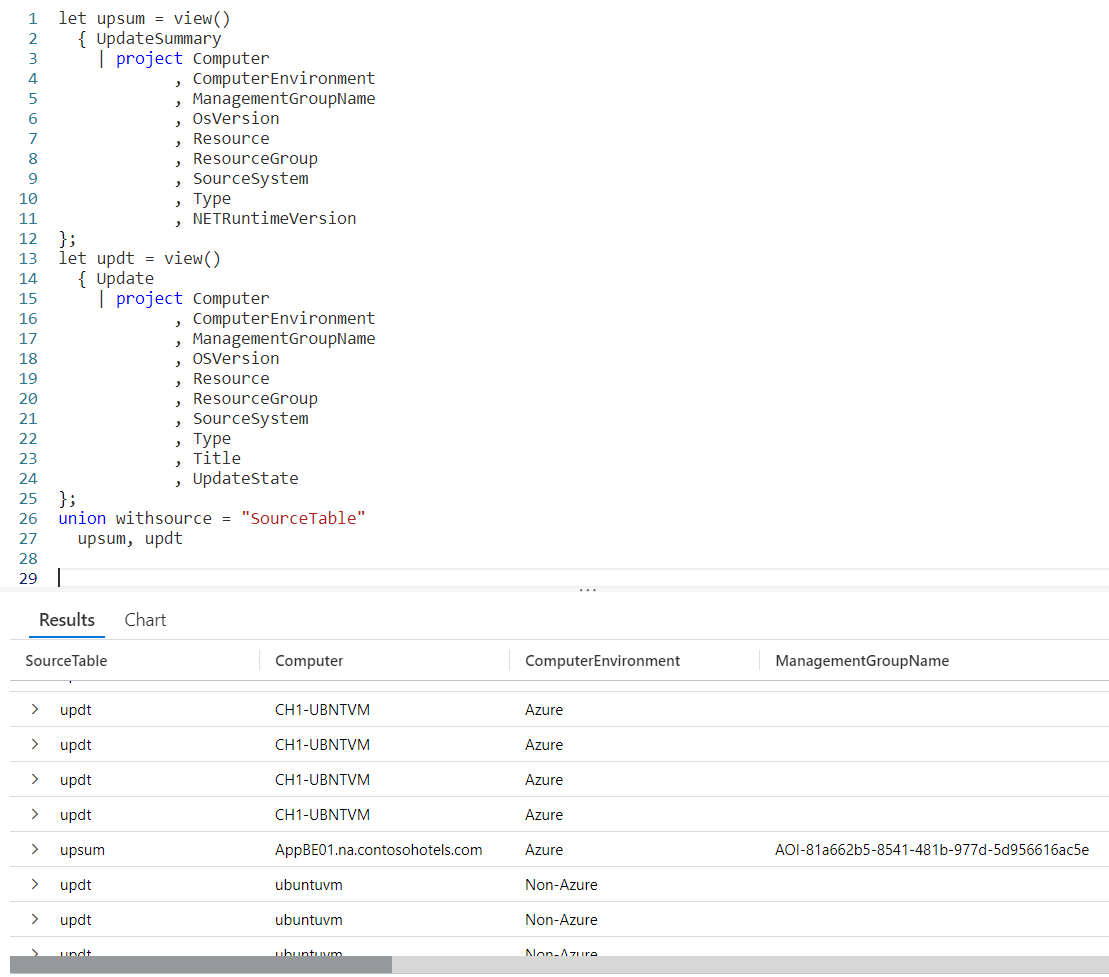
After declaring our let statements we fall into the union. All we have to do is list the names of the tables to be combined. In the results it uses the name of our view in the SourceTable column.
As you can see this structure makes the query much easier to read and modify in the future.
See Also
The following operators, functions, and/or plugins were used or mentioned in this article’s demos. You can learn more about them in some of my previous posts, linked below.
Conclusion
It can be useful to combine two tables, or queries, in the output of our data. As you’ve seen in this post, the union operator will let you do just this.
The union has a few more options, formally called modifiers, you can use with it. We’ll look at those in the next post in this Kusto Query Language series.
There are three courses in this series so far:
I have two previous Kusto courses on Pluralsight as well. They are older courses but still valid.
These are a few of the many courses I have on Pluralsight. All of my courses are linked on my About Me page.
If you don’t have a Pluralsight subscription, just go to my list of courses on Pluralsight. On the page is a Try For Free button you can use to get a free 10 day subscription to Pluralsight, with which you can watch my courses, or any other course on the site.
 Arcane Code