Fun With PowerShell – Opening Websites with Start-Process

Introduction

As part of my ArcaneBooks Project I described how to use the OpenLibrary Simple API to get book data.

In that post I also showed a way to bring up the webpage for an ISBN. I had a thought, why not build a function to add to the module to do that? This way a user would have an easy way to compare the output of the web API call to what the site holds.

In this post I’ll describe how to use the Start-Process cmdlet to open a target webpage.

Show-ISBNBookData

I created a new advanced function and named it Show-ISBNBookData. Here is the opening of the function.

function Show-ISBNBookData
{
  [CmdletBinding(HelpURI="https://github.com/arcanecode/ArcaneBooks/blob/1ebe781951f1a7fdf19bb6731487a74fa12ad08b/ArcaneBooks/Help/Get-ISBNBookData.md")]
  [alias("sisbn")]
  param (
         [Parameter( Mandatory = $true,
                     ValueFromPipeline = $true,
                     HelpMessage = 'Please enter the ISBN.'
                     )]
         [string] $ISBN
        )

If you want to learn more about advanced functions, see my post Fun With PowerShell – Advanced Functions. Briefly, the CmdletBinding attribute will turn this into an advanced function. Advanced functions allow you to input one or more parameters via the pipeline.

It has one parameter, the ISBN number you want to find. This can be passed in normally, or via the pipeline.

The Process Loop

In order to process multiple items from the pipeline you must enclose the heart of the function inside a process { } block. The process block is called once for each item passed in via the pipeline.

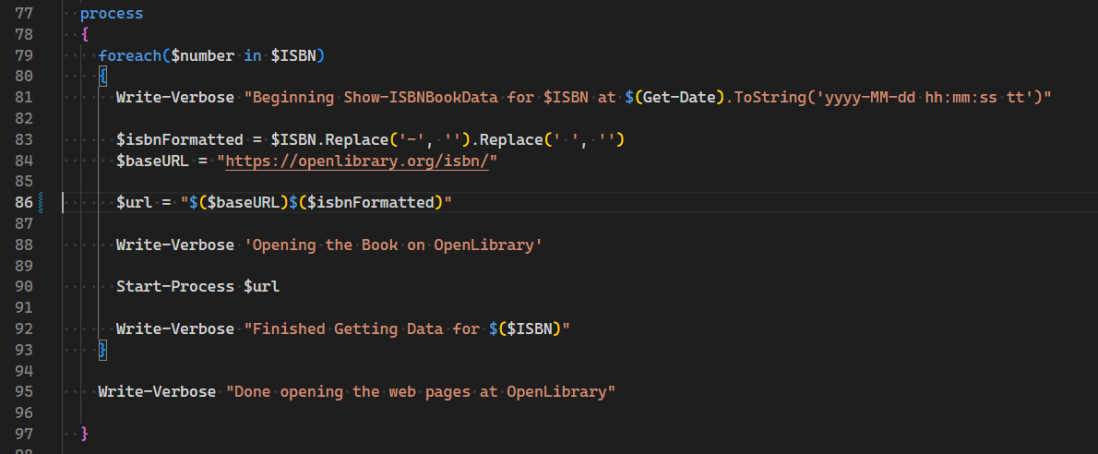
I then use the Replace method of the string object to remove any dashes or spaces from the ISBN that was passed in. This is then combined with the base OpenLibrary URL to create a new string, $url.

  process
  {
    foreach($number in $ISBN)
    {
      Write-Verbose "Beginning Show-ISBNBookData for $ISBN at $(Get-Date).ToString('yyyy-MM-dd hh:mm:ss tt')"

      $isbnFormatted = $ISBN.Replace('-', '').Replace(' ', '')
      $baseURL = "https://openlibrary.org/isbn/"

      $url = "$($baseURL)$($isbnFormatted)"

      Write-Verbose 'Opening the Book on OpenLibrary'

      Start-Process $url

      Write-Verbose "Finished Getting Data for $($ISBN)"
    }

The magic comes in the Start-Process cmdlet. This cmdlet analyzes the string that was passed in. It then looks for the default application for it, and attempts to open the associated application for the passed in string.

As an example, if you were to pass in the name of a Microsoft Word document, Start-Process would open Microsoft Word with the document name you passed in.

In this case, passing in a URL will attempt to open up your default web browser to the page you passed in.

If you called Show-ISBNBookData using the pipeline, the function will attempt to open up a new tab in your browser for each URL passed in via the pipeline.

Note I also used several Write-Verbose commands, you can learn more about it at Fun With PowerShell – Write-Verbose.

An Example

Calling the function is very simple.

$ISBN = '0-87259-481-5'
Show-ISBNBookData -ISBN $ISBN -Verbose

This should open up the following webpage in your default browser.

https://openlibrary.org/books/OL894295M/Your_HF_digital_companion

This is a reference to the book You HF Digital Companion.

See Also

You may find more helpful information at the links below.

ArcaneBooks Project

Fun With PowerShell – Advanced Functions

Fun With PowerShell – Strings

Fun With PowerShell – Write-Verbose

OpenLibrary Simple API

Conclusion

As you can see, Start-Process is extremely easy to use. Just pass in a URL or the name of a file, and PowerShell will attempt to open the item using the default application assigned in the operating system. In the ArcaneBooks project I’m using it to open a website, but you can use it for a variety of purposes.

If you like PowerShell, you might enjoy some of my Pluralsight courses. PowerShell 7 Quick Start for Developers on Linux, macOS and Windows is one of many PowerShell courses I have on Pluralsight. All of my courses are linked on my About Me page.

If you don’t have a Pluralsight subscription, just go to my list of courses on Pluralsight . At the top is a Try For Free button you can use to get a free 10 day subscription to Pluralsight, with which you can watch my courses, or any other course on the site.

Fun With PowerShell – Elapsed Timers

Introduction

I’m still working on my documentation for my ArcaneBooks project, but wanted to have something for you to read this week, so decided to show you how to create an elapsed timer in PowerShell.

It can be helpful to determine how long a process runs in PowerShell. You can use it to determine what parts of code may need to be optimized, or gather metrics around your functions.

Creating and Using a Timer

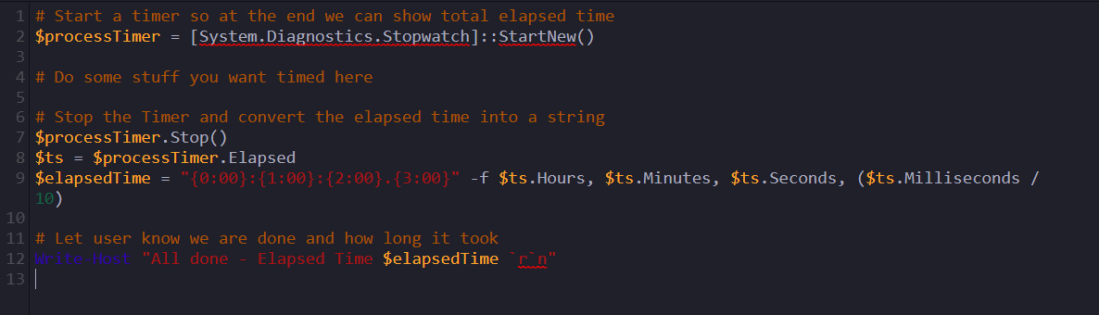
The .NET framework has a class named System.Diagnostics.Stopwatch. It has a static function named StartNew that you can call which will create a new instance from the Stopwatch class.

$processTimer = [System.Diagnostics.Stopwatch]::StartNew()

So now you go off and do your code, routine, whatever it is you want to measure. When you are done, you call the Stop method of your timer.

$processTimer.Stop()

Now what? How do we get the time from this? Well to do that you can grab the Elapsed property of your timer.

$processTimer.Elapsed

This produces the following output:

Days              : 0
Hours             : 0
Minutes           : 0
Seconds           : 20
Milliseconds      : 698
Ticks             : 206988710
TotalDays         : 0.000239570266203704
TotalHours        : 0.00574968638888889
TotalMinutes      : 0.344981183333333
TotalSeconds      : 20.698871
TotalMilliseconds : 20698.871

It’d be nice to have it in something more readable. So in this example I’ll capture the elapsed time into a variable, then use PowerShell’s string formatting technique to produce something easily understandable.

$ts = $processTimer.Elapsed
$elapsedTime = "{0:00}:{1:00}:{2:00}.{3:00}" -f $ts.Hours, $ts.Minutes, $ts.Seconds, ($ts.Milliseconds / 10)
Write-Host "All done - Elapsed Time $elapsedTime `r`n"

This produces:

All done - Elapsed Time 00:00:20.70

Alternatively you could use a string that expanded the time fields a bit. In this example I’ll also include the number of days. Since the timer shows days, milliseconds probably aren’t that important so I’ll omit them. If you needed it though it’d be easy enough to add.

$elapsedTime = "The process took $($ts.Days) days, $($ts.Hours) hours, $($ts.Minutes) minutes, and $($ts.Seconds) seconds."
Write-Host "All done - Elapsed Time $elapsedTime `r`n"

This will produce:

All done - Elapsed Time The process took 0 days, 0 hours, 0 minutes, and 20 seconds.

Multiple Timers

You may have a situation where you need multiple timers. For example, one for a full function, and a second to log the time of a loop in the function. Just create multiple process timer variables, for example $processTimer1 and $processTimer2.

There’s nothing special about the variable name either, you could use names like $myFunctionsTimer, $mainLoopTimer, and $loggingTimer.

See Also

If you want to learn more about the string formatting technique used in this post, see my Fun With PowerShell – String Formatting post.

Conclusion

Optimizing your PowerShell code is made much easier when you can measure the runtime of sections of code. It lets you know what sections are running slow, and when you make changes did you actually improve things or make it worse.

As you saw in this post, creating one or more timers is very simple. You can insert them into your code temporarily, or leave them there as part of your metrics logging strategy.

Fun With PowerShell – Authoring About Help

Introduction

In my previous post, Fun With PowerShell – Authoring Help, I covered how to author comment based help for your functions.

In addition to help for your functions, it’s also possible to write about_ help. PowerShell itself contains many about topics for PowerShell itself.

These about topics are designed to provide further information for your users, information that may not fit into the confines of a functions help. These texts can be as long as you need.

The Contents of an About Topic File

An about file can contain literally any text you want. Whatever is in there will be returned when you use Get-Help to retrieve its contents.

However, there is a suggested guideline for the formatting of an about file.


about_TopicName

SHORT DESCRIPTION
   Brief description, one to two sentences.

LONG DESCRIPTION
   Much longer text, could be several paragraphs.

BACKGROUND
   This isn't a standard option but one I like to include to provide context
   to the reader about why the module was created. What problem was it meant
   to solve.

NOTE
   Miscellaneous notes about the module, such as the copyright

TROUBLESHOOTING NOTE
   Warning notes of issues you may find, perhaps a to-do list

SEE ALSO
  links to relevant things, such as the project github site
  or the authors website

ABOUT TOPICS
   List other about topics

KEYWORDS
   Keywords here

I usually leave one blank line at the top, to separate the text from the Get-Help command, but this is just my personal preference.

It is then customary to put the name of the about topic, as shown.

The next two are self explanatory, a short and long description for the topic. While not required by PowerShell code, it is highly suggested as PowerShell can use the text in the SHORT DESCRIPTION with Get-Help, but we’ll talk about that later in the post.

Next up is a section I call BACKGROUND. I usually include this in the about topic for a module, to explain what problem this module was meant to solve, how it came to be, and so on. If I have any other about topics I generally omit this unless it is appropriate to the topic. To be clear, this is something I do, not a standard.

The note section is just what it says, it is for any notes that haven’t been covered in the other sections. I generally use this to place the copyright notice, the author name and contact info, and similar data.

The TROUBLESHOOTING NOTE area is used to let the user know of any issues they may encounter. One common one I find is that about topics don’t display correctly in some (but not all) version of Linux.

You might also include information about functions that will have further development done, or perhaps a note that documentation is still being worked on. This type of information can be especially useful for a module that is still in the alpha or beta stages, where further work will still be done.

Under the SEE ALSO section you can provide links to a projects github site, the PSGallery page, the author website, or other relevant links.

In the about topic page for the module, I like to provide a full list of all the about topics provided in the module, so the reader will know what else is available. Again, I usually only include this in the about page for the module itself and omit from other about topics unless it is relevant. We’ll touch on the about topic for a module momentarily.

The final section allows you to place keywords for a module or about topic. These can be useful when searching for a module that covers the included keywords.

Placement of About Topics

Under the modules main folder, you should create a folder with the standard language abbreviation for your target language. For example, for US English the folder would be named en-us. If I were to also write documentation for the French language (which would be a real feat as I don’t know any French) I would create a folder named fr-FR.

Here is the layout for my ArcaneBooks module.

At the top is the folder ArcaneBooks, which is the root folder for the module. Under it is a folder, en-us where English language help files are placed. Here I only have about topics, but if I were using XML based help those files would also be placed here.

Let’s talk now about how to name your about files.

Naming Your About Topic Files

The names of all about files should begin with about_. They should end with .help.txt. To create an about topic for the module itself (which you should at the very least include one about for the module) use the module name as I did here, with about_ArcaneBooks.help.txt.

If you then call help for the module, Get-Help ArcaneBooks, it will display the contents of the about file with the module name, about_ArcaneBooks.help.txt.

I’ve included two other about topics for the ArcaneBooks module. The first, about_ABFunctions, displays a list of functions in the module, with the synopsis of its purpose. I’ve found this to be of aid to the end user to help them see what functions are in the module. They can see this information using Get-Help about_ABFunctions.

The final about topic, about_ABUsage, has examples of how to use the module. I usually develop a PS1 script to test out a module as it is being developed. I find this makes for great examples of how to use the module overall, and include a copy inside an about topic so an end user can use it as well. As with the functions, a user can see this using Get-Help about_ABUsage.

Getting Help

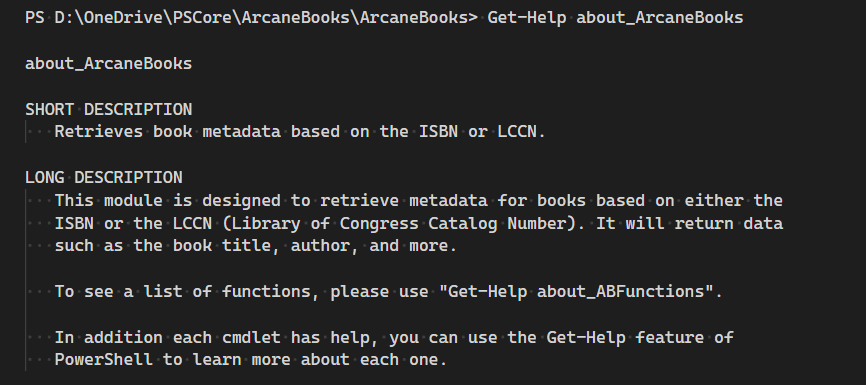
This is an example of calling help for the module.

PS D:\OneDrive\PSCore\ArcaneBooks\ArcaneBooks> Get-Help about_ArcaneBooks

about_ArcaneBooks

SHORT DESCRIPTION
   Retrieves book metadata based on the ISBN or LCCN.

LONG DESCRIPTION
   This module is designed to retrieve metadata for books based on either the
   ISBN or the LCCN (Library of Congress Catalog Number). It will return data
   such as the book title, author, and more.

   To see a list of functions, please use "Get-Help about_ABFunctions".

   In addition each cmdlet has help, you can use the Get-Help feature of
   PowerShell to learn more about each one.

BACKGROUND
   The author (Robert Cain aka ArcaneCode) is a member of the Alabama
   Historical Radio Society(https://alhrs.org/). They are beginning a project
   to create metadata for their library (title, author, publisher, etc.) and
   store it in cloud based software.

   Naturally we want to automate as much of this as possible, since the
   collection is rather extensive. Some of our books are so old they have
   neither an ISBN or a Library of Congress Catalog Number (LCCN for short).
   Those will require manual intervention to key in the data.

   Fortunately many of the books have the LCCN, the newer books have an ISBN,
   and a very few have both.

   The goal with this project was to allow a user to create a simple text file
   using notepad, Excel, or something similar. The user can enter an LCCN into
   one file or the ISBN in another.

   That data file will be piped through the appropriate cmdlets found in this
   module and produce a list of metadata for each book including things such
   as the book title, author, publication date, and the like.

   This output can then be piped into standard PowerShell cmdlets to output
   the data to formats such as CSV, XML, JSON, and the like.

   The sources used in this module are the Library of Congress or the
   Open Library site, which is part of the Internet Archive. Both provide
   web APIs that can use to retrieve data.

   For more information, please see the online documentation at the projects
   GitHub site, https://github.com/arcanecode/ArcaneBooks .

NOTE
   Author: Robert C Cain | @ArcaneCode | arcane@arcanetc.com

   This code is Copyright (c) 2023 Robert C Cain All rights reserved

   The code herein is for demonstration purposes. No warranty or guarantee
   is implied or expressly granted.

   This module may not be reproduced in whole or in part without the express
   written consent of the author.

TROUBLESHOOTING NOTE
   Help for the about_* topics doesn't work correctly on all versions of
   Linux due to issues with PowerShell's Help system.

SEE ALSO
     https://github.com/arcanecode/ArcaneBooks
     
About Arcane Code
ABOUT TOPICS about_ArcaneBooks about_ABFunctions about_ABUsage KEYWORDS ArcaneBooks, ISBN, LCCN

Getting A List of About Topics

Using Get-Help, you can get a list of all the about topics for modules loaded into memory.

Get-Help about_*

Here is a partial output of the result of the command.

Name                              Category  Module                    Synopsis
----                              --------  ------                    --------
about_ABFunctions                 HelpFile                            This is a listing of the functions available in the ArcaneBooks module.
about_ABUsage                     HelpFile                            Provides examples on how to call the functions with example data.
about_ArcaneBooks                 HelpFile                            Retrieves book metadata based on the ISBN or LCCN.
about_Aliases                     HelpFile
about_Alias_Provider              HelpFile

In order to get the synopsis to show up in the output, you must include a SHORT DESCRIPTION. Then the synopsis must appear on the line immediately after it. There cannot be a blank line between, if there is Get-Help won’t display the synopsis.

Conclusion

As you can see, creating about topic help is very simple. Just create a folder to store it, then create the text file (or files) you need. Name them appropriately, and PowerShell then takes care of the rest!

Fun With PowerShell – Authoring Help

Introduction

Having good help is vital to the construction of a module. It explains not only how to use a function, but the purpose of the module and even more.

Naturally I’ve included good help text in the ArcaneBooks module, but as I was going over the construction of the ArcaneBooks module I realized I’d not written about how to write help in PowerShell. So in this post and the next I’ll address this very topic.

Two Types of Help

There are two ways of creating help for functions in PowerShell modules. The newer method is to create XML files with the help text. I’ll be honest, I’m not a big fan of this method.

The XML is more difficult to author and read in plain text format as the help is surrounded by XML tags. To be able to effectively author it a third party tool is needed.

There is one advantage to the XML format, if you wish to internationalize your module you can write individual XML help files for each language you need. These can all be bundled with your module. In my case I’m only going to use English, so this isn’t of benefit to my ArcaneBooks module.

I’ll admit that I may be a bit old fashioned, but I still prefer the original comment based help when authoring help. It keeps the help text with the function, and is easier to read when looking at the raw code.

Comment Blocks

As its name implies, comment based help is created by placing specially crafted comment blocks beside the function declarations of the functions in your module.

As you may know, a normal comment in PowerShell begins with a #, commonly called a pound sign or hash tag. Some examples:

# This is a comment

$x = 1  # Set X equal to 1

A comment block allows you to create comments that are multiple lines. They begin with a <# and end with #>. An example would be:

<#
Here is a comment block

More text here
#>

You can add text after and before the # characters. I often use these to creeate dividers in my code.

<#-----------------------------------------------
  Do some interesting stuff in this section
-----------------------------------------------#>

I’ll dive a bit deeper into the structure of the comment help block, but first lets talk about placement.

Placement of Comment Help

To associate a help block with a function, it needs to be positioned right before or right after the function declaration.

<#
Comment based help here
#>
function DoSomething()
<#
Comment based help here
#>

$x = 1

Either of these are valid, but I much prefer the first version. It keeps the function declaration close to its code.

Contents of Comment Based Help

There is a defined template of what needs to be in comment based help.

<#
.SYNOPSIS
A short one liner that describes the function

.DESCRIPTION
Detailed description of the function

.PARAMETER ParamName
Information about the parameter.

Add additional .PARAMETER tags for more parameters

.INPUTS
What inputs are allowed, useful for when a function allows input to be piped in.

.OUTPUTS
Explanation of what the function outputs.

Can also include sample data

.EXAMPLE
Code example

.EXAMPLE
Additional examples, just add more .EXAMPLE tags as needed

.NOTES
Notes here like author name

.LINK
Link to online help

.LINK
Additional link(s)
#>

As you can see, it uses a series of tags to describe what is in the section. Each tag is preceded by a period.

The SYNOPSIS and DESCRIPTION are both required. In the synopsis you place a short description of the function. One, no more than two sentences go here.

In the description you can place an expanded explanation of the function. You can go into detail of its purpose. It doesn’t need to be a novel, but two to three paragraphs are not uncommon.

Next comes the parameters. Each parameter should be listed individually, getting a PARAMETER tag followed by the name of the parameter. In the accompanying text you can include details to the nature of the parameter, whether it is required, and if appropriate the data type.

Again, you should include one parameter tag for each of your functions parameters.

In the INPUTS area you can give an overall description of the data that will be input to the function. It is also a good place to describe data that can be input to the function through the pipeline.

The OUTPUTS is the place to describe what data is returned from the function. This may be a single value, or an object with multiple values. When returning an object I like to list each property along with a sample value for each.

You should include at least one EXAMPLE section in your help. Include a small code sample of calling your function.

It’s a good idea though to include multiple example sections. For instance, if your function allows for input through the pipeline, have one example for passing data in normally, than a second for using the pipeline. Include as many as you need to give the reader a good set of examples on how to use your function.

NOTES is for just what it says, an area to include any additional notes about the function. In here I often include information such as the author name, copyright notices, and any other information I’d like to have included.

Finally is the LINK section. If you have online help, the first link tag should point to the online help web address that will be used with the -Online switch of the Get-Help cmdlet. You can include as many links as needed, I usually include at least one more pointing to the project website, such as a github site, or back to my own blog.

A Real World Example

Here is a real world example from the ArcaneBooks project I’ve been developing. This is the help for the Get-ISBNBookData function.

<#
.SYNOPSIS
Gets book data from OpenLibrary.org based on the ISBN

.DESCRIPTION
Uses the more advanced API at OpenLibrary to retrieved detailed information
based on the 10 or 13 character ISBN passed in.

.PARAMETER ISBN
A 10 or 13 digit ISBN number. The passed in value can have spaces or dashes,
it will remove them before processing the request to get the book data.

.INPUTS
Via the pipeline this cmdlet can accept an array of ISBN values.

.OUTPUTS
The cmdlet returns one or more objects of type Class ISBNBook with the
following properties. Note that not all properties may be present, it
depends on what data the publisher provided.

ISBN | The ISBN number that was passed in, complete with an formatting
ISBN10 | ISBN as 10 digits
ISBN13 | ISBN in 13 digit format
Title | The title of the book
LCCN | Library of Congress Catalog Number
Author | The author(s) of the book
ByStatement | The written by statement provided by the publisher
NumberOfPages | Number of pages in the book
Publishers | The Publisher(s) of this book
PublishDate | The publication date for this edition of the book
PublisherLocation | The location of the publisher
Subject | Generic subject(s) for the work
LibraryOfCongressClassification | Specialized classification used by Library of Congress
DeweyDecimalClass | Dewey Decimal number
Notes | Any additional information provided by the publisher
CoverUrlSmall | URL link to an image of the book cover, in a small size
CoverUrlMedium | URL link to an image of the book cover, in a medium size
CoverUrlLarge | URL link to an image of the book cover, in a large size

.EXAMPLE
# Pass in a single ISBN as a parameter
$ISBN = '0-87259-481-5'
$bookData = Get-ISBNBookData -ISBN $ISBN
$bookData

.EXAMPLE
# Pipe in a single ISBN
$ISBN = '0-87259-481-5'
$bookData = $ISBN | Get-ISBNBookData
$bookData

.EXAMPLE
# Pipe in an array of ISBNs
$ISBNs = @( '0-87259-481-5'
          , '0-8306-7801-8'
          , '0-8306-6801-2'
          , '0-672-21874-7'
          , '0-07-830973-5'
          , '978-1418065805'
          , '1418065803'
          , '978-0-9890350-5-7'
          , '1-887736-06-9'
          , '0-914126-02-4'
          , '978-1-4842-5930-6'
          )
$bookData = $ISBNs | Get-ISBNBookData -Verbose
$bookData

$bookData | Select-Object -Property ISBN, Title

.NOTES
ArcaneBooks - Get-ISBNBookData.ps1

Author: Robert C Cain | @ArcaneCode | arcane@arcanetc.com

This code is Copyright (c) 2023 Robert C Cain All rights reserved

The code herein is for demonstration purposes.
No warranty or guarantee is implied or expressly granted.

This module may not be reproduced in whole or in part without
the express written consent of the author.

.LINK
https://github.com/arcanecode/ArcaneBooks/blob/1ebe781951f1a7fdf19bb6731487a74fa12ad08b/ArcaneBooks/Help/Get-ISBNBookData.md

.LINK
http://arcanecode.me
#>

When I use the command Get-Help Get-ISBNBookData -Full this is the output.

SYNTAX
    Get-ISBNBookData [-ISBN] <String> [<CommonParameters>]


DESCRIPTION
    Uses the more advanced API at OpenLibrary to retrieved detailed information
    based on the 10 or 13 character ISBN passed in.


PARAMETERS
    -ISBN <String>
        A 10 or 13 digit ISBN number. The passed in value can have spaces or dashes,
        it will remove them before processing the request to get the book data.

        Required?                    true
        Position?                    1
        Default value
        Accept pipeline input?       true (ByValue)
        Accept wildcard characters?  false

    <CommonParameters>
        This cmdlet supports the common parameters: Verbose, Debug,
        ErrorAction, ErrorVariable, WarningAction, WarningVariable,
        OutBuffer, PipelineVariable, and OutVariable. For more information, see
        about_CommonParameters (https://go.microsoft.com/fwlink/?LinkID=113216).

INPUTS
    Via the pipeline this cmdlet can accept an array of ISBN values.


OUTPUTS
    The cmdlet returns one or more objects of type Class ISBNBook with the
    following properties. Note that not all properties may be present, it
    depends on what data the publisher provided.

    ISBN | The ISBN number that was passed in, complete with an formatting
    ISBN10 | ISBN as 10 digits
    ISBN13 | ISBN in 13 digit format
    Title | The title of the book
    LCCN | Library of Congress Catalog Number
    Author | The author(s) of the book
    ByStatement | The written by statement provided by the publisher
    NumberOfPages | Number of pages in the book
    Publishers | The Publisher(s) of this book
    PublishDate | The publication date for this edition of the book
    PublisherLocation | The location of the publisher
    Subject | Generic subject(s) for the work
    LibraryOfCongressClassification | Specialized classification used by Library of Congress
    DeweyDecimalClass | Dewey Decimal number
    Notes | Any additional information provided by the publisher
    CoverUrlSmall | URL link to an image of the book cover, in a small size
    CoverUrlMedium | URL link to an image of the book cover, in a medium size
    CoverUrlLarge | URL link to an image of the book cover, in a large size


NOTES


        ArcaneBooks - Get-ISBNBookData.ps1

        Author: Robert C Cain | @ArcaneCode | arcane@arcanetc.com

        This code is Copyright (c) 2023 Robert C Cain All rights reserved

        The code herein is for demonstration purposes.
        No warranty or guarantee is implied or expressly granted.

        This module may not be reproduced in whole or in part without
        the express written consent of the author.

    -------------------------- EXAMPLE 1 --------------------------

    PS > # Pass in a single ISBN as a parameter
    $ISBN = '0-87259-481-5'
    $bookData = Get-ISBNBookData -ISBN $ISBN
    $bookData


    -------------------------- EXAMPLE 2 --------------------------

    PS > # Pipe in a single ISBN
    $ISBN = '0-87259-481-5'
    $bookData = $ISBN | Get-ISBNBookData
    $bookData


    -------------------------- EXAMPLE 3 --------------------------

    PS > # Pipe in an array of ISBNs
    $ISBNs = @( '0-87259-481-5'
              , '0-8306-7801-8'
              , '0-8306-6801-2'
              , '0-672-21874-7'
              , '0-07-830973-5'
              , '978-1418065805'
              , '1418065803'
              , '978-0-9890350-5-7'
              , '1-887736-06-9'
              , '0-914126-02-4'
              , '978-1-4842-5930-6'
              )
    $bookData = $ISBNs | Get-ISBNBookData -Verbose
    $bookData

    $bookData | Select-Object -Property ISBN, Title


RELATED LINKS
    https://github.com/arcanecode/ArcaneBooks/blob/1ebe781951f1a7fdf19bb6731487a74fa12ad08b/ArcaneBooks/Help/Get-ISBNBookData.md
    http://arcanecode.me

See Also

The ArcaneBooks Project – An Introduction

Conclusion

As you can see, implementing comment based help is quite easy. It’s also important, as users rely on help to understand how to use the functions you author. You’ll also find it helpful as a reminder to yourself about the functionality of your own code down the road.

Another useful feature for help is to create about_ help for your modules. You’ve likely seen these before, Microsoft provides a long list of about topics for PowerShell itself.

You can create your own set of about help for your module, and in the next post I’ll show you how.